Discord File Size Limit 2026: 20MB Cap and What to Do
The Discord File Size Limit 2026 is 20MB per file for free accounts, up from 10MB in August 2026. Nitro Basic raises that to 50MB, Nitro goes up to 500MB, and a server Boost lifts the cap for the whole server. The 8MB, 10MB, and 25MB numbers still floating around online are out of date.
Discord File Size Limit in 2026: 20MB Free, 500MB With Nitro
The current limit for a free, non-Nitro account is 20MB per file, effective August 2026 and up from the old 10MB ceiling. As the Discord File Attachments FAQ puts it, “for non-Nitro subscribers, the maximum file upload is 20MB.” The same page also says Discord is “currently experimenting with various file upload size limits,” which is why a small number of accounts may see a different number in the app.
Paid tiers raise the ceiling. Nitro Basic takes the per-file limit to 50MB, and full Nitro supports uploads up to 500MB, according to the same Discord support docs. Server Boost works separately: it changes the limit for the entire server, not just for you. Level 2 is 50MB and Level 3 is 100MB — Section 3 covers that in detail.
Discord’s developer docs back up the consumer-facing numbers. The Discord API reference says “the file upload size limit applies to each file in a request. The default limit is 20 MiB for all users, but may be higher for users depending on their Nitro status or by the server’s Boost Tier.” When two independently maintained sources land on the same figure, that’s the strongest signal 20MB is the real baseline in 2026.
All current Discord upload limits at a glance
| Access type | Per-file upload limit | Scope |
|---|---|---|
| Free account | 20MB | Account-wide (servers + DMs) |
| Nitro Basic | 50MB | Account-wide |
| Nitro | Up to 500MB | Account-wide |
| Server Boost Level 2 | 50MB | Server-wide (all members) |
| Server Boost Level 3 | 100MB | Server-wide (all members) |
The 20MB baseline is the number to compare against when a file fails. Anything below it should upload without a paid plan, as long as the channel and server also allow the file.
Per file, not per message — and why that matters
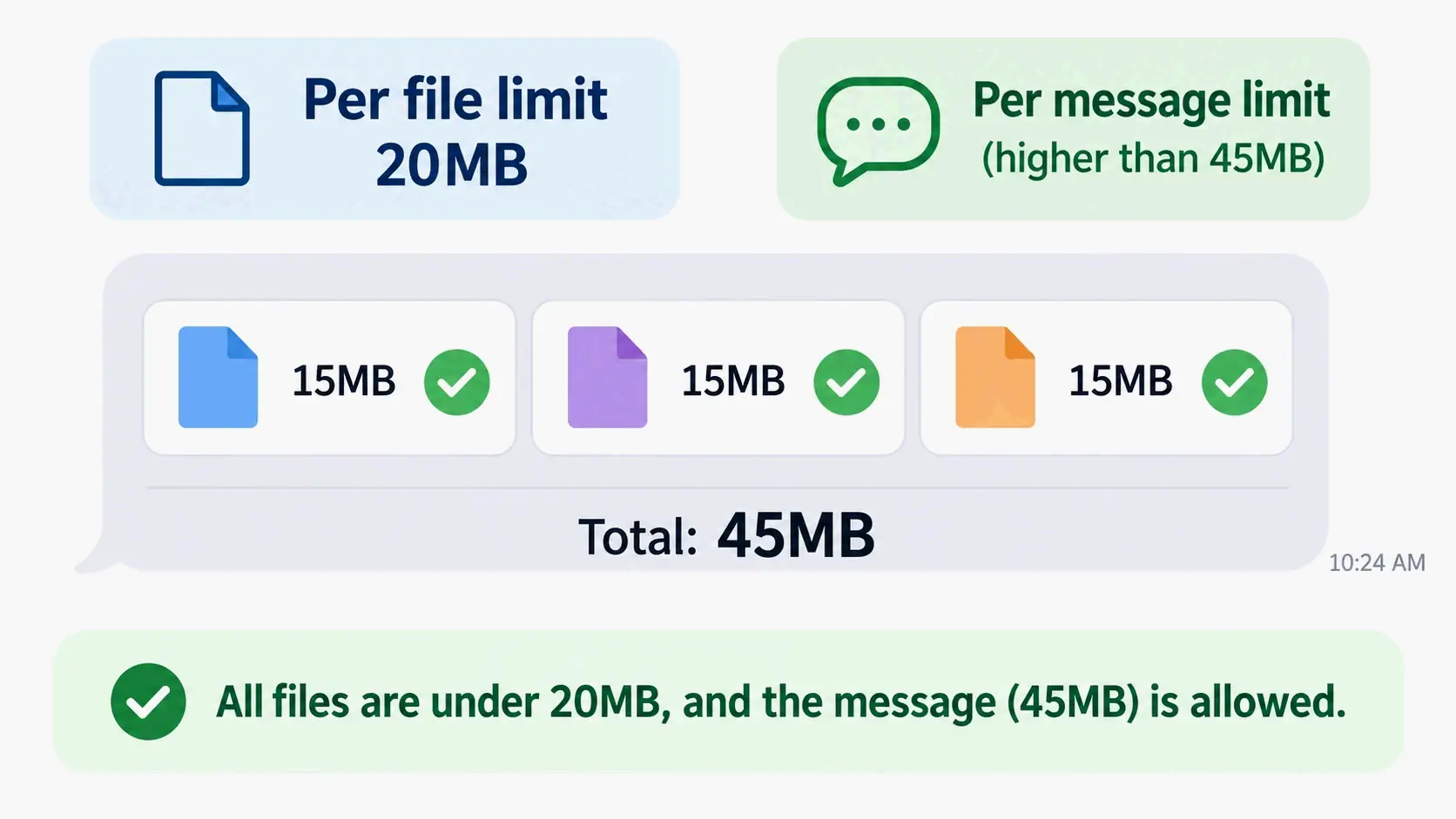
The limit applies per file, not per message. A free user can attach several files in one message, and each one is measured on its own. Three 15MB files in a single message add up to 45MB, but they pass fine because no single file crosses the 20MB line.
That distinction changes what “too big” means. When an upload is rejected, it’s the single attachment that’s over the cap, not the whole message. The same rule applies at every tier: Nitro and Server Boost raise the per-file ceiling, not the number of files you can send.
Why Do 8MB, 10MB, and 25MB Still Appear? A Discord Upload Limit Timeline
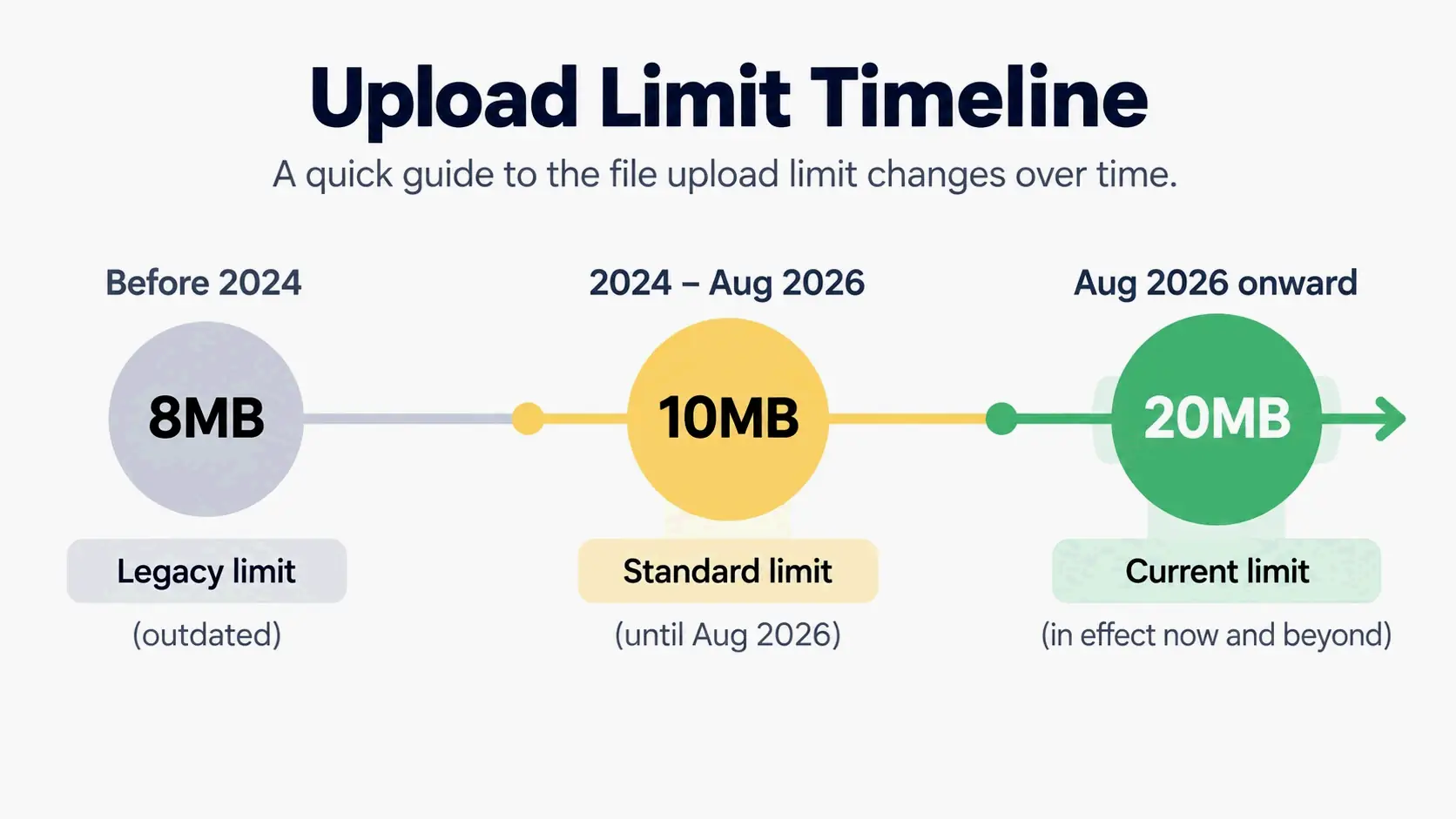
| Figure | Effective period | Status in 2026 |
|---|---|---|
| ~8MB | Legacy era | Out of date |
| 10MB | Until August 2026 | Replaced by 20MB |
| 20MB | From August 2026 | Current free limit |
| 25MB | Undated | Conflicts with Discord’s documentation |
The confusion is mostly a search-decay problem. Older articles that were never updated still rank for upload-limit searches, and some of them quote a stale number in the headline while linking to Discord’s current Help Center page in the body. The mismatch looks authoritative even though the two halves of the page disagree.
Discord’s own content isn’t perfectly consistent either. The GitHub issue tracking the Cove video downloader bot points out that “Support caps article still documents server Level 0/1 as 10MB in places; the live free-user/default behaviour is 20MB as of August 2026.” When the documentation and the live app disagree, treat the in-app number as the tiebreaker — that’s what the server actually enforces.
The 10MB legacy limit (pre-August 2026) and why it is still everywhere
Until August 2026, 10MB was the correct free upload limit, and a huge number of tutorials, forum posts, and bot configs were built around it. Discord’s August 2026 update confirmation says the free upload limit was raised from 10MB to 20MB in a platform-wide change, not a limited test. According to TechJournal, Discord confirmed the increase in its September 8, 2026 patch notes and said the larger limit applies across all platforms, including desktop and mobile.
That same release batch shipped client performance updates, which helps date the change window. Discord reported its mobile apps moved to React Native 0.86 with roughly 5% lower average CPU use and about 5% faster average launch times, and its desktop app moved to Electron 42 with roughly 17% better p50 CPU usage alongside an approximately 4% p50 memory regression. These are company-reported averages, not independent benchmarks.
Where the 8MB and 25MB figures came from
The 8MB figure lives on in GIF-specific content. A 2026 reference page from BulkPicTools still lists 8MB as the free limit and even claims 10MB is the outdated number. That page is wrong about the current free chat limit — Discord’s Help Center says 20MB — but the 8MB number does describe something else: it’s the profile avatar and banner asset limit for Nitro users, not the per-file chat upload limit.
The 25MB figure shows up in third-party guides such as transientfiles.com, which states “on a free account that’s 25 MB.” That number doesn’t match Discord’s Help Center or its API reference and shouldn’t be treated as fact. Put it plainly: any page citing 8MB or 10MB as the current free chat limit in 2026 is wrong, and 25MB should be treated as an unverified claim.
Which Limit Applies to You? Account Tier × Server Boost × Channel
Four layers decide the real ceiling: your account tier, the server’s Boost level, the surface you’re posting on (server channel vs. DM), and where Discord checks the size. The effective limit is usually the higher of your personal tier and the server’s Boost tier, but only inside that server.
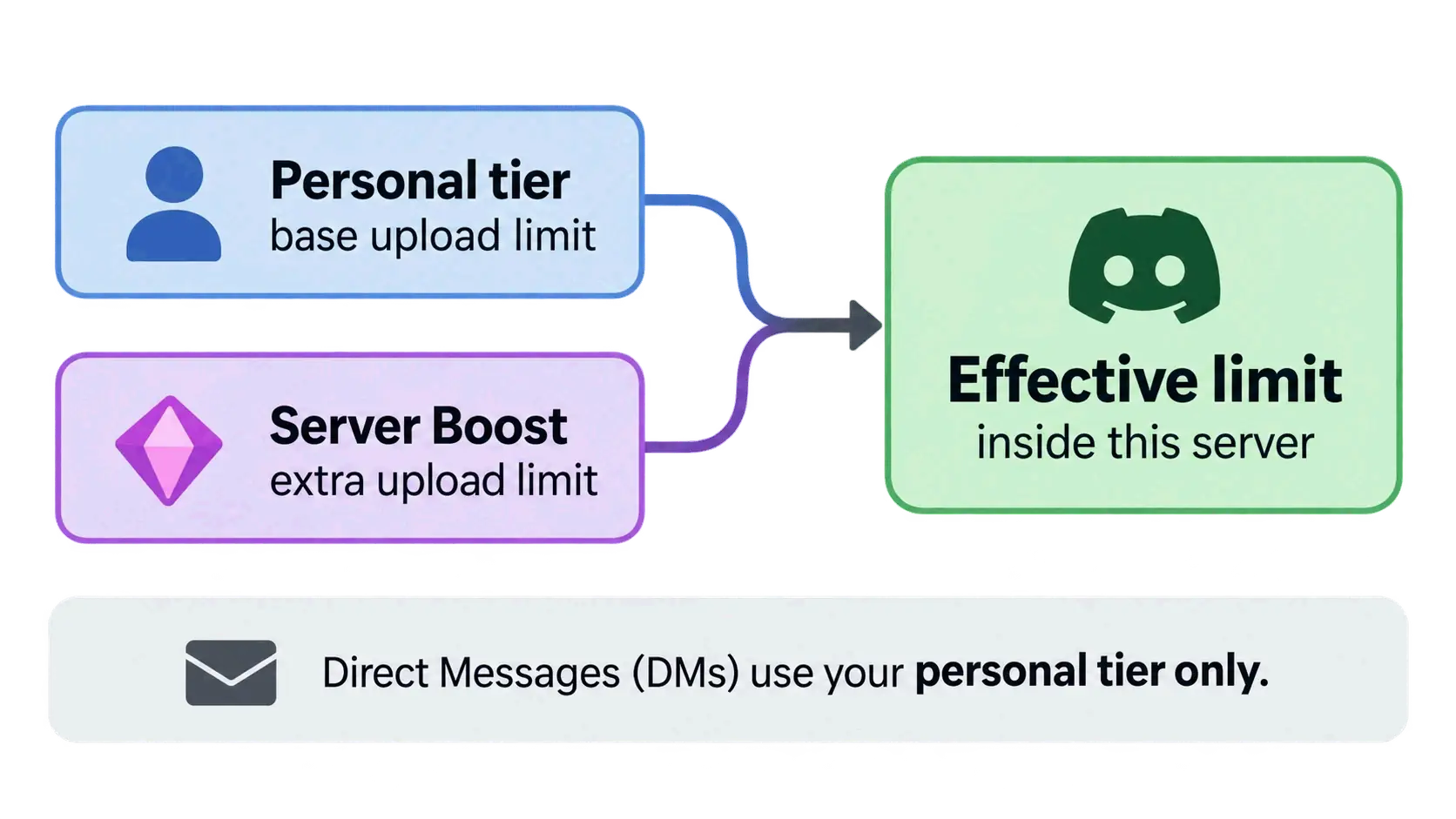
Server Boost lifts the cap for everyone in that server. At Level 2, the server-wide limit is 50MB; at Level 3, it’s 100MB. A free account posting inside a Level 3 server can upload a 100MB file that would fail in an unboosted server. A Nitro or Nitro Basic subscriber keeps their personal ceiling in every server and in DMs — Boost doesn’t lower a paid tier.
DMs follow the personal account limit only. Server Boost never applies there, so a Level 3 server’s 100MB ceiling disappears the moment you open a direct message. A Nitro subscriber in an unboosted server still keeps their 50MB or 500MB personal limit in that server and in DMs.
Below the Boost tiers, the documentation is genuinely inconsistent. Some official passages still list 10MB at Boost Level 0/1 while the live free default is 20MB. Bot developers working against these tiers often leave about 1MB of headroom to absorb rounding and encoding overhead — a pattern visible in the Cove bot repository, which uses 49.0MB for Level 2 and 99.0MB for Level 3, and proposed moving the Level 0/1 margin from 9.5MB to 19.5MB after the August 2026 change.
To confirm your own current limit rather than trust any published table — including this one — check the original file size in your OS, compare it against your account tier and the server’s Boost level, and try the upload. If it fails, Discord’s error message tells you whether size is the blocker. The Help Center’s core point is simple: the number shown in the app is the one that counts.
Scenario: free account inside a Level 3 boosted server
You have no Nitro. The server you’re posting in has reached Boost Level 3. In that server’s text channels, you can upload files up to 100MB — the same ceiling a paying subscriber would get from Boost alone. Your personal free limit of 20MB doesn’t restrict you here, because the server-wide Boost value is higher.
The moment you leave that server, you’re back to 20MB. Post the same 100MB file in a DM or in an unboosted server and it will be rejected. The boosted ceiling belongs to the server, not your account.
Scenario: Nitro subscriber in a server with no Boost (and in DMs)
You pay for Nitro. You’re posting in a server with no Boost at all. Your personal ceiling of up to 500MB applies, and the server’s lack of Boost doesn’t reduce it. The same goes for DMs, where only your account tier matters.
If that unboosted server also has channel-level restrictions — a missing “Attach Files” permission, for example — the size limit is irrelevant; the file won’t go through at any size. Size and permission are separate gates.
How to confirm your own current limit in the app
Discord’s experiment with upload limits means a small number of accounts don’t match the published table. The practical check is to look at the file size before you send. On Windows, right-click the file and open Properties; on macOS, right-click and choose Get Info; on mobile, open the file manager and tap the file for details. Compare that number against your account tier and the server’s Boost level, then send.
If a file under your expected limit still fails, the fastest diagnostic is to try the same file on desktop, where the pre-compression check has always applied. Discord’s Help Center notes mobile was moved to the same pre-compression check desktop uses, so any device-specific gap should now be narrow.
How to Send Files Larger Than 20MB on Discord
Start with a three-branch triage before touching any tool. Branch A: the original file is at or under 20MB — just send it, and if it still fails, jump to Section 5. Branch B: the file is bigger and quality matters — share a link. Branch C: the file must live inside Discord as an attachment — compress to roughly 19MB.
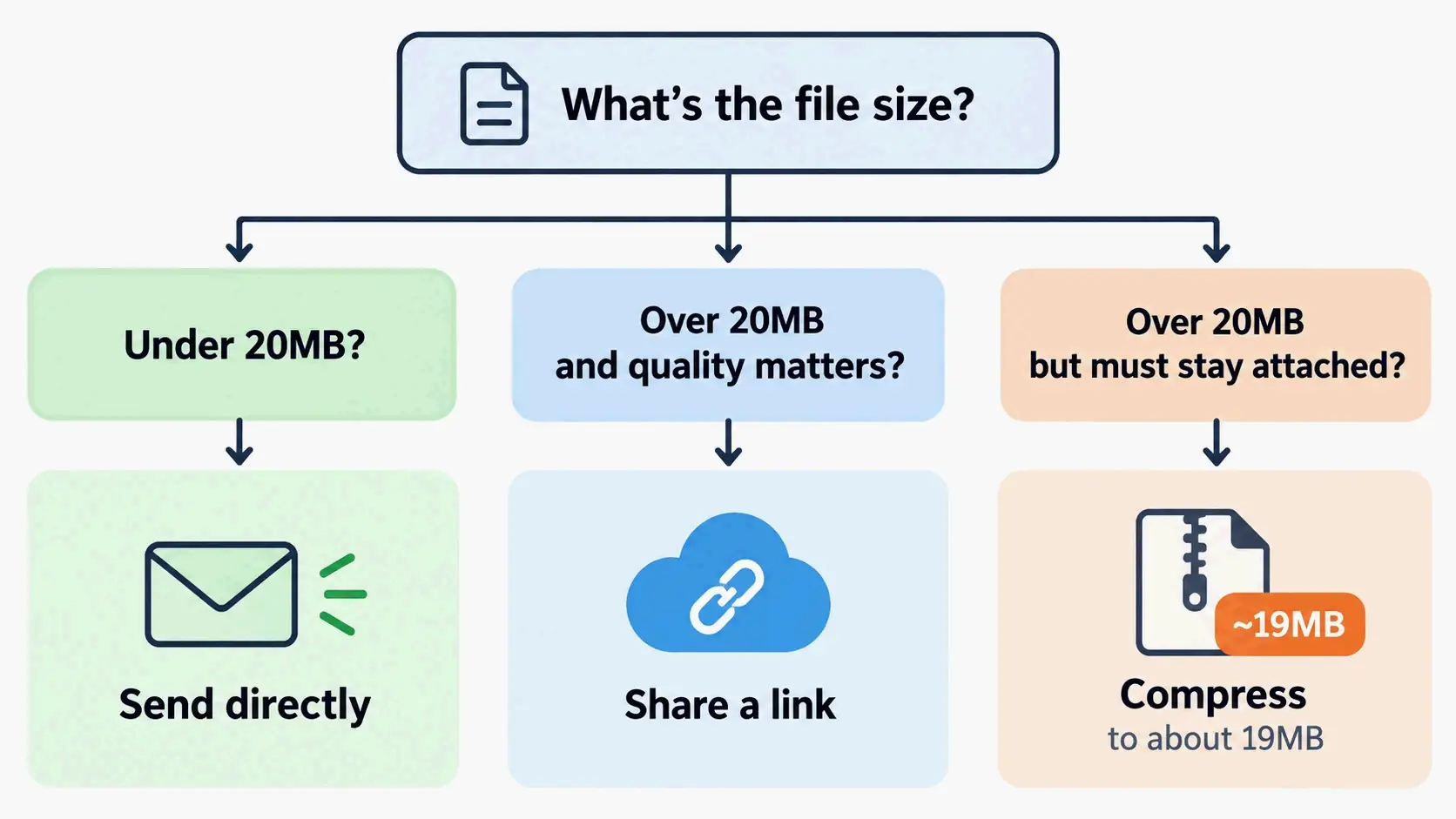
Check the ORIGINAL file size first. Since August 2026, Discord compares against the pre-compression size on both desktop and mobile, so guessing wastes attempts. The starting threshold for a free account is the 20MB per-file baseline documented in the Discord File Attachments FAQ.
Branch 1: Compress to about 19MB (FFmpeg, HandBrake, 7-Zip)
A cross-platform comparison checked on September 9, 2026 by SqueezeVid lists Discord’s practical target as 19MB at 720p — about 1MB of headroom under the documented free limit. That margin absorbs container overhead and rounding so the file doesn’t land on the wrong side of the cap.
The most reproducible route is FFmpeg. A test published by DisCoRibute on September 13, 2026, run with FFmpeg 7.0.2-static on Ubuntu 24.04.4 LTS, took a generated 20-second 1920 × 1080 clip and produced this result:
ffmpeg -i "input.mp4" -vf "scale=1280:-2" -c:v libx264 -b:v 1800k -c:a aac -b:a 96k -movflags +faststart "discord-video.mp4"
The source file was 85,414,421 bytes. The exported discord-video.mp4 was 4,801,249 bytes, about 4.8MB, and it uploaded to Discord successfully. The parameters are a starting point, not a guarantee — a longer or more complex clip will land higher, and if the output is still too large the same source recommends lowering the bitrate and exporting again with a new filename. For the framework behind those settings — codec choice, CRF, bitrate budgeting — see how to compress a video without losing quality.
HandBrake and 7-Zip cover the rest of the toolchain: HandBrake for GUI-driven video re-encoding — iPhone and QuickTime footage has its own quirks, covered in how to compress a MOV file — and 7-Zip or WinRAR for archive compression when the file is a folder of documents or assets rather than media.
Branch 2: Share a cloud link instead of the file — how to choose a host
When quality matters, a link beats compression because the file never passes through Discord’s encoders — the core of bypassing Discord’s file limit without Nitro. Choose a host by criteria, not brand. According to TinyGrab, the questions that separate the options are:
- Does the recipient need an account? WeTransfer allows downloads without an account for basic transfers; Google Drive and Dropbox often require a Google or Dropbox account depending on the sender’s settings.
- Does the link expire? WeTransfer keeps files available for a limited time on the free tier, while Google Drive, Dropbox, Mega and MediaFire generally keep them available as long as the account is maintained.
- Does the host re-encode? A cloud drive link preserves the original file; a video streaming preview does not. If the recipient needs the original, permission to download the file itself must be granted.
- Can you set permissions or an expiry? Public links work for anyone with the URL; private links require authentication and are the better default for sensitive files.
- Does it work on mobile? Recipients on phones should be able to open the link in a browser without installing a client.
Mega adds end-to-end encryption and generous free storage, which makes it the fit when the file is sensitive. WeTransfer is the fit when the transfer is one-off and simplicity matters more than permanence.
Branch 3: Split archives, and when not to bother
Splitting into volumes with 7-Zip or WinRAR works, but only if each part independently stays under the applicable limit. Every part has to be downloaded before the archive can be rejoined, and on Windows joining RAR parts requires WinRAR — so the recipient needs the right tool. Treat this as a last resort for document bundles and folders, not for a single large video. For simple bundling without the split-and-rejoin dance, zipping a file on Mac and Windows is the lighter option.
One path worth knowing that skips all three branches: the Tenor and GIPHY GIF picker inside Discord shares a link rather than uploading a file. Per BulkPicTools, using the built-in picker means “the file never touches your upload limit.” Pasting a Tenor or GIPHY URL directly into chat behaves the same way.
Why Does Discord Reject a File That’s Already Under 20MB?
The root cause is timing. Since August 2026, Discord checks file size before compression on both desktop and mobile. The Help Center explains it directly: previously on mobile, Discord would try to compress the file first and only tell you afterward if it was still too large, so the limit you saw didn’t always match what applied. Discord then “moved mobile to the same pre-compression check that desktop has always used, so the number you see is the number that counts.”
That single change explains the most common false alarm. A video that shows as 20MB in your file manager, and that would have compressed well below the limit, is measured at its original size — and if the original is 20.4MB, it fails.
Order the checks so you don’t waste time. First, confirm the original file size in your OS. Second, note the platform — Android versus desktop or iOS. Third, confirm whether you’re looking at a pre-compression or post-compression number. Fourth, check format restrictions. Fifth, consider content scanning. Sixth, check account and server permissions.
Two non-size blockers are worth naming because they look like size failures. Only .jpg, .jpeg, .png, .webp and .gif render as inline embedded media per the Discord API reference; other formats still upload but appear as downloadable files, which users often read as a failure. Separately, Discord’s NSFW content scanning can block an upload if the system flags the image, and a missing “Attach Files” permission or role restriction in a server channel blocks it regardless of size.
The pre-compression check, explained
The pre-compression check evaluates the source file, not the compressed output. Discord’s stated reason is consistency: evaluating the original prevents the same file from appearing eligible on one device and failing on another after processing. The practical consequence is that you can’t rely on Discord’s own compression to rescue an oversized upload.
This is why “compress it in the app” isn’t a workaround. If the original is over your limit, the upload is rejected before any processing happens. The fix is to reduce the source file on your device — export a lower-bitrate copy, resize the image, or split the archive — and then upload the smaller file.
Android: why lowering your recording quality does not fix it
Discord’s own documentation warns that Android users may hit the limit more often because source files tend to be larger. The Android free upload limit is not different from desktop or iOS; the difference is that an Android device can produce or retain a larger original file before Discord ever sees it.
Lowering in-app camera or recording quality settings doesn’t change a file that already exists on the device. If a clip was recorded at 4K and saved at 180MB, adjusting the recording setting forward has no effect on that file. The correct fix is to re-export or compress the existing file, or to check the original size in the file manager before trying again.
The fastest diagnostic is to try the same file on desktop. If it uploads there and fails on Android, the issue is the source file on the phone, not the account. Contact Discord Support only after the file succeeds on one platform and fails on another with the same account.
Video and GIF Limits: Re-Encoding, 10-Minute Splits, and Auto-Play
Discord re-encodes uploaded video to its own preferred settings. That’s why gameplay footage or a screen recording can look softer after it’s sent — the file you uploaded is not the file the recipient downloads or streams. The transientfiles.com guide describes this as re-encoding “to Discord’s preferred settings — which is why gameplay footage looks softer after you send it.”
Long clips are also split. The same source notes videos longer than about ten minutes are split into ten-minute clips by the app itself, commonly around the 10-minute mark. If continuous playback matters, uploading a link to a host that preserves the original is the better route.
GIFs are subject to the same per-file upload limit as any other file. The much-quoted ~256KB figure is a playback threshold, not an upload rule. Per BulkPicTools, GIFs above a certain size will not animate automatically and sit as static images until someone clicks them, and “the number that comes up most often is 256KB, though Discord hasn’t made this an official published spec.”
Server asset limits are a different dimension entirely. Animated emoji cap at 256KB, animated stickers at 512KB and must be exactly 320×320px, and both limits are stricter than the chat upload limit and do not change with Nitro status. The 8MB profile avatar and banner figure is a Nitro profile asset limit, not a chat upload limit, and animated avatars are a Nitro-only feature regardless of file size.
What’s official and what’s community-tested
Label every number by provenance. The 20MB free limit, the 50MB Nitro Basic ceiling, the up-to-500MB Nitro ceiling, the 20 MiB API default, and the Boost Level 2 (50MB) and Level 3 (100MB) values are documented by Discord. The ~256KB GIF auto-play threshold is community-tested and explicitly not an official published spec. The 19MB / 720p practical target is a cross-platform recommendation, not a Discord rule. The 8MB legacy figure and the 25MB claim are neither official nor current for chat uploads — 8MB matches the Nitro profile avatar and banner asset limit, and 25MB conflicts with Discord’s own documentation.
Running a Server or a Bot? How Boost Tiers Change the Limit for Everyone
Boost level is a server-wide setting. Raising it raises the ceiling for every member of that server, including free accounts and accounts that belong to other servers — the higher value applies inside that server regardless of who is posting. A free member in a Level 3 server uses the 100MB ceiling. A Nitro subscriber in a Level 2 server uses whichever of their personal limit and 50MB is higher.
Bot developers should read the permitted attachment size from the API rather than hardcoding a number. The Discord API reference states the default limit is 20 MiB per file and notes it “may be higher for users depending on their Nitro status or by the server’s Boost Tier,” and the attachment_size_limit value provided in interaction payloads is calculated as the maximum of these values. Reading that field keeps a bot in sync with the account and server context it’s acting in.
Common practice is to leave about 1MB of headroom under each tier cap so rounding and encoding overhead don’t cause rejections. The Cove bot repository uses 49.0MB for Level 2 and 99.0MB for Level 3 for exactly this reason, and after the August 2026 change it proposed moving Level 0/1 from 9.5MB to 19.5MB. Carrying forward 8MB or 10MB constants causes unnecessary re-compression and visible quality loss for media that would now upload fine.
The bot’s limit and the client’s displayed limit must agree. If a bot enforces 10MB while the client allows 20MB, users get contradictory error messages and lose quality to compression that was never needed.
Conclusion
In 2026, the number is 20MB per file for free accounts — not 8MB, not 25MB — and the cap you actually get depends on your account tier, the server’s Boost level, and where you’re posting. Check the real size of the original file first. If it’s under 20MB and still rejected, test it on desktop. If it’s over, pick your branch deliberately: compress to about 19MB with the FFmpeg recipe, or share a link when quality matters. Confirm your own ceiling in the app rather than trusting any published table, including this one.
FAQ
Is Discord’s free upload limit 8MB, 10MB, 20MB or 25MB in 2026?
20MB per file is current, in force since August 2026. 10MB was correct until that change, and 8MB is older still. The 25MB figure conflicts with Discord’s own Help Center and API reference and should not be treated as fact.
Is the Discord upload limit per file or per message?
Per file — you can attach several files in one message. Three 15MB files are fine on a free account because no single file exceeds 20MB. Server Boost and Nitro raise the per-file ceiling, not the number of files you can send.
Do I need Nitro to send a file larger than 20MB?
Not necessarily. Nitro Basic gives 50MB and Nitro up to 500MB, but a Boosted server raises the limit for free members too — Level 2 is 50MB and Level 3 is 100MB. Compressing to around 19MB or sharing a cloud link also works without paying.
Does Discord compress files I send, and does it check size before or after compression?
Since August 2026, both desktop and mobile check the pre-compression size, so the original file size decides whether the upload is accepted. Discord may still re-encode video after it is accepted, which is why quality can drop even when the upload succeeds.
Why does Discord reject my upload on Android when the file is under 20MB?
The pre-compression check means Android’s larger exported source files are what get measured. Lowering in-app recording quality does not change the size of a file already on the device. Test the same file on desktop to confirm it is a source-file issue rather than an account limit.
Can a server Boost level raise the upload limit for everyone in that server?
Yes — Boost is server-wide: Level 2 lifts the ceiling to 50MB and Level 3 to 100MB. The higher of your account tier and the server’s Boost level applies inside that server. Boost does nothing in DMs.
Can I upload a larger file if I’m in a boosted server but my own account is free?
Yes, inside that server you can use the boosted ceiling, up to 100MB at Level 3. The moment you post in a DM or in an unboosted server, your free 20MB limit applies again. Nitro subscribers keep their own higher limit everywhere.
Do GIFs have a different size limit than other files on Discord?
Uploads use the same per-file limit as any other attachment — 20MB on a free account. The ~256KB figure people quote is a community-tested auto-play threshold, not an official upload rule. Sending a GIF through the Tenor or GIPHY picker shares a link and skips the upload limit entirely.}
SectoJoy
Let Compress publishes practical guides for compression, conversion, and browser-based file workflows.
Follow SectoJoy