Как сжать PDF? Полное руководство 2026 для любой платформы
Чтобы сжать PDF, используйте бесплатный онлайн-инструмент, например онлайн-компрессор Adobe или «Просмотр» на Mac. Оба значительно уменьшают размер файла без установки. В Windows локальное настольное приложение или приём «Сохранить как PDF» работает офлайн.
Почему ваш PDF такой большой: разрешение изображений и встроенные данные
Прежде чем сжимать PDF, полезно понять, что делает его большим. Изображения с высоким разрешением и чрезмерный DPI — главная причина слишком больших PDF. Одно полностраничное фото в 300 DPI может добавить 5–10 МБ. Если ваш документ содержит отсканированные договоры, брошюры или отчёты, насыщенные фото, данные изображений могут составлять 80–90 % общего размера файла.
Встроенные JPEG и несжатые потоки содержимого также раздувает файл. При создании PDF он может хранить изображения в очень высоком качестве и оставлять поток содержимого в несжатом состоянии. Скрытые метаданные, аннотации, встроенные шрифты и история версий ещё больше увеличивают размер файла, не добавляя видимой ценности.
Как DPI влияет на размер файла PDF
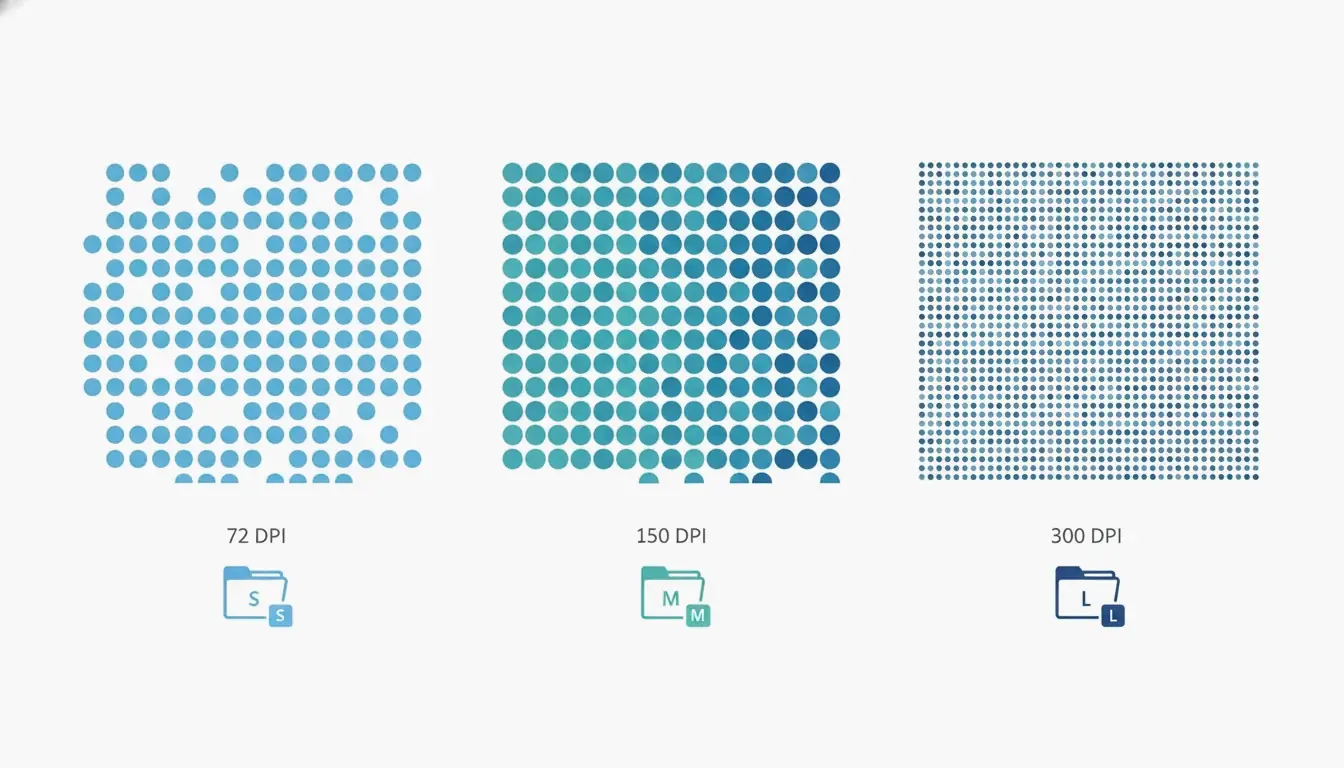
DPI, или точек на дюйм, определяет, сколько пикселей хранится на дюйм изображения. Использование правильного DPI критически важно, потому что лишние пиксели — главный источник раздувания. Согласно Technology Org, таблица типичных настроек DPI проясняет этот компромисс: настройка /screen использует 72 DPI, /ebook — 150 DPI, а /printer — 300 DPI. Для просмотра на экране и вложений к электронной почте часто достаточно /ebook при 150 DPI; он может уменьшить размер файла на 50–70 % без видимой потери качества в большинстве текстовых документов. Для PDF, содержащих только текст, компрессоры могут добиться снижения размера на 70 % без видимых потерь, как отмечает Free PDF Compress.
Как сжать PDF: 4 быстрых способа для любой платформы
Вот четыре надёжных способа сжать PDF в Windows, на Mac или онлайн. Каждый способ включает ожидаемое уменьшение размера, нужный инструмент и компромиссы по качеству.
Сжатие онлайн за секунды (без установки)
Самый быстрый способ сжать PDF — бесплатный онлайн-инструмент. Adobe предлагает бесплатный онлайн-компрессор на своём сайте. Зайдите на сайт, перетащите файл, выберите один из трёх уровней сжатия (Высокий, Средний или Низкий) и нажмите «Сжать». Высокое сжатие создаёт самый маленький файл, подходящий для вложений; Среднее балансирует размер и чёткость; Низкое сохраняет самое высокое качество. Инструмент работает за секунды, но требует интернет-соединения и не может обрабатывать файлы, защищённые паролем.
К другим надёжным онлайн-сервисам относятся Smallpdf, iLovePDF и PDF24. Процесс практически идентичен: загрузите PDF, выберите уровень сжатия и скачайте результат. У этих сервисов обычно есть ограничения по размеру (~100 МБ) и они могут ограничивать количество бесплатных использований в день.
Сжатие на Mac во встроенном приложении «Просмотр»
У пользователей Mac есть встроенный инструмент «Просмотр». Откройте PDF в «Просмотре», нажмите Файл → Экспорт, затем поставьте галочку «Оптимизировать изображение для экрана» в диалоговом окне. Нажмите «Сохранить». Этот метод перекодирует изображения в более низком разрешении. Для отсканированных или насыщенных фото документов сокращение может быть значительным: 20-страничная отсканированная научная статья размером 45 МБ может уменьшиться до 8–12 МБ. Имейте в виду, что это процесс с потерями, поэтому сохраните резервную копию, если нужно исходное качество. В macOS Sonoma (14) или старше вы увидите выпадающий список «Фильтр Quartz»; выберите вместо него «Уменьшить размер файла».
Сжатие в Windows с помощью Adobe Acrobat Pro
Adobe Acrobat Pro (платный) обеспечивает детальный контроль. Откройте инструмент Оптимизировать PDF на вкладке «Инструменты», выберите файл, нажмите Уменьшить размер файла и выберите вариант совместимости. Для расширенного контроля перейдите в Файл → Сохранить как другой → Оптимизированный PDF. В оптимизаторе PDF вы можете уменьшить разрешение изображений до определённого DPI, выбрать алгоритмы сжатия (JPEG, JPEG2000, ZIP), ограничить подмножество шрифтов, удалить метаданные и flatten-аннотации. Кнопка «Аудит использования пространства» точно показывает, что занимает место — изображения, шрифты или потоки содержимого. Acrobat Pro лучше всего подходит для пользователей, которым нужно стабильное качество на множестве файлов.
Метод «Печать в PDF» и почему он может дать обратный эффект
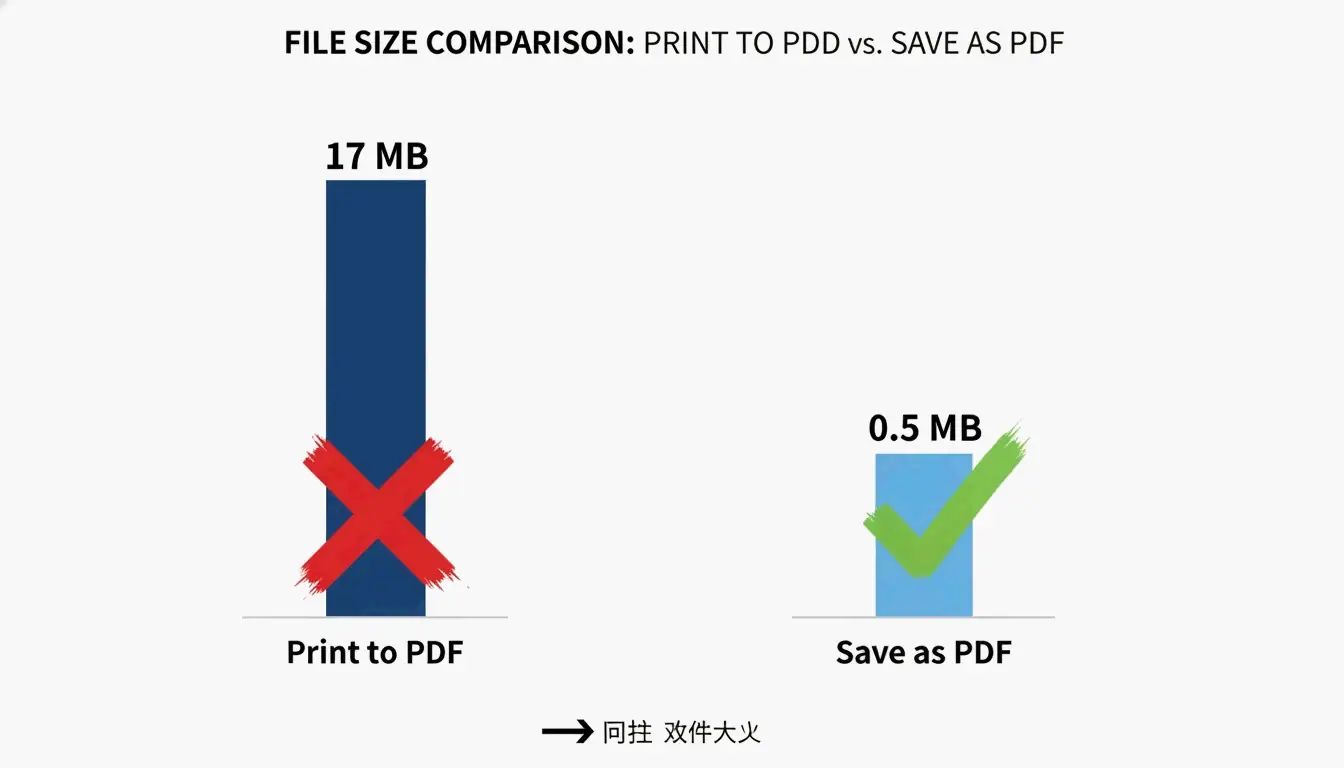
Распространённый обходной путь в Windows — использовать диалог «Печать в PDF», но это может дать обратный эффект. Согласно PDF Candy, файл, созданный через «Печать в PDF», получился размером 17 МБ, тогда как тот же самый исходный документ, конвертированный через «Сохранить как PDF» в Microsoft Office, дал файл всего 0,5 МБ. Проблема в том, что «Печать в PDF» часто превращает текст и изображения в большие, нередактируемые потоки содержимого, устойчивые к последующему сжатию. Этот метод ненадёжен, и его следует избегать. Вместо этого всегда используйте опцию «Сохранить как PDF» из исходного приложения (например, Word, Excel).
Какой метод сжатия PDF выбрать? Схема решения
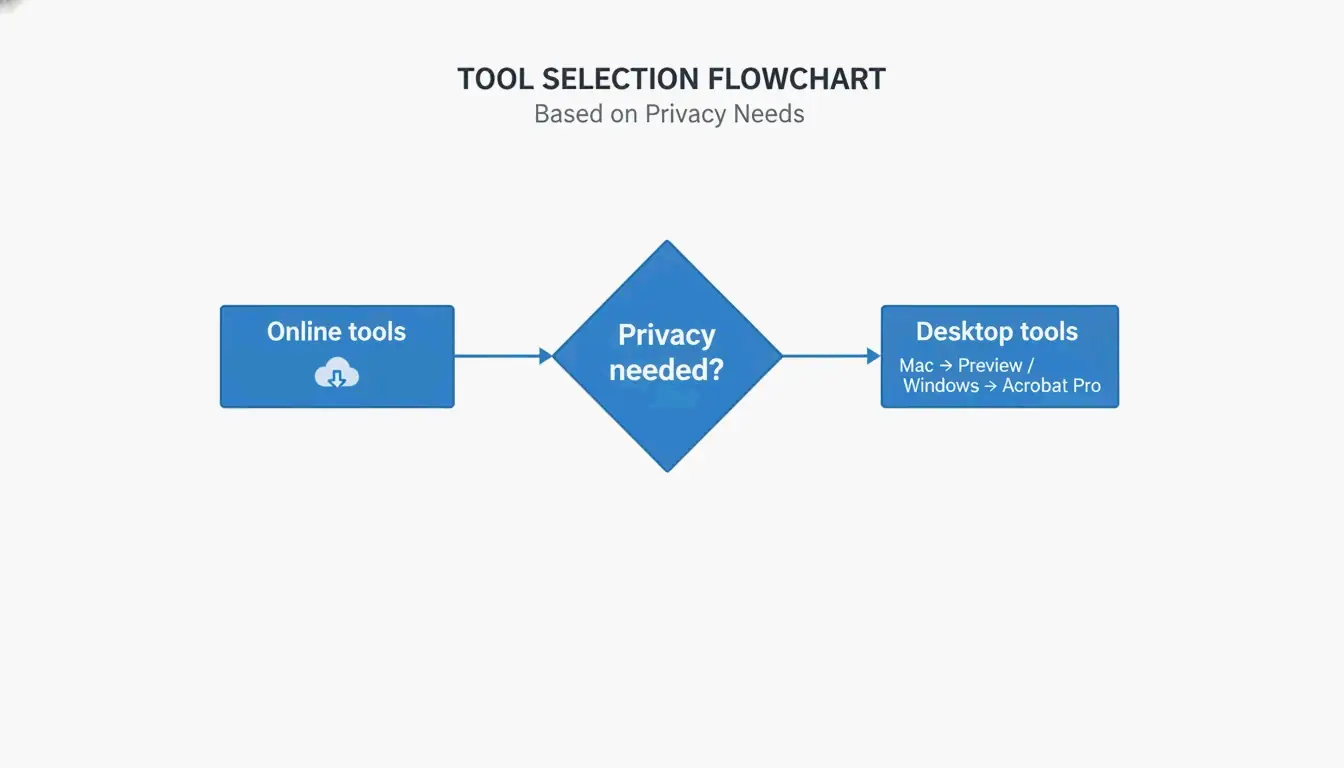
Выбор правильного метода зависит от вашего уровня навыков, требований к конфиденциальности, платформы, количества файлов и бюджета. Используйте это простое дерево решений:
- Нужен быстрый одиночный файл с низкими требованиями к конфиденциальности? → Используйте онлайн-инструмент (онлайн-компрессор Adobe, Smallpdf).
- На Mac, только офлайн? → Используйте функцию экспорта «Просмотра».
- В Windows нужен офлайн-контроль? → Используйте Adobe Acrobat Pro или PDF Candy Desktop.
- Нужно пакетное сжатие или автоматизация? → Используйте Ghostscript из командной строки.
- Конфиденциальность критически важна (конфиденциальные документы)? → Используйте настольное приложение, обрабатывающее локально («Просмотр», Adobe Acrobat Pro).
Краткая справка: когда использовать онлайн или офлайн
| Сценарий использования | Онлайн | Офлайн |
|---|---|---|
| Одиночный файл, нет конфиденциальных данных | Лучше всего | Опционально |
| Регулярные пакеты | Допустимо (с ограничениями) | Лучше всего |
| Конфиденциальные или юридические документы | Избегать | Лучше всего |
| Без установки ПО | Лучше всего | Не требуется |
| Полный детальный контроль | Ограничен | Лучше всего |
Продвинутые методы: сжатие упрямых PDF с помощью потоков содержимого и подмножества шрифтов
Некоторые PDF упрямы — они отказываются уменьшаться даже после сжатия. Часто это связано с потоками содержимого и полностью встроенными шрифтами. Продвинутые методы могут справиться с этими случаями.
Что такое потоки содержимого и почему они важны?
Потоки содержимого — это сырые данные, описывающие весь макет страницы PDF, включая текст и линейные рисунки. Как объясняет Neuxpower, при конвертации документа через «Печать в PDF» текст и изображения хранятся в больших, непрозрачных потоках содержимого, которые типичные компрессоры не могут обработать. Единственное надёжное решение — вернуться к исходному документу и использовать «Сохранить как PDF». Если у вас нет доступа к источнику, обходной путь — перепечатать PDF через принтер веб-браузера и выбрать «Сохранить как PDF» в качестве назначения. Иногда это создаёт новый PDF с более управляемыми потоками содержимого.
Подмножество шрифтов: бесплатный способ сбросить лишние КБ
Подмножество шрифтов встраивает только те символы, которые фактически используются в документе, а не всю гарнитуру целиком. Один встроенный полный шрифт может добавить 400–600 КБ. Большинство современных PDF-редакторов, включая Adobe Acrobat Pro и Ghostscript, поддерживают подмножество шрифтов. В Acrobat используйте оптимизатор PDF, чтобы включить подмножество. Этот метод может уменьшить размер файла на 5–15 % без влияния на качество текста.
Использование Ghostscript для пакетного сжатия (продвинутый уровень)
Ghostscript — это бесплатный инструмент командной строки с открытым исходным кодом, работающий в Windows, Mac и Linux. Базовая команда сжатия выглядит так:
gs -sDEVICE=pdfwrite -dCompatibilityLevel=1.4 -dPDFSETTINGS=/ebook -dNOPAUSE -dBATCH -sOutputFile=compressed.pdf input.pdf
Флаг -dPDFSETTINGS управляет качеством: /screen для максимального сжатия (72 DPI), /ebook для хорошего баланса (150 DPI), /printer для печатного качества (300 DPI). Ghostscript идеально подходит для автоматизации пакетного сжатия. Например, отсканированные цветные PDF можно уменьшить на 91 % при минимальной потере качества, как отмечает Free PDF Compress.
Как сжать PDF на мобильном (Android и iOS)
Сжатие PDF на Android
Приложение PDF Compressor: Resizer & Zip от SoulApps (обновлено 28 апреля 2026 г.) — это бесплатный офлайн-инструмент. Откройте приложение, выберите PDF, выберите уровень сжатия (Лучшее качество, Сбалансированный или Наименьший размер) и сожмите. Приложение работает на 100 % офлайн, поэтому ваши файлы остаются на вашем устройстве. Оно также включает инструменты для объединения, разделения и конвертации PDF. Вход в систему и водяные знаки не требуются.
Сжатие PDF на iPhone и iPad
В iOS приложение Adobe Fill & Sign включает функцию сжатия PDF. Как вариант, вы можете использовать встроенное приложение Файлы со сторонними инструментами или загрузить файл в браузерный компрессор, такой как Lumin PDF. Lumin обеспечивает шифрование AES-256 и соответствует стандартам соответствия SOC 2 Type 1, GDPR и CCPA для безопасной обработки. Для максимальной конфиденциальности используйте офлайн-приложение, обрабатывающее данные локально.
Как избежать больших PDF в будущем
Профилактика лучше сжатия. Изменяйте размер и сжимайте изображения перед их вставкой в исходный документ. Сохранение изображений в более низком разрешении, например 96–150 DPI, может значительно уменьшить размер файла, как отмечает руководство по помощи IRCC правительства Канады. При сканировании устанавливайте сканер на 150–200 DPI для страниц, насыщенных текстом, вместо стандартных 300 DPI.
Используйте стандартные системные шрифты, такие как Arial или Times New Roman, которые не нужно встраивать. Если приходится использовать пользовательские шрифты, включите подмножество шрифтов в инструменте создания PDF. Самое главное — всегда используйте «Сохранить как PDF» в Microsoft Office, а не «Печать в PDF». Согласно PDF Candy, опция «Сохранить как PDF» в Office создала файл размером 0,5 МБ против 17 МБ от «Печать в PDF» для того же документа.
Заключение
Сжать PDF просто, когда вы выбираете правильный метод для своей платформы, требований к конфиденциальности и сложности файла. Для быстрого решения используйте онлайн-инструмент, например бесплатный компрессор Adobe. Для офлайн-контроля на Mac используйте «Просмотр». В Windows используйте опцию «Сохранить как PDF» в Microsoft Office или Adobe Acrobat Pro для детальной оптимизации. Начните с бесплатных инструментов, которые автоматически применяют шесть рычагов сжатия — не миритесь с файлами слишком большого размера.
Часто задаваемые вопросы
Повлияет ли сжатие PDF на его качество?
Это зависит от метода и настроек. Снижение DPI и перекодирование JPEG может вызвать незначительную потерю качества изображений, но текст остаётся идеальным. Выбор настройки «ebook» (150 DPI) часто не даёт видимой разницы при просмотре на экране. Для PDF, содержащих только текст, сжатие может добиться снижения размера на 70 % без видимых потерь.
Лучше запаковывать PDF в zip-архив или сжимать?
Архивирование PDF в zip даёт лишь небольшое сжатие (~5–10 %), потому что PDF уже сжаты внутри. Специализированные инструменты сжатия PDF уменьшают размер файла на 50–90 %, перекодируя изображения, создавая подмножества шрифтов и удаляя метаданные. Всегда сжимайте PDF напрямую, а не добавляйте слой ZIP.
Как сжать PDF, защищённый паролем?
Большинство онлайн-компрессоров не могут обрабатывать PDF, защищённые паролем. Сначала нужно снять пароль с помощью Adobe Acrobat или специального инструмента, затем сжать файл и, наконец, снова добавить защиту. Некоторые настольные инструменты, такие как PDF24 или Adobe Acrobat Pro, позволяют сжимать заблокированные файлы, если вы знаете пароль.
SectoJoy
Let Compress publishes practical guides for compression, conversion, and browser-based file workflows.
Follow SectoJoy