SVG Compression Principle: How Vector Images Shrink Smartly (2026)
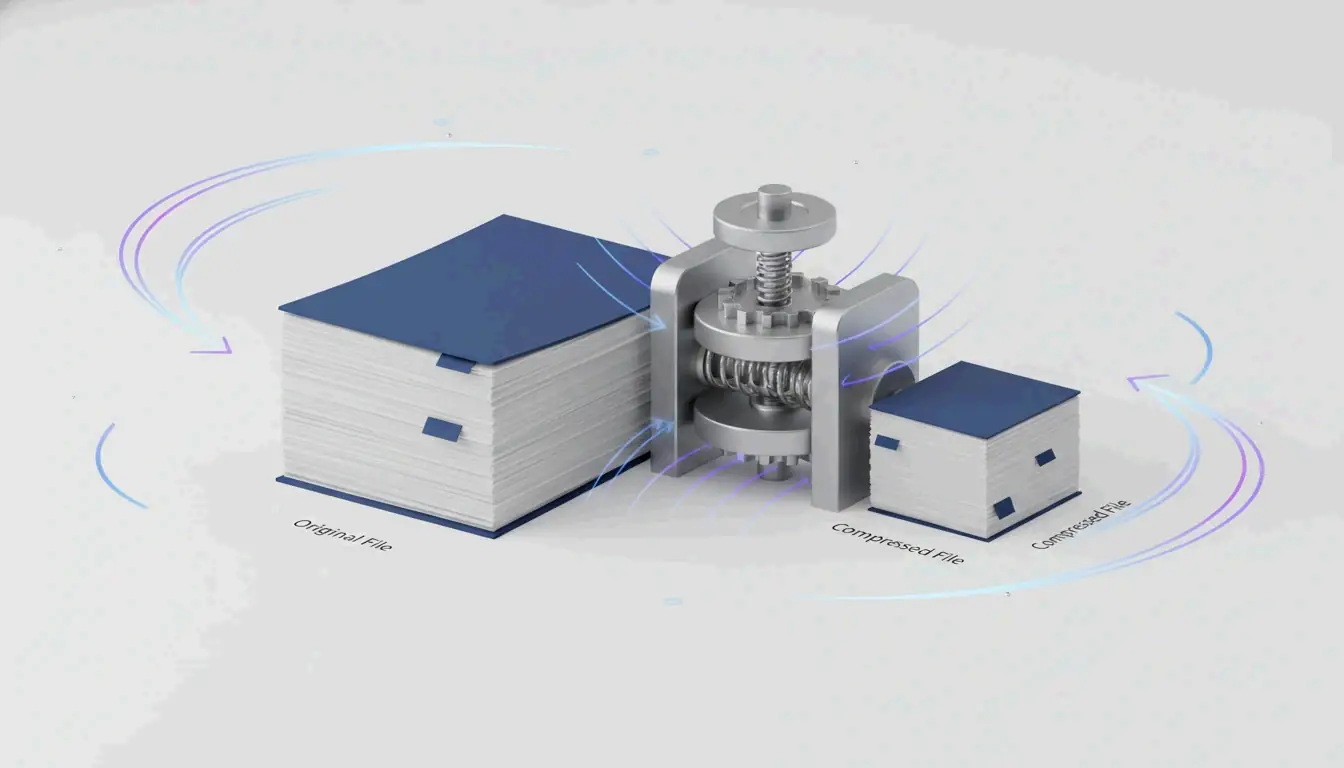
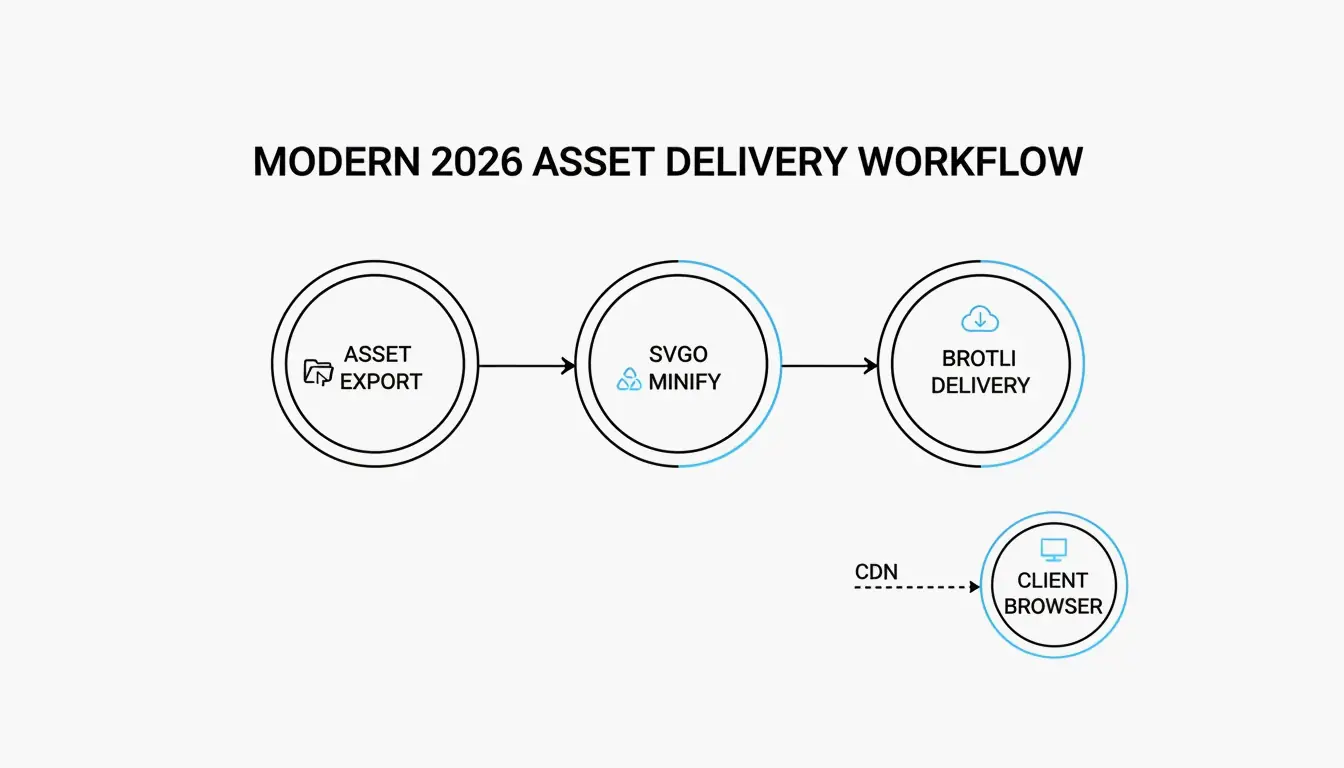
SVG compression works because SVGs are text files (XML), not pixel grids. The principle is simple: strip redundant XML metadata, simplify path data precision, then apply server-level Brotli/Gzip encoding. Combined, these steps achieve 70–93% total size reduction with zero visual quality loss.
How SVG Compression Works: 3 Layers
| Layer | What Happens | Typical Reduction |
|---|---|---|
| 1. Metadata removal | Strip editor artifacts, comments, hidden layers | 40–80% |
| 2. Path simplification | Reduce coordinate precision, convert to relative deltas | 10–30% additional |
| 3. Transfer encoding | Brotli/Gzip compresses the text during delivery | 15–20% beyond Gzip |
According to DEV Community, a typical icon exported from Adobe Illustrator starts at 45 KB and drops to 8 KB after optimization — an 82% reduction.
Layer 1: Remove XML Metadata Bloat
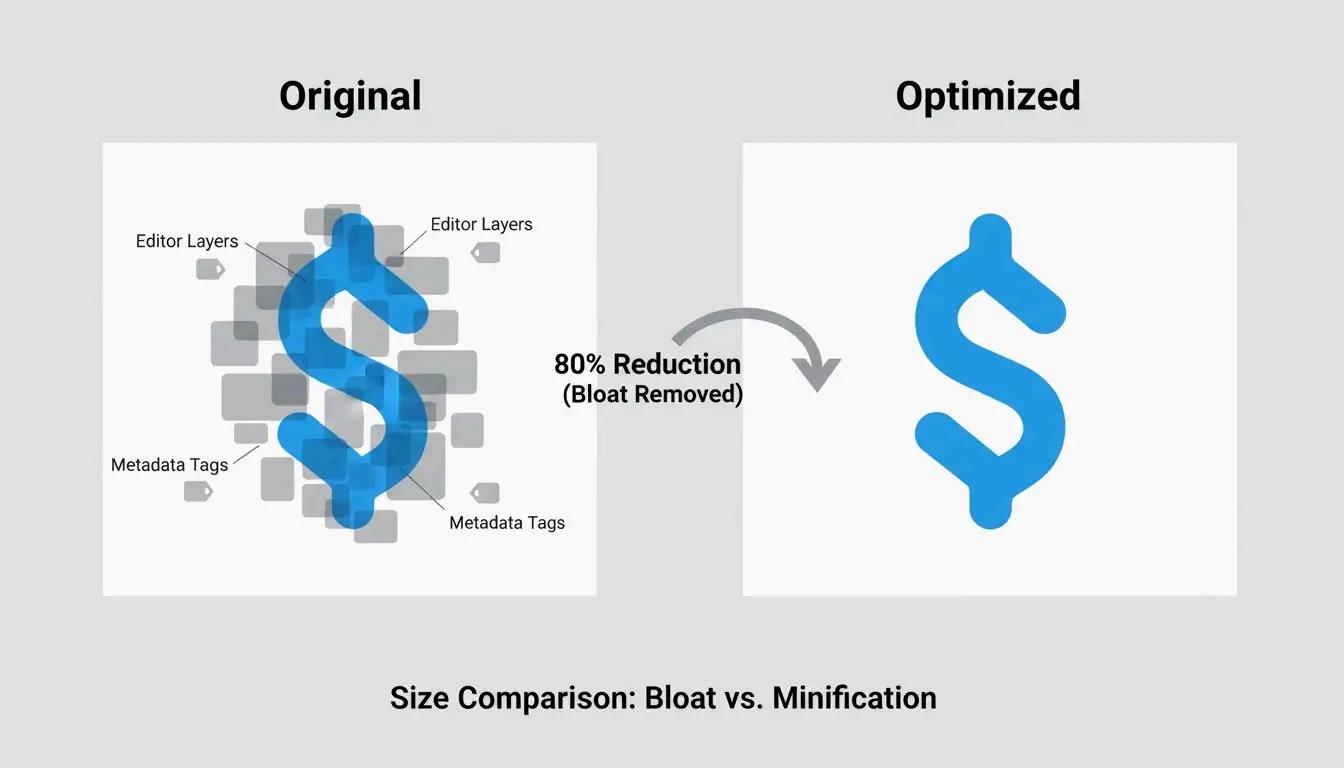
Design tools (Illustrator, Figma, Inkscape) embed proprietary metadata so designers can re-edit layers. This includes layer names, generator comments, workspace settings — all dead weight on the web.
ToolPix highlights that cleaning these tags can cut file size by up to 80% while also reducing DOM footprint for faster browser rendering.
What gets removed:
| Element | Example | Safe to Remove? |
|---|---|---|
| Editor metadata | <metadata> blocks |
Yes |
| Generator comments | <!-- Created with Illustrator --> |
Yes |
| Hidden layers | display="none" groups |
Yes |
| Empty definitions | Unused <defs> entries |
Yes |
| Element IDs (unused) | id="Layer_x0020_1" |
Only if not referenced by CSS/JS |
Layer 2: Simplify Path Data (the d Attribute)
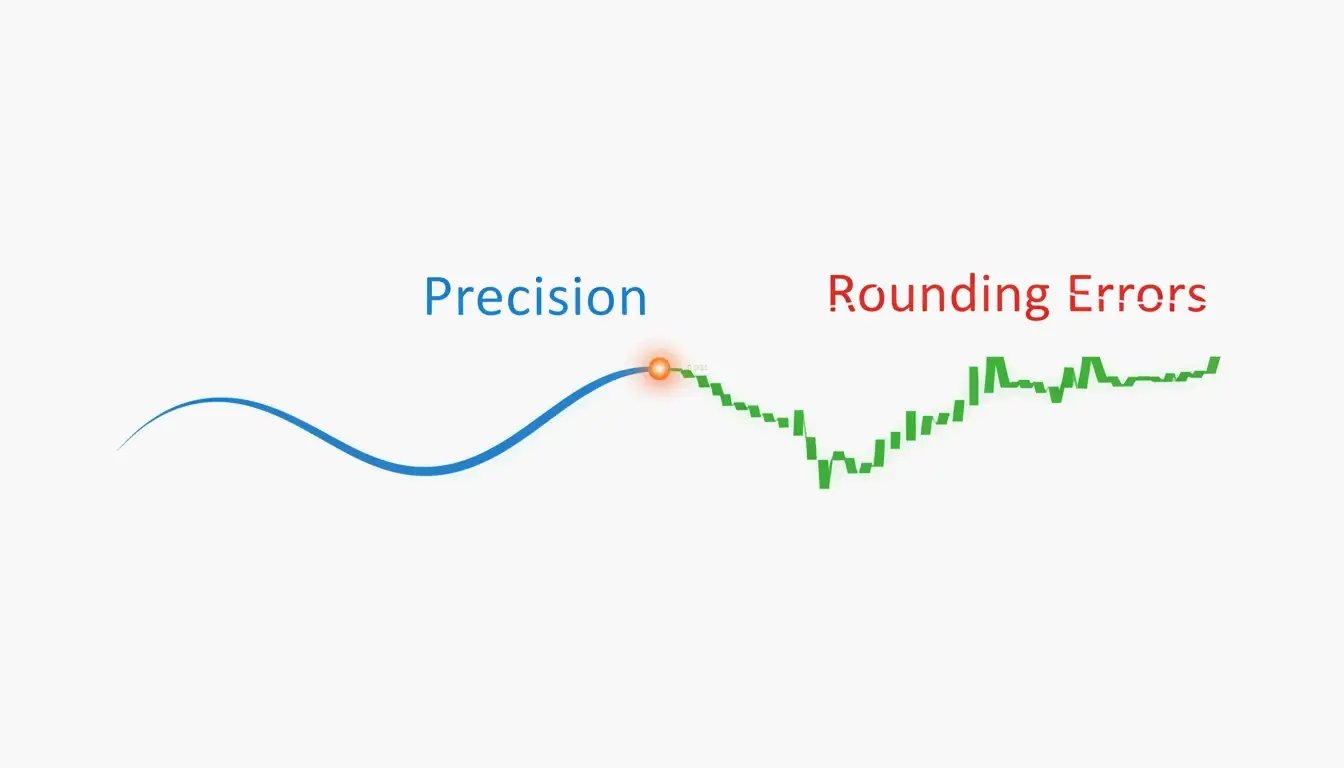
The most effective optimization targets the path d attribute — the coordinate string defining shapes. These coordinates often carry 8 decimal places (e.g., 12.003906). Rounding to 2–3 decimals produces no visible change even on Retina displays but removes significant text.
floatPrecision Settings by Use Case
| floatPrecision | Best For | Visible Impact |
|---|---|---|
| 1 | Rarely recommended | Gaps or jagged edges on curves |
| 2 | Icons, logos, simple shapes | None on standard screens |
| 3 | Complex illustrations | Safe for all displays |
| 4+ | Technical/architectural drawings | Preserves every decimal |
According to DEV Community, the two key techniques are rounding coordinates and converting absolute positions to relative deltas (shorter text).
SVGO: The Standard Optimization Tool
SVGO (SVG Optimizer) v3.3.2 is the industry standard for applying the SVG compression principle. It runs on Node.js v22+ and powers nearly every modern optimization workflow.
Key SVGO Settings
| Setting | Recommended Value | Why |
|---|---|---|
multipass |
true |
Runs repeatedly until no more bytes to shave |
floatPrecision |
2 (icons) / 3 (illustrations) |
Balance of size vs. quality |
removeViewBox |
false |
Preserves responsive scaling |
cleanupIDs |
true |
Removes unused IDs (skip if CSS/JS references them) |
removeScriptElements |
true |
Security: strips XSS vectors |
A case study on a UI icon set achieved 93.3% total reduction using SVGO combined with Brotli.
SVGO Quick Start
npm install -g svgo

# Optimize a single file
svgo input.svg -o output.svg

# Optimize entire directory
svgo -f ./src/icons -o ./dist/icons
For a visual interface, SVGOMG (web-based SVGO playground) lets you toggle plugins and preview changes in real time.
Layer 3: Brotli and Gzip Transfer Encoding
SVGO cleans the file itself, but the final size reduction happens at the server level. Because SVGs are text, standard compression algorithms work exceptionally well.
| Algorithm | SVG Reduction | Notes |
|---|---|---|
| Gzip | 50–80% of original | Long-standing standard |
| Brotli | 15–20% smaller than Gzip | 2026 web standard for image/svg+xml |
Wikipedia notes that Gzip alone can shrink SVG to 20–50% of original size. Brotli consistently beats it by an additional 15–20%.
Nginx Configuration
# Enable Brotli for SVG
brotli on;
brotli_types image/svg+xml;
brotli_comp_level 6;

# Fallback Gzip
gzip on;
gzip_types image/svg+xml;
DEV Community reports: an icon set of 50 files totaling 450 KB drops to under 30 KB with SVGO + Brotli combined.
Critical: Preserve the viewBox Attribute
The viewBox attribute is the coordinate system that enables responsive scaling. If your optimizer strips it, the SVG defaults to fixed pixel dimensions and breaks your layout.
Always set removeViewBox: false in SVGO. This is the single most important setting — it keeps your images scalable across all screen sizes.
SVG Compression as a Security Layer
SVGs are XML documents and can contain malicious <script> tags or foreignObject elements for XSS attacks. MDN Web Docs warns that SVGs can execute scripts when loaded directly in the browser.
SVGO’s removeScriptElements plugin strips these vectors automatically. Optimization isn’t just about speed — it’s a sanitization step.
Conclusion
SVG compression is a two-part process: code minification (metadata + path simplification via SVGO) and server-side encoding (Brotli/Gzip). Start with SVGO v3.3.2 at floatPrecision: 2, keep viewBox intact, and enable Brotli on your server. This layered approach achieves 70–93% total reduction without visual quality loss.
FAQ
Does SVG compression reduce visual quality?
No. Removing metadata and comments is fully lossless. Only reducing floatPrecision below 2 can cause visible rounding errors (jagged curves). Keep it at 2 or higher for all production assets.
Why is my exported SVG larger than a PNG?
Design tools embed proprietary XML data, thumbnails, and hidden layers. If your SVG also contains thousands of path nodes or embedded raster images, it can exceed an equivalent PNG. Run it through SVGO to strip the bloat.
When should I avoid SVG path simplification?
Skip heavy simplification for technical illustrations or architectural plans where every decimal matters. Also preserve element IDs if your SVG is manipulated by external CSS or JavaScript — removing them breaks code references.
What does viewBox do in SVG compression?
The viewBox attribute defines the SVG’s internal coordinate system for responsive scaling. Removing it locks the image to fixed pixel dimensions. Always set removeViewBox: false in your optimizer config.
SectoJoy
Let Compress publishes practical guides for compression, conversion, and browser-based file workflows.
Follow SectoJoy