Resize Image: Quick Photo Size Guide for Social Media, Web & Email (2026)
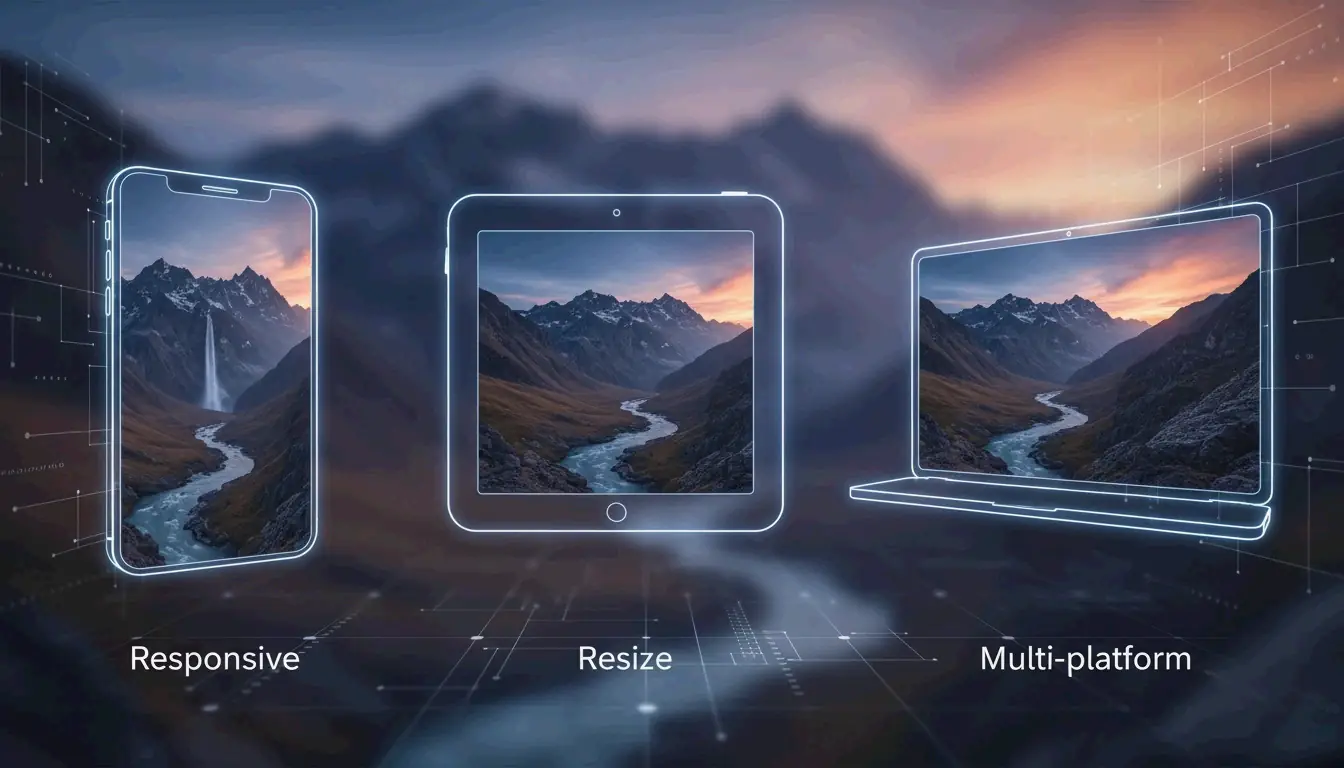
To resize images correctly in 2026, upload to a tool like Adobe Express, set your target pixel dimensions (e.g., 1080×1350 for Instagram portraits), lock the aspect ratio to prevent distortion, and export as JPEG for photos or WebP for web. Resizing to exact display dimensions can cut file sizes by 80%+ per O’Brien Media.
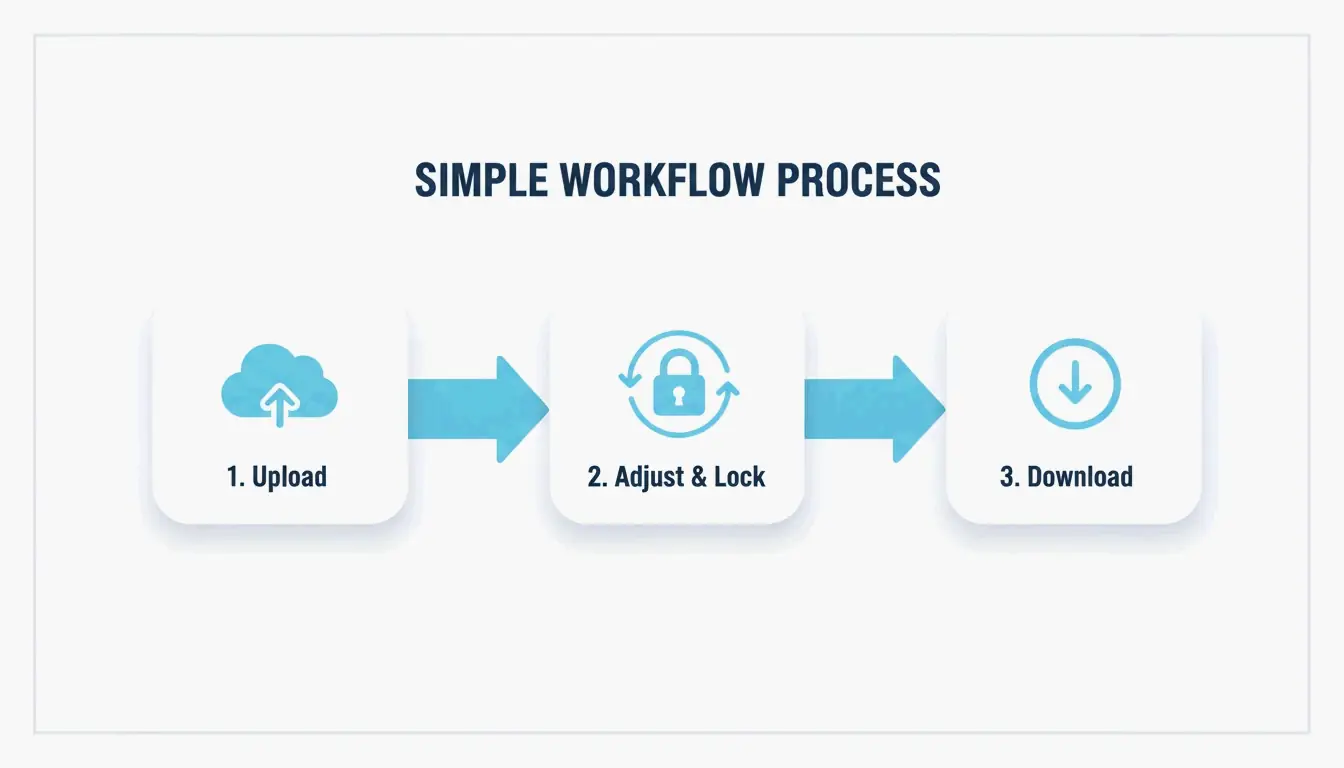
3-Step Universal Resizing Workflow
- Upload — Drag your JPG, PNG, or WebP into a browser tool like Adobe Express
- Set dimensions and lock aspect ratio — Type your target width or height; the other adjusts automatically to prevent stretching
- Download — Save to a new file so your original stays intact
2026 Social Media Image Size Reference
| Format | Dimensions | Aspect Ratio | Notes |
|---|---|---|---|
| Portrait Feed | 1080 × 1350 px | 4:5 | Best for engagement — takes up more screen space |
| Square Feed | 1080 × 1080 px | 1:1 | Classic grid format |
| Landscape Feed | 1080 × 608 px | 16:9 | Wider format |
| Stories & Reels | 1080 × 1920 px | 9:16 | Full-screen vertical |
| Profile Photo | 320 × 320 px | 1:1 | Displayed as circle |
Picssizer recommends the Portrait (4:5) format for feed posts — it occupies more vertical space, driving higher engagement.
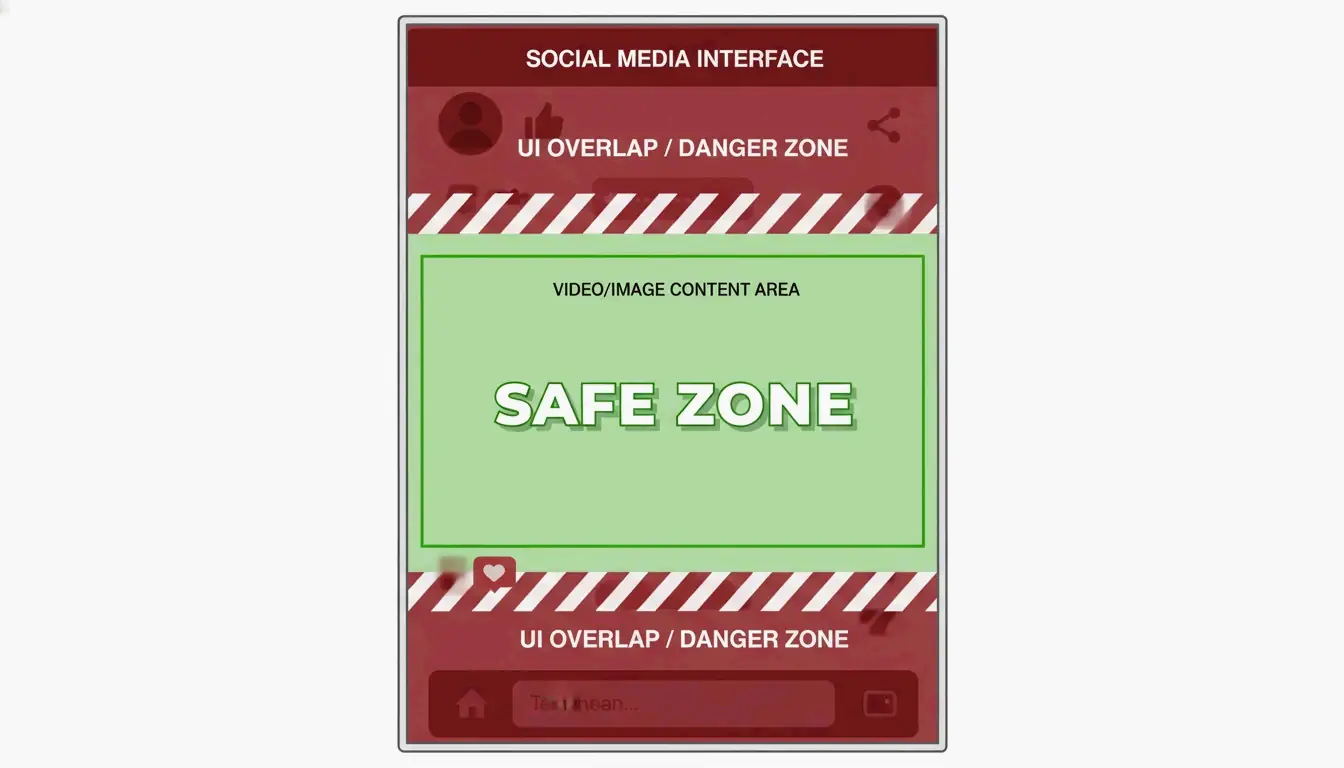
Safe Zones: Avoiding UI Overlap
For Stories and Reels (1080×1920), keep critical content in the center safe zone (approximately 1080×1420 px). Leave at least 250px clear at top and bottom to avoid UI elements (buttons, captions, profile info) covering your content.
Other Platforms
| Platform | Recommended Size | Format |
|---|---|---|
| Facebook Cover | 820 × 312 px | JPEG |
| Twitter/X Header | 1500 × 500 px | JPEG |
| LinkedIn Post | 1200 × 627 px | PNG/JPEG |
| YouTube Thumbnail | 1280 × 720 px | JPEG |
| Email Header | 600 × 200 px | JPEG |
Format Selection: JPEG vs. PNG vs. WebP
| Format | Best For | Compression | Transparency | File Size |
|---|---|---|---|---|
| JPEG | Photography, social media | Lossy | No | Small |
| PNG | Logos, text, screenshots | Lossless | Yes | Large |
| WebP | Website images, SEO | Lossy or lossless | Yes | 25–34% smaller than JPEG |
Recommendation: Use JPEG for social media posts (80–90% quality). Use PNG for logos and transparent graphics. Use WebP for websites to maximize SEO and page speed.
Batch Resizing: Processing Multiple Photos at Once
Doing one image at a time is a waste of time. In 2026, batch resizing handles entire galleries:
| Platform | Tool | Key Feature |
|---|---|---|
| Windows | Image Resizer | Right-click batch resize in Explorer |
| macOS | Shortcuts app / Preview | Built-in automation |
| Android | Photo & Picture Resizer | 4MB → 400KB at 800×600 |
Photo & Picture Resizer shrinks a 4MB photo to ~400KB at 800×600 resolution — ideal for email attachments.
Resizing vs. Cropping: What’s the Difference?
| Action | What It Does | Quality Impact |
|---|---|---|
| Resizing | Changes total pixel count; entire image scaled | Downsizing is lossless; upsizing may blur |
| Cropping | Removes outer edges; changes composition | No quality change; some content discarded |
Always resize from the original high-resolution file — never from an already-resized or compressed version.
Conclusion
Effective image resizing means matching pixel dimensions to your target platform, locking aspect ratios, and choosing the right export format. Use the Instagram/social media size tables above, keep safe zones clear for Stories, and batch-process large galleries. For web, convert to WebP for maximum SEO benefit.
FAQ
What is the difference between resizing and cropping?
Resizing changes the total pixel count of the entire image — everything stays, just at a different scale. Cropping removes the outer edges to change composition or aspect ratio — some original content is discarded.
How can I resize without losing quality?
Downsizing is generally lossless — you are reducing pixel count, which removes redundant data without degrading visible quality. Upsizing (enlarging) requires AI-assisted interpolation to avoid blurriness. Always downsize from the original file.
Does resizing reduce file size?
Yes. Reducing pixel dimensions directly removes data, lowering the MB count. Combining a resize with a WebP conversion delivers the most effective compression for web and mobile in 2026.
SectoJoy
Let Compress publishes practical guides for compression, conversion, and browser-based file workflows.
Follow SectoJoy