How to Compress a PDF: 5 Free Ways to Reduce File Size on Mac/Windows (2026)
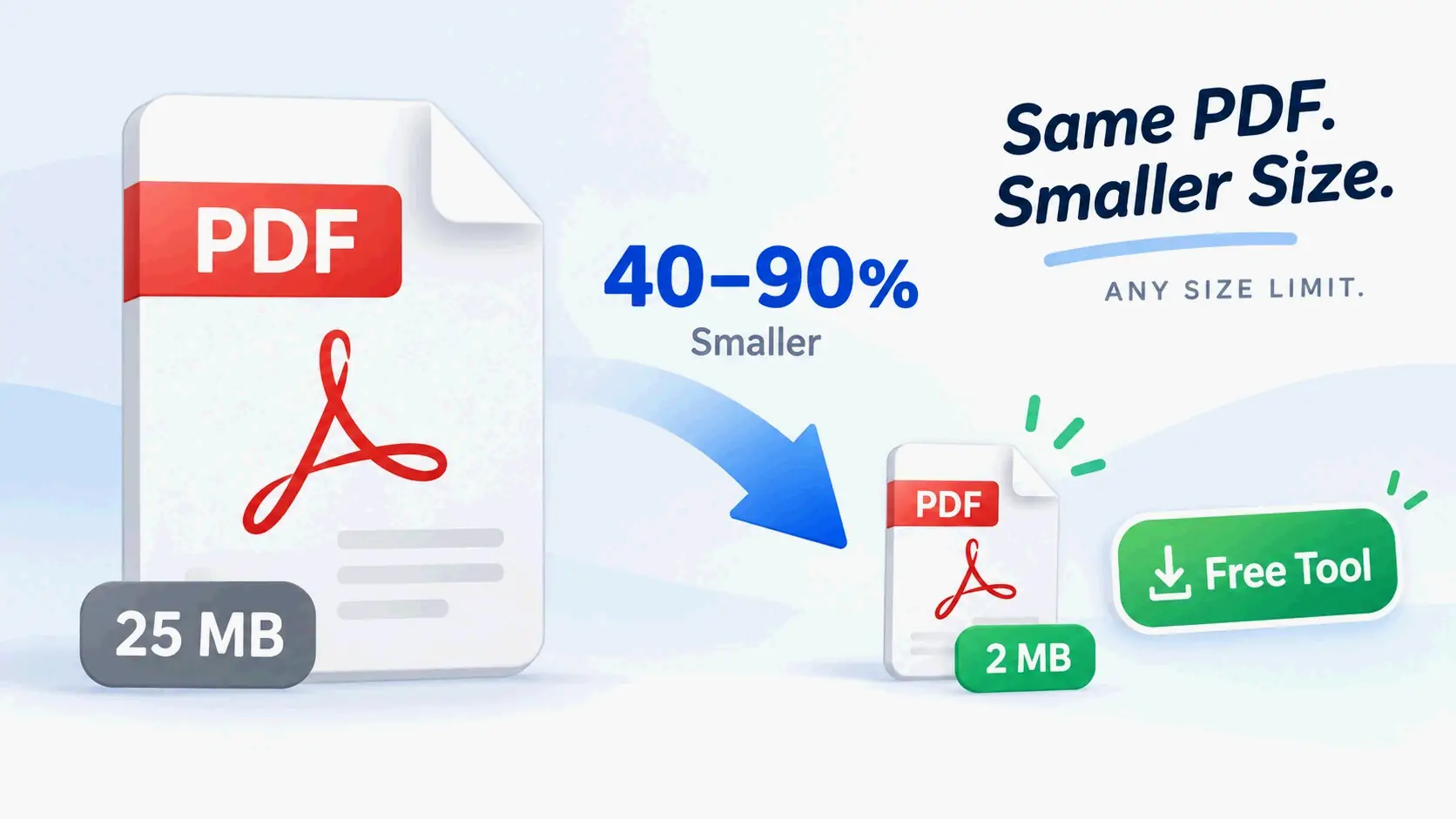
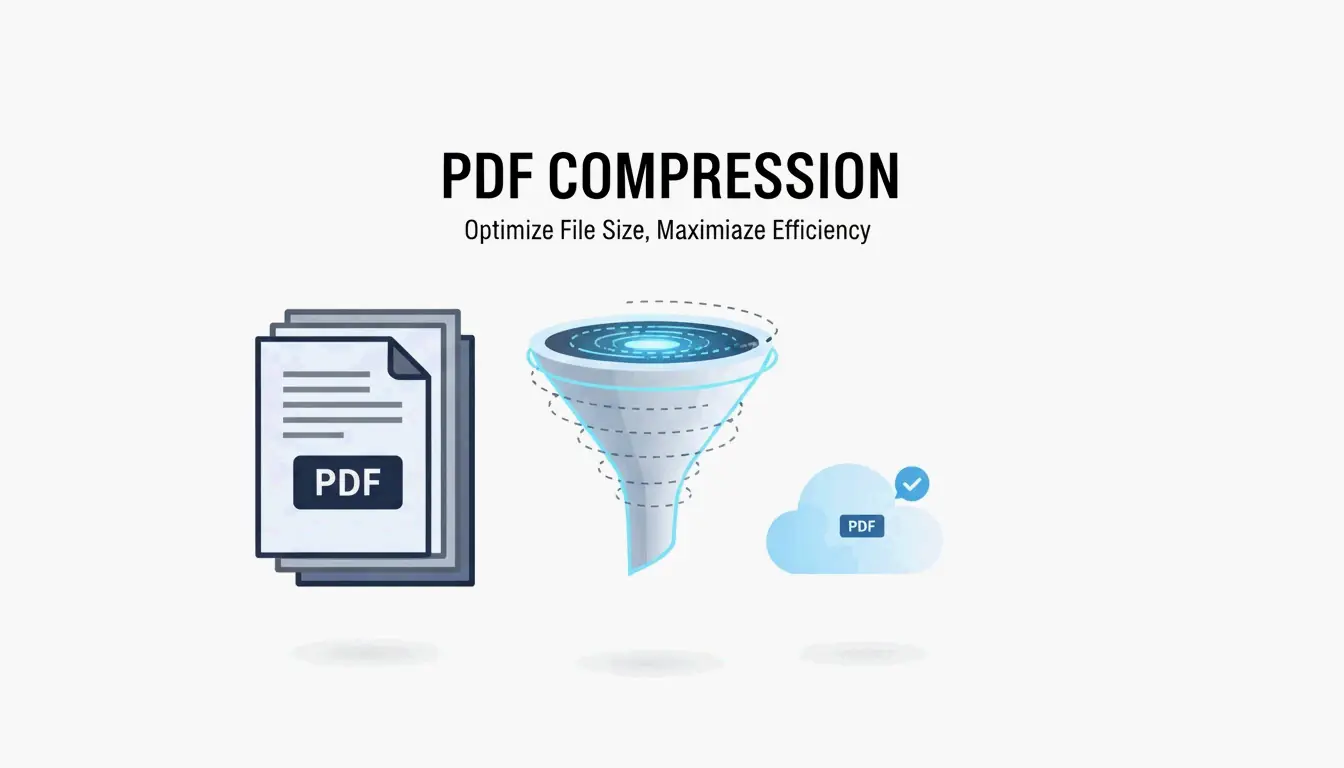
To compress a PDF for free in 2026, Mac users can use the built-in Preview app’s Quartz Filter (up to 86% reduction), while Windows users can export from Microsoft Word with “Minimum Size” settings. For maximum compression, Ghostscript achieves up to 94.5% reduction via command line. Online tools like Smallpdf handle quick jobs in the browser.
5 Free Methods Compared
| Method | Platform | Max Reduction | Batch | Privacy | Best For |
|---|---|---|---|---|---|
| 1. Mac Preview | macOS | ~86% | No | Full (offline) | Quick single-file jobs |
| 2. Microsoft Word | Windows | ~60% | No | Full (offline) | Text-heavy reports |
| 3. Smallpdf | Browser | ~75% | Limited | Cloud (GPC/GDPR) | Quick one-off jobs |
| 4. Ghostscript | Mac/Win CLI | ~94.5% | Yes | Full (offline) | Large archives, batch |
| 5. 7-Zip | Mac/Win | Container only | Yes | Full (offline) | Sending multiple PDFs |
Method 1: Mac Preview — Quartz Filter
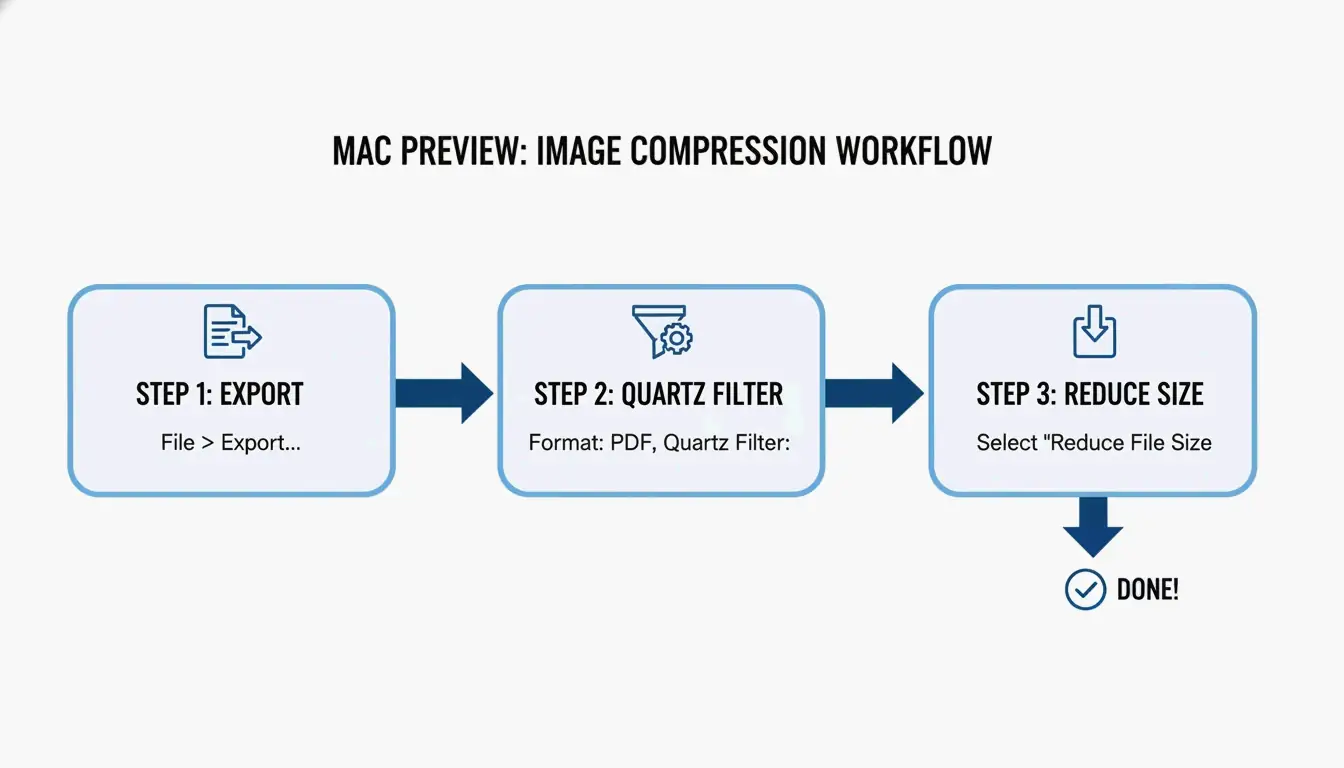
Cisdem reports up to 86.1% reduction on image-heavy PDFs using Preview’s built-in Quartz Filter.
- Open PDF in Preview
- Go to File → Export
- In the Quartz Filter dropdown, select “Reduce File Size”
- Click Save
Pro tip: Ensure source images are in RGB format (not CMYK) before exporting — this strips unnecessary color data while keeping visuals crisp.
Troubleshooting: When Preview Makes Files Larger
Sometimes “Reduce File Size” actually increases the file. This happens when Preview re-encodes already-optimized images or struggles with complex fonts. Cisdem notes quality may still drop. Switch to Ghostscript or Smallpdf in these cases.
Method 2: Microsoft Word — “Minimum Size” Export
Best for text-heavy reports that need to fit email or web upload limits.
- Open the document in Word
- Go to File → Save As
- Select PDF as file type
- Under “Optimize for,” choose “Minimum size (online publishing)”
- Click Save
Word prioritizes text clarity while aggressively shrinking images to web standards.
Method 3: Smallpdf — Online Compression
Browser-based, no installation required. Works with Google Drive and Dropbox.
- Upload your PDF to Smallpdf
- Choose compression — Basic (balanced) or Strong (maximum)
- Download the optimized file
Privacy: Reputable platforms follow GPC and GDPR, deleting files within an hour. Look for SOC2 certification. For sensitive business data, JOPDF recommends offline tools.
Method 4: Ghostscript — Maximum Compression (94.5%)
The most powerful free option for large-scale compression. Cisdem achieved 94.5% reduction on a 60MB file.
Install
brew install ghostscript

# Windows — download from ghostscript.com
Commands
# Medium quality (150 DPI) — best balance
gs -sDEVICE=pdfwrite -dPDFSETTINGS=/ebook \
  -dCompatibilityLevel=1.4 -dNOPAUSE -dQUIET \
  -dBATCH -sOutputFile=output.pdf input.pdf

# Screen quality (72 DPI) — maximum compression
gs -sDEVICE=pdfwrite -dPDFSETTINGS=/screen \
  -dCompatibilityLevel=1.4 -dNOPAUSE -dQUIET \
  -dBATCH -sOutputFile=output.pdf input.pdf

# Print quality (300 DPI) — for archives
gs -sDEVICE=pdfwrite -dPDFSETTINGS=/printer \
  -dCompatibilityLevel=1.4 -dNOPAUSE -dQUIET \
  -dBATCH -sOutputFile=output.pdf input.pdf
| Setting | DPI | Typical Reduction | Best For |
|---|---|---|---|
/screen |
72 | ~95% | Strict portal limits (100KB) |
/ebook |
150 | ~90% | General sharing, email |
/printer |
300 | ~50% | High-quality archives |
Processes a 1,000-page document in ~10 seconds.
DPI Guide for Quality
| Target | DPI | Use Case |
|---|---|---|
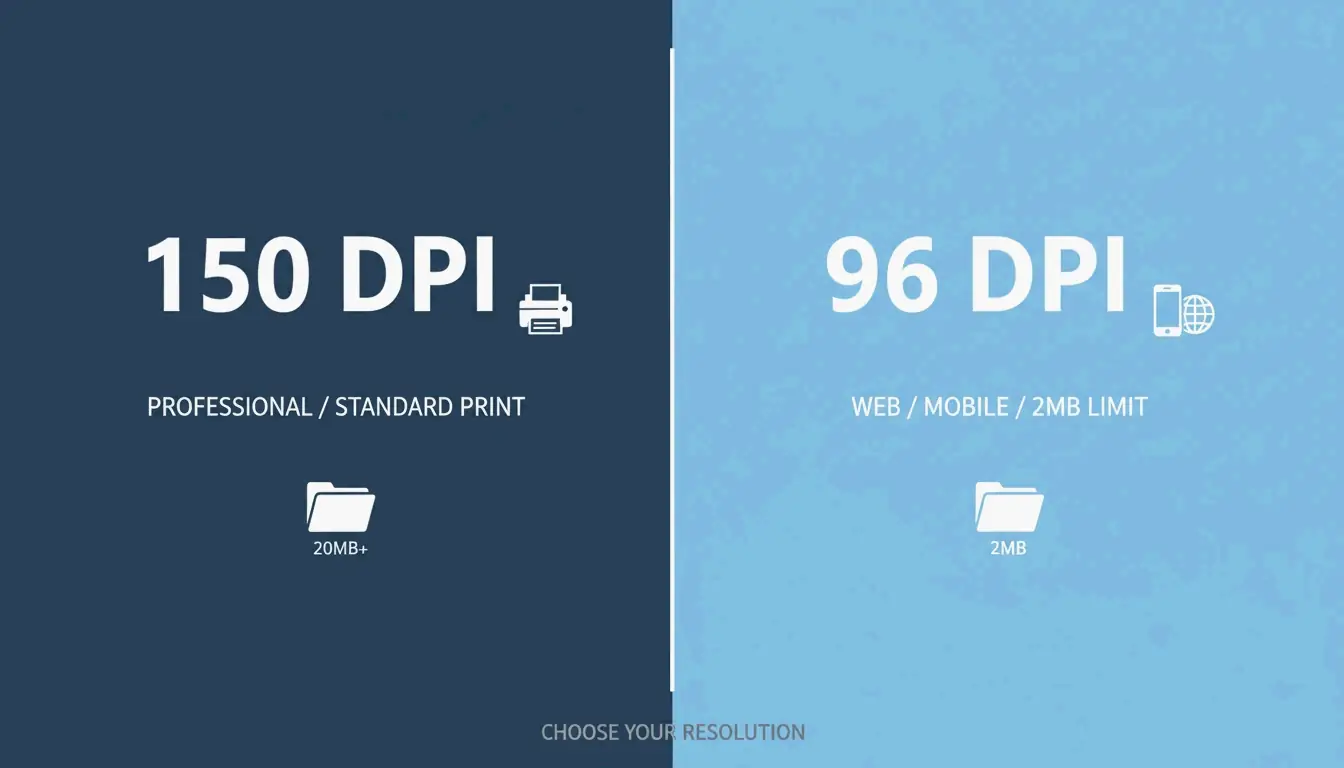
| 96 DPI | Mobile/web viewing | Government portals, strict 2MB limits |
| 150 DPI | Professional standard | Email, web sharing, printing |
| 300 DPI | High-quality print | Legal documents, blueprints |
IRCC Canada recommends 96–150 DPI for digital submissions.
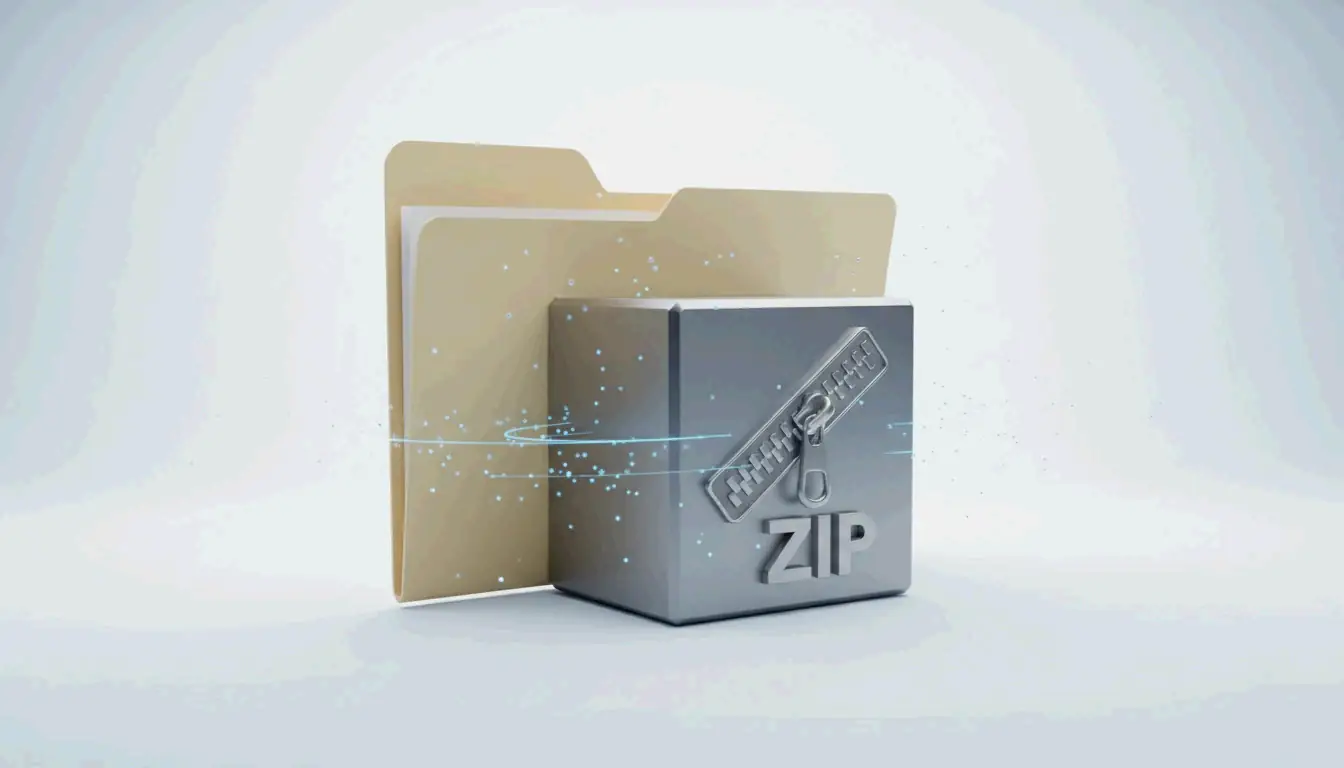
Method 5: 7-Zip — Archive Multiple PDFs
When you cannot shrink individual PDFs further, or need to send a folder of them:
- Select PDF files → Right-click → 7-Zip → Add to archive
- Choose
.zipor.7zformat - Send the archive
Many government portals prefer archives because they preserve original high-resolution documents while bypassing file count limits.
Conclusion
For quick single-file compression, use Mac Preview or Microsoft Word. For maximum reduction (94.5%), use Ghostscript with /ebook settings. For sensitive documents, stick to offline tools. For multiple files, use 7-Zip archives. Always target 150 DPI for professional quality or 96 DPI for strict upload limits.
FAQ
Why does Preview sometimes make PDFs larger?
Preview may re-encode already-optimized images inefficiently or duplicate embedded fonts and metadata during export. Use Ghostscript or Smallpdf instead when this happens.
How do I compress a PDF to exactly 100KB?
Use Adobe Acrobat’s “PDF Optimizer” or JOPDF with adjustable DPI. Lower resolution to 72–96 DPI and strip all metadata. For text-only documents, this reliably reaches under 100KB.
Is it safe to upload confidential PDFs to online compressors?
Reputable tools like Smallpdf honor GPC signals and delete files within an hour. For highly sensitive legal or financial documents, use offline tools (Ghostscript, Adobe Acrobat). Always verify SOC2 and GDPR certification before using any web-based service.
SectoJoy
Let Compress publishes practical guides for compression, conversion, and browser-based file workflows.
Follow SectoJoy