PDF কীভাবে কম্প্রেস করবেন — ম্যাক/উইন্ডোজে ফাইল সাইজ কমানোর ৫টি ফ্রি উপায় (2026)
2026 সালে ফাইল সাইজ কমাতে PDF ফ্রিতে কম্প্রেস করতে, ম্যাক ব্যবহারকারীরা বিল্ট-ইন প্রিভিউ অ্যাপের কোয়ার্টজ ফিল্টার ব্যবহার করতে পারেন, অন্যদিকে উইন্ডোজ ব্যবহারকারীরা মাইক্রোসফট ওয়ার্ড-এ “ন্যূনতম সাইজ” বিকল্প নির্বাচন করতে পারেন। উচ্চ মানের ফলাফলের জন্য Smallpdf-এর মতো অনলাইন টুল বা অফলাইন ব্যাচ প্রসেসর উল্লেখযোগ্য বিস্তারিত হারানো ছাড়াই উন্নত কম্প্রেশন প্রদান করে।
আমি কীভাবে PDFs দ্রুত ছোট করতে প্রিভিউ (ম্যাক) ব্যবহার করব?
আপনি যদি ম্যাকে থাকেন, তবে আপনার কাছে আগে থেকেই একটি শক্তিশালী বিল্ট-ইন টুল রয়েছে — নতুন কিছু ডাউনলোড করার দরকার নেই। প্রিভিউ (ম্যাক) এখনও ব্যক্তিগত ফাইল ছোট করার দ্রুততম উপায়। এটি নথির অভ্যন্তরীণ অংশগুলি পুনরায় এনকোড করতে এবং এর সামগ্রিক ফুটপ্রিন্ট কমাতে একটি কোয়ার্টজ ফিল্টার ব্যবহার করে। Cisdem অনুসারে, এই পদ্ধতিটি চিত্র-ভারী PDFs-এর সাইজ ৮৬.১% পর্যন্ত কমাতে পারে।
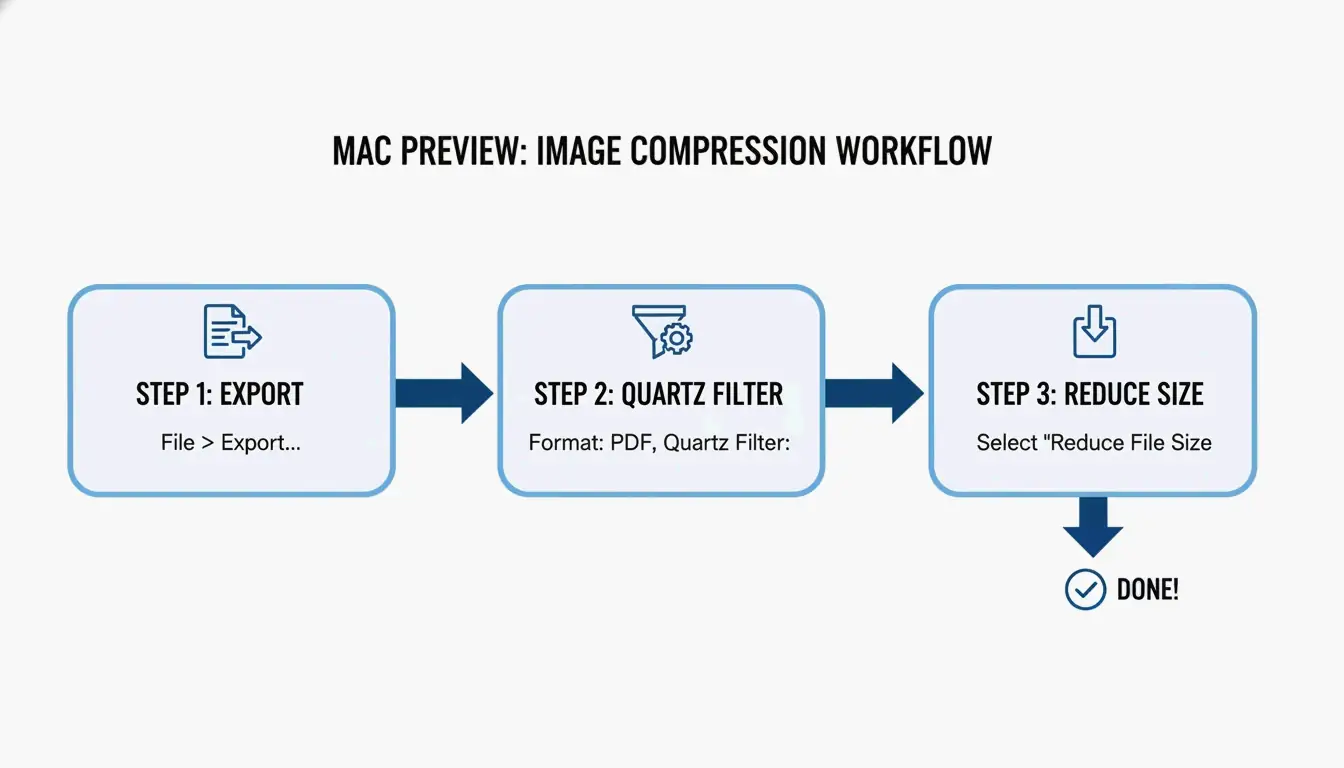
2026 ওয়ার্কফ্লো: কোয়ার্টজ ফিল্টার সহ এক্সপোর্ট করা
সর্বশেষ macOS ধাপগুলির সাথে আপনার ফাইল সাইজ কমানোর উপায় এখানে দেওয়া হলো:
- আপনার PDF ফাইলটি প্রিভিউ অ্যাপ দিয়ে খুলুন।
- উপরের মেনুতে যান এবং ফাইল > এক্সপোর্ট-এ ক্লিক করুন।
- কোয়ার্টজ ফিল্টার ড্রপ-ডাউন মেনু খুঁজুন এবং ফাইল সাইজ কমান নির্বাচন করুন।
- প্রো টিপ: স্ক্রিনে জিনিসগুলি তীক্ষ্ণ রাখতে, এক্সপোর্টের আগে নিশ্চিত করার চেষ্টা করুন যে আপনার সোর্স ছবিগুলি CMYK-এর পরিবর্তে RGB ফরম্যাটে আছে। এটি ভিজ্যুয়াল তীক্ষ্ণতা বজায় রেখে অপ্রয়োজনীয় ডেটা সরিয়ে দেয়।
- সেভ চাপুন, আর আপনি শেষ করেছেন।
সমস্যা সমাধান: কম্প্রেশনের পরে আমার PDF বড় হয় কেন যায়?
কখনো কখনো “ফাইল সাইজ কমান”-এ ক্লিক করলে ফাইলটি আসলে বড় হয়ে যায়। এটি সাধারণত ঘটে যখন প্রিভিউ আগে থেকেই অপ্টিমাইজ করা ছবিগুলি পুনরায় প্রসেস করার চেষ্টা করে, বা জটিল ফন্ট ও মেটাডেটার সাথে লড়াই করে। এটি যদি আপনার সাথে ঘটে, Cisdem উল্লেখ করে যে সাইজ বাড়ার পরেও মান নেমে যেতে পারে। এমন ক্ষেত্রে, একটি নিবেদিত অফলাইন কম্প্রেসরে স্যুইচ করা ভালো।
উইন্ডোজ পদ্ধতি: মাইক্রোসফট ওয়ার্ড এবং ব্যাচ কম্প্রেশন
উইন্ডোজ ব্যবহারকারীরা সাধারণত মাইক্রোসফট ইকোসিস্টেমে থাকেন, এবং PDF ছোট করার সেরা “লুকানো” উপায়গুলির মধ্যে একটি আসলে মাইক্রোসফট ওয়ার্ড-এর ভেতরে রয়েছে। এটি সেই টেক্সট-ভারী রিপোর্টগুলির জন্য দুর্দান্ত কাজ করে যেগুলি ইমেল বা ওয়েব আপলোডের জন্য যথেষ্ট ছোট হতে হবে।
মাইক্রোসফট ওয়ার্ডে ‘ন্যূনতম সাইজ’ হিসেবে সেভ করা
আপনি যদি একটি .docx ফাইল নিয়ে কাজ করেন বা সম্পাদনার জন্য একটি PDF-কে ওয়ার্ডে রূপান্তর করে থাকেন, তবে এই পথে চলুন:
- নথিটি ওয়ার্ডে খুলুন এবং ফাইল > অন্য নামে সেভ করুন-এ যান।
- ফাইলের ধরন হিসেবে PDF নির্বাচন করুন।
- সেভ বোতামের পাশে “এর জন্য অপ্টিমাইজ করুন” বিভাগটি খুঁজুন এবং ন্যূনতম সাইজ (অনলাইন প্রকাশনা) নির্বাচন করুন।
- ওয়ার্ড তখন টেক্সট স্বচ্ছতাকে অগ্রাধিকার দেবে যখন ছবিগুলিকে ওয়েব স্ট্যান্ডার্ড মেনে আক্রমণাত্মকভাবে ছোট করবে।
পেশাদার মানের জন্য DPI অপ্টিমাইজ করা
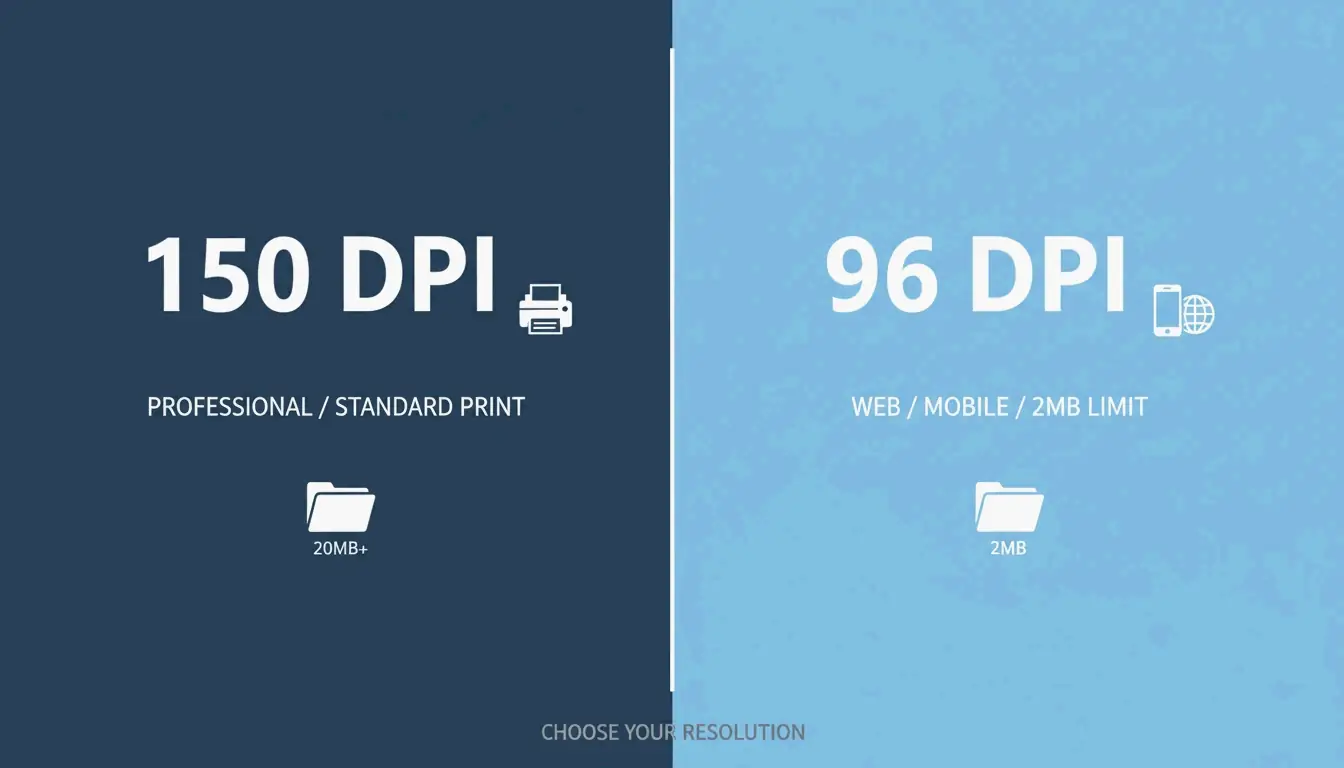
আপনার যদি ব্যাচ কম্প্রেশন মোকাবেলা করতে হয় — একসাথে অনেক ফাইল ছোট করা — তবে চাবিকাঠি হলো সঠিক DPI (প্রতি ইঞ্চি ডটস) খুঁজে বের করা। যেমন IRCC হেল্প সেন্টার পরামর্শ দেয়, ছবিগুলি ৯৬ বা ১৫০ DPI-তে সেভ করা টেক্সটকে পাঠযোগ্য রেখে ফাইল সাইজ উল্লেখযোগ্যভাবে কমাতে পারে। ১৫০ DPI সাধারণত পেশাদার কাজের জন্য “গোল্ডেন স্ট্যান্ডার্ড” হিসেবে বিবেচিত হয়, যেখানে ৯৬ DPI মোবাইল দেখা বা কঠোর ২ এমবি আপলোড সীমা মেটানোর জন্য সেরা।
2026 সালে Smallpdf এবং অনলাইন টুল নিরাপদে ব্যবহার করা
আপনি যদি সফটওয়্যার ইনস্টল করতে না চান তবে Smallpdf-এর মতো অনলাইন প্ল্যাটফর্ম একটি দুর্দান্ত ব্রাউজার-ভিত্তিক বিকল্প। এগুলি বিশেষভাবে তখন কার্যকর যখন আপনি বিভিন্ন কম্পিউটারের মধ্যে যান বা Google Drive বা Dropbox থেকে সরাসরি ফাইল টানতে চান।
গোপনীয় নথি আপলোড করা কি নিরাপদ?
2026 সালে প্রাইভেসি একটি বড় বিষয়। Smallpdf-এর মতো বেশিরভাগ সম্মানিত টুল এখন GPC (গ্লোবাল প্রাইভেসি কন্ট্রোল) সিগন্যাল অনুসরণ করে এবং সাধারণত প্রসেসিংয়ের এক ঘণ্টার মধ্যে আপনার ফাইলগুলি মুছে দেয়। তবুও, আপনার একটি দ্রুত নিরাপত্তা চেক করা উচিত: সাইটে SOC2 বা GDPR সার্টিফিকেশন দেখুন। অত্যন্ত সংবেদনশীল বিজনেস ডেটার জন্য, JOPDF অফলাইন টুল ব্যবহার করার পরামর্শ দেয় যাতে আপনার ডেটা কখনো আপনার নিজের কম্পিউটার ছেড়ে না যায়।
অ্যাডভান্সড প্রো পদ্ধতি: Adobe Acrobat Pro এবং Ghostscript
বিশাল আর্কাইভ বা জটিল ব্লুপ্রিন্ট মোকাবেলা করেন এমন পাওয়ার ইউজারদের জন্য, স্ট্যান্ডার্ড টুলগুলি হয়তো পর্যাপ্ত নিয়ন্ত্রণ দেবে না। Adobe Acrobat Pro এবং কমান্ড লাইন টুল Ghostscript উচ্চ-পারফরম্যান্স কাজের জন্য ইন্ডাস্ট্রি স্ট্যান্ডার্ড।
পাওয়ার ইউজারের পছন্দ: Ghostscript কমান্ড
Ghostscript একটি স্ট্যান্ডঅ্যালোন টুল যা উপলব্ধ সেরা রিডাকশন হারগুলির কিছু প্রদান করে। 2026 সালের একটি টেস্টে, Cisdem Ghostscript-এর সাথে ৬০ এমবি ফাইলে ৯৪.৫% বিশাল রিডাকশন দেখেছে।
- ইনস্টলেশন: এটি ম্যাকে
brew install ghostscriptদিয়ে ইনস্টল করুন বা উইন্ডোজে .exe ফাইল ব্যবহার করুন। - সম্পাদন: মান ও সাইজের মধ্যে ভালো ভারসাম্যের জন্য
-dPDFSETTINGS=/ebookফ্ল্যাগ ব্যবহার করুন। - দক্ষতা: এটি প্রায় ১০ সেকেন্ডে ১,০০০ পৃষ্ঠার একটি নথি প্রসেস করতে পারে, যা এটিকে বড় আকারের কাজের জন্য দ্রুততম বিকল্প করে তোলে।
লসলেস কম্প্রেশন: টেক্সট তীক্ষ্ণ রাখা
Adobe Acrobat Pro-এর “সব টুল” মেনুতে লসলেস কম্প্রেশন সেটিংস অন্তর্ভুক্ত রয়েছে। PDF কম্প্রেস করুন > অ্যাডভান্সড অপ্টিমাইজেশন-এ গিয়ে, আপনি ম্যানুয়ালি পুরোনো মেটাডেটা, বুকমার্ক, এবং অব্যবহৃত ফন্টের মতো “লুকানো” ডেটা সরাতে পারেন। এটি ফাইল সাইজ ছোট রাখে কিন্তু নিশ্চিত করে যে আপনি যতই জুম করুন টেক্সট একদম তীক্ষ্ণ থাকে — আইনি ও একাডেমিক পত্রের জন্য একটি আবশ্যকতা।
বিকল্প: আর্কাইভ-ভিত্তিক স্টোরেজের জন্য 7-Zip ব্যবহার করা
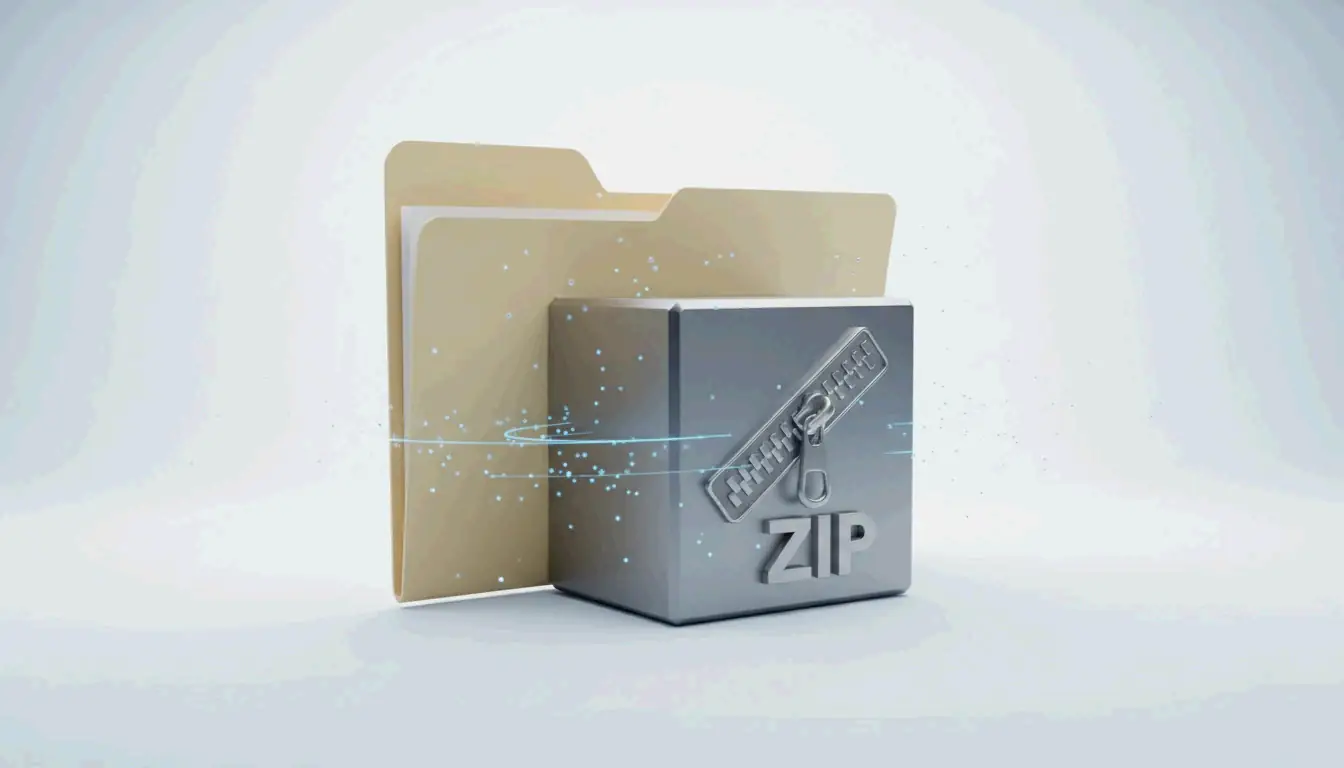
যখন আপনি PDF-কে আর ছোট করতে পারেন না — বা আপনার কাছে পাঠানোর জন্য এগুলির একটি পুরো ফোল্ডার আছে — তখন 7-Zip-এর মতো আর্কাইভ সফটওয়্যার ব্যবহার করা সেরা পদক্ষেপ। PDF-কে নিজেই পরিবর্তন করার পরিবর্তে, 7-Zip ফাইলগুলিকে একটি কম্প্রেসড “কন্টেইনারে” (.zip বা .7z) রাখে। অনেক সরকারি পোর্টাল আসলে এটি পছন্দ করে কারণ এটি আপনাকে ফাইল কাউন্ট সীমা এড়াতে দেয় যখন মূল উচ্চ-রেজোলিউশন নথিগুলি প্রাপক খোলা পর্যন্ত অক্ষত রাখে।
উপসংহার
2026 সালে PDFs কম্প্রেস করা হলো কাজের জন্য সঠিক টুল নির্বাচন করার বিষয়ে। দৈনন্দিন কাজের জন্য ম্যাকে প্রিভিউ বা উইন্ডোজে ওয়ার্ড ব্যবহার করুন। আপনি যদি এমন একজন পেশাদার হন যিনি শত শত ফাইল বা সংবেদনশীল ডেটা মোকাবেলা করেন, তবে Ghostscript বা Adobe Acrobat-এর মতো টুলগুলি নিশ্চিত করার জন্য ওই অতিরিক্ত ধাপের মূল্যবান যে আপনার নথিগুলি নিরাপদ থাকে এবং পেশাদার দেখায়।
প্রায়শই জিজ্ঞাসিত প্রশ্ন
ম্যাক প্রিভিউয়ের ‘ফাইল সাইজ কমান’ ফিল্টার ব্যবহার করার পরে আমার PDF ফাইলের সাইজ কখনো কখনো বাড়ে কেন?
Cisdem অনুসারে, প্রিভিউ আগে থেকেই অপ্টিমাইজ করা ছবিগুলি অদক্ষ সেটিংস দিয়ে পুনরায় এনকোড করতে পারে, বা এম্বেডেড ফন্ট ও মেটাডেটা এক্সপোর্ট প্রক্রিয়া চলাকালীন ডুপ্লিকেট হতে পারে। এটি যদি ঘটে, তবে প্রকৃত রিডাকশন অর্জনের জন্য একটি থার্ড-পার্টি অফলাইন কম্প্রেসর বা Smallpdf-এর মতো অনলাইন টুল ব্যবহার করা ভালো।
আমি কীভাবে PDF-কে 100KB বা 2MB-এর মতো নির্দিষ্ট সাইজে কম্প্রেস করব?
নির্দিষ্ট লক্ষ্যে পৌঁছাতে, Adobe Acrobat Pro-এ “PDF অপ্টিমাইজার” বা JOPDF-এর মতো টুল ব্যবহার করুন যা সামঞ্জস্যযোগ্য DPI সেটিংসের অনুমতি দেয়। রেজোলিউশন ৭২ বা ৯৬ DPI-তে নামিয়ে আনা এবং অপ্রয়োজনীয় মেটাডেটা সরানো হলো কঠোর পোর্টাল জমার জন্য ফাইলকে 100KB সীমার নিচে নামিয়ে আনার সবচেয়ে কার্যকর উপায়।
গোপনীয় বিজনেস নথিগুলি ফ্রি অনলাইন PDF কম্প্রেসরে আপলোড করা কি নিরাপদ?
যদিও Smallpdf-এর মতো সম্মানিত টুল এক ঘণ্টার মধ্যে ফাইল মুছে দেয় এবং GPC সিগন্যাল সম্মান করে, থার্ড-পার্টি সার্ভারে ডেটা আপলোড করার সময় সবসময় একটি অবশিষ্ট ঝুঁকি থাকে। অত্যন্ত সংবেদনশীল আইনি বা আর্থিক ডেটার জন্য, বিশেষজ্ঞরা Ghostscript বা Adobe Acrobat-এর মতো অফলাইন টুল ব্যবহার করার পরামর্শ দেন। যেকোনো ওয়েব-ভিত্তিক পরিষেবা ব্যবহার করার আগে সবসময় SOC2 এবং GDPR-এর মতো 2026 সালের নিরাপত্তা সার্টিফিকেশন যাচাই করুন।
SectoJoy
Let Compress publishes practical guides for compression, conversion, and browser-based file workflows.
Follow SectoJoy