ম্যাক এবং উইন্ডোজে ফাইল জিপ করার পদ্ধতি: সম্পূর্ণ ধাপে-ধাপে গাইড (2026)
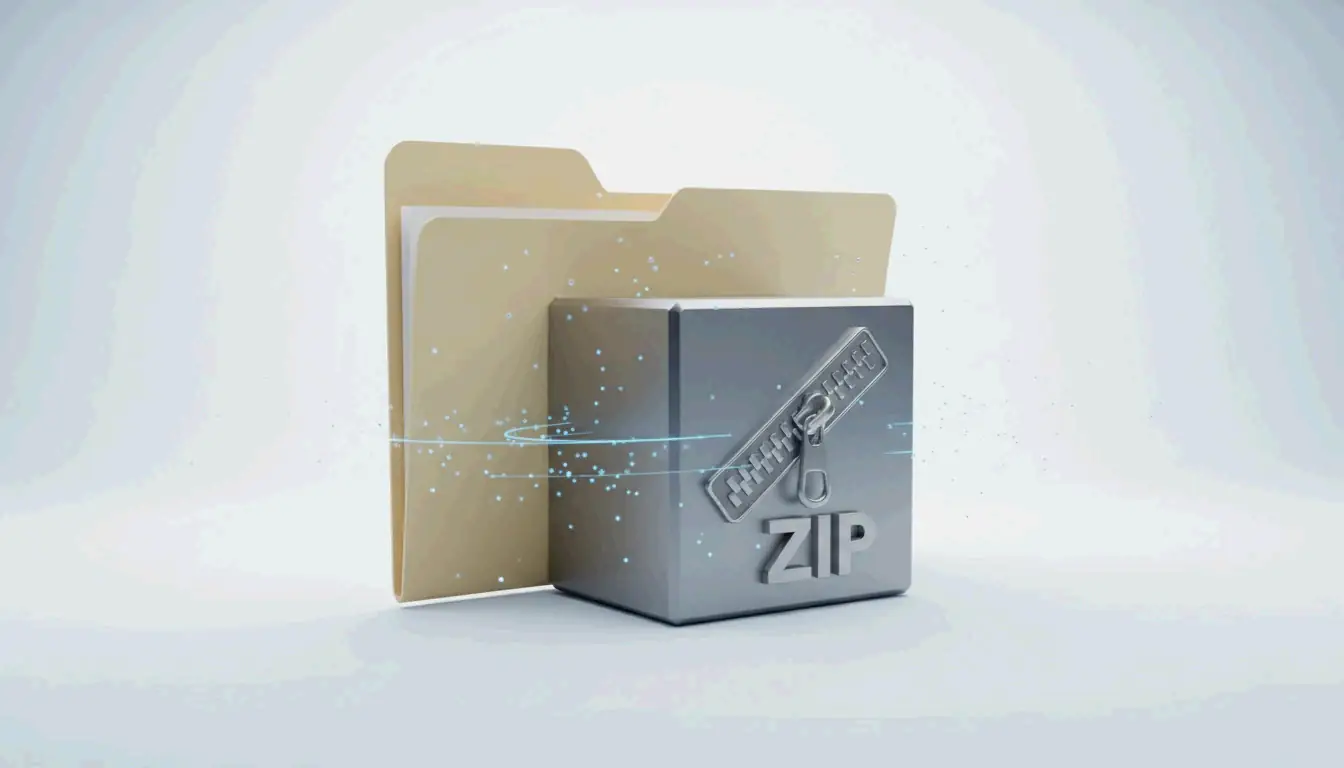
উইন্ডোজে ফাইল জিপ করতে ফাইল এক্সপ্লোরারে আপনার নির্বাচনে রাইট-ক্লিক করে “Compress to ZIP file” (উইন্ডোজ 11) অথবা “Send to > Compressed folder” (উইন্ডোজ 10) বেছে নিন। ম্যাকে রাইট-ক্লিক করে বিল্ট-ইন আর্কাইভ ইউটিলিটি থেকে “Compress” নির্বাচন করুন। সাধারণ কম্প্রেশনের জন্য কোনো থার্ড-পার্টি সফটওয়্যার লাগে না।
দ্রুত তথ্য: ওএস অনুযায়ী ফাইল জিপ করা
| ওএস | পদ্ধতি | ধাপ |
|---|---|---|
| উইন্ডোজ 11 | ফাইল এক্সপ্লোরার → রাইট-ক্লিক | ফাইল নির্বাচন → Compress to ZIP file |
| উইন্ডোজ 10 | ফাইল এক্সপ্লোরার → রাইট-ক্লিক | ফাইল নির্বাচন → Send to > Compressed (zipped) folder |
| macOS | Finder → রাইট-ক্লিক | আইটেম নির্বাচন → “Compress [Name]” |
| উইন্ডোজ (ব্যাচ) | PowerShell | Compress-Archive -Path "C:\Source\*" -DestinationPath "C:\Backup.zip" |
উইন্ডোজে ফাইল জিপ করার পদ্ধতি
উইন্ডোজ 11
- ফাইল এক্সপ্লোরার খুলুন এবং আপনার ফাইল বা ফোল্ডার নির্বাচন করুন
- নির্বাচনে রাইট-ক্লিক করুন
- “Compress to ZIP file”-এ ক্লিক করুন
- একই ফোল্ডারে একটি ZIP ফাইল দেখা যায়
উইন্ডোজ 10
- ফাইল এক্সপ্লোরার-এ আপনার ফাইল নির্বাচন করুন
- রাইট-ক্লিক → Send to → Compressed (zipped) folder
- প্রয়োজনে ZIP-এর নাম পরিবর্তন করুন
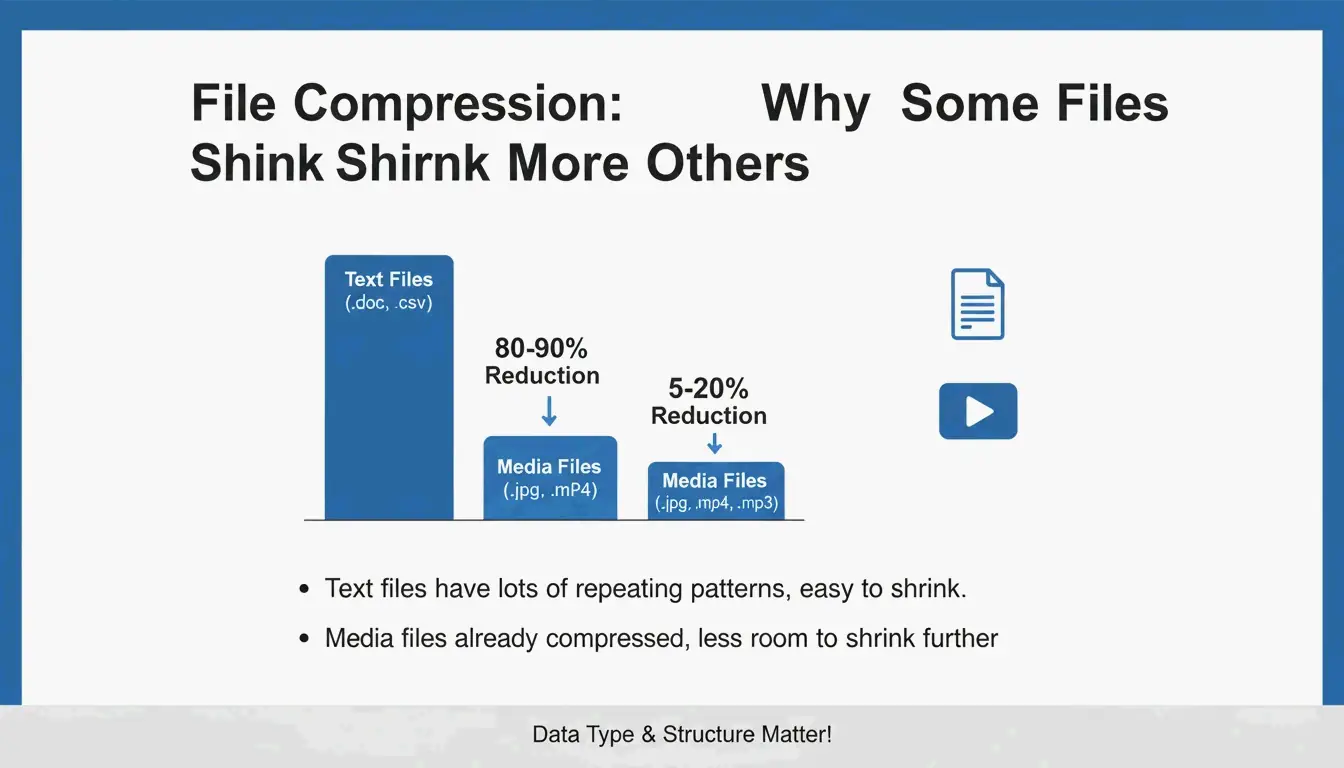
ফাইলের ধরন অনুযায়ী কম্প্রেশন অনুপাত
PalmGear কার্যকর মানদণ্ড দেয়:
| ফাইলের ধরন | সাধারণ কম্প্রেশন | কেন |
|---|---|---|
| টেক্সট (.txt, .html, .csv) | 60–80% | অতি পুনরাবৃত্তিময় ডেটা ভালোভাবে কম্প্রেস হয় |
| নথি (.docx, .xlsx) | 30–50% | আগে থেকেই আংশিক কম্প্রেসড |
| ছবি (.jpg, .png) | 5%-এর কম | নিজস্ব কোডেক দিয়ে আগেই কম্প্রেসড |
| ভিডিও (.mp4, .mov) | 2%-এর কম | আগেই কম্প্রেসড |
| RAW / আনকম্প্রেসড | 40–70% | কম্প্রেশনের জন্য সম্পূর্ণ ডেটা উপলব্ধ |
ZIP Deflate অ্যালগরিদম ব্যবহার করে — এটি একটি লসলেস পদ্ধতি। এক্সট্র্যাক্ট করার পর আপনার ফাইলগুলো মূলের সমান থাকে।
PowerShell দিয়ে ব্যাচ কম্প্রেশন
Compress-Archive -Path "C:\Source\*" -DestinationPath "C:\Backup.zip" -CompressionLevel Optimal

Compress-Archive -Path "C:\Source\*" -DestinationPath "C:\Backup.zip" -CompressionLevel Fastest

# বিদ্যমান আর্কাইভে ফাইল যোগ করা
Compress-Archive -Path "C:\NewFiles\*" -Update -DestinationPath "C:\Backup.zip"
PalmGear অনুযায়ী, একজন টেকনিশিয়ান ২০০টি ড্রাইভার ফাইল এক প্যাকেজে বেঁধে ৩০ সেকেন্ডে আপলোড করে 39.5 মিনিট বাঁচান।
আর্কাইভ যাচাই
মূল মুছে ফেলার আগে সবসময় আপনার নতুন ZIP ডাবল-ক্লিক করে যাচাই করুন যে ফাইলগুলো ঠিকমতো খোলে। এই “আর্কাইভ স্বাস্থ্যবিধি” ধাপটি ডেটা ক্ষতি রোধ করে।
ম্যাকে ফাইল জিপ করার পদ্ধতি
Finder ব্যবহার (বিল্ট-ইন)
- Finder-এ ফাইল বা ফোল্ডার নির্বাচন করুন
- রাইট-ক্লিক (বা Control-ক্লিক) → “Compress [Name]”
- একটি
Archive.zipফাইল দেখা যায় (একক আইটেম হলে সেই নির্বাচনের নামে)
macOS আর্কাইভ ইউটিলিটি ব্যবহার করে — সরাসরি Finder-এ বিল্ট-ইন, অতিরিক্ত অ্যাপ ছাড়া।
ZIP64 সমর্থন
আধুনিক macOS ZIP64 এক্সটেনশন পরিচালনা করে এবং পুরোনো 4 GiB সীমার বাইরের আর্কাইভ সমর্থন করে। Wikipedia অনুযায়ী ZIP64 প্রযুক্তিগতভাবে প্রতি আর্কাইভে 16 EiB পর্যন্ত অনুমোদন করে।
টার্মিনাল বিকল্প: ditto
বড় আর্কাইভ নির্ভরযোগ্যভাবে তৈরি করতে:
ditto -c -k --sequesterRsrc --keepParent src_directory archive.zip
নামকরণের সেরা অনুশীলন
archive.zip-এর মতো সাধারণ নাম এড়িয়ে বর্ণনামূলক লেবেল ব্যবহার করুন:
PROJECT_ClientName_2026.zip
Photos_Vacation_2026-05.zip
Backup_Financial_Q1.zip
7-Zip দিয়ে পাসওয়ার্ড সুরক্ষা (AES-256)
উইন্ডোজ বা ম্যাকের বিল্ট-ইন টুলগুলো পাসওয়ার্ড-সুরক্ষিত ZIP ফাইল সমর্থন করে না। এনক্রিপশনের জন্য 7-Zip ব্যবহার করুন:
- 7-Zip ডাউনলোড ও ইনস্টল করুন
- ফাইলে রাইট-ক্লিক → 7-Zip > Add to archive
- Encryption অংশে একটি পাসওয়ার্ড লিখুন
- AES-256 এনক্রিপশন নির্বাচন করুন
- OK-এ ক্লিক করুন
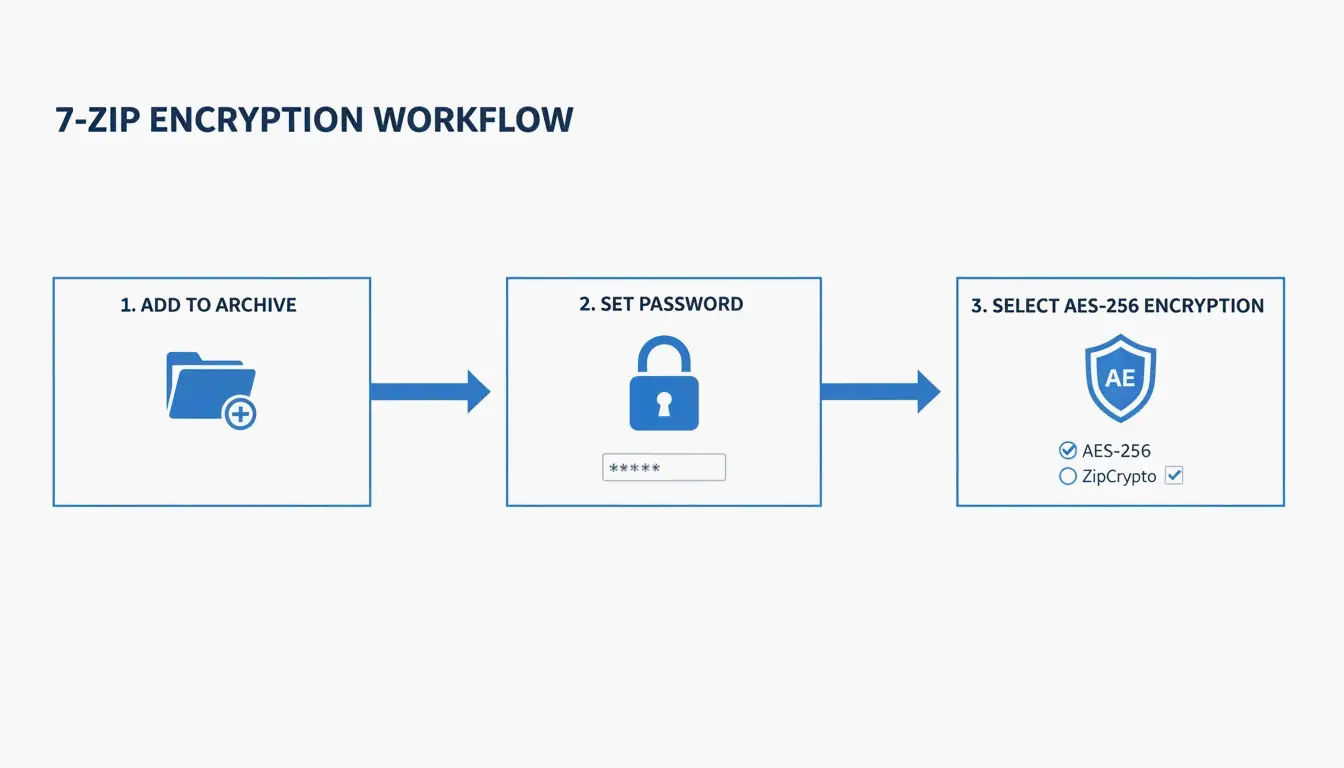
ZIP Extractor ব্যাখ্যা করে: কেউ ক্লাউড স্থানান্তরের সময় আপনার ফাইল আটকে দিলেও, AES-256 নিশ্চিত করে যে পাসওয়ার্ড ছাড়া সে ডেটায় প্রবেশ করতে পারবে না।
ফরম্যাট তুলনা: ZIP vs. RAR vs. 7z
| ফরম্যাট | বিল্ট-ইন সমর্থন (Win/Mac) | কম্প্রেশন | AES-256 | সর্বোচ্চ আকার | যার জন্য সেরা |
|---|---|---|---|---|---|
| ZIP | উভয় | ভালো | 7-Zip প্রয়োজন | 16 EiB (ZIP64) | সার্বজনীন শেয়ারিং |
| RAR | কোনোটিই নয় | উন্নত | বিল্ট-ইন | 16 EiB | উচ্চ কম্প্রেশন, রিকভারি রেকর্ড |
| 7z | কোনোটিই নয় | সেরা (LZMA2) | বিল্ট-ইন | 16 EiB | সর্বোচ্চ কম্প্রেশন |
আনজিপ করা: বিপরীত প্রক্রিয়া
| ওএস | পদ্ধতি |
|---|---|
| উইন্ডোজ | ZIP-এ রাইট-ক্লিক → “Extract All” → গন্তব্য নির্বাচন করুন |
| ম্যাক | ZIP-এ ডাবল-ক্লিক — আর্কাইভ ইউটিলিটি স্বয়ংক্রিয়ভাবে এক্সট্র্যাক্ট করে |
Safari-এ স্বয়ংক্রিয় আনজিপ: ডাউনলোডের সময় ফাইল স্বয়ংক্রিয়ভাবে আনজিপ হলে Safari → Settings → General → “Open safe files after downloading” আনচেক করে নিষ্ক্রিয় করুন।
উপসংহার
ফাইল জিপ করা 2026-এ ডেটা ব্যবস্থাপনার একটি মূল দক্ষতা। দৈনন্দিন কম্প্রেশনের জন্য ফাইল এক্সপ্লোরার (উইন্ডোজ) অথবা আর্কাইভ ইউটিলিটি (ম্যাক) ব্যবহার করুন। সংবেদনশীল ডেটার জন্য AES-256 সহ 7-Zip ব্যবহার করুন। ব্যাচ কাজের জন্য PowerShell (উইন্ডোজ) অথবা টার্মিনাল ditto (ম্যাক) ব্যবহার করুন। মূল মুছে ফেলার আগে সবসময় আর্কাইভ যাচাই করুন।
সাধারণ জিজ্ঞাসা
থার্ড-পার্টি সফটওয়্যার ছাড়াই কি ZIP পাসওয়ার্ড-সুরক্ষিত করতে পারি?
না। উইন্ডোজ ফাইল এক্সপ্লোরার ও ম্যাক আর্কাইভ ইউটিলিটি—দুটোই পাসওয়ার্ড সুরক্ষা সমর্থন করে না। AES-256 এনক্রিপশন প্রয়োগে 7-Zip (বিনামূল্যে) ব্যবহার করুন।
আমার ZIP কেন মূলের সমান আকারের?
এটি ঘটে যখন ফোল্ডারে আগেই কম্প্রেসড ফাইল (JPG, MP4, PDF) থাকে। Deflate অ্যালগরিদম এগুলো আর ছোট করতে পারে না — 5%-এর কম সাশ্রয় আশা করুন।
macOS কি ডাউনলোড স্বয়ংক্রিয়ভাবে আনজিপ করে?
Safari-এ ডিফল্টভাবে “Open safe files after downloading” সক্রিয় থাকে। স্বয়ংক্রিয় আনজিপ রোধে এটি Safari → Settings → General-এ নিষ্ক্রিয় করুন।
ZIP, RAR ও 7z-এর মধ্যে পার্থক্য কী?
ZIP — সার্বজনীন সামঞ্জস্য, উইন্ডোজ ও ম্যাকে বিল্ট-ইন। RAR — উন্নত কম্প্রেশন, WinRAR প্রয়োজন। 7z — সেরা কম্প্রেশন (LZMA2), 7-Zip প্রয়োজন। RAR ও 7z উভয়ই বিল্ট-ইন AES-256 এনক্রিপশন সমর্থন করে।
SectoJoy
Let Compress publishes practical guides for compression, conversion, and browser-based file workflows.
Follow SectoJoy