Mac과 Windows에서 파일을 zip으로 압축하는 방법 : 완전 단계별 가이드 (2026)
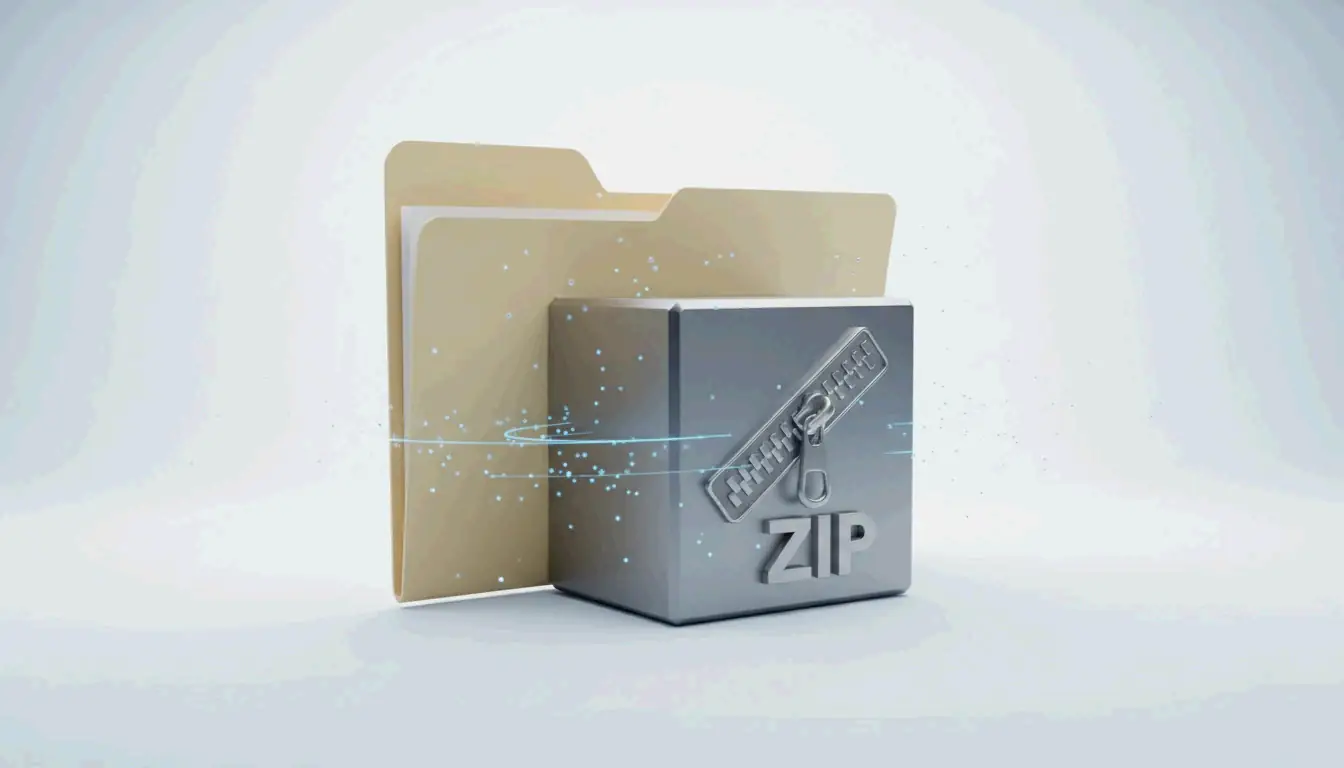
Windows에서 파일을 압축하려면 탐색기에서 선택 후 마우스 오른쪽 버튼으로 “ZIP 파일로 압축”(Windows 11) 또는 “보내기 > 압축(zip) 폴더”(Windows 10)를 선택하세요. Mac에서는 마우스 오른쪽 버튼으로 내장 “아카이브 유틸리티”에서 “압축”을 선택합니다. 기본 압축에는 타사 소프트웨어가 필요 없습니다.
빠른 참조: OS별 파일 압축 방법
| OS | 방법 | 단계 |
|---|---|---|
| Windows 11 | 탐색기 → 마우스 오른쪽 버튼 | 파일 선택 → ZIP 파일로 압축 |
| Windows 10 | 탐색기 → 마우스 오른쪽 버튼 | 파일 선택 → 보내기 > 압축(zip) 폴더 |
| macOS | Finder → 마우스 오른쪽 버튼 | 항목 선택 → “[이름] 압축” |
| Windows(일괄) | PowerShell | Compress-Archive -Path "C:\Source\*" -DestinationPath "C:\Backup.zip" |
Windows에서 파일을 압축하는 방법
Windows 11
- 탐색기를 열고 파일이나 폴더를 선택
- 선택 항목을 마우스 오른쪽 버튼으로 클릭
- “ZIP 파일로 압축”을 클릭
- 같은 폴더에 ZIP 파일이 생성됩니다
Windows 10
- 탐색기에서 파일을 선택
- 마우스 오른쪽 버튼 → 보내기 → 압축(zip) 폴더
- 필요하면 ZIP 이름을 변경
파일 유형별 압축률
PalmGear가 유용한 벤치마크를 제공합니다:
| 파일 유형 | 일반적인 압축률 | 이유 |
|---|---|---|
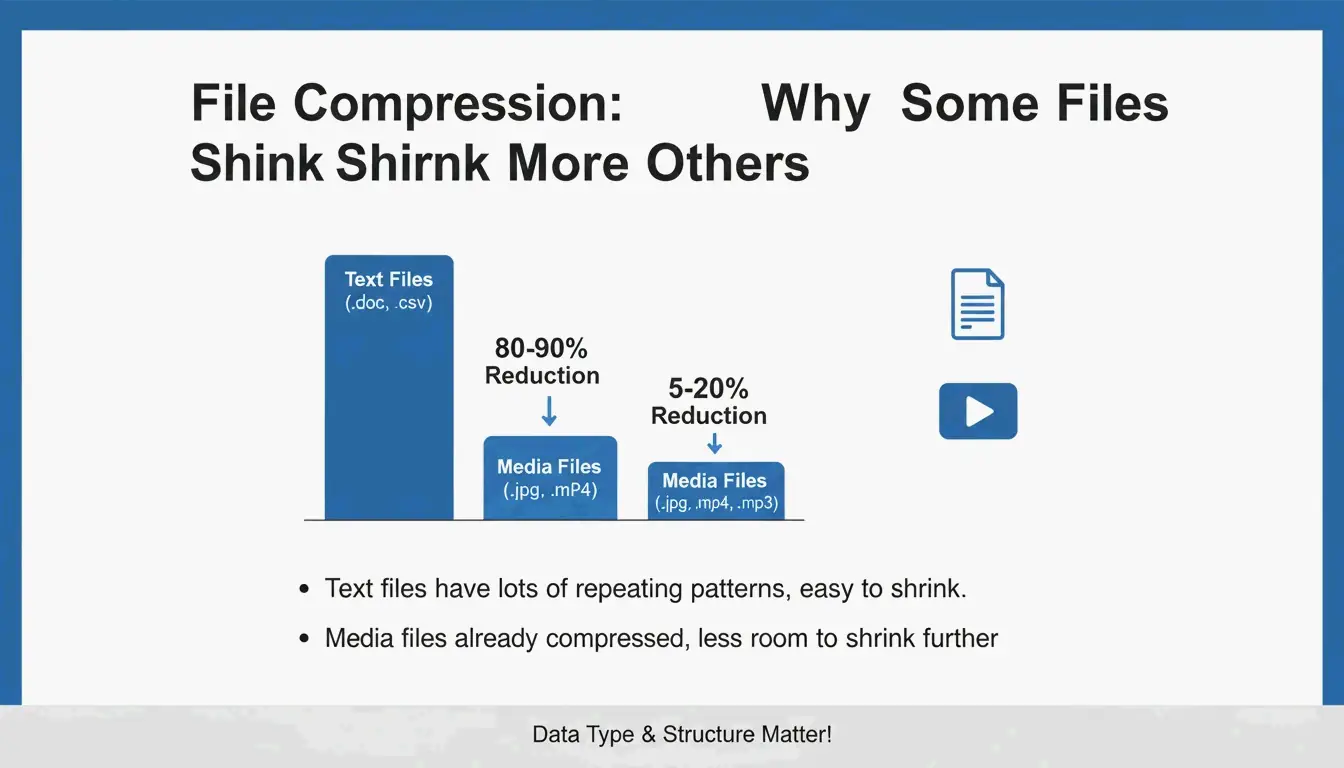
| 텍스트(.txt, .html, .csv) | 60–80% | 반복이 많은 데이터는 압축이 잘 됨 |
| 문서(.docx, .xlsx) | 30–50% | 이미 부분적으로 압축됨 |
| 이미지(.jpg, .png) | 5% 미만 | 자체 코덱으로 이미 압축됨 |
| 비디오(.mp4, .mov) | 2% 미만 | 이미 압축됨 |
| RAW / 비압축 | 40–70% | 압축할 수 있는 전체 데이터가 남아 있음 |
ZIP은 Deflate 알고리즘을 사용합니다. 이는 무손실 방식으로, 압축을 풀면 원본과 완전히 동일한 파일이 됩니다.
PowerShell 일괄 압축
Compress-Archive -Path "C:\Source\*" -DestinationPath "C:\Backup.zip" -CompressionLevel Optimal

Compress-Archive -Path "C:\Source\*" -DestinationPath "C:\Backup.zip" -CompressionLevel Fastest

# 기존 아카이브에 파일 추가
Compress-Archive -Path "C:\NewFiles\*" -Update -DestinationPath "C:\Backup.zip"
PalmGear에 따르면, 한 기술자는 드라이버 파일 200개를 하나의 패키지로 압축해 30초 만에 업로드를 완료하여 39.5분을 절약했습니다.
아카이브 검증
원본을 삭제하기 전에 반드시 새로 만든 ZIP을 두 번 클릭하여 파일이 올바르게 열리는지 확인하세요. 이 “아카이브 위생” 단계가 데이터 손실을 막아줍니다.
Mac에서 파일을 압축하는 방법
Finder 사용(내장)
- Finder에서 파일이나 폴더를 선택
- 마우스 오른쪽 버튼(또는 Control-클릭) → “[이름] 압축”
Archive.zip파일이 생성됩니다(단일 항목인 경우 해당 항목 이름으로 생성)
macOS는 아카이브 유틸리티를 사용합니다. Finder에 직접 내장되어 있어 별도 앱이 필요 없습니다.
ZIP64 지원
최신 macOS는 ZIP64 확장을 지원하여 기존 4 GiB 제한을 넘는 아카이브를 처리합니다. Wikipedia에 따르면 ZIP64는 기술적으로 아카이브당 최대 16 EiB까지 가능합니다.
터미널 대안: ditto
대용량 아카이브를 안정적으로 만들 때:
ditto -c -k --sequesterRsrc --keepParent src_directory archive.zip
이름 작성 모범 사례
archive.zip 같은 일반적인 이름은 피하고 설명적인 레이블을 사용하세요:
PROJECT_ClientName_2026.zip
Photos_Vacation_2026-05.zip
Backup_Financial_Q1.zip
7-Zip으로 비밀번호 보호(AES-256)
Windows와 Mac의 내장 도구 모두 비밀번호로 보호된 ZIP을 지원하지 않습니다. 암호화에는 7-Zip을 사용하세요:
- 7-Zip을 다운로드하여 설치
- 파일을 마우스 오른쪽 버튼으로 클릭 → 7-Zip > 아카이브에 추가
- 암호화 섹션에 비밀번호 입력
- AES-256 암호화 선택
- 확인 클릭
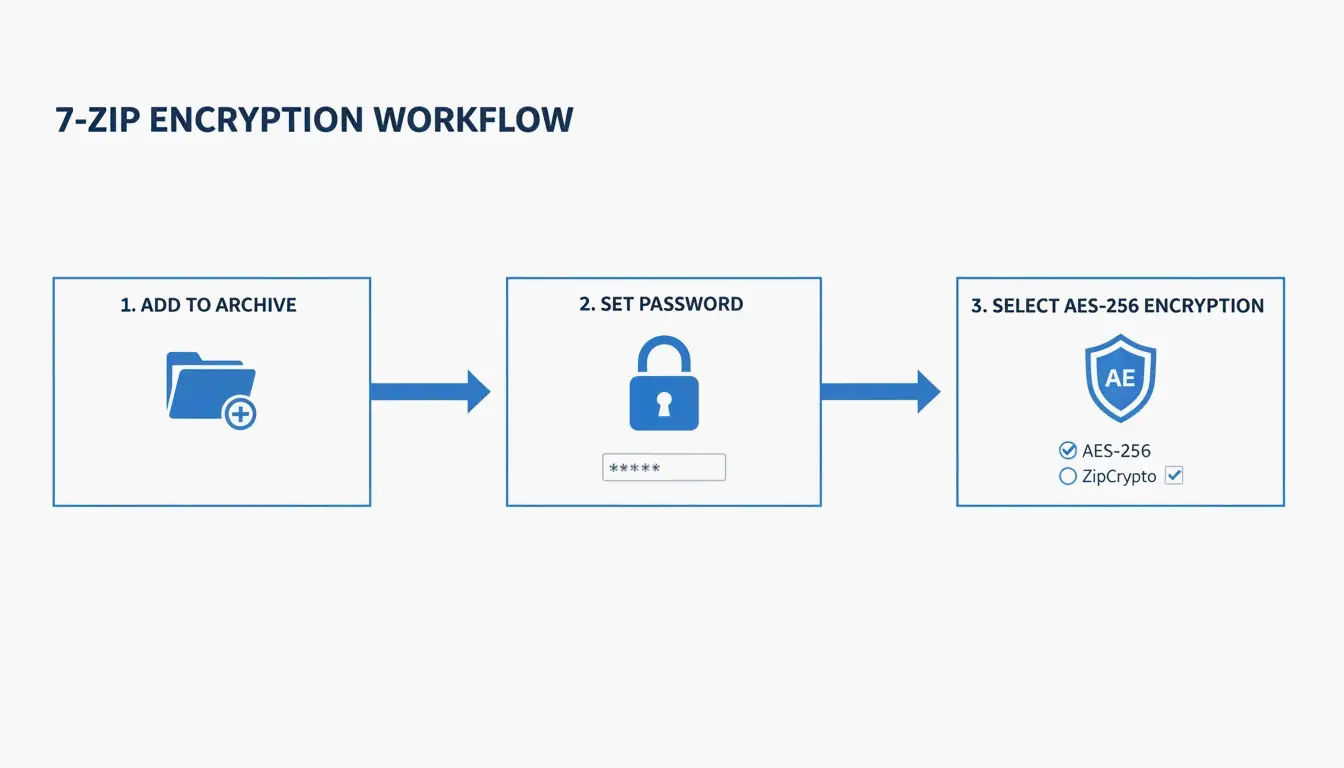
ZIP Extractor의 설명: 클라우드 전송 중 누군가 파일을 가로채더라도 AES-256이 있으면 비밀번호 없이는 데이터에 접근할 수 없습니다.
포맷 비교: ZIP vs. RAR vs. 7z
| 포맷 | 기본 지원(Win/Mac) | 압축률 | AES-256 | 최대 크기 | 가장 적합한 용도 |
|---|---|---|---|---|---|
| ZIP | 둘 다 | 양호 | 7-Zip 필요 | 16 EiB(ZIP64) | 범용 공유 |
| RAR | 지원 안 함 | 더 높음 | 내장 | 16 EiB | 고압축, 복구 레코드 |
| 7z | 지원 안 함 | 최고(LZMA2) | 내장 | 16 EiB | 최대 압축 |
압축 풀기: 역방향 과정
| OS | 방법 |
|---|---|
| Windows | ZIP을 마우스 오른쪽 버튼 → “모두 추출” → 대상 선택 |
| Mac | ZIP을 두 번 클릭 — 아카이브 유틸리티가 자동으로 압축을 해제 |
Safari 자동 압축 해제: 다운로드한 파일이 자동으로 압축이 풀린다면 Safari → 설정 → 일반 → “다운로드 후 ‘안전한’ 파일 열기” 체크 해제로 비활성화하세요.
결론
파일 압축은 2026년 데이터 관리의 핵심 기술입니다. 일상적인 압축에는 탐색기(Windows) 또는 아카이브 유틸리티(Mac)를 사용하세요. 민감한 데이터에는 AES-256이 포함된 7-Zip을, 일괄 작업에는 PowerShell(Windows) 또는 터미널 ditto(Mac)를 사용합니다. 원본을 삭제하기 전에 반드시 아카이브를 검증하세요.
자주 묻는 질문
타사 소프트웨어 없이 ZIP에 비밀번호를 걸 수 있나요?
불가능합니다. Windows 탐색기와 Mac 아카이브 유틸리티 모두 비밀번호 보호를 지원하지 않습니다. AES-256 암호화에는 7-Zip(무료)을 사용하세요.
제 ZIP이 원본과 같은 크기인 이유는?
폴더에 이미 압축된 파일(JPG, MP4, PDF)이 포함된 경우 발생합니다. Deflate 알고리즘으로는 이를 더 줄일 수 없어 절감 효과는 5% 미만입니다.
macOS는 다운로드 파일을 자동으로 압축 해제하나요?
Safari는 기본적으로 “다운로드 후 ‘안전한’ 파일 열기”가 활성화되어 있습니다. Safari → 설정 → 일반에서 해제하면 자동 압축 해제를 막을 수 있습니다.
ZIP, RAR, 7z의 차이는 무엇인가요?
ZIP — 범용 호환성, Windows와 Mac에 내장. RAR — 더 높은 압축률, WinRAR 필요. 7z — 최고 압축률(LZMA2), 7-Zip 필요. RAR과 7z 모두 내장 AES-256 암호화를 지원합니다.
SectoJoy
Let Compress publishes practical guides for compression, conversion, and browser-based file workflows.
Follow SectoJoy