Cara Mengekstrak & Meng-zip File di Mac dan Windows: Panduan Lengkap Langkah demi Langkah (2026)
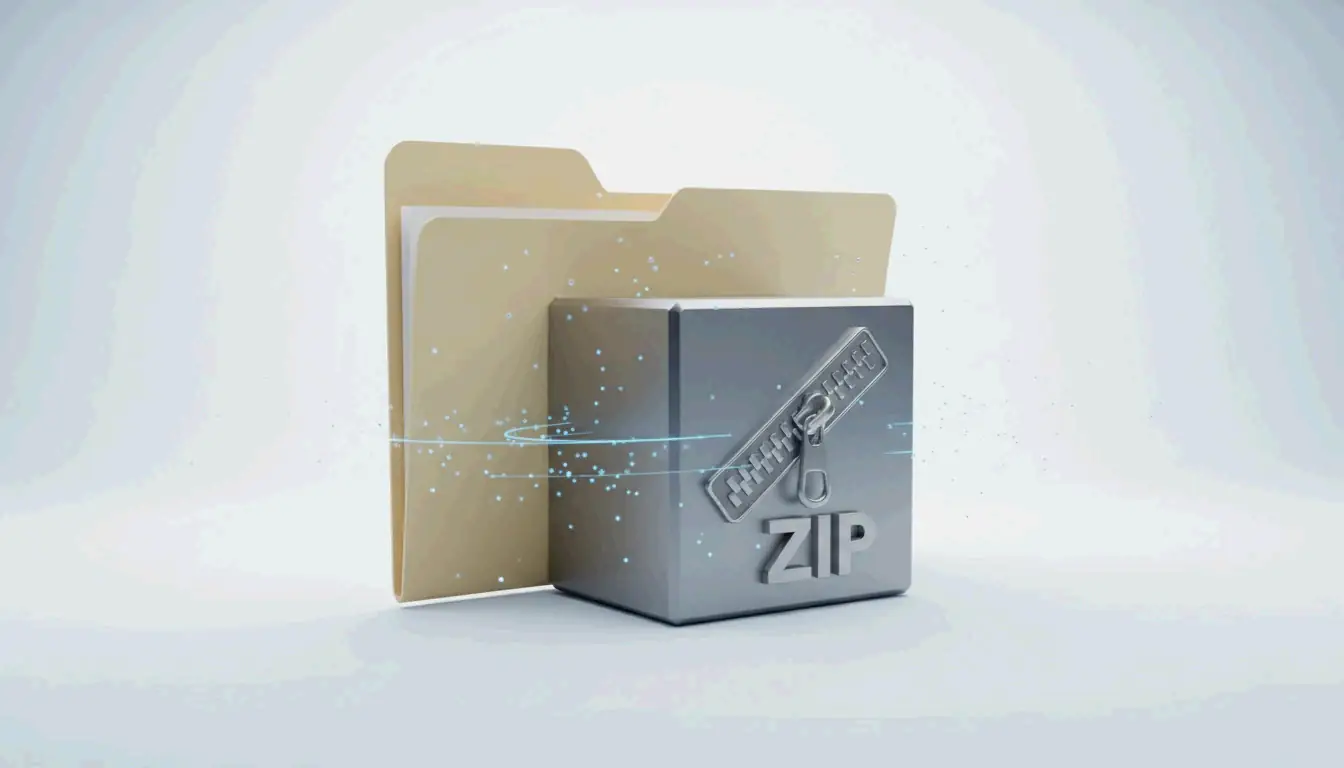
Untuk meng-zip file di Windows, klik kanan pilihan Anda di File Explorer dan pilih “Compress to ZIP file” (Windows 11) atau “Send to > Compressed folder” (Windows 10). Di Mac, klik kanan dan pilih “Compress” lewat Archive Utility bawaan. Tidak perlu perangkat lunak pihak ketiga untuk kompresi dasar.
Referensi cepat: meng-zip file per sistem operasi
| Sistem operasi | Metode | Langkah |
|---|---|---|
| Windows 11 | File Explorer → klik kanan | Pilih file → Compress to ZIP file |
| Windows 10 | File Explorer → klik kanan | Pilih file → Send to > Compressed (zipped) folder |
| macOS | Finder → klik kanan | Pilih item → “Compress [Name]” |
| Windows (batch) | PowerShell | Compress-Archive -Path "C:\Source\*" -DestinationPath "C:\Backup.zip" |
Cara meng-zip file di Windows
Windows 11
- Buka File Explorer dan pilih file atau folder Anda
- Klik kanan pada pilihan tersebut
- Klik “Compress to ZIP file”
- Sebuah file ZIP muncul di folder yang sama
Windows 10
- Pilih file Anda di File Explorer
- Klik kanan → Send to → Compressed (zipped) folder
- Ganti nama ZIP bila perlu
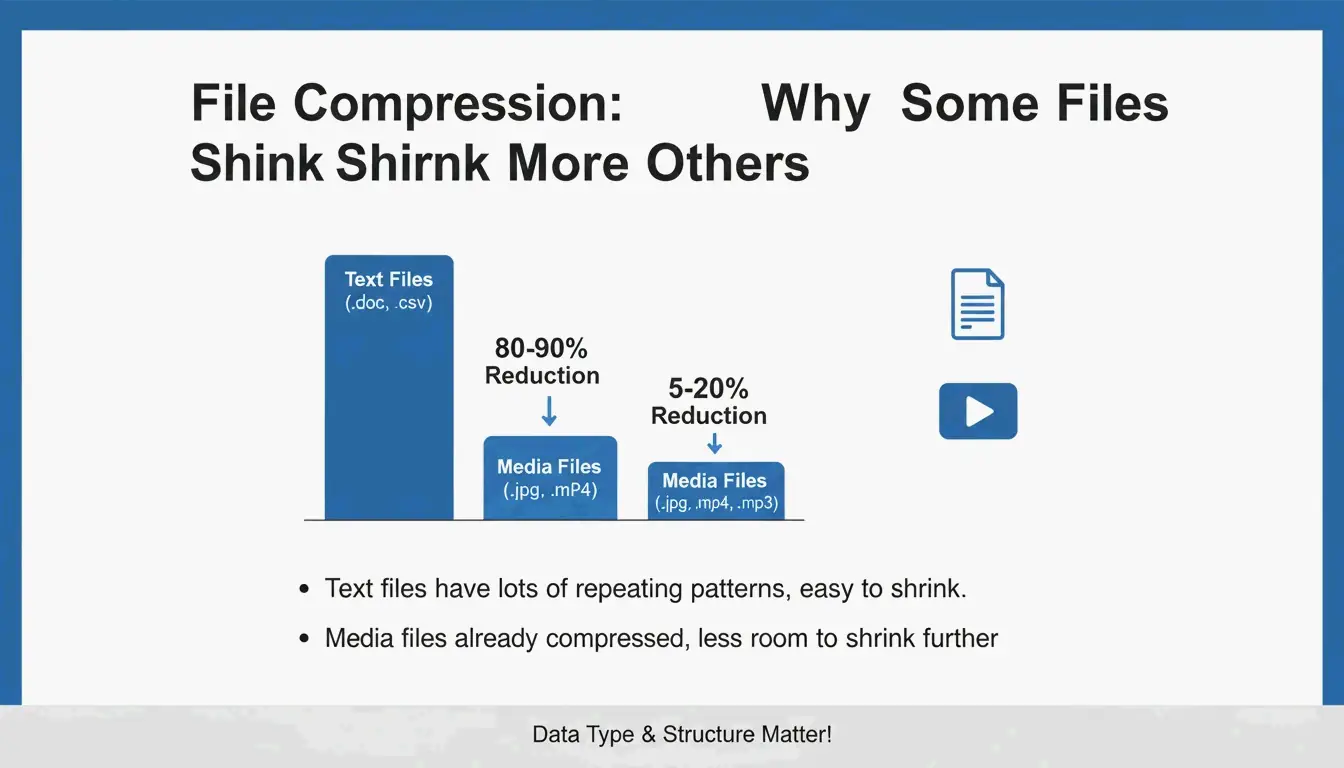
Rasio kompresi per jenis file
PalmGear memberikan patokan yang berguna:
| Jenis file | Kompresi tipikal | Alasan |
|---|---|---|
| Teks (.txt, .html, .csv) | 60–80% | Data yang sangat berulang terkompresi dengan baik |
| Dokumen (.docx, .xlsx) | 30–50% | Sudah terkompresi sebagian |
| Gambar (.jpg, .png) | Kurang dari 5% | Sudah terkompresi oleh codec-nya sendiri |
| Video (.mp4, .mov) | Kurang dari 2% | Sudah terkompresi |
| RAW / tidak terkompresi | 40–70% | Seluruh data tersedia untuk kompresi |
ZIP memakai algoritma Deflate — metode tanpa kehilangan (lossless). File Anda tetap identik setelah diekstrak.
Kompresi batch dengan PowerShell
Compress-Archive -Path "C:\Source\*" -DestinationPath "C:\Backup.zip" -CompressionLevel Optimal

Compress-Archive -Path "C:\Source\*" -DestinationPath "C:\Backup.zip" -CompressionLevel Fastest

# Menambahkan file ke arsip yang ada
Compress-Archive -Path "C:\NewFiles\*" -Update -DestinationPath "C:\Backup.zip"
Menurut PalmGear, seorang teknisi menghemat 39,5 menit dengan memaketkan 200 file driver ke dalam satu paket yang diunggah dalam 30 detik.
Verifikasi arsip
Selalu klik ganda ZIP baru Anda untuk memastikan file terbuka dengan benar sebelum menghapus yang asli. Langkah “kebersihan arsip” ini mencegah kehilangan data.
Cara meng-zip file di Mac
Memakai Finder (bawaan)
- Pilih file atau folder di Finder
- Klik kanan (atau Control-klik) → “Compress [Name]”
- Muncul file
Archive.zip(atau dinamai sesuai pilihan jika satu item)
macOS memakai Archive Utility — terintegrasi langsung di Finder, tanpa aplikasi tambahan.
Dukungan ZIP64
macOS modern menangani ekstensi ZIP64, mendukung arsip melampaui batas lama 4 GiB. ZIP64 secara teknis memperbolehkan hingga 16 EiB per arsip menurut Wikipedia.
Alternatif Terminal: ditto
Untuk membuat arsip besar secara andal:
ditto -c -k --sequesterRsrc --keepParent src_directory archive.zip
Praktik penamaan terbaik
Hindari nama generik seperti archive.zip. Gunakan label deskriptif:
PROJECT_ClientName_2026.zip
Photos_Vacation_2026-05.zip
Backup_Financial_Q1.zip
Proteksi kata sandi dengan 7-Zip (AES-256)
Baik alat bawaan Windows maupun Mac tidak mendukung file ZIP yang dilindungi kata sandi. Untuk enkripsi, gunakan 7-Zip:
- Unduh dan pasang 7-Zip
- Klik kanan file → 7-Zip > Add to archive
- Di bagian Encryption, masukkan kata sandi
- Pilih enkripsi AES-256
- Klik OK
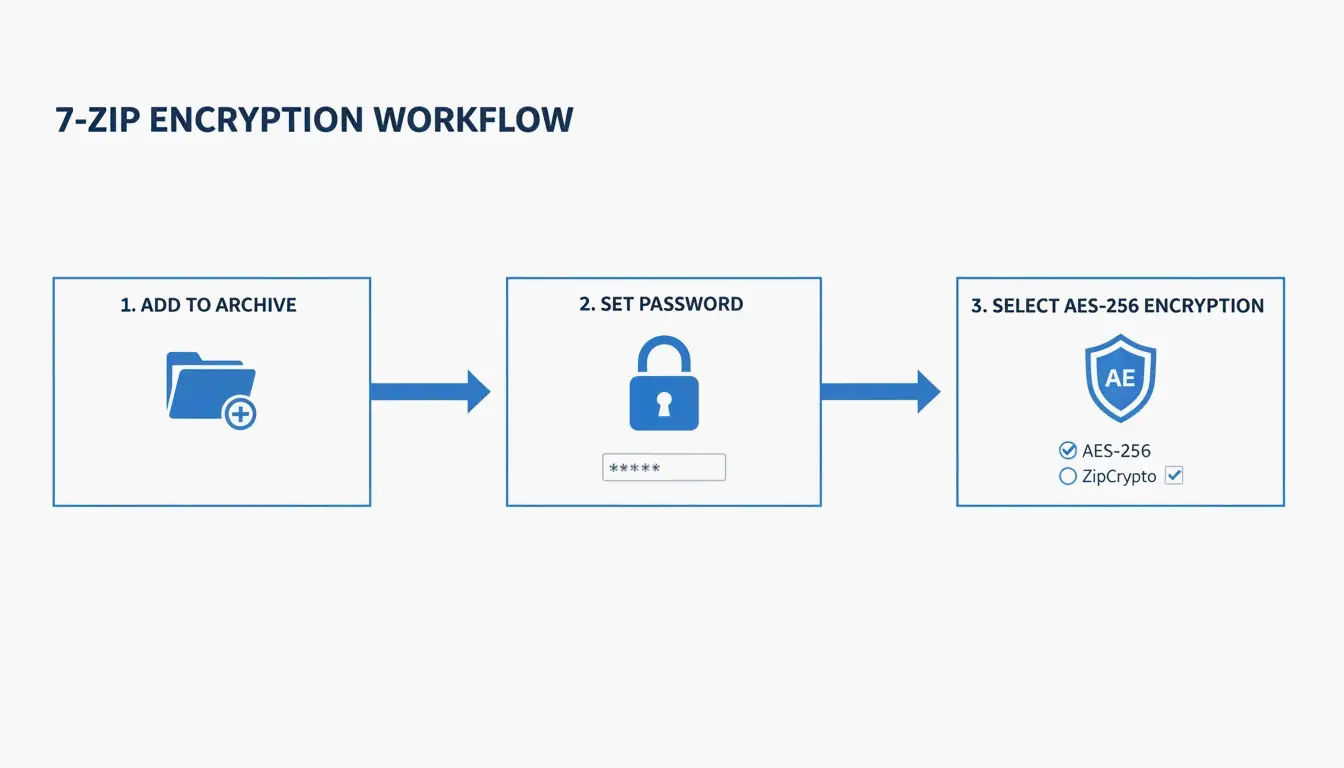
ZIP Extractor menjelaskan: meski seseorang menyadap file Anda selama transfer cloud, AES-256 memastikan mereka tak bisa mengakses data tanpa kata sandi.
Perbandingan format: ZIP vs. RAR vs. 7z
| Format | Dukungan native (Win/Mac) | Kompresi | AES-256 | Ukuran maks. | Paling cocok untuk |
|---|---|---|---|---|---|
| ZIP | Keduanya | Bagus | Butuh 7-Zip | 16 EiB (ZIP64) | Berbagi universal |
| RAR | Tidak ada | Lebih baik | Bawaan | 16 EiB | Kompresi tinggi, catatan pemulihan |
| 7z | Tidak ada | Terbaik (LZMA2) | Bawaan | 16 EiB | Kompresi maksimal |
Mengekstrak: proses kebalikannya
| Sistem operasi | Metode |
|---|---|
| Windows | Klik kanan ZIP → “Extract All” → pilih tujuan |
| Mac | Klik ganda ZIP — Archive Utility mengekstrak otomatis |
Ekstraksi otomatis di Safari: Jika file diekstrak otomatis saat diunduh, nonaktifkan di Safari → Settings → General → hapus centang “Open safe files after downloading”.
Kesimpulan
Meng-zip file adalah keterampilan inti manajemen data di 2026. Gunakan File Explorer (Windows) atau Archive Utility (Mac) untuk kompresi sehari-hari. Untuk data sensitif, gunakan 7-Zip dengan AES-256. Untuk pekerjaan batch, gunakan PowerShell (Windows) atau ditto di Terminal (Mac). Selalu verifikasi arsip sebelum menghapus file asli.
FAQ
Bisakah saya melindungi ZIP dengan kata sandi tanpa perangkat lunak pihak ketiga?
Tidak. Baik File Explorer Windows maupun Archive Utility Mac tidak mendukung proteksi kata sandi. Gunakan 7-Zip (gratis) untuk menerapkan enkripsi AES-256.
Mengapa ZIP saya berukuran sama dengan aslinya?
Ini terjadi saat folder berisi file yang sudah terkompresi (JPG, MP4, PDF). Algoritma Deflate tak bisa mengecilkan lagi file ini — harapkan penghematan kurang dari 5%.
Apakah macOS mengekstrak unduhan secara otomatis?
Safari mengaktifkan “Open safe files after downloading” secara default. Nonaktifkan di Safari → Settings → General untuk mencegah ekstraksi otomatis.
Apa bedanya ZIP, RAR, dan 7z?
ZIP — kompatibilitas universal, bawaan Windows dan Mac. RAR — kompresi lebih baik, butuh WinRAR. 7z — kompresi terbaik (LZMA2), butuh 7-Zip. Baik RAR maupun 7z mendukung enkripsi AES-256 bawaan.
SectoJoy
Let Compress publishes practical guides for compression, conversion, and browser-based file workflows.
Follow SectoJoy