Cara Mengurangi MB File PDF: 5 Cara Cepat Mengecilkan Ukuran Tanpa Kehilangan Kualitas
Untuk mengurangi ukuran PDF tanpa kehilangan kualitas yang terlihat, downsample gambar ke 150 DPI, hapus metadata, dan hapus font yang disematkan. Alat terbaik tergantung kebutuhan Anda: Adobe Acrobat Pro untuk kontrol profesional, Mac Preview untuk kompresi native gratis, Smallpdf untuk tugas online cepat, Cisdem untuk pemrosesan batch, atau otomasi OCR untuk pengembang.
Mengapa PDF Anda Sebesar Itu? Daftar periksa sebelum kompresi
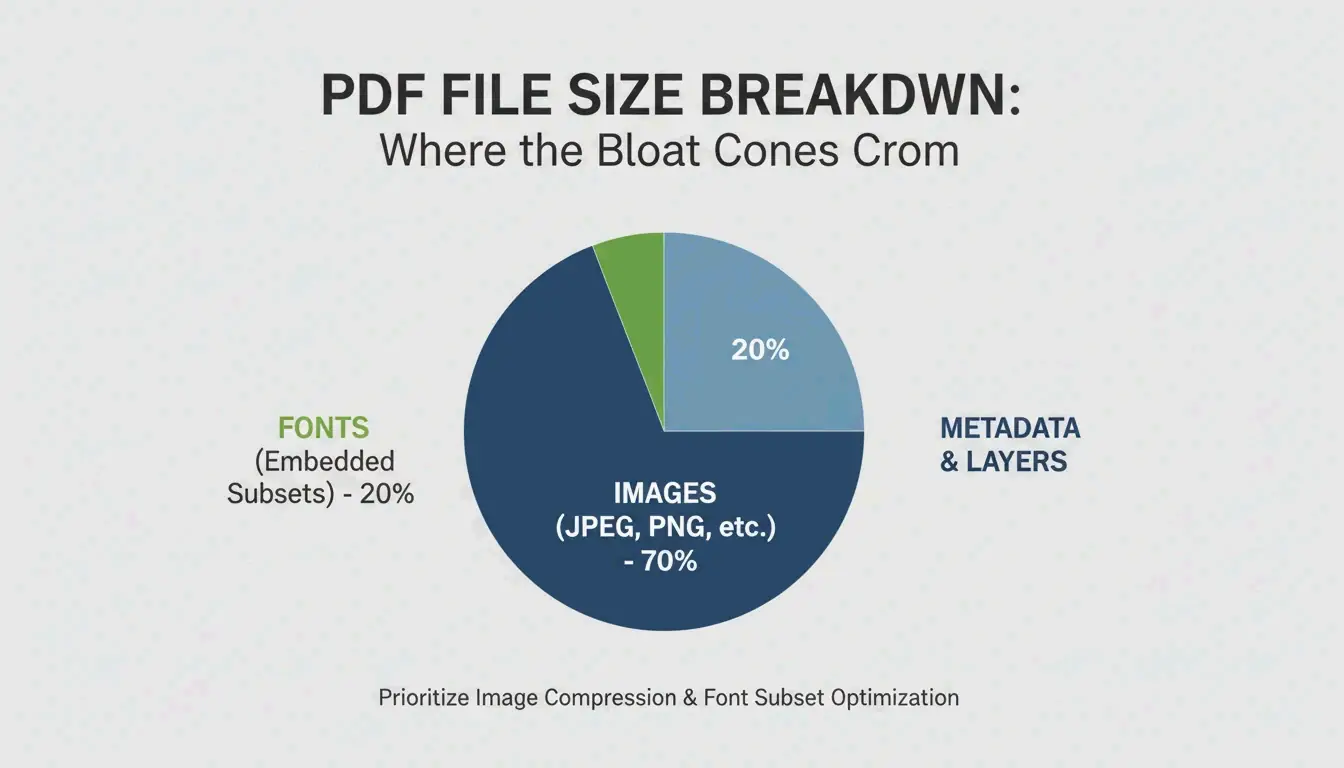
Menurut Smallppt, gambar beresolusi tinggi sering menyumbang lebih dari 70% dari total ukuran PDF.
| Faktor ukuran | Dampak tipikal | Solusi |
|---|---|---|
| Gambar beresolusi tinggi | 70 %+ dari ukuran file | Downsample ke 150 DPI |
| Font yang disematkan | Beberapa MB | Gunakan subset font, bukan menyematkan file lengkap |
| Lapisan tersembunyi / metadata | Bervariasi | Hapus dengan alat «Optimalkan PDF» |
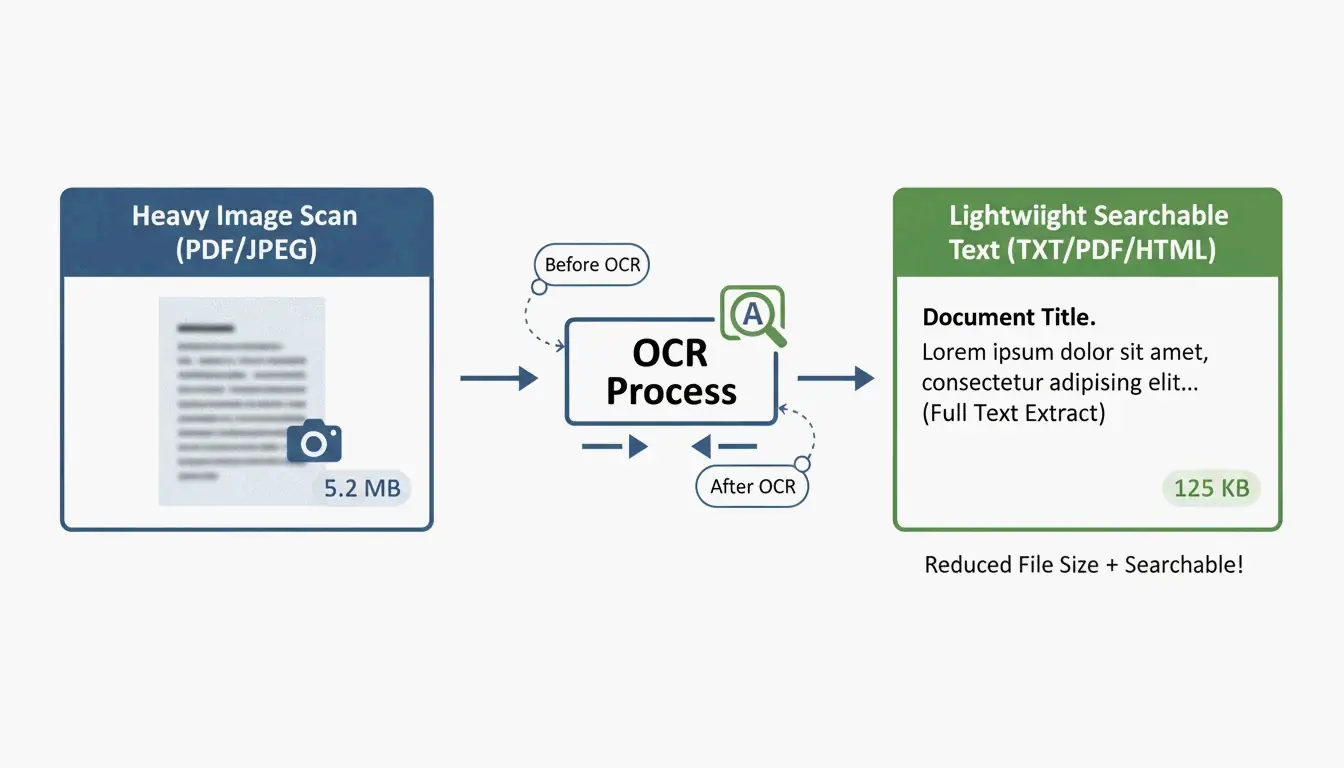
| Pindaian tidak dioptimalkan | Sangat besar | Jalankan OCR, ganti dengan lapisan teks |
| Riwayat versi | Menumpuk dengan editan | Bersihkan dengan «Buang Objek» |
Standar 150 DPI
| Kasus penggunaan | DPI yang disarankan | Kualitas |
|---|---|---|
| Cetak berkualitas tinggi | 300 DPI | Output cetak profesional |
| Email / berbagi web | 150 DPI | Titik manis — tajam di layar, file kecil |
| Referensi web dasar | 96 DPI | Minimum untuk keterbacaan, penghematan maksimum |
5 cara untuk mengurangi ukuran PDF
Cara 1: Adobe Acrobat Pro — Kontrol profesional
Standar emas untuk optimasi presisi:
- Buka PDF → All Tools > Compress a PDF
- Pilih Advanced Optimization (PDF Optimizer)
- Downsample gambar: setel warna/grayscale ke bicubic pada 150 DPI untuk gambar di atas 225 DPI
- Discard Objects: bersihkan lapisan tersembunyi, bookmark lama, kolom formulir yang tidak terpakai
Pengujian performa batch menunjukkan perangkat lunak desktop profesional memproses hingga 100 halaman per detik tergantung perangkat keras.
Cara 2: Mac Preview — Gratis dan bawaan
Di macOS tidak perlu perangkat lunak tambahan:
- Buka PDF di Preview
- Buka File → Export
- Di dropdown Quartz Filter, pilih «Reduce File Size»
- Klik Save
Peringatan: Cisdem mencatat bahwa filter default bisa terlalu agresif dan membuat gambar kabur. Untuk file kompleks, ini bahkan bisa memperbesar ukuran file.
Ghostscript: alternatif untuk pengguna lanjutan
Untuk hasil lebih baik di Mac, gunakan Ghostscript melalui Terminal:
gs -sDEVICE=pdfwrite -dPDFSETTINGS=/ebook \
  -dCompatibilityLevel=1.4 -dNOPAUSE -dQUIET \
  -dBATCH -sOutputFile=output.pdf input.pdf
-dPDFSETTINGS |
Penggunaan target | Pengurangan tipikal |
|---|---|---|
/screen |
Web/layar (72 DPI) | ~95% |
/ebook |
Kualitas menengah (150 DPI) | ~90% |
/printer |
Kualitas cetak (300 DPI) | ~50% |
Cara 3: Alat online — Smallpdf dan pdfFiller
Paling cepat untuk tugas sekali pakai, tanpa instalasi:
- Unggah dokumen Anda ke Smallpdf atau pdfFiller
- Pilih tingkat kompresi — Basic (seimbang) atau Strong (kompresi maksimum)
- Unduh file yang dioptimalkan
Privasi: Platform bereputasi kini mengikuti standar GPC, GDPR, HIPAA, dan SOC 2 Type II. Banyak yang menawarkan pemrosesan «hanya-lokal» di cache browser Anda. Untuk dokumen yang sangat sensitif, tetap gunakan alat offline.
Cara 4: Pemrosesan batch — Cisdem PDF Compressor
Untuk ratusan kontrak, faktur, atau sumber daya sekolah:
Cisdem PDF Compressor memungkinkan menarik-dan-lepas seluruh folder:
- Tambahkan file — Tarik ratusan PDF sekaligus
- Pilih mode — Small, Medium, atau Large
- Kompres — Semua file diproses dalam hitungan detik
Penting untuk sektor properti, kesehatan, dan hukum yang memindahkan dokumen ke penyimpanan cloud.
Cara 5: OCR dan otomasi pengembang
Untuk kompresi terprogram berskala besar, gunakan OCR untuk mengubah gambar pindaian menjadi lapisan teks yang dapat dicari, lalu ganti latar gambar yang berat dengan pratinjau ringan.
Contoh IronPDF (C#):
// Compress images to 90% quality across all pages
pdf.CompressImages(90, true);
Ini menskalakan dimensi gambar sambil menghapus MB berlebih — ideal untuk memproses ribuan dokumen di pipeline enterprise.
Kesimpulan
Kompresi PDF paling efektif menargetkan 150 DPI untuk gambar dan menghapus metadata serta font yang tidak terpakai. Untuk tugas cepat, gunakan Mac Preview atau Smallpdf. Untuk kontrol profesional, gunakan Adobe Acrobat Pro. Untuk operasi massal, gunakan Cisdem atau Ghostscript. Untuk otomasi enterprise, integrasikan OCR + kompresi terprogram.
Pertanyaan yang sering diajukan
Mengapa PDF saya masih besar setelah dikompres?
Penyebab umum: font yang disematkan tidak dapat dijadikan subset, grafik vektor berkepadatan tinggi yang menahan downsample DPI, lapisan tersembunyi, atau riwayat versi yang menumpuk. Gunakan «Audit Space Usage» di Adobe Acrobat untuk mengidentifikasi dengan tepat apa yang menghabiskan ruang.
Apakah aman mengunggah dokumen sensitif ke kompresor online?
Gunakan hanya alat yang patuh GPC dan GDPR. Untuk dokumen hukum atau medis, gunakan alat offline (Adobe Acrobat, Mac Preview, Ghostscript) untuk memastikan data tidak pernah meninggalkan perangkat Anda.
Bagaimana saya mengecilkan PDF ke ukuran tertentu (misalnya di bawah 5 MB)?
Gunakan «Audit Space Usage» di Adobe Acrobat untuk mengidentifikasi komponen terbesar, lalu sesuaikan kompresi gambar secara manual ke «JPEG High» dan hapus bookmark, tautan, serta metadata yang tidak terpakai. Alat online seperti Smallpdf dan pdfFiller juga menampilkan perkiraan ukuran output sebelum finalisasi.
SectoJoy
Let Compress publishes practical guides for compression, conversion, and browser-based file workflows.
Follow SectoJoy