How to Zip a File on Mac and Windows: A Complete Step by Step Guide
To zip files on Windows, right-click your selection in […]
To zip files on Windows, right-click your selection in File Explorer and choose “Compress to ZIP file” (Windows 11) or “Send to > Compressed (zipped) folder” (Windows 10). On Mac, right-click and select “Compress” via the built-in Archive Utility. This guide provides the complete step-by-step process for 2026, ensuring efficient file sharing without the need for third-party software.
How to Zip Files on Windows Using File Explorer
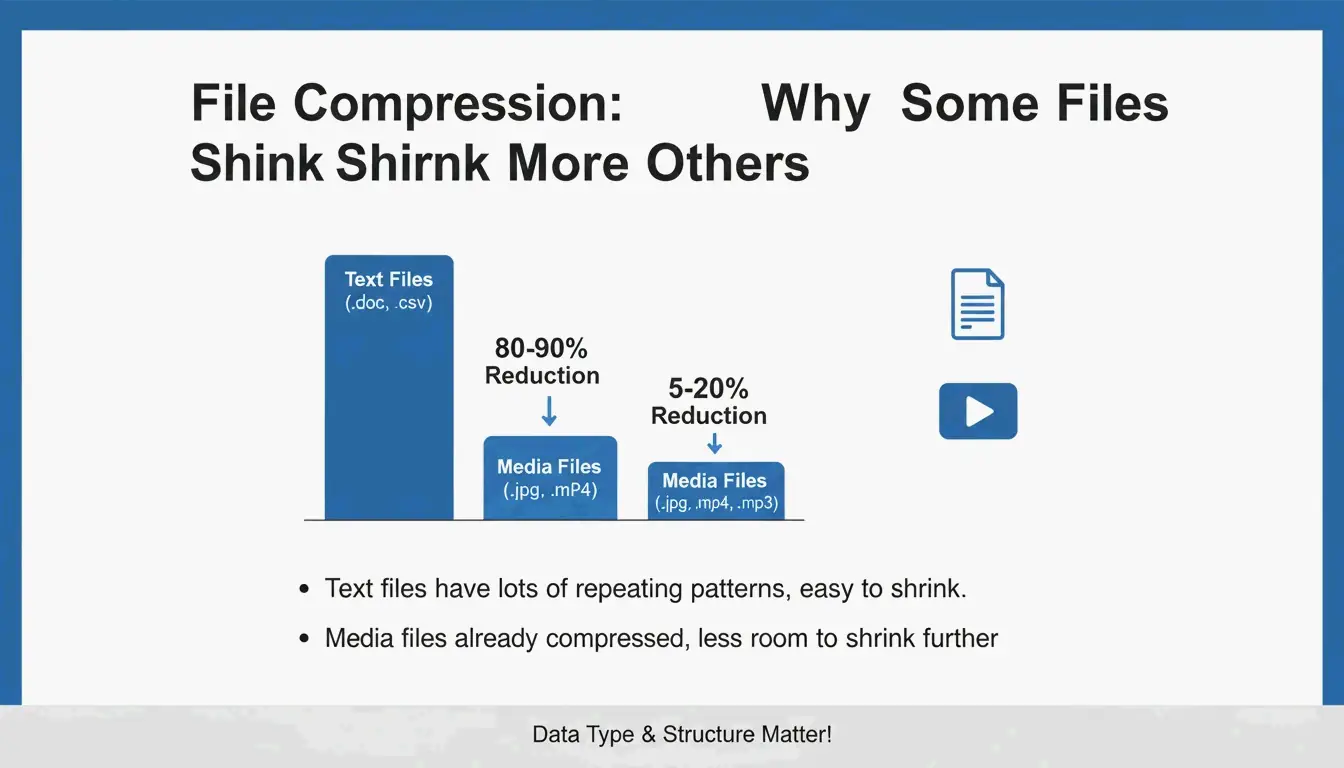
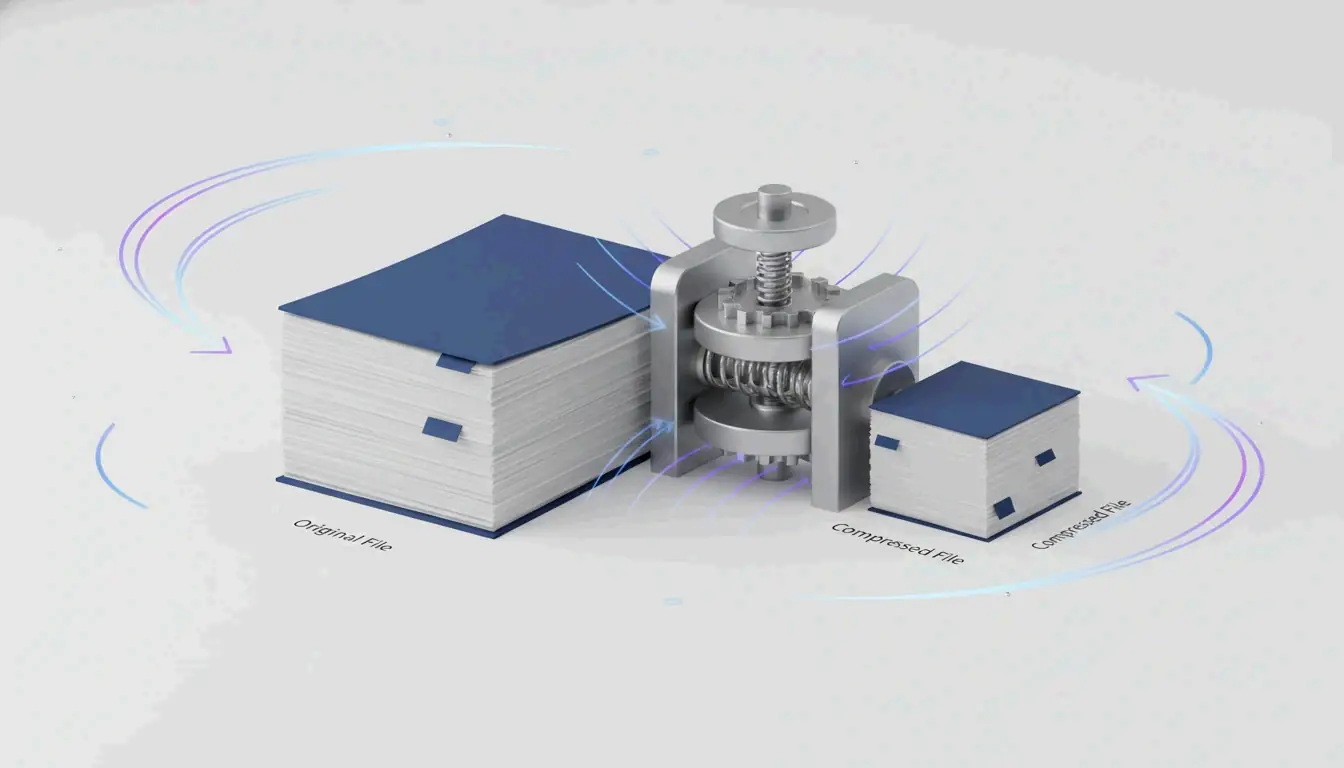
Zipping files in Windows is a built-in feature of File Explorer. It works by identifying repetitive patterns in your data to shrink the overall file size. This process uses the Deflate Algorithm, a “lossless” compression method, meaning your files stay exactly the same as the originals once they are unzipped.
Step-by-Step for Windows 11 and Windows 10
The steps vary slightly depending on which version of Windows you are using:
- Windows 11 (Modern Menu): Open File Explorer, highlight your files or folders, right-click, and click the Compress to ZIP file icon or text.
- Windows 10 (Legacy Menu): Select your items, right-click, and go to Send to > Compressed (zipped) folder.
According to PalmGear, text-heavy files like .txt, .html, and .csv can shrink by 60-80%. However, media formats like .jpg or .mp4 usually see less than a 5% reduction because these files are already compressed by their own software.

Archive Hygiene and Verification
Before you delete your original files, it is a good idea to practice “Archive Hygiene.” William Sanders, a tech expert at PalmGear, noted a case where a technician saved 39.5 minutes by zipping 200 driver files into one package for a quick 30-second upload. To stay safe, always double-click your new ZIP file to make sure the folders look right and the files open correctly before you trash the originals.
Using PowerShell for Advanced Batch Compression
If you are dealing with massive amounts of data or regular backups, you can use PowerShell instead of clicking through menus. By using the Compress-Archive command, you can automate the process. For example: Compress-Archive -Path "C:\Source\*" -DestinationPath "C:\Backup.zip" -CompressionLevel Optimal. The “Optimal” setting creates the smallest possible file, though it might take a bit longer to finish than the “Fastest” option.
Compressing Files on macOS with Archive Utility
On a Mac, the system uses a core tool called Archive Utility. Since this is built directly into the Finder, most users in the US don’t need to download extra apps just to create a standard .zip file.
Using the Native Compress Functionality
To create a ZIP on a Mac, find your file or folder in Finder, right-click (or Control-click) it, and choose Compress “[Name]”. If you select several items at once, the Mac will name the new file Archive.zip by default.
Handling Large Archives with ZIP64
By 2026, macOS handles ZIP64 extensions smoothly, moving past the old 4 GiB limit that used to plague ZIP files. According to Wikipedia, ZIP64 technically allows for files up to 16 EiB. While older Macs sometimes struggled with these huge files, the “ditto” command in the Mac Terminal remains a rock-solid backup. Typing ditto -c -k --sequesterRsrc --keepParent src_directory archive.zip ensures your data stays intact during high-stakes transfers.
Naming Conventions and Archive Hygiene
Keep your digital workspace organized by avoiding names like archive.zip. Instead, use clear labels like PROJECT_ClientName_2026.zip. As iBoysoft points out, you should also check your Safari settings if you want to stop the browser from automatically unzipping “safe” files, which can quickly clutter your Downloads folder.
How to Password Protect a ZIP File with 7-Zip and AES-256?
Many people mistakenly believe that standard Windows or Mac tools offer strong security. While they can group files together, PalmGear explains that the standard Windows File Explorer does not actually support password protection.
Setting Up 7-Zip for High-Level Security
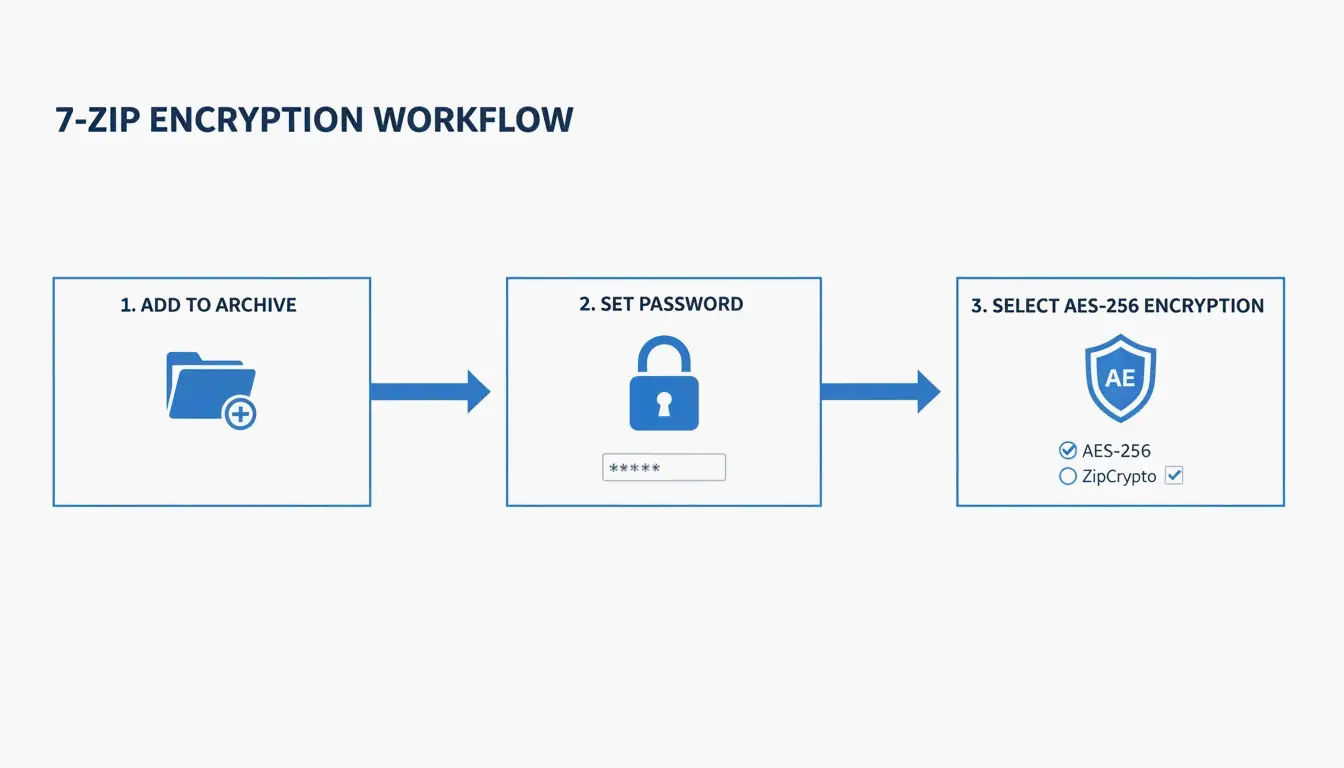
To protect sensitive info, the industry standard is 7-Zip using AES-256 (Advanced Encryption Standard).
- Download and install 7-Zip.
- Right-click your files and choose 7-Zip > Add to archive.
- In the “Encryption” area, type a strong password and make sure AES-256 is selected.

The ZIP Extractor Technical Documentation explains: “ZIP files group together one or more files into a single file… while at the same time compressing them.” By adding AES-256, you make sure that even if someone intercepts your file during a cloud transfer, they can’t get to your data.
Unzipping and Extracting Files: The Reverse Process
Getting your files back out is the final step. On Windows, you can double-click a ZIP to see what’s inside, but to actually use the files properly, you should right-click and choose Extract All. This opens a simple window that asks where you want to save the unzipped files.
On macOS, it’s even simpler. Just double-click the .zip file. Archive Utility will automatically unzip the contents into a new folder in the same spot. If you are a US user and your files unzip automatically when you download them from the web, you can change this in Safari > Settings > General by unchecking “Open safe files after downloading.”
The History and Evolution of ZIP: From PKWARE, Inc. to ZIP64
The ZIP format was created back in 1989 by Phil Katz and PKWARE, Inc. It was designed to be a faster alternative to the old ARC format. Wikipedia notes that the format was released into the public domain, which is why it is now the most widely used archive type in the world.
While the original ZIP format couldn’t handle files larger than 4 GiB, the arrival of ZIP64 in 2001 fixed this. Today, users can choose between “Optimal” compression (for saving space) and “Fastest” compression (for speed), depending on what the job requires.
Conclusion
Zipping files is still a core skill for managing data in 2026. Whether you use File Explorer on Windows or Archive Utility on Mac, the built-in tools are usually all you need. For everyday sharing, the standard right-click “Compress” method works perfectly. However, if you’re handling professional or sensitive data, it is a good idea to use 7-Zip with AES-256 encryption. By using clear file names and double-checking your archives before deleting the originals, you can keep your digital files safe and organized.
FAQ
Can I password-protect a ZIP file on Windows without third-party software?
No, the native Windows File Explorer does not support creating password-protected ZIP files. To apply high-level security, you must use a third-party tool like 7-Zip or WinZip, which allows you to apply AES-256 encryption to your archives.
Why is my ZIP file the same size as the original folder?
This typically happens if the folder contains files that are already compressed, such as JPG images, MP4 videos, or PDFs. The Deflate algorithm used in standard ZIP compression cannot further reduce the entropy of these already-optimized file types, resulting in a size reduction of 5% or less.
Does macOS automatically unzip files after downloading them?
By default, the Safari browser has a setting enabled called “Open safe files after downloading,” which automatically uses Archive Utility to unzip archives. This can be disabled by going to Safari Preferences > General and unchecking the box at the bottom of the menu.
What is the difference between ZIP, RAR, and 7z formats?
ZIP is the most compatible format and is natively supported by Windows and macOS. RAR and 7z often offer better compression ratios and advanced features like recovery records or native AES-256 encryption, but they generally require specific software like WinRAR or 7-Zip to open and create.
SectoJoy
Let Compress publishes practical guides for compression, conversion, and browser-based file workflows.
Follow SectoJoy