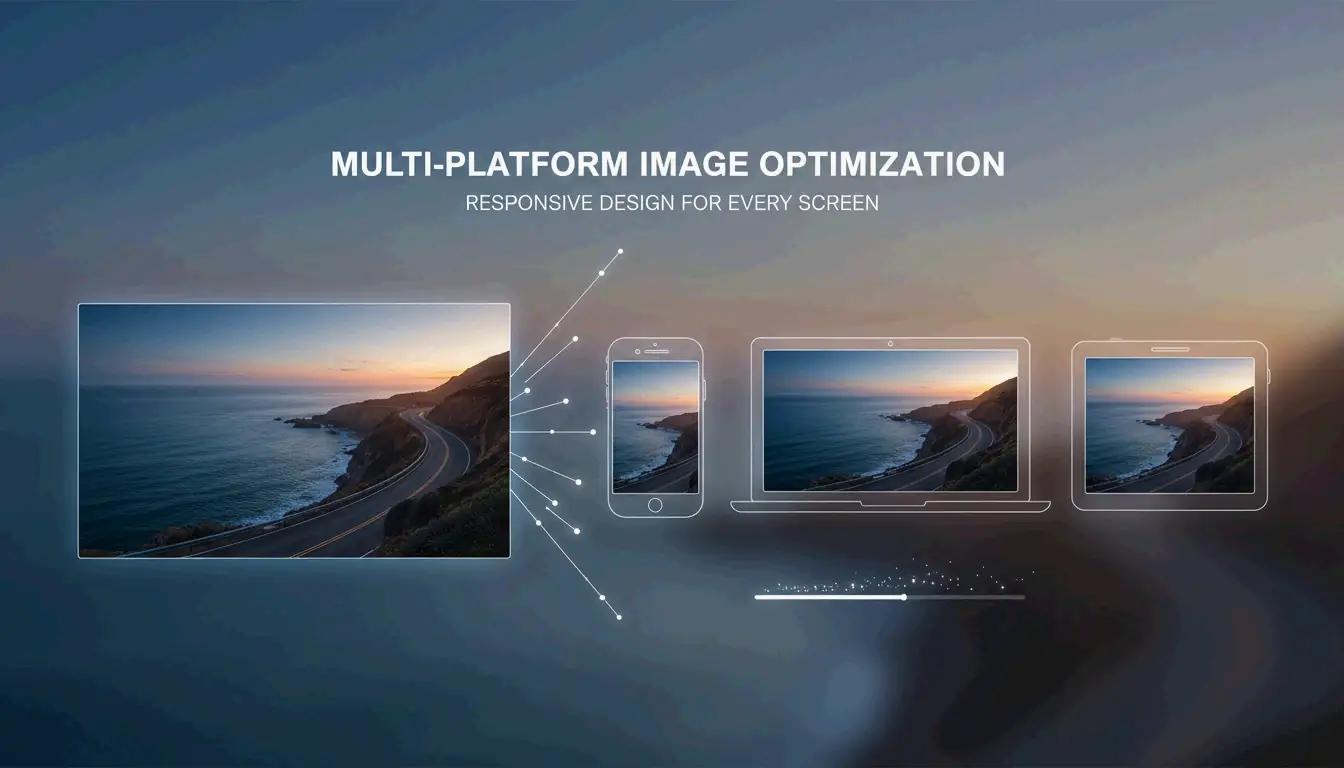
A high-quality visual showing an image being perfectly scaled for different digital screens.

Resize Image Quick Photo Size Guide

6 min read
作者 SectoJoy

To use this resize image quick photo size guide effecti […]

To use this resize image quick photo size guide effectively in 2026, tools like Adobe Express help you quickly adjust pixel dimensions—such as 1080x1350px for Instagram or 1200px for web banners. Always lock the aspect ratio, prioritize WebP/AVIF formats for faster loading, and save JPEGs at 80% quality to keep images sharp without slowing down your site.

Quick Implementation: How to Resize Images Without Quality Loss?

Resizing an image means changing its total pixel count to adjust the physical dimensions and file size. According to O’Brien Media, proper resizing can shrink a file by 80%. This turns a bulky 4MB photo into a lean 200KB file that still looks great on digital screens.

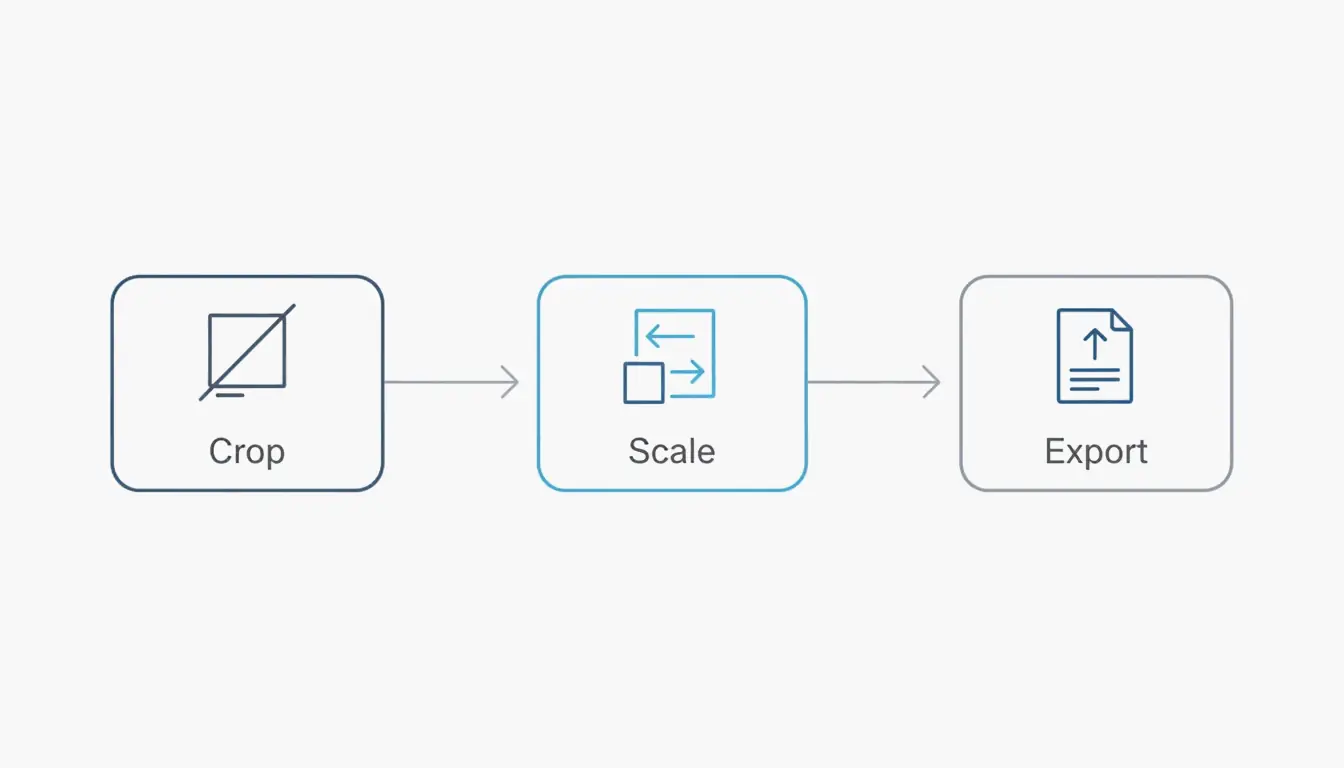
The professional workflow follows a simple three-step sequence: Crop, Scale, and Export. First, crop the image to your target shape so it doesn’t look stretched later. Second, scale the pixels to the width you need. Finally, export using a modern, efficient format. The most important rule is to maintain the Aspect Ratio; if you don’t lock this setting, your images will end up looking “squashed” or distorted.

The 3-step professional workflow: Crop > Scale > Export.

When shrinking an image, high-quality tools use Interpolation algorithms like “Bicubic Sharper.” This tech handles the pixel removal cleanly, recalculating the remaining data to keep the edges crisp. While you can downsize images as much as you want, enlarging them (upsizing) is trickier. It forces the software to “invent” new pixels, which usually leads to blurriness unless you use an AI-based generative upscaler.

Step-by-Step: Resizing for Web vs. Social Media

Web images need to be light for speed, while social media images need to fit specific containers so the platform doesn’t cut off important parts of your photo.

  1. Choose a Tool: Use Adobe Express for quick browser-based edits or an app like Photo & Picture Resizer on Android.
  2. Input Dimensions: Go for 1200px to 1600px wide for blog posts, or 1080px for Instagram.
  3. Lock Proportions: Make sure the “Keep Proportions” or chain-link icon is active.
  4. Save: Download as a JPEG for photos or a PNG for graphics with transparent backgrounds.

2026 Cheat Sheet: What Are the Standard Pixel Dimensions?

In 2026, Pixel Dimensions are the main factor in how both users and algorithms see your content. If you upload a massive 4000px photo from a phone to a site that only displays at 1080px, you’re wasting data. Even worse, the platform might use its own harsh compression to shrink it, which often ruins the image quality.

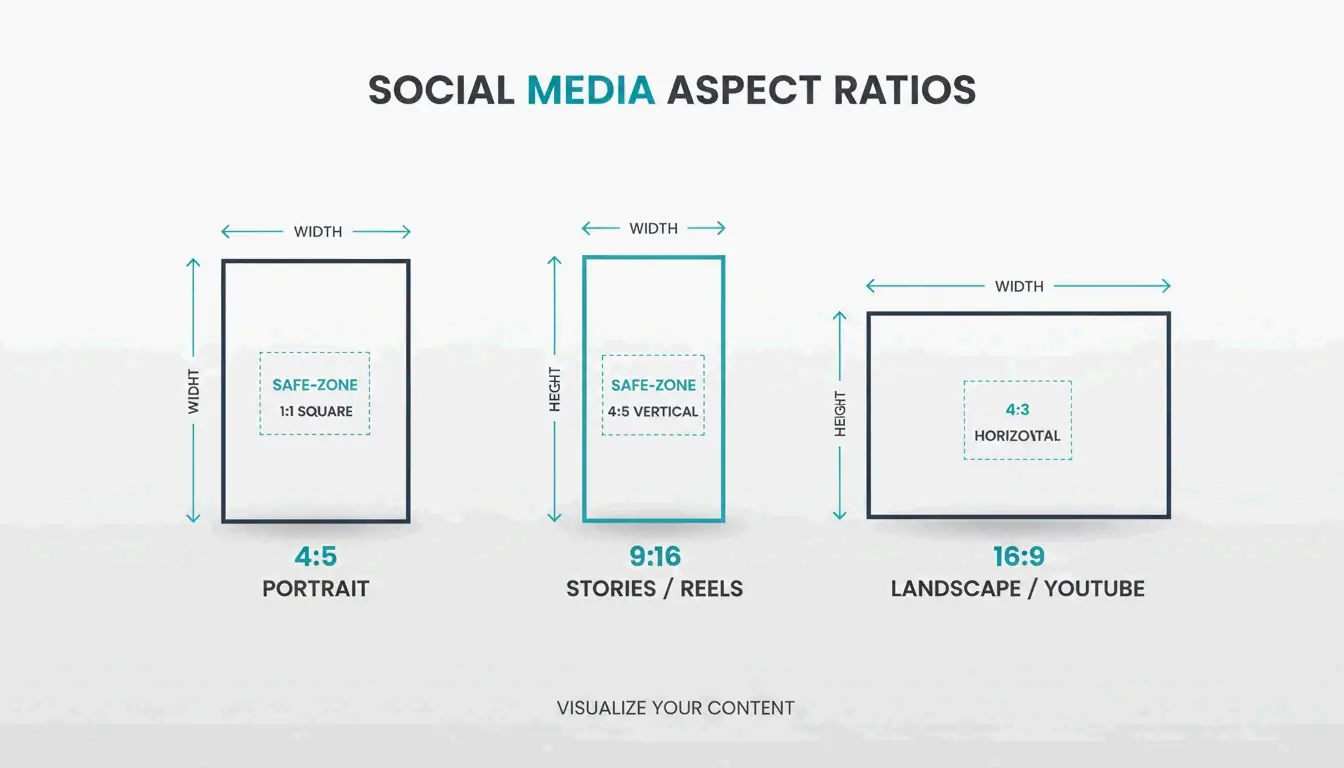
For the best engagement, the 4:5 Portrait ratio (1080 x 1350 px) is the current gold standard. Data from Picssizer 2026 shows this format works best because it takes up more “screen real estate” in mobile feeds. It literally forces users to scroll more to get past your post compared to a square image.

For websites, “hero” images that fill a desktop screen should stay around 1920px wide. For standard blog images or grid thumbnails, 1200px is usually the sweet spot for performance.

The 2026 Social Media Size Matrix (Instagram, TikTok, LinkedIn)

When posting across different sites, you need a “Safe-Zone” strategy. For vertical content like Reels and Stories (1080 x 1920 px), keep your text and faces in the middle 1080 x 1420 px area. This ensures they aren’t covered up by buttons, captions, or profile icons.

A simple visual comparison of 4:5 Portrait vs 9:16 Vertical vs 16:9 Landscape.

  • Instagram Feed: 1080 x 1350 px (Portrait) or 1080 x 1080 px (Square).
  • TikTok/Reels: 1080 x 1920 px (9:16 Ratio).
  • LinkedIn Profile: 400 x 400 px.
  • YouTube Thumbnail: 1280 x 720 px.
  • Web Banners: 1920 x 1080 px (Full) or 1200 x 400 px (Compact).

JPEG vs PNG vs AVIF: Choosing the Right Format for Speed

Picking the right file format is just as vital as getting the size right. JPEG is still the go-to for standard photography because it handles complex colors well. PNG is best for logos or any graphic where you need a transparent background.

However, by 2026, WebP and AVIF have become the standard for web performance. These formats offer much better compression, often making files 30% smaller than JPEGs without losing quality. This is especially helpful for email. A case study on Email Attachment Limits found that resizing a 5MB photo down to 400KB (a 10:1 reduction) lets you send multiple attachments without hitting “message too large” errors.

Regarding DPI (Dots Per Inch), 72 DPI is still the standard for the web. While you need 300 DPI for high-quality printing, using a high DPI on a digital screen just inflates the file size without making the image look any better to the viewer.

Efficiency Hack: Batch Resize and Native Mobile Shortcuts

If you’re running a campaign or updating a whole website, resizing images one by one takes way too long. Batch Resize tools let you handle over 100 images in seconds. On a computer, apps like Quick Photo Resizer let you drag and drop entire folders to resize everything at once.

For mobile users, iOS 26 lets you build a “Resize” Shortcut. Once you set this up in the native Shortcuts app, you can pick photos from your gallery and scale them to a specific width (like 1080px) instantly. On Android, the “Files” app and utilities like Photo & Picture Resizer offer “Quick Actions” to drop the resolution right before you hit share.

Conclusion

Resizing isn’t just about saving space; it’s about making sure your images play nice with platform algorithms and user expectations. In 2026, a professional look comes down to matching the exact pixel dimensions of your target platform. By locking your aspect ratio and using modern formats like WebP, you’ll ensure your visuals load fast and look sharp on every screen.

Action Suggestion: Take a look at your website or social profiles today. If you find any images over 2MB, resize them to these 2026 standards to improve your SEO and keep your audience engaged.

FAQ

Why do my images look blurry after uploading to Instagram?

Instagram automatically compresses any image over 1080px in width. To maintain quality, resize your image to exactly 1080px wide before uploading. Ensure you are using a 4:5 or 1:1 ratio to avoid auto-cropping, and check that the “High-quality uploads” toggle is enabled in your Instagram account settings.

What is the difference between resizing and cropping?

Resizing scales the entire image by changing the total pixel count while keeping all visual content intact. Cropping, however, removes the outer edges of an image to change its composition or aspect ratio. For best results, crop your photo to the correct ratio first, then resize it to the required pixel dimensions.

Can I resize an image to a larger size without losing quality?

Standard resizing, or upscaling, usually results in pixelation because the software must “guess” the missing data. In 2026, it is recommended to use AI-based “Generative Upscalers” which can recreate missing details. However, the best practice is always to start with the highest resolution source file possible before downsizing.

How do I resize photos on an iPhone without a third-party app?

You can use the native “Shortcuts” app to create an action that resizes images to a set width automatically. Another quick trick is using the “Mail” app: email the photo to yourself, and iOS will prompt you to choose “Small,” “Medium,” or “Large” sizes, effectively resizing the file for you.

SectoJoy

Let Compress publishes practical guides for compression, conversion, and browser-based file workflows.

Follow SectoJoy
Related Articles