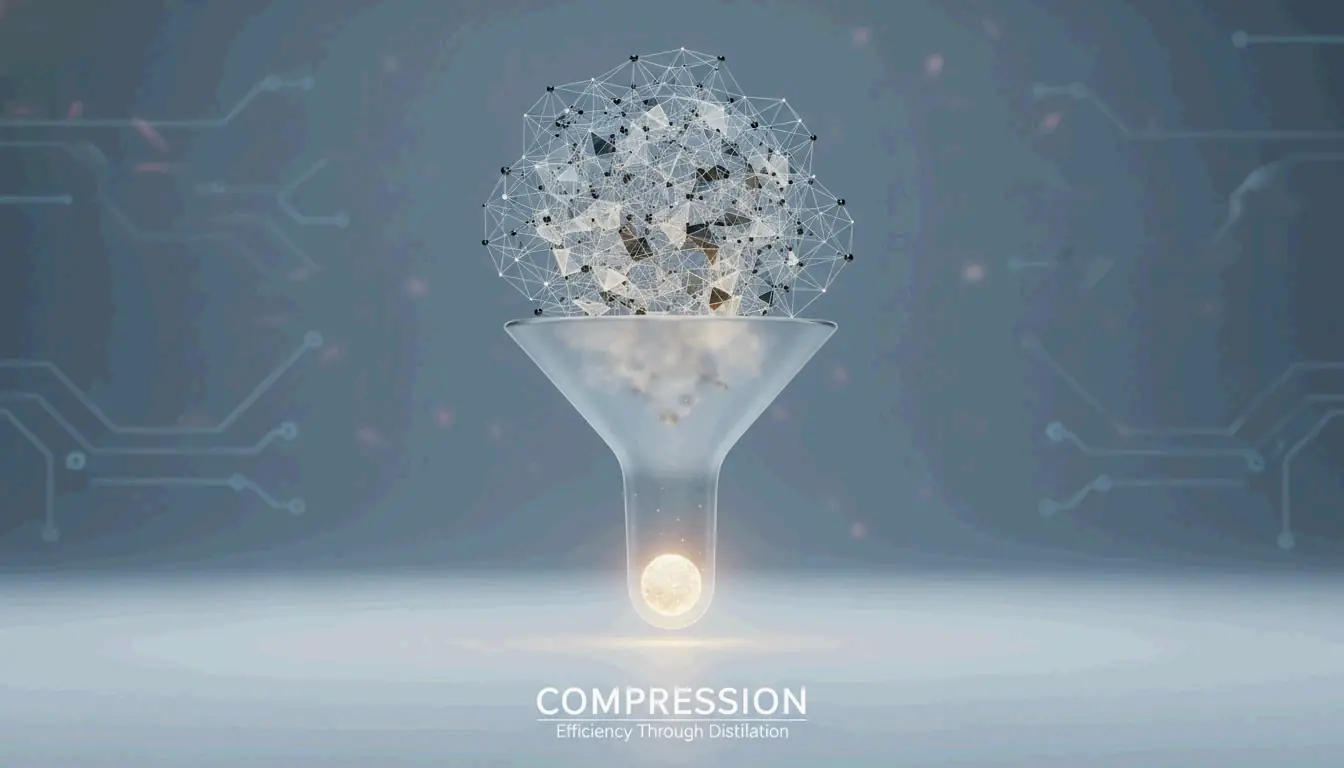
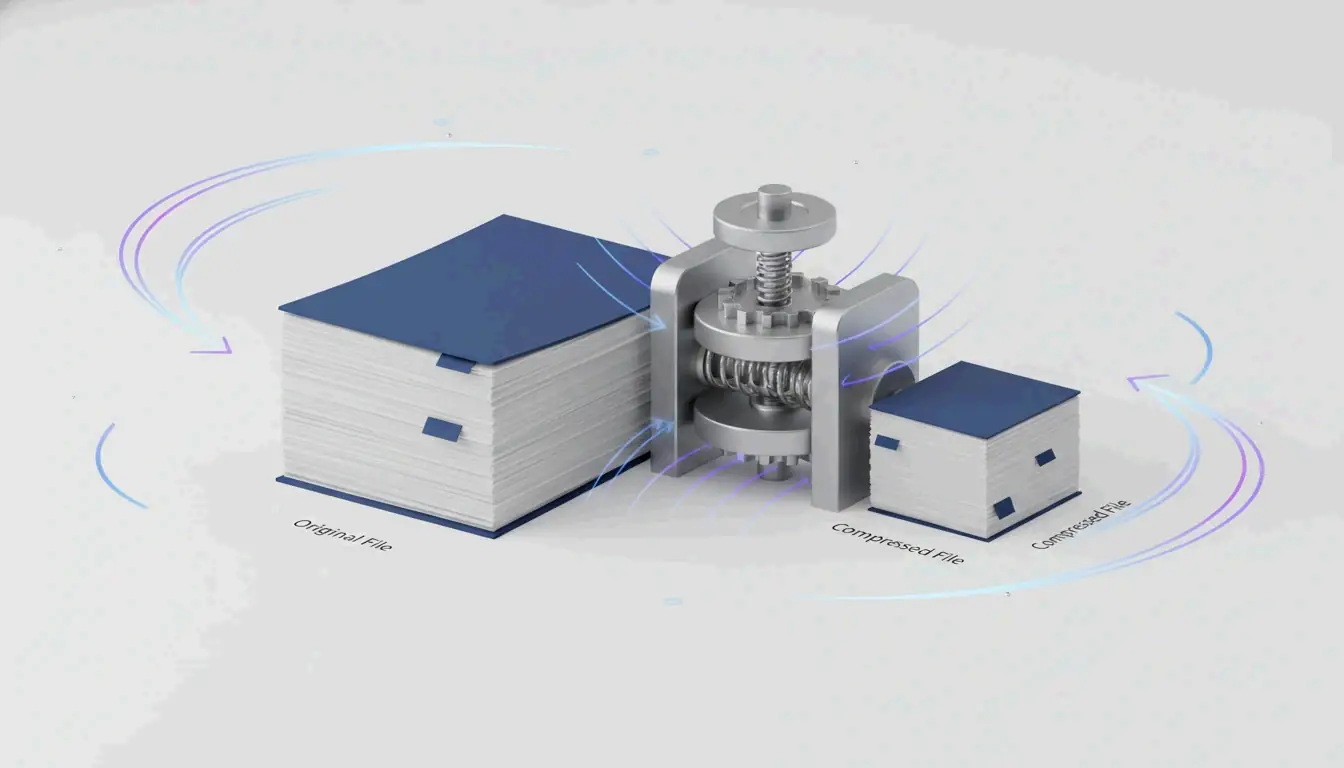
A visual metaphor of data compression: a large file being distilled into a smaller, glowing essence.

How to Reduce File Size: The Ultimate Guide to Shrinking PDFs, Images, and Videos

7 min read
作者 SectoJoy

To effectively reduce file size as of May 2026, use Ado […]

To effectively reduce file size as of May 2026, use Adobe Acrobat or pdfFiller for PDFs, convert images to WebP or JPEG (80% quality), and utilize Handbrake for video compression. Prioritize downsampling high-resolution elements, removing metadata, and choosing modern codecs like H.265 to shrink files while maintaining professional clarity for web or email.

The Core Framework: How to Reduce File Size Without Quality Loss

Understanding how data compression actually works is the first step toward smaller files. The goal is to find a “sweet spot”—making the file light enough to send quickly while keeping it sharp enough for its intended use.

Lossy vs. Lossless: Which Should You Choose?

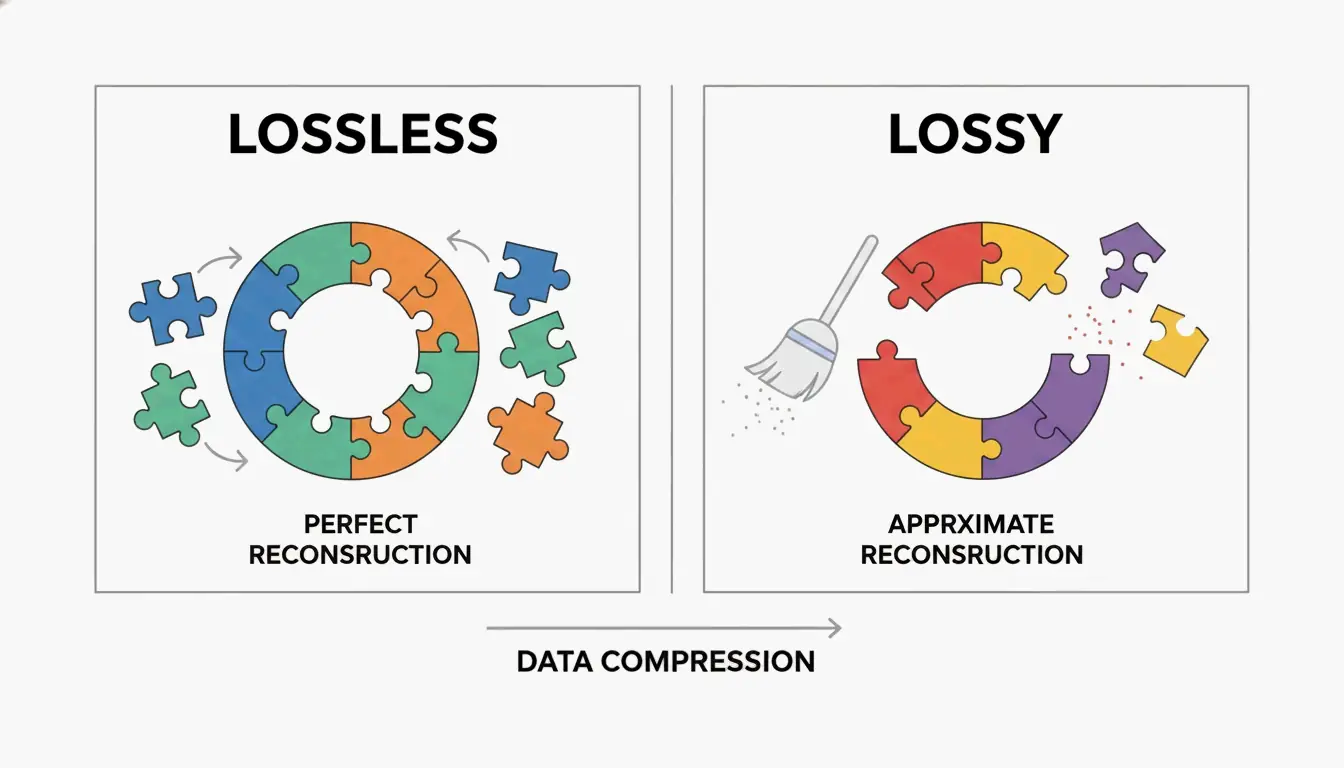
When optimizing files, you have to decide between Lossless vs. Lossy Compression. Lossless compression shrinks files by finding patterns in the data without touching the actual pixels or audio. This is your best bet for text-heavy documents or archival photos where every tiny detail must stay identical to the original.

Lossy compression, on the other hand, permanently removes “extra” data that our eyes or ears usually don’t notice. For instance, lowering a JPEG’s quality slightly can save a massive amount of space with almost no visible change. As Priyanka Kasera, a Software Engineer at SmartPDFSuite, explains, oversized images are a common trap. If you don’t resize a photo to its final display dimensions before embedding it, you could end up with “25x data bloat.”

A simple side-by-side comparison of Lossless (identical) vs. Lossy (optimized) data structures.

What is the Ideal DPI for Digital Documents?

DPI (Dots Per Inch) measures resolution. In 2026, the right setting depends entirely on where the file is going:

  • Web Delivery: 72 to 150 DPI is plenty for screens.
  • Standard Printing: 150 to 200 DPI balances quality and size.
  • Professional Press: 300 DPI is the baseline for high-quality physical prints.

According to IRCC Canada, scanning documents at 96 or 150 DPI keeps text clear for online applications while significantly cutting down the file size.

Shrinking PDFs: Using Adobe Acrobat Pro and Professional Alternatives

PDFs are often the bulkiest files in an office because they act like suitcases, holding high-res images, fonts, and complex layers all at once.

Step-by-Step: Compressing PDFs in Adobe Acrobat Pro

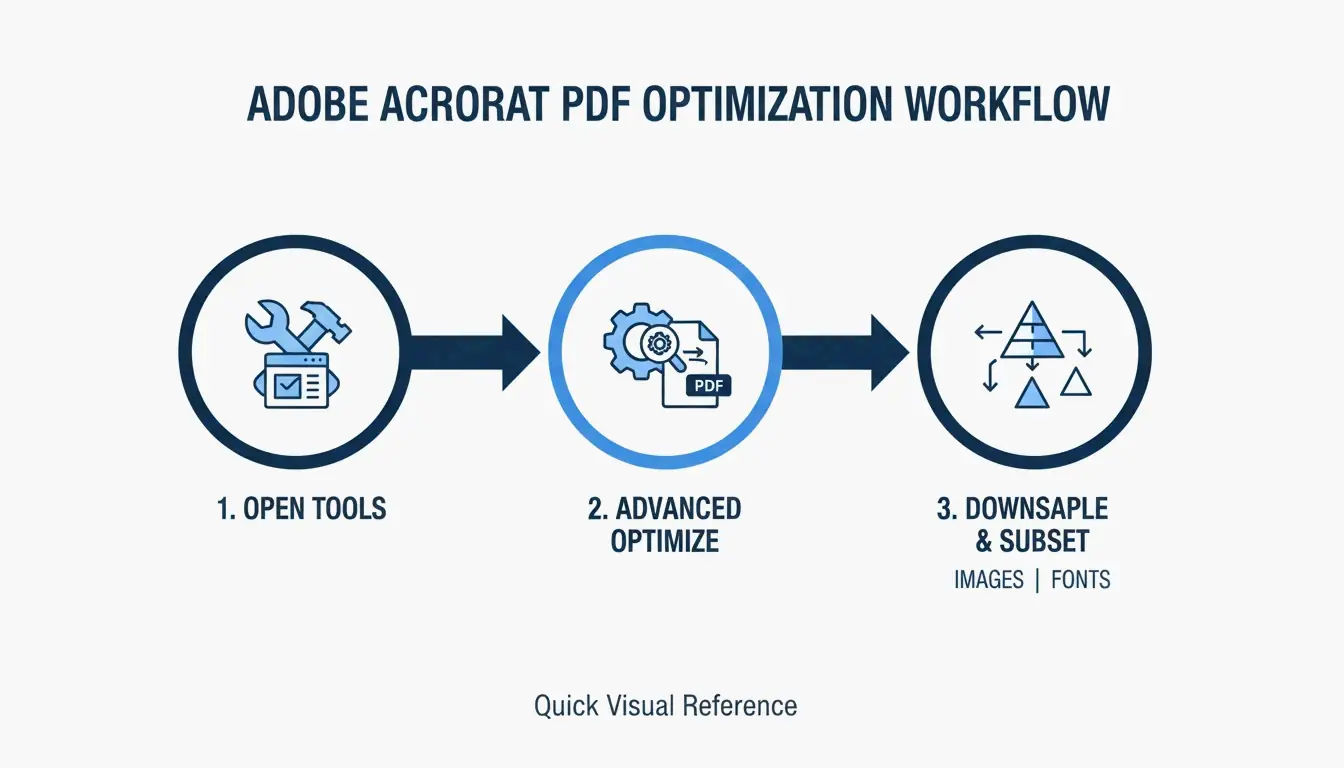
Adobe Acrobat Pro is still the go-to for PDF optimization. For the best results, use the “PDF Optimizer” to get specific:

  1. Open your PDF and go to All tools > Compress a PDF.
  2. Pick Advanced Optimization to tweak image settings manually.
  3. Downsample images to 150 DPI for web use and make sure Font Subsetting is turned on. Subsetting only embeds the specific characters used in your document rather than the whole font library. SmartPDFSuite notes this can cut font-related weight by 80–90%.

A 3-step visualization of the PDF optimization workflow.

If you want a different tool, Cisdem PDF Compressor reduced image-heavy files by nearly 89% in recent tests. Another solid choice is pdfFiller, which offers simple “Low, Medium, High” compression levels and works well for teams processing many files at once.

Why is your PDF still large? Check for hidden metadata

If a file is still huge after compression, Metadata & Hidden Layers are likely to blame. PDFs often hide editing histories, CAD layers, or “print-only” data you don’t need. Smallppt (2026) points out that images usually make up 70% of a PDF’s size. Using OCR (Optical Character Recognition) to turn images into searchable text—then deleting the original high-res background image—can strip away megabytes of useless data.

Video Compression Mastery: Bitrates, Codecs, and Handbrake

Videos need a different approach. Here, it’s all about the “codec” (the math used to shrink the video) and the “bitrate” (how much data is processed per second).

Best Video Codecs for Maximum Shrinkage

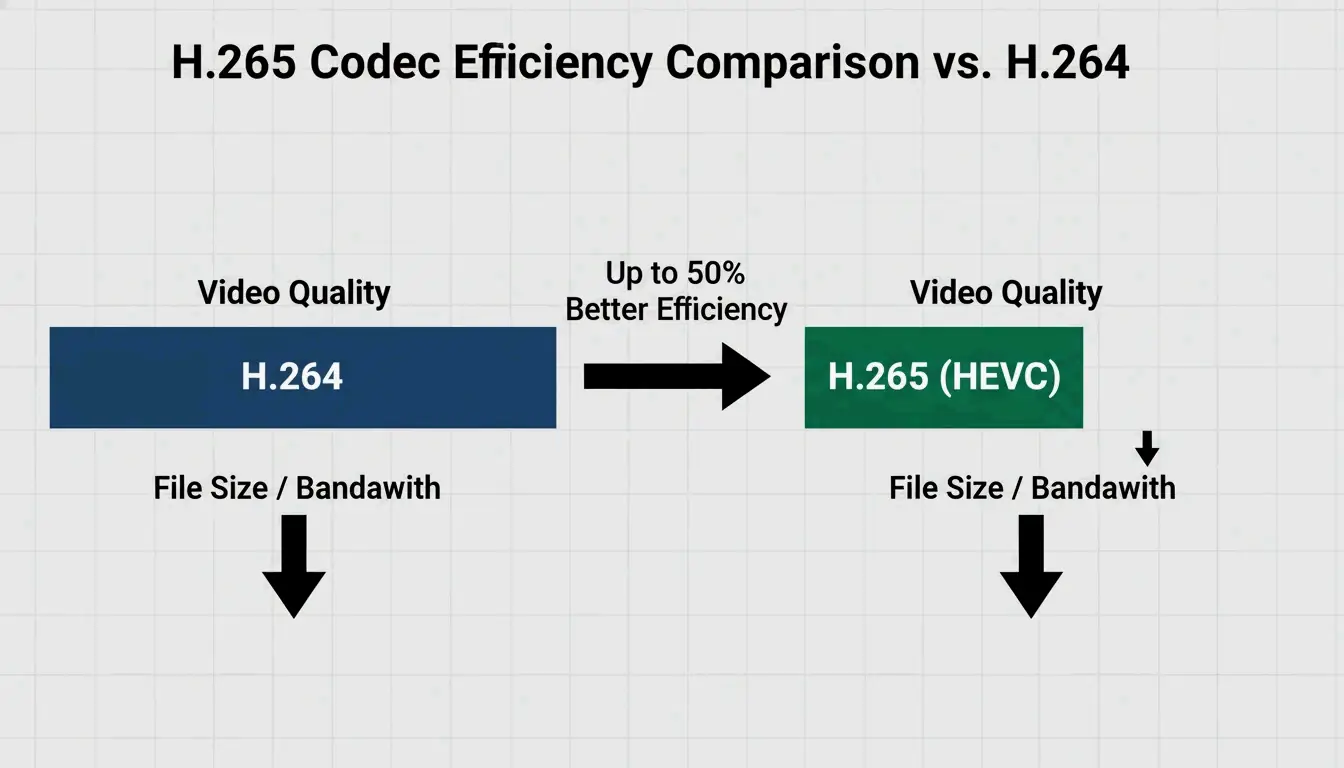
By 2026, H.265 (HEVC) has become the standard for high-efficiency video. While the older H.264 is still common, H.265 gives you the same quality at about half the size. When you export, try these bitrate targets:

  • Web/Social Media: 2–5 Mbps for 1080p.
  • Archival/High Def: 10–20 Mbps.

How to Use Handbrake for Batch Video Processing

If you have a folder full of large videos, the open-source tool Handbrake is the fastest way to handle them all at once:

  1. Open Handbrake and click “Open Source” to select your folder.
  2. Check the Web Optimized box.
  3. Choose the H.265 (x265) video codec.
  4. Use the Add to Queue button to let the software process the whole batch automatically.

A comparison of H.264 vs H.265 showing the efficiency gain (same quality, smaller size).

Image Optimization: From JPEG to Modern WebP Standards

Image optimization follows the “80% Rule.” SmartPDFSuite (2026) found that setting JPEG quality to 80% is almost impossible to distinguish from 100% but cuts the file size by 40–60%.

For the best web performance, WebP and AVIF are now the top choices. They compress better than PNG or JPEG and still support transparent backgrounds. Use this quick guide:

  • JPEG: Best for standard photos.
  • PNG: Save this for graphics that need transparency.
  • SVG: Best for icons and logos (these stay tiny regardless of size).
  • WebP: The 2026 standard for almost everything on the web.

Platform-Specific Shortcuts: macOS Preview vs. Windows Print to PDF

You don’t always need fancy software. Your computer already has built-in tools for quick fixes.

macOS Preview and Quartz Filters

On a Mac, Preview can shrink PDFs in seconds:

  1. Open the PDF.
  2. Go to File > Export.
  3. Choose Reduce File Size from the Quartz Filter menu.
    Note: Cisdem warns that this can sometimes lower quality too much or even make the file bigger if it’s already been optimized.

Windows and Command-Line Power

Windows users can use the “Print to PDF” trick. By “printing” a PDF to a new file, Windows strips out the editing history and hidden objects, often leaving you with a leaner version. For more advanced users, Ghostscript is a powerful command-line tool. Running brew install ghostscript allows you to automate compression for huge volumes of files without ever opening a window.

Conclusion

Reducing file size is about balance: picking the right codec (H.265/WebP), setting the right DPI (150 for web), and using tools like Adobe Acrobat or Handbrake to clear out hidden metadata. Start by checking what’s actually making your file heavy. If it’s images, focus on downsampling. If it’s a video, switch to H.265. Just remember to keep a high-res backup of your original before you start—once you use lossy compression, you can’t get those original pixels back.

FAQ

How can I compress a PDF on my phone without downloading an app?

You can use browser-based tools like Smallpdf, Adobe Online, or pdfFiller. On iOS, you can use the “Print” trick: Open the PDF, tap Share > Print, then pinch out (zoom in) on the preview image. This creates a flattened, smaller version that you can then share or save back to your files.

Does reducing file size always result in a loss of visual quality?

Not necessarily. Lossless compression removes redundant data codes without touching the actual pixels. While lossy compression (like JPEG at 80%) does discard data, these changes are often invisible to the human eye at standard viewing distances, allowing for significant size reduction without perceived quality loss.

Why is your PDF still large? Check for hidden metadata

The file may contain high-resolution “un-subsetted” fonts or multiple hidden layers and heavy “Print-only” metadata that standard compressors might skip. Additionally, embedded multimedia like video or high-resolution background images in scanned docs can keep the size up. Try “flattening” the PDF or using a specialized “Optimize PDF” tool to strip these elements.

SectoJoy

Let Compress publishes practical guides for compression, conversion, and browser-based file workflows.

Follow SectoJoy
Related Articles