How to Reduce File Size: The Ultimate Guide to Shrinking PDFs, Images, and Videos (2026)
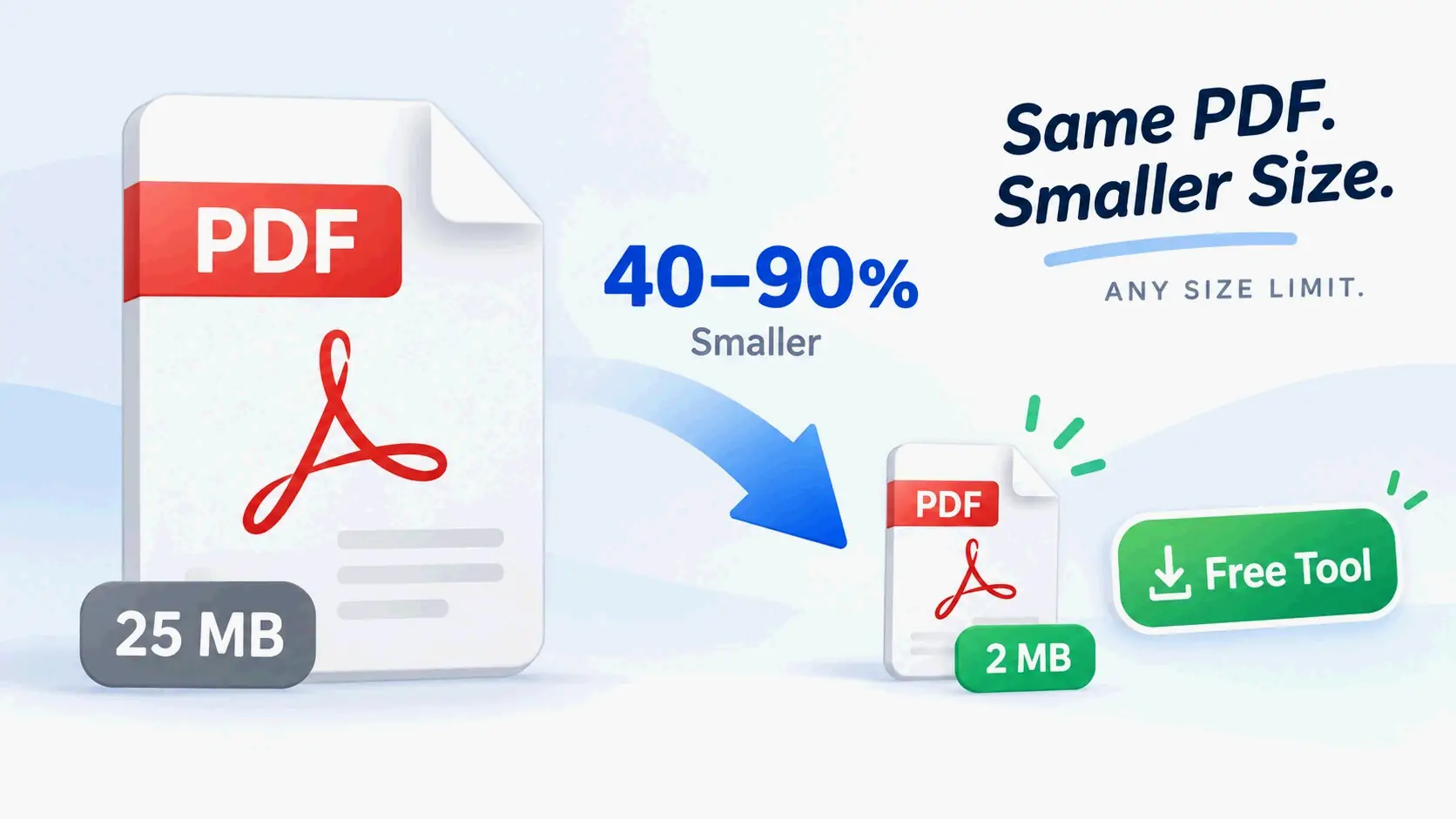
To reduce file size in 2026, apply the right strategy per file type: PDFs — downsample images to 150 DPI and enable font subsetting (up to 89% reduction). Images — export as WebP or JPEG at 80% quality (40–60% smaller). Videos — re-encode with H.265 at 2–5 Mbps (50% smaller than H.264).
File Type Quick Reference
| File Type | Best Tool | Typical Reduction | Key Setting |
|---|---|---|---|
| Adobe Acrobat Pro / Ghostscript | 60–89% | Downsample to 150 DPI | |
| Image | WebP / JPEG 80% | 40–60% | Quality 80, resize to display dimensions |
| Video | Handbrake (H.265) | ~50% vs H.264 | Bitrate 2–5 Mbps (1080p) |
| Multi-file | 7-Zip archive | Varies by content | ZIP or 7z container |
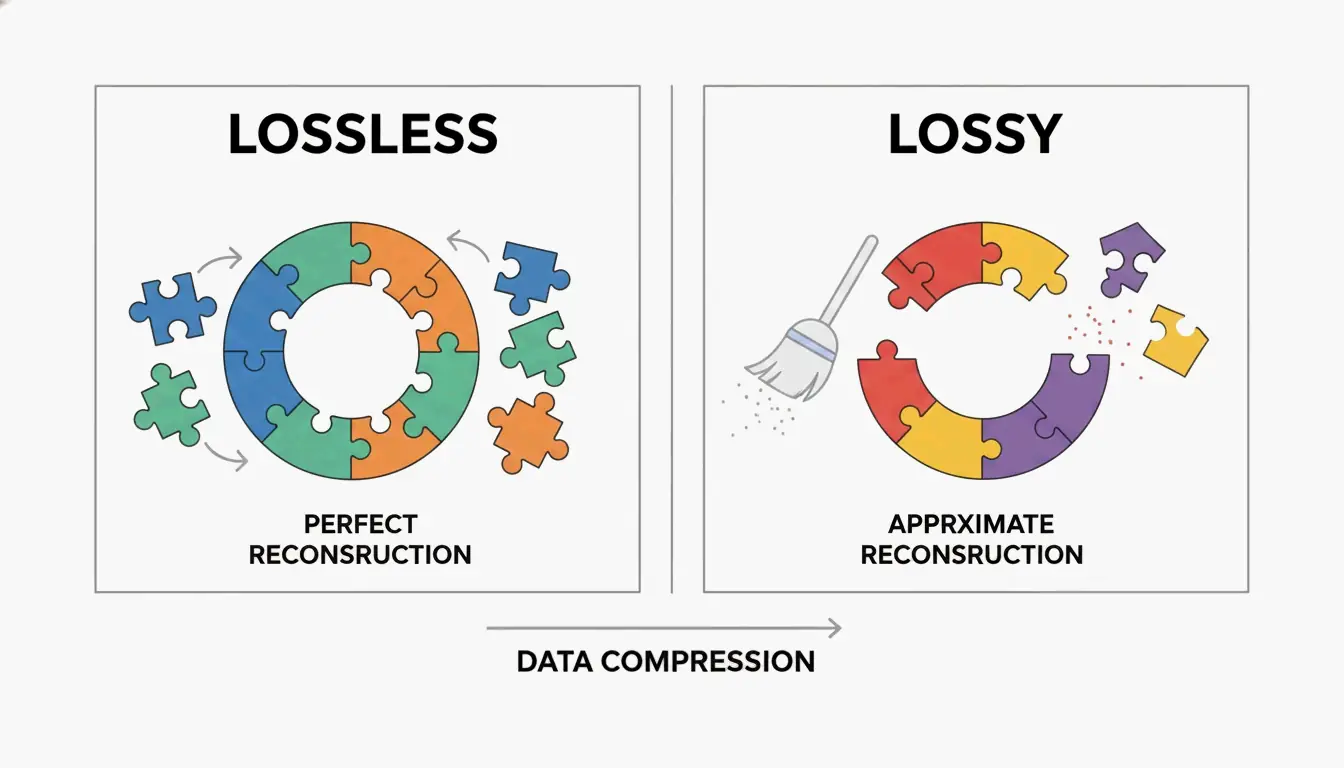
Lossy vs. Lossless: When to Use Each
| Type | How It Works | Best For | Quality Loss |
|---|---|---|---|
| Lossless | Removes redundant data patterns | Text documents, archival photos, PNG | None — pixels identical |
| Lossy | Discards data humans can’t perceive | Web images, streaming video, email attachments | Minimal at proper settings |
As SmartPDFSuite explains, failing to resize images to their final display dimensions before embedding creates “25× data bloat” — the single most common file size mistake.
PDF Compression: Adobe Acrobat Pro and Alternatives
PDFs are often the bulkiest office files because they bundle high-res images, fonts, and layers into one container. Smallppt reports that images typically make up 70% of a PDF’s total size.
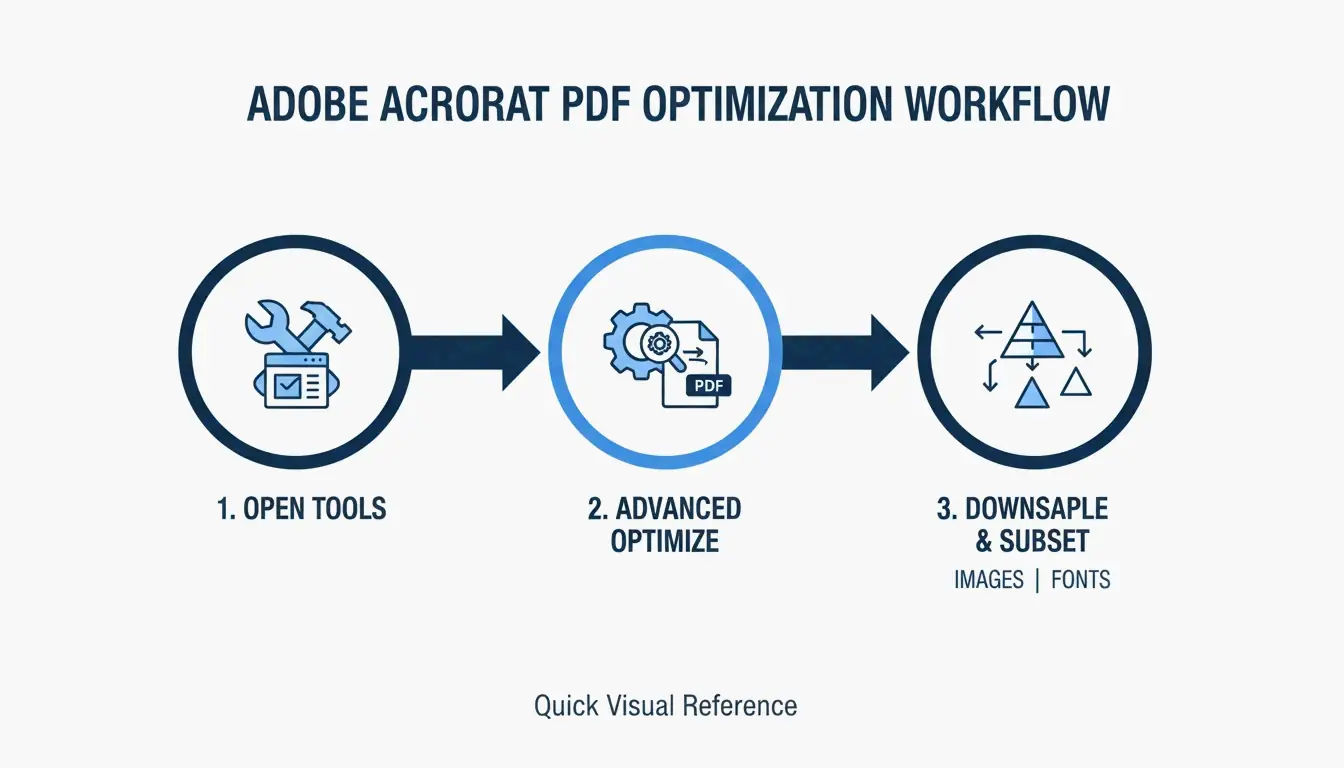
Adobe Acrobat Pro: PDF Optimizer
- Open PDF → All Tools > Compress a PDF
- Select Advanced Optimization
- Downsample images to 150 DPI (web) or 300 DPI (print)
- Enable Font Subsetting — embeds only used characters, cutting font weight by 80–90% per SmartPDFSuite
Alternative PDF Tools
| Tool | Reduction | Best For |
|---|---|---|
| Cisdem PDF Compressor | Up to 89% | Image-heavy PDFs on Mac |
| pdfFiller | Low/Medium/High presets | Team batch processing |
| Ghostscript (CLI) | Up to 94.5% | Automated large-volume jobs |
| Mac Preview | Up to 86% | Quick single-file jobs |
Why Is Your PDF Still Large?
| Hidden Culprit | Fix |
|---|---|
| Embedded full fonts (not subsetted) | Enable font subsetting |
| Hidden editing layers / CAD data | Flatten the PDF |
| Scanned images instead of text | Run OCR, then delete raster background |
| Print-only metadata | Use “Optimize PDF” to strip |
Image Optimization: JPEG, WebP, and AVIF
The 80% Quality Rule
SmartPDFSuite found that JPEG at 80% quality is visually indistinguishable from 100% but 40–60% smaller.
Format Selection Guide
| Format | Best For | Transparency | Size vs JPEG |
|---|---|---|---|
| JPEG | Photography | No | Baseline |
| PNG | Graphics, screenshots | Yes | 2–3× larger |
| WebP | Web standard (2026) | Yes | 30% smaller |
| AVIF | Maximum compression | Yes | 50% smaller |
| SVG | Icons, logos | Yes | Tiny (text-based) |
DPI Settings
| Target | DPI | Why |
|---|---|---|
| Web / Screen | 72–150 DPI | IRCC Canada recommends 96–150 DPI for digital submissions |
| Standard Print | 150–200 DPI | Balance of quality and size |
| Professional Print | 300 DPI | Baseline for sharp physical output |
Video Compression: Codecs and Handbrake
Video compression hinges on two factors: codec (the compression algorithm) and bitrate (data per second).
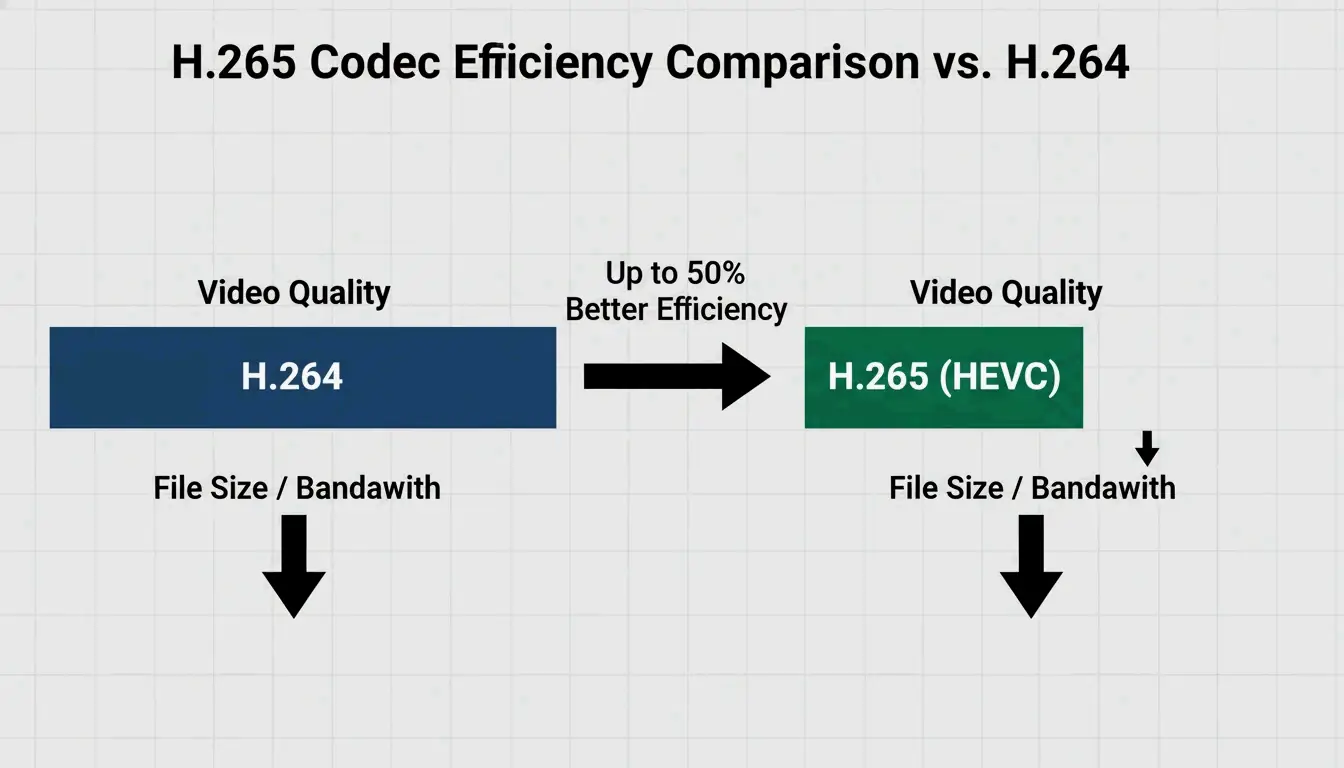
H.264 vs H.265 (HEVC)
| Codec | Quality at Same Size | Size at Same Quality | Compatibility |
|---|---|---|---|
| H.264 | Baseline | Baseline | Universal |
| H.265 | Better | ~50% smaller | 95%+ (2026) |
Bitrate Targets
| Use Case | Resolution | Bitrate |
|---|---|---|
| Web / Social Media | 1080p | 2–5 Mbps |
| Archival / High Def | 1080p | 10–20 Mbps |
| 4K Content | 2160p | 20–40 Mbps |
Handbrake: Batch Video Compression
- Open Handbrake → click “Open Source” to select files or folder
- Check Web Optimized
- Select H.265 (x265) video codec
- Set target bitrate (2–5 Mbps for web)
- Click Add to Queue → Start Encode
Processes entire folders automatically.
Built-in OS Shortcuts
macOS Preview (Quartz Filter)
- Open PDF in Preview
- File → Export
- Select “Reduce File Size” from Quartz Filter dropdown
- Save
Cisdem notes this achieves up to 86% reduction, but may over-compress or paradoxically increase size on already-optimized files.
Windows Print-to-PDF
“Printing” a PDF to a new file strips editing history and hidden objects, often producing a leaner version with zero tool installation.
Conclusion
Reduce file size by targeting the dominant bloat: images in PDFs (downsample + font subset), format choice for photos (WebP at 80% quality), and codec selection for video (H.265 at 2–5 Mbps). Always keep a high-res backup before applying lossy compression — once pixels are discarded, they can’t be recovered.
FAQ
How can I compress a PDF on my phone without an app?
Use browser-based tools like Smallpdf, Adobe Online, or pdfFiller. On iOS, use the “Print” trick: open PDF → Share → Print → pinch to zoom on the preview — this creates a flattened, smaller copy you can save.
Does reducing file size always lose quality?
No. Lossless compression (PNG optimization, ZIP) removes redundant data with zero quality change. Lossy compression (JPEG 80%, H.265) discards data imperceptible to human eyes, achieving large reductions without visible degradation.
Why is my PDF still large after compression?
Check for un-subsetted fonts (embeds entire font libraries), hidden layers from editing software, scanned images that should be OCR text, or print-only metadata. Use “Advanced Optimization” in Acrobat Pro to strip these elements.
What is the best video codec for smaller file size?
H.265 (HEVC) delivers the same quality as H.264 at roughly half the file size. Use Handbrake with the H.265 (x265) codec and target 2–5 Mbps for 1080p web content.
SectoJoy
Let Compress publishes practical guides for compression, conversion, and browser-based file workflows.
Follow SectoJoy