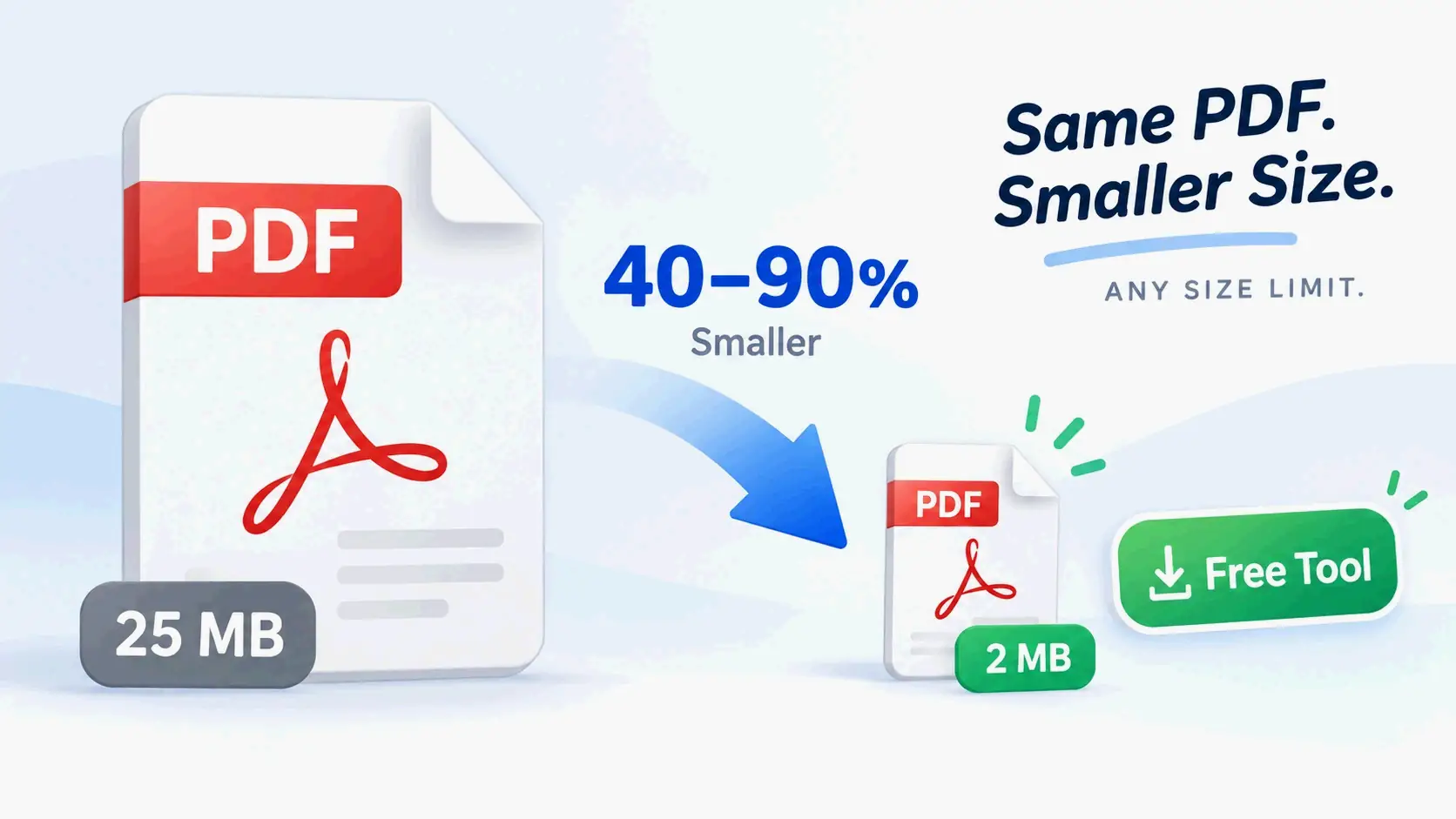
Dosya boyutu nasıl küçültülür: PDF, resim ve videoları sıkıştırmanın nihai rehberi
Mayıs 2026 itibarıyla dosya boyutunu etkili şekilde küçültmek için PDF’lerde Adobe Acrobat veya pdfFiller kullanın, resimleri WebP veya JPEG’e (kalite %80) dönüştürün ve videoları sıkıştırmak için Handbrake kullanın. Web veya e-posta için gereken profesyonel keskinliği koruyarak dosyaları küçültmek amacıyla yüksek çözünürlüklü öğelerin örneklemini düşürmeyi, meta verileri kaldırmayı ve H.265 gibi modern kod çözücüleri seçmeyi önceliklendirin.
Temel çerçeve: dosya boyutunu kalite kaybı olmadan nasıl küçültürsünüz
Veri sıkıştırmasının gerçekte nasıl çalıştığını anlamak, daha küçük dosyalara giden ilk adımdır. Amaç, «tatlı noktayı» bulmaktır — dosyayı hızla gönderilecek kadar hafif, ancak amaçlanan kullanım için yeterince keskin hale getirmek.
Kayıplı vs. kayıpsız: hangisini seçmelisiniz?
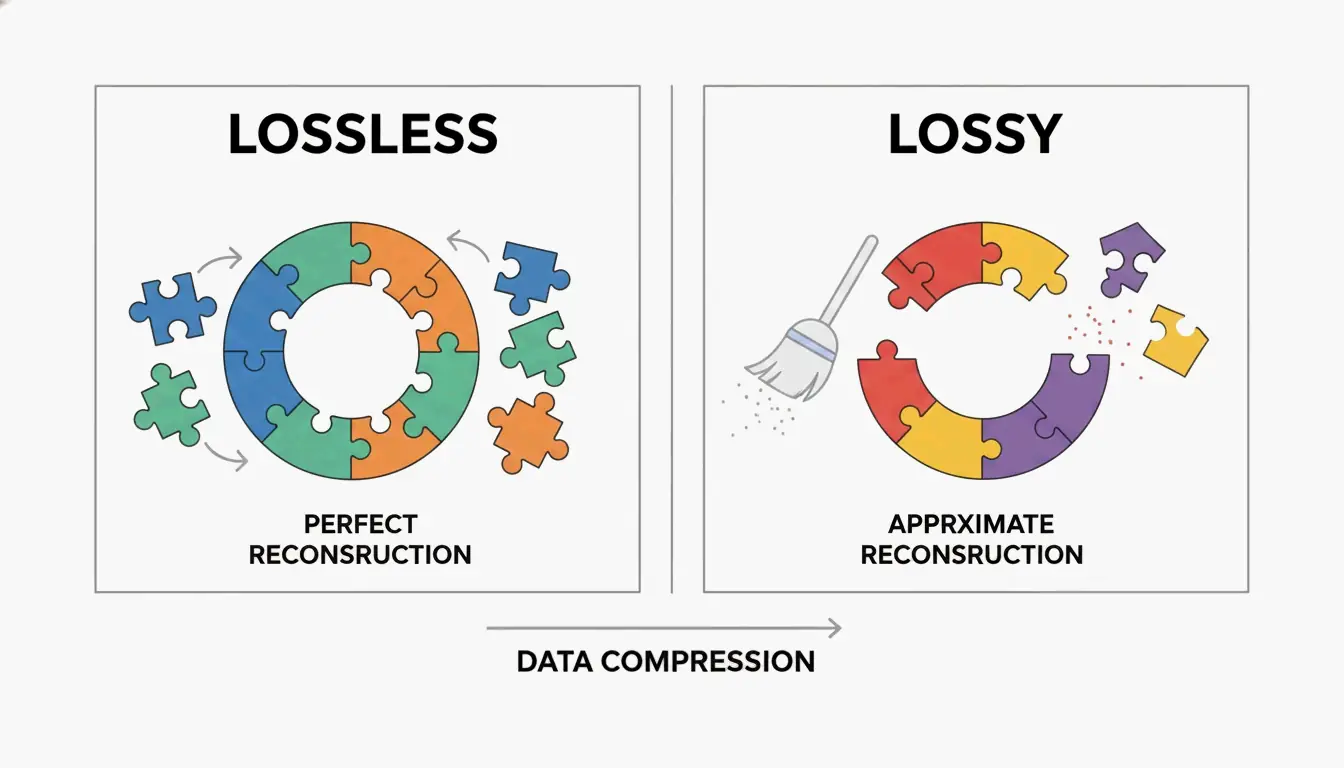
Dosyaları optimize ederken kayıpsız sıkıştırma ve kayıplı sıkıştırma arasında seçim yapmalısınız. Kayıpsız sıkıştırma, gerçek piksellere veya sese dokunmadan verilerdeki örüntüleri bularak dosyaları küçültür. Bu, her küçük detayın orijinalle özdeş kalması gereken metin ağırlıklı belgeler veya arşiv fotoğrafları için en iyi seçiminizdir.
Kayıplı sıkıştırma ise gözlerimizin veya kulaklarımızın genellikle fark etmediği «fazla» verileri kalıcı olarak kaldırır. Örneğin, JPEG kalitesini biraz düşürmek, neredeyse hiç görünür değişiklik olmadan büyük miktarda alan tasarrufu sağlayabilir. SmartPDFSuite’de yazılım mühendisi olan Priyanka Kasera‘nın açıkladığı gibi, aşırı büyük resimler yaygın bir tuzaktır. Bir fotoğrafı gömmeden önce son görüntüleme boyutlarına ölçeklendirmezseniz, sonuçta «25 kat veri şişmesi» yaşayabilirsiniz.
Dijital belgeler için ideal DPI nedir?
DPI (inç başına nokta sayısı) çözünürlüğü ölçer. 2026’da doğru ayar, tamamen dosyanın nereye gideceğine bağlıdır:
- Web teslimatı: Ekranlar için 72 ila 150 DPI yeterlidir.
- Standart baskı: 150 ila 200 DPI kalite ve boyutu dengeler.
- Profesyonel baskı: 300 DPI, yüksek kaliteli fiziksel baskılar için referans değerdir.
IRCC Canada‘ya göre belgeleri 96 veya 150 DPI’de taramak, çevrimiçi başvurular için metni net tutarken dosya boyutunu önemli ölçüde küçültür.
PDF’leri küçültme: Adobe Acrobat Pro ve profesyonel alternatifleri kullanma
PDF’ler genellikle bir ofisteki en hacimli dosyalardır çünkü valiz gibi davranır ve aynı anda yüksek çözünürlüklü resimler, yazı tipleri ve karmaşık katmanlar içerir.
Adım adım: Adobe Acrobat Pro’da PDF’leri sıkıştırma
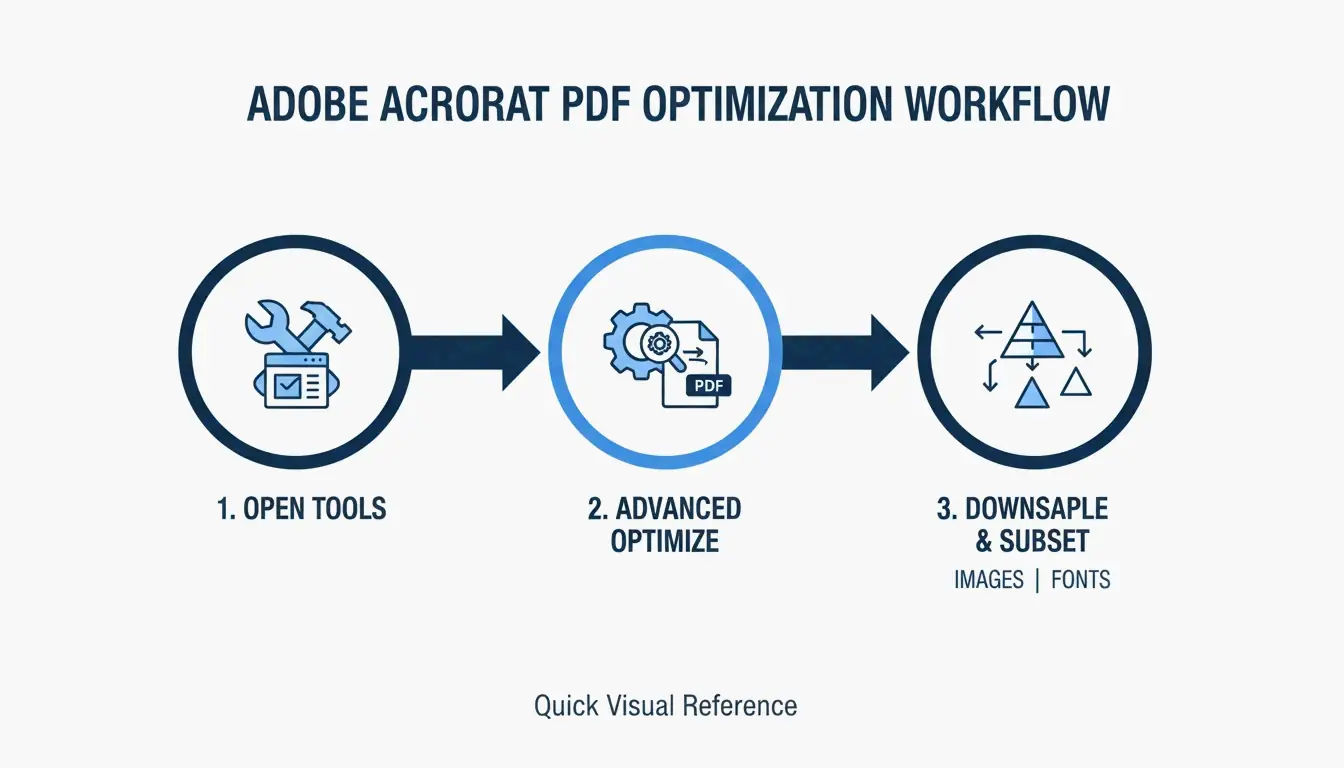
Adobe Acrobat Pro, PDF optimizasyonu için hâlâ referans kabul edilen araçtır. En iyi sonuçlar için ayrıntılı olmak adına «PDF Optimize Edici»yi kullanın:
- PDF’nizi açın ve Tüm araçlar > PDF sıkıştır (All tools > Compress a PDF) bölümüne gidin.
- Görüntü ayarlarını elle yapmak için Gelişmiş Optimizasyon (Advanced Optimization) seçin.
- Web kullanımı için resimleri 150 DPI’ye düşürün ve Yazı tipi alt kümesinin (Font Subsetting) açık olduğundan emin olun. Alt küme, tüm yazı tipi kitaplığı yerine yalnızca belgenizde gerçekten kullanılan karakterleri gömer. SmartPDFSuite, bunun yazı tipi ağırlığını %80–90 azaltabileceğini belirtir.
Başka bir araç isterseniz, Cisdem PDF Compressor son testlerde resim açısından zengin dosyaları neredeyse %89 oranında küçülttü. Bir başka sağlam seçenek de pdfFiller; basit «Düşük, Orta, Yüksek» sıkıştırma seviyeleri sunar ve aynı anda çok sayıda dosyayı işleyen ekipler için iyidir.
PDF’niz neden hâlâ büyük? Gizli meta verileri kontrol edin
Bir dosya sıkıştırmadan sonra hâlâ kocamansa, meta veriler ve gizli katmanlar (Metadata & Hidden Layers) muhtemelen suçludur. PDF’ler genellikle düzenleme geçmişini, CAD katmanlarını veya ihtiyacınız olmayan «yalnızca yazdırma» verilerini gizler. Smallppt (2026), resimlerin normalde bir PDF boyutunun %70’ini oluşturduğuna dikkat çeker. Resimleri aranabilir metne dönüştürmek için OCR (Optik Karakter Tanıma) kullanmak — ve ardından orijinal yüksek çözünürlüklü arka plan resmini silmek — işe yaramaz verilerin megabaytlarını kaldırabilir.
Video sıkıştırmaya hakimiyet: bit hızları, kod çözücüler ve Handbrake
Videolar farklı bir yaklaşım gerektirir. Burada iş «kod çözücüye» (videoyu küçültmek için kullanılan matematik) ve «bit hızına» (saniyede ne kadar veri işlendiği) dayanır.
Maksimum küçültme için en iyi video kod çözücüler
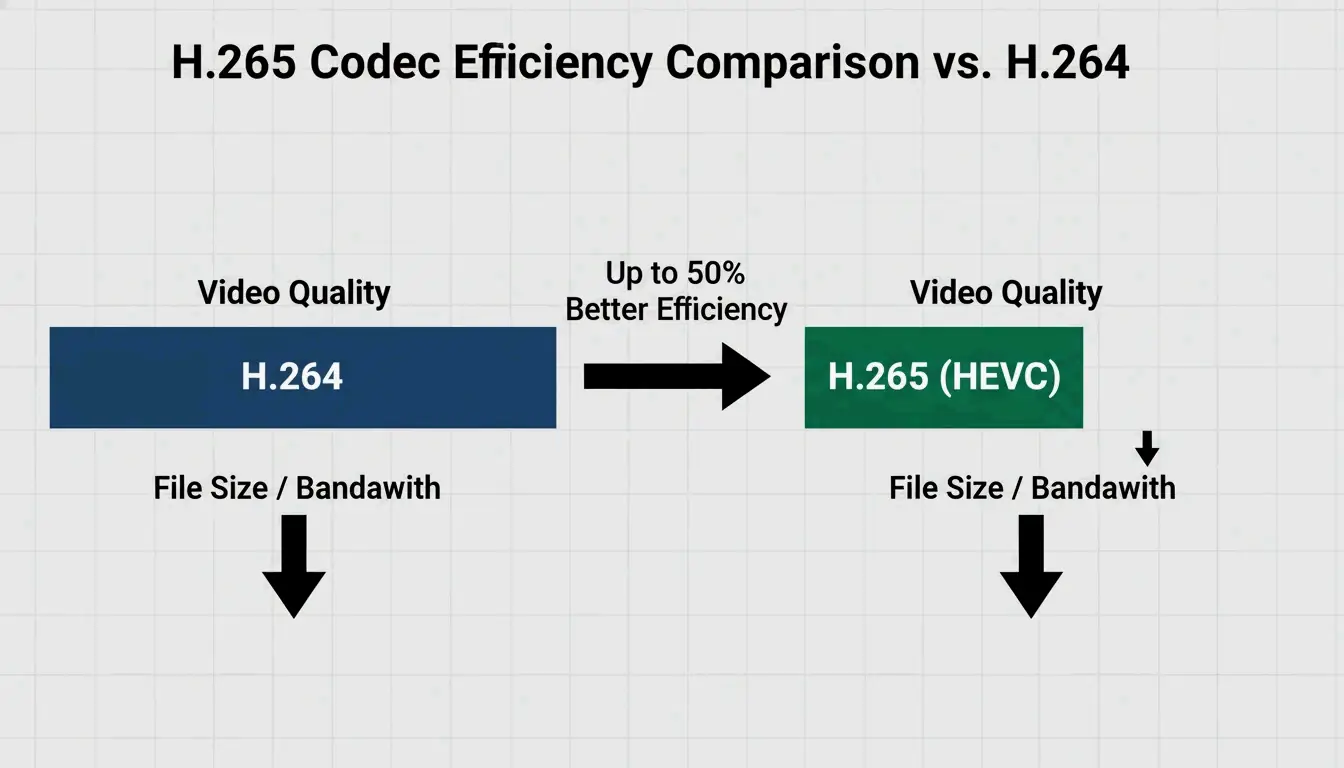
2026’ya gelindiğinde H.265 (HEVC), yüksek verimli video için standart hale geldi. Eski H.264 yaygın olsa da, H.265 size yaklaşık olarak yarısı boyutta aynı kaliteyi sunar. Dışa aktarırken şu bit hızı hedeflerini deneyin:
- Web/Sosyal medya: 1080p için 2–5 Mbps.
- Arşiv/Yüksek tanım: 10–20 Mbps.
Handbrake ile video toplu işlemeyi nasıl yaparsınız
Büyük videolarla dolu bir klasörünüz varsa, açık kaynak araç Handbrake hepsini aynı anda işlemenin en hızlı yoludur:
- Handbrake’i açın ve klasörünüzü seçmek için «Open Source»a tıklayın.
- Web Optimized onay kutusunu işaretleyin.
- H.265 (x265) video kod çözücüyü seçin.
- Yazılımın tüm grubu otomatik işlemesi için Add to Queue düğmesini kullanın.
Resim optimizasyonu: JPEG’den modern WebP standartlarına
Resim optimizasyonu «%80 kuralını» izler. SmartPDFSuite (2026), JPEG kalitesini %80’e ayarlamanın %100’den neredeyse ayırt edilemez olduğunu ama dosya boyutunu %40–60 küçülttüğünü keşfetti.
En iyi web performansı için WebP ve AVIF artık en iyi seçimlerdir. PNG veya JPEG’den daha iyi sıkıştırırlar ve şeffaf arka planları desteklemeye devam ederler. Şu hızlı kılavuzu kullanın:
- JPEG: Standart fotoğraflar için en iyisi.
- PNG: Şeffaflığa ihtiyaç duyan grafikler için saklayın.
- SVG: Simge ve logolar için en iyisi (boyuttan bağımsız olarak küçük kalırlar).
- WebP: Web’deki neredeyse her şey için 2026 standardı.
Platforma özel kısayollar: macOS Önizleme vs. Windows «PDF olarak yazdır»
Her zaman gösterişli bir yazılıma ihtiyacınız yoktur. Bilgisayarınızda hızlı düzeltmeler için zaten yerleşik araçlar vardır.
macOS Önizleme ve Quartz filtreleri
Bir Mac’te Önizleme (Preview), saniyeler içinde PDF’leri küçültebilir:
- PDF’yi açın.
- Dosya > Dışa Aktar (File > Export) bölümüne gidin.
- Quartz Filtresi (Quartz Filter) menüsünden Dosya Boyutunu Küçült (Reduce File Size) seçin.
Not: Cisdem, bunun bazen kaliteyi çok fazla düşürebileceğini veya zaten optimize edildiyse dosyayı daha da büyütebileceğini uyarır.
Windows ve komut satırının gücü
Windows kullanıcıları «PDF olarak yazdır (Print to PDF)» tekniğini kullanabilir. Bir PDF’yi yeni bir dosyaya «yazdırarak», Windows düzenleme geçmişini ve gizli nesneleri soyar ve çoğunlukla size daha yalın bir sürüm bırakır. Daha gelişmiş kullanıcılar için Ghostscript, güçlü bir komut satırı aracıdır. brew install ghostscript çalıştırmak, hiçbir pencere açmadan devasa dosya hacimleri için sıkıştırmayı otomatikleştirmenizi sağlar.
Sonuç
Dosya boyutunu küçültmek bir denge meselesidir: doğru kod çözücüyü seçmek (H.265/WebP), doğru DPI’yı ayarlamak (web için 150) ve gizli meta verileri kaldırmak için Adobe Acrobat veya Handbrake gibi araçları kullanmak. Önce dosyanızı gerçekten neyin ağır yaptığını kontrol ederek başlayın. Resimlerse örnekleme düşürmeye odaklanın, videosa H.265’e geçin. Sadece başlamadan önce orijinalinizin yüksek çözünürlüklü bir yedeğini saklamayı unutmayın — kayıplı sıkıştırmayı kullandığınızda o orijinal pikselleri geri alamazsınız.
Sıkça sorulan sorular
Uygulama indirmeden telefonumdaki bir PDF’i nasıl sıkıştırabilirim?
Smallpdf, Adobe Online veya pdfFiller gibi tarayıcı tabanlı araçları kullanabilirsiniz. iOS’ta «Yazdır» tekniğini kullanabilirsiniz: PDF’yi açın, Paylaş > Yazdır’a dokunun ve ardından önizleme görselini dışarı sıkıştırarak (yakınlaştırın) büyütün. Bu, düzleştirilmiş, daha küçük bir sürüm oluşturur ve bunu daha sonra paylaşabilir veya dosyalarınıza geri kaydedebilirsiniz.
Dosya boyutunu küçültmek her zaman görsel kalite kaybına yol açar mı?
Gerekmez. Kayıpsız sıkıştırma, gerçek piksellere dokunmadan gereksiz veri kodlarını kaldırır. Kayıplı sıkıştırma (örneğin %80 JPEG) veri atsa da, bu değişiklikler normal izleme mesafelerinde insan gözüne genellikle görünmez ve bu da algılanan kalite kaybı olmadan önemli boyut küçültmesi sağlar.
PDF’niz neden hâlâ büyük? Gizli meta verileri kontrol edin
Dosya, yüksek çözünürlüklü «alt kümelenmemiş» yazı tipleri veya standart sıkıştırıcıların atlayabileceği birden çok gizli katman ve ağır «yalnızca yazdırma» meta verileri içerebilir. Ayrıca, taranmış belgelerdeki videolar veya yüksek çözünürlüklü arka plan resimleri gibi gömülü multimedya içerikleri de boyutu büyük tutabilir. PDF’yi «düzleştirmeyi» deneyin veya bu öğeleri kaldırmak için özel bir «PDF’yi optimize et» aracı kullanın.
SectoJoy
Let Compress publishes practical guides for compression, conversion, and browser-based file workflows.
Follow SectoJoy