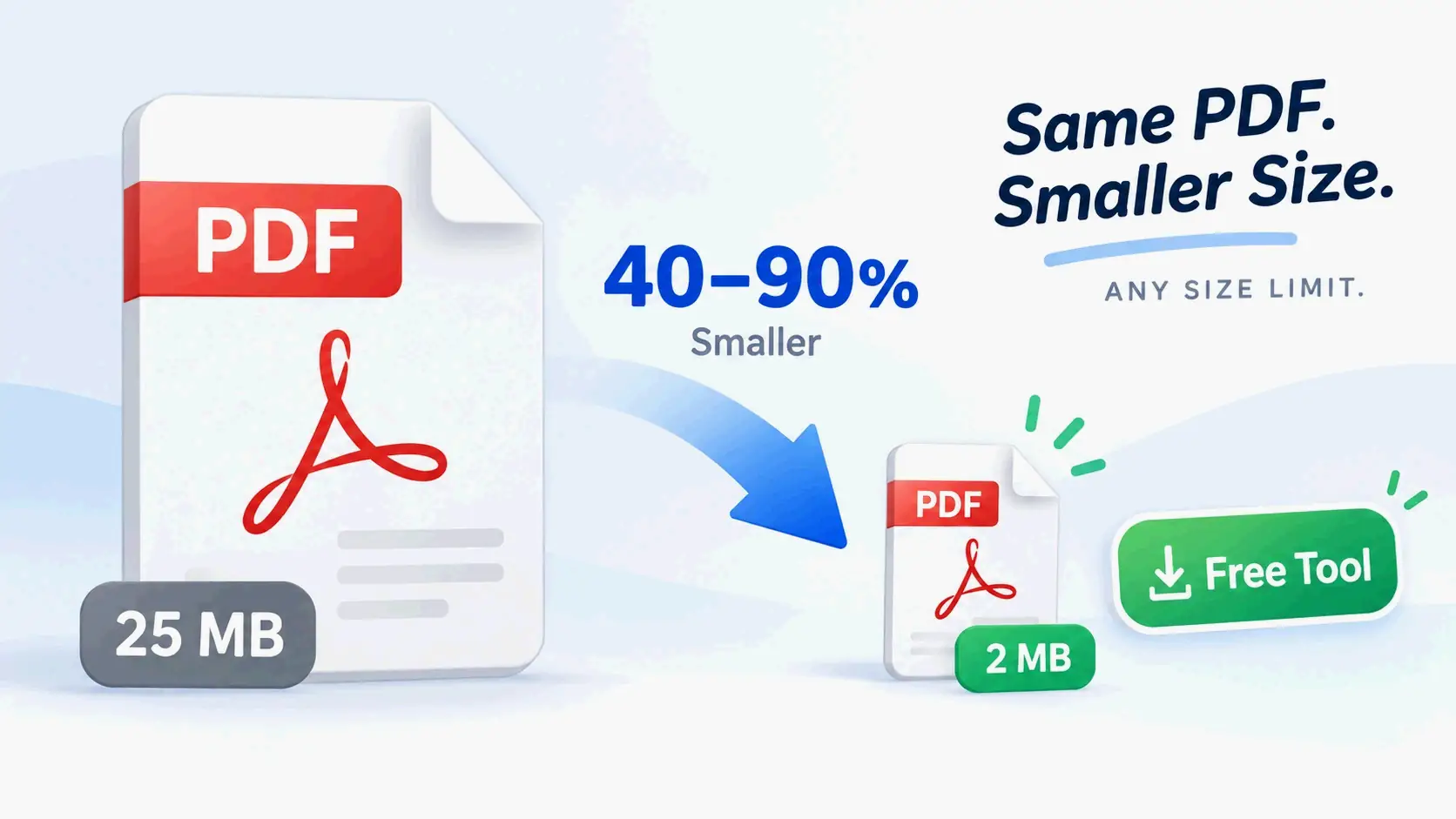
파일 크기를 줄이는 방법: PDF, 이미지, 동영상을 압축하는 궁극의 가이드
2026년 5월 기준, 파일 크기를 효과적으로 줄이려면 PDF에는 Adobe Acrobat이나 pdfFiller를 사용하고, 이미지는 WebP나 JPEG(품질 80%)로 변환하며, Handbrake로 동영상을 압축하세요. 고해상도 요소의 다운샘플링, 메타데이터 제거, H.265와 같은 최신 코덱 선택을 우선하여 웹이나 이메일에 필요한 전문적인 선명도를 유지하면서 파일을 줄이세요.
핵심 프레임워크: 품질 손실 없이 파일 크기를 줄이는 방법
데이터 압축이 실제로 어떻게 작동하는지 이해하는 것이 더 작은 파일로 가는 첫걸음입니다. 목표는 “스위트 스팟”을 찾는 것입니다—파일이 빠르게 전송될 만큼 가볍으면서도 의도한 용도에 충분히 선명하게 유지되는 지점이죠.
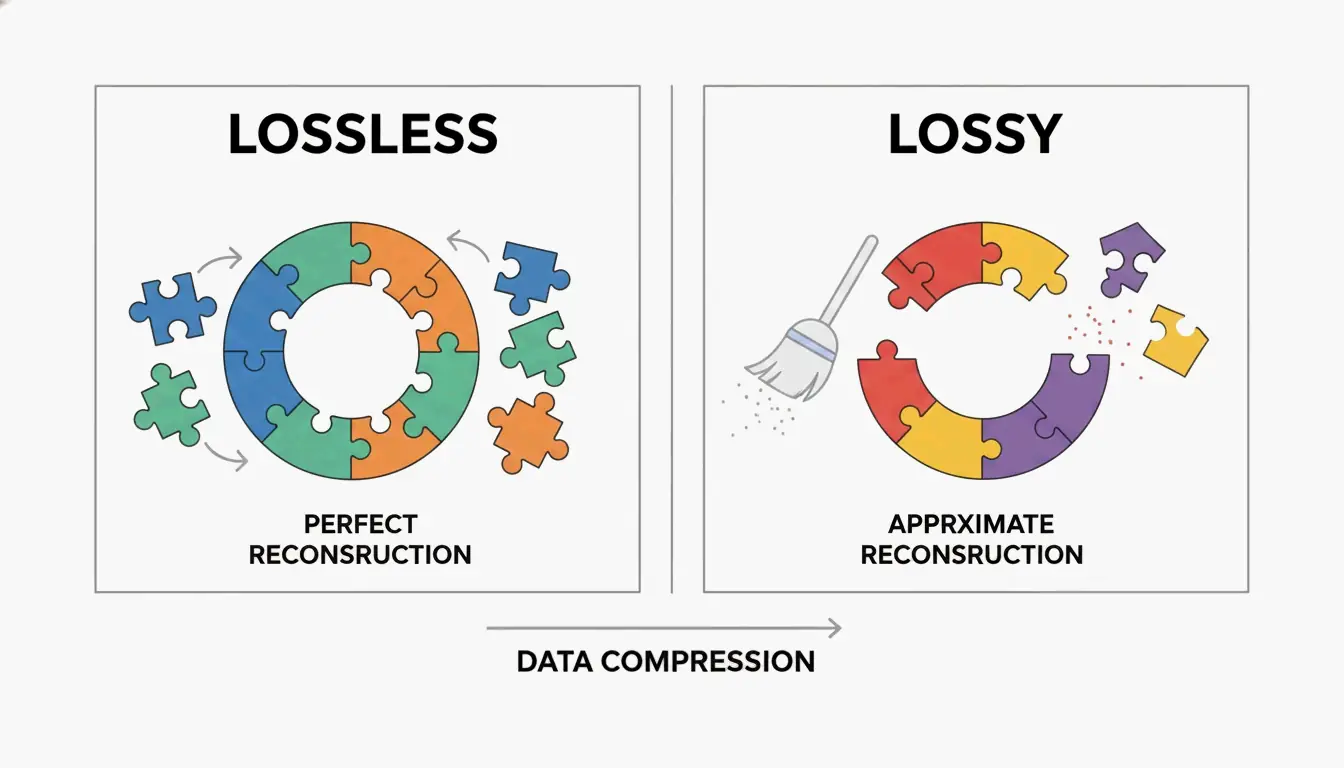
손실 vs. 무손실: 어느 쪽을 선택해야 할까?
파일을 최적화할 때, 무손실 압축과 손실 압축 중에서 결정해야 합니다. 무손실 압축은 실제 픽셀이나 오디오에 손대지 않고 데이터에서 패턴을 찾아 파일을 줄입니다. 이는 모든 작은 디테일이 원본과 동일하게 유지되어야 하는 텍스트 중심 문서나 보관용 사진에 가장 적합합니다.
반면 손실 압축은 우리 눈이나 귀가 보통 눈치채지 못하는 “여분의” 데이터를 영구적으로 제거합니다. 예를 들어, JPEG의 품질을 약간만 낮춰도 거의 눈에 띄는 변화 없이 엄청난 공간을 절약할 수 있습니다. SmartPDFSuite의 소프트웨어 엔지니어인 Priyanka Kasera가 설명하듯, 이미지가 너무 큰 것은 흔한 함정입니다. 사진을 삽입하기 전에 최종 표시 크기로 조정하지 않으면, 결국 “25배의 데이터 부풀림”을 겪을 수 있습니다.
디지털 문서에 이상적인 DPI는?
DPI(인치당 도트 수)는 해상도를 측정합니다. 2026년, 올바른 설정은 파일이 어디에 쓰이는지에 전적으로 달려 있습니다:
- 웹 전달: 화면에는 72~150 DPI면 충분합니다.
- 표준 인쇄: 150~200 DPI가 품질과 크기의 균형을 맞춥니다.
- 전문 인쇄: 300 DPI가 고품질 실물 인쇄의 기준입니다.
캐나다 이민국(IRCC Canada)에 따르면, 문서를 96 또는 150 DPI로 스캔하면 온라인 신청 시 글자가 선명하게 유지되면서도 파일 크기를 크게 줄일 수 있습니다.
PDF 줄이기: Adobe Acrobat Pro와 전문 대안 사용
PDF는 고해상도 이미지, 글꼴, 복잡한 레이어를 한 번에 담고 있는 캐리어처럼 작동하기 때문에 사무실에서 가장 용량이 큰 파일인 경우가 많습니다.
단계별: Adobe Acrobat Pro에서 PDF 압축하기
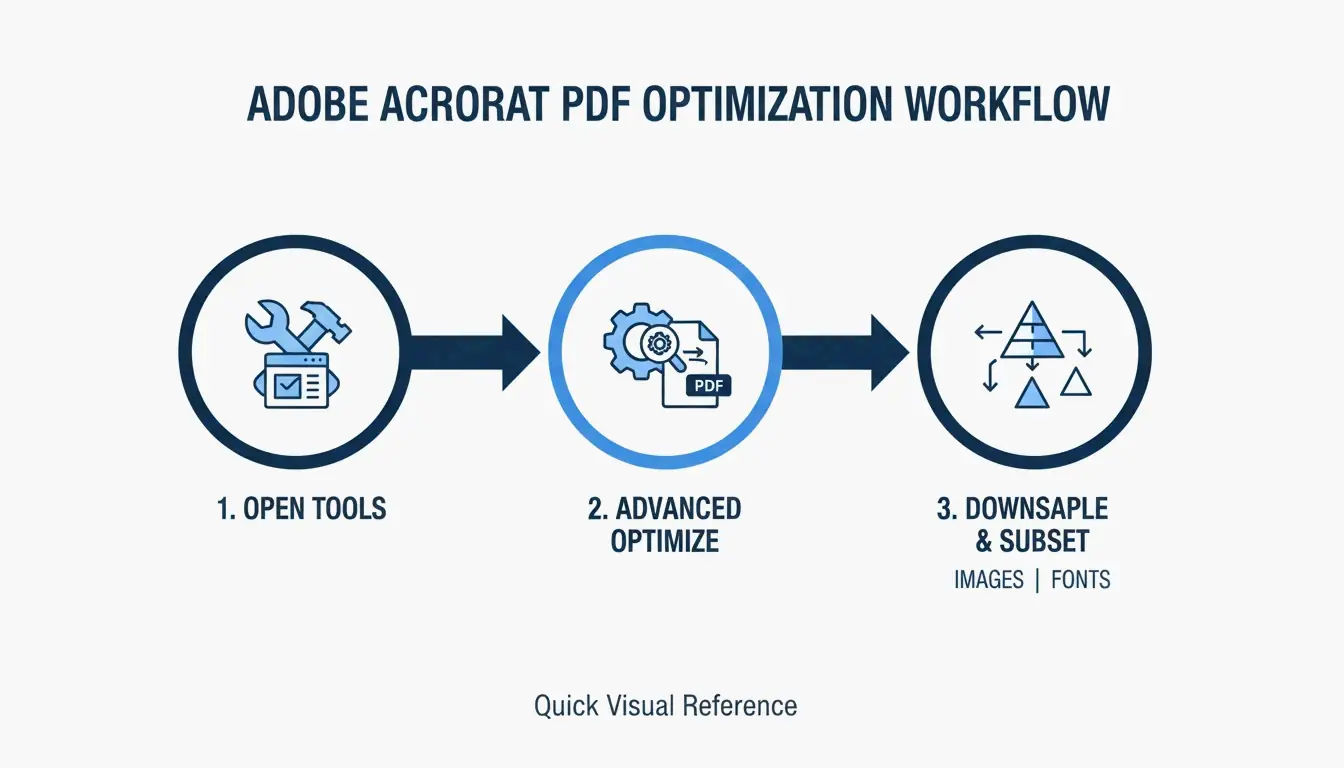
Adobe Acrobat Pro는 여전히 PDF 최적화의 필수 도구입니다. 최상의 결과를 위해 “PDF 최적화 도구”를 사용해 세부적으로 설정하세요:
- PDF를 열고 모든 도구 > PDF 압축(All tools > Compress a PDF) 로 이동합니다.
- 고급 최적화(Advanced Optimization) 를 선택해 이미지 설정을 수동으로 조정합니다.
- 웹용으로는 이미지를 150 DPI로 다운샘플링하고 폰트 서브셋팅(Font Subsetting) 이 켜져 있는지 확인합니다. 서브셋팅은 전체 글꼴 라이브러리가 아닌 문서에 실제로 사용된 문자만 삽입합니다. SmartPDFSuite는 이것이 글꼴 관련 용량을 80~90% 줄일 수 있다고 지적합니다.
다른 도구를 원한다면, Cisdem PDF Compressor는 최근 테스트에서 이미지가 많은 파일을 거의 89%까지 줄였습니다. 또 다른 확실한 선택은 pdfFiller로, 간단한 “낮음, 중간, 높음” 압축 수준을 제공하며 한 번에 많은 파일을 처리하는 팀에 적합합니다.
왜 PDF가 아직 큰가? 숨겨진 메타데이터를 확인하세요
파일이 압축 후에도 여전히 크다면, 메타데이터와 숨겨진 레이어(Metadata & Hidden Layers) 가 원인일 가능성이 높습니다. PDF는 종종 편집 기록, CAD 레이어, 필요 없는 “인쇄 전용” 데이터를 숨깁니다. Smallppt(2026)는 이미지가 보통 PDF 크기의 70%를 차지한다고 지적합니다. OCR(광학 문자 인식) 을 사용해 이미지를 검색 가능한 텍스트로 변환한 다음—원본 고해상도 배경 이미지를 삭제하면—쓸모없는 데이터의 메가바이트를 제거할 수 있습니다.
동영상 압축 정복: 비트레이트, 코덱, Handbrake
동영상은 다른 접근이 필요합니다. 여기서는 “코덱”(동영상을 줄이는 데 사용되는 수학)과 “비트레이트”(초당 처리되는 데이터 양)가 전부입니다.
최대 압축을 위한 최고의 동영상 코덱
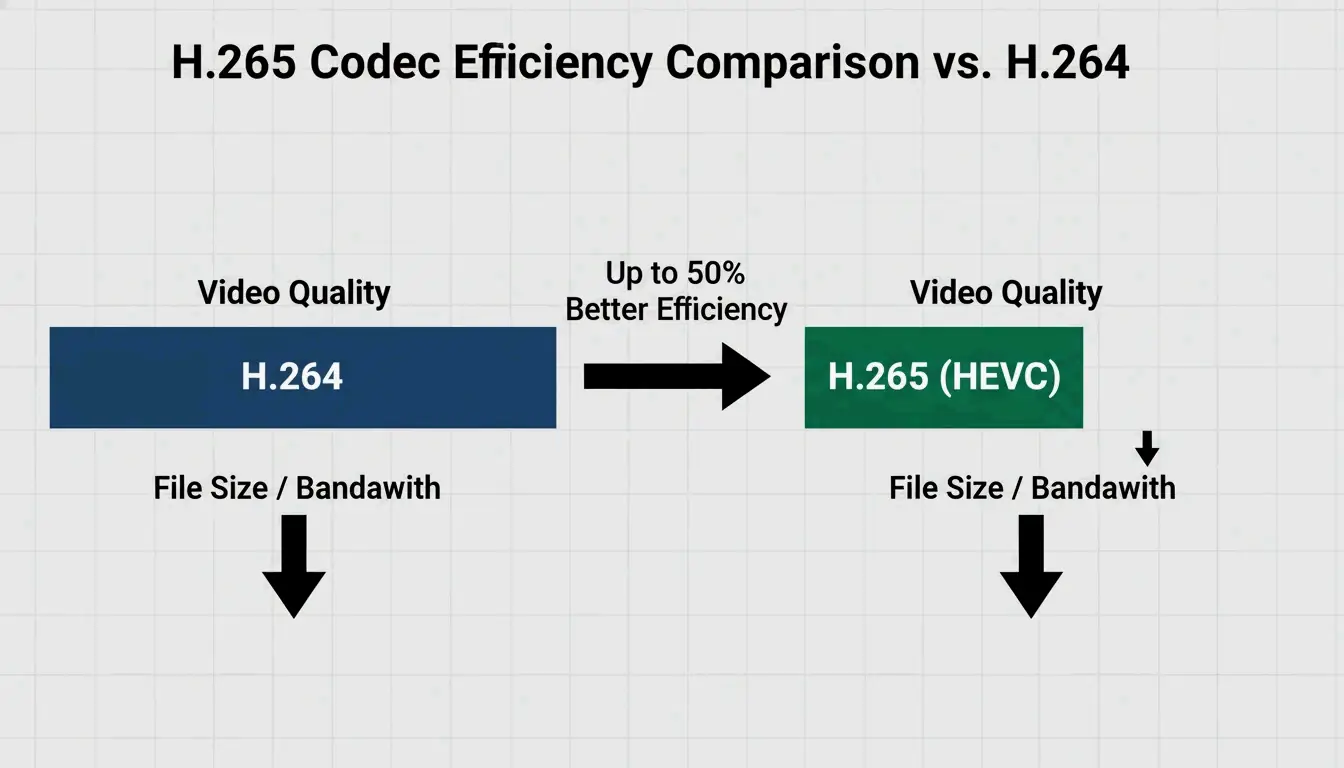
2026년까지 H.265(HEVC) 가 고효율 동영상의 표준이 되었습니다. 구형 H.264는 여전히 흔하지만, H.265는 약 절반의 크기로 동일한 품질을 제공합니다. 내보낼 때, 이 비트레이트 목표를 시도해 보세요:
- 웹/소셜 미디어: 1080p에 2~5 Mbps.
- 보관/고화질: 10~20 Mbps.
Handbrake로 동영상 일괄 처리하는 방법
큰 동영상이 가득한 폴더가 있다면, 오픈소스 도구인 Handbrake가 한 번에 모두 처리하는 가장 빠른 방법입니다:
- Handbrake를 열고 “Open Source”를 클릭해 폴더를 선택합니다.
- Web Optimized 확인란을 선택합니다.
- H.265 (x265) 동영상 코덱을 선택합니다.
- Add to Queue 버튼을 사용해 소프트웨어가 전체 배치를 자동으로 처리하게 합니다.
이미지 최적화: JPEG에서 최신 WebP 표준까지
이미지 최적화는 “80% 규칙”을 따릅니다. SmartPDFSuite(2026)는 JPEG 품질을 80%로 설정하면 100%와 거의 구별할 수 없으면서도 파일 크기를 40~60% 줄일 수 있다는 것을 발견했습니다.
최고의 웹 성능을 위해, WebP와 AVIF가 이제 최고의 선택입니다. 이들은 PNG나 JPEG보다 더 잘 압축하면서도 투명한 배경을 여전히 지원합니다. 이 빠른 가이드를 사용하세요:
- JPEG: 표준 사진에 가장 적합.
- PNG: 투명도가 필요한 그래픽용으로 보관.
- SVG: 아이콘과 로고에 가장 적합(크기와 관계없이 작게 유지됨).
- WebP: 2026년 웹상의 거의 모든 것의 표준.
플랫폼별 바로가기: macOS 미리보기 vs. Windows PDF로 인쇄
항상 화려한 소프트웨어가 필요한 것은 아닙니다. 컴퓨터에는 빠른 수정을 위한 기본 도구가 이미 갖춰져 있습니다.
macOS 미리보기와 Quartz 필터
Mac에서는, 미리보기(Preview) 가 몇 초 만에 PDF를 줄일 수 있습니다:
- PDF를 엽니다.
- 파일 > 내보내기(File > Export) 로 이동합니다.
- Quartz 필터(Quartz Filter) 메뉴에서 파일 크기 줄이기(Reduce File Size) 를 선택합니다.
참고: Cisdem은 이것이 때때로 품질을 너무 많이 떨어뜨리거나, 이미 최적화된 경우 오히려 파일이 더 커질 수 있다고 경고합니다.
Windows와 명령줄의 힘
Windows 사용자는 “PDF로 인쇄(Print to PDF)” 기법을 사용할 수 있습니다. PDF를 새 파일로 “인쇄”함으로써, Windows는 편집 기록과 숨겨진 객체를 제거해 종종 더 가벼운 버전을 남깁니다. 더 고급 사용자에게는 Ghostscript가 강력한 명령줄 도구입니다. brew install ghostscript를 실행하면 창을 열지 않고도 대량의 파일에 대한 압축을 자동화할 수 있습니다.
결론
파일 크기를 줄이는 것은 균형에 관한 것입니다: 올바른 코덱(H.265/WebP)을 선택하고, 올바른 DPI(웹은 150)를 설정하며, Adobe Acrobat이나 Handbrake 같은 도구로 숨겨진 메타데이터를 정리하는 것입니다. 먼저 실제로 무엇이 파일을 무겁게 하는지 확인하세요. 이미지라면 다운샘플링에 집중하고, 동영상이라면 H.265로 전환하세요. 단, 시작하기 전에 원본의 고해상도 백업을 보관해 두세요—손실 압축을 사용하면 그 원본 픽셀은 되돌릴 수 없습니다.
자주 묻는 질문
앱을 다운로드하지 않고 스마트폰에서 PDF를 압축하려면?
Smallpdf, Adobe Online, pdfFiller 같은 브라우저 기반 도구를 사용할 수 있습니다. iOS에서는 “인쇄” 기법을 사용할 수 있습니다: PDF를 열고, 공유 > 인쇄를 탭한 다음, 미리보기 이미지를 핀치아웃(확대)하세요. 이렇게 하면 평면화되고 더 작은 버전이 만들어지며, 이후 파일에 다시 공유하거나 저장할 수 있습니다.
파일 크기를 줄이면 항상 시각적 품질이 손실되나요?
그렇지 않습니다. 무손실 압축은 실제 픽셀에 손대지 않고 중복된 데이터 코드를 제거합니다. 손실 압축(예: 80% JPEG)은 데이터를 버리지만, 표준 시청 거리에서 이러한 변화는 인간의 눈에 보이지 않는 경우가 많아, 인지되는 품질 손실 없이 상당한 크기 감소를 가능하게 합니다.
왜 PDF가 아직 큰가? 숨겨진 메타데이터를 확인하세요
파일에 고해상도의 “서브셋되지 않은” 글꼴이나 여러 숨겨진 레이어, 표준 압축기가 건너뛸 수 있는 무거운 “인쇄 전용” 메타데이터가 포함되어 있을 수 있습니다. 또한, 스캔 문서에 삽입된 멀티미디어(예: 동영상)나 고해상도 배경 이미지도 크기를 크게 유지할 수 있습니다. PDF를 “평면화”하거나 전문 “PDF 최적화” 도구를 사용해 이러한 요소를 제거해 보세요.
SectoJoy
Let Compress publishes practical guides for compression, conversion, and browser-based file workflows.
Follow SectoJoy