Free PDF Compress: Shrink Any PDF to Any Size Limit
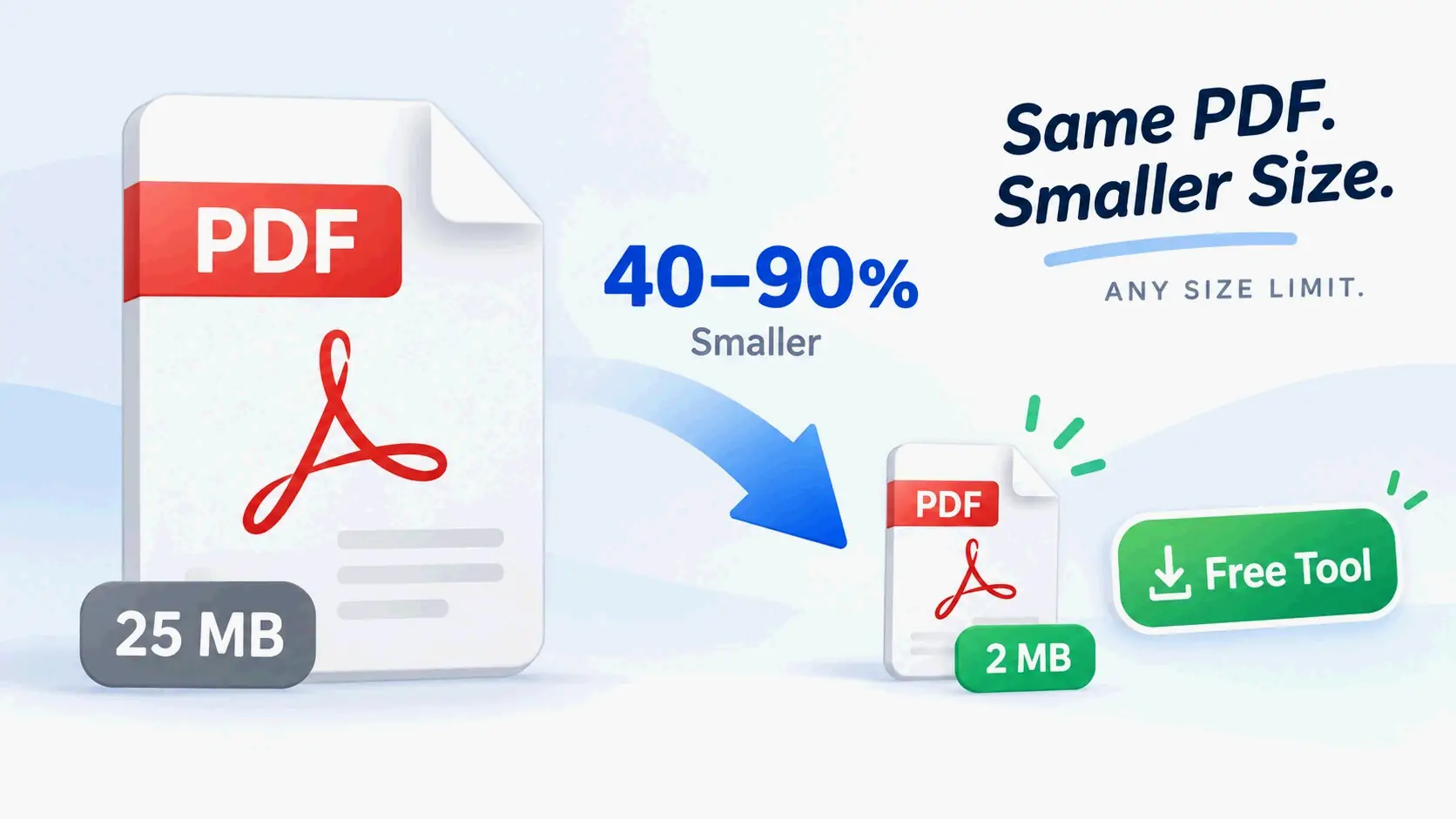
Open a free PDF compress tool in your browser, upload your file, choose a preset—Low for print, Medium for email, High or Max for strict upload caps—and download it. No sign-up or watermark. Image-heavy PDFs usually shrink 40–90%; text-only files shrink much less.
How to Free-Compress a PDF in Three Steps (No Sign-Up, No Watermark)
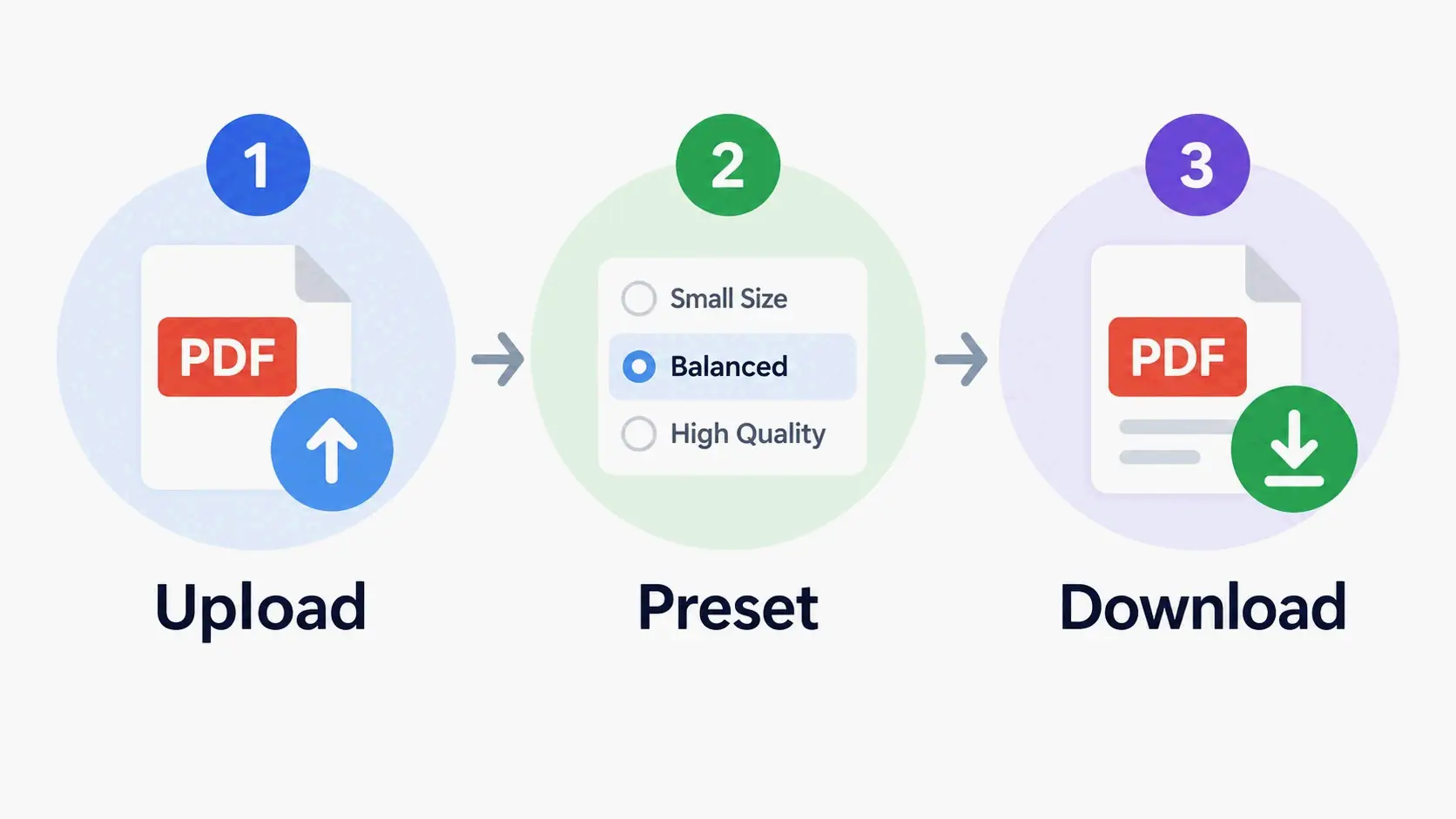
Most free compressors do the whole job in three moves: upload, pick a level, download. But the tool you choose sets two important limits: the largest file it accepts and how many files it can handle at once. Check both before you start.
Per PurePDF, the free tier processes two PDFs at a time without an account and five at a time with a free account. There’s no watermark and no daily cap (page last updated September 22, 2026). Input ceilings vary widely across tools: PDNob accepts up to 15 MB per file, PdfPixels up to 50 MB, and pdfFiller and OneClickPDF up to 100 MB.
Steps 1–3: Upload, Choose a Preset, Download
Step 1 — Open a free PDF compress tool in your browser. Most free tools don’t ask for an account or email. PurePDF states plainly that you can compress 2 PDFs at a time anonymously and 5 with a free account. There’s no watermark and no daily limit.
Step 2 — Drop in your PDF. Check the tool’s own input ceiling first. Free online versions commonly cap a single file somewhere between 15 MB and 100 MB: PDNob allows 15 MB per file, PdfPixels 50 MB, and pdfFiller and OneClickPDF 100 MB each.
Step 3 — Choose a preset, click compress, and download. I7 Pixel’s browser tool says a typical file usually finishes in under 30 seconds. For files under about 20 MB, the whole cycle normally takes under a minute.
Compressing several PDFs at once: batch runs and ZIP output
Batch compression is the fastest way to clear out a folder before emailing or uploading. PurePDF returns several files as a ZIP, with each PDF compressed separately. pdfFiller markets batch processing as a differentiator for teams handling many documents.
The practical limit is memory, not file count. Client-side tools use your device’s RAM and CPU, so a large batch of big scans can stall on a phone or an older laptop. If you’re compressing dozens of scanned packets, a desktop tool with real batch handling is more predictable.
Which Compression Level Should You Choose: Low, Medium, High, or Max?
The preset is the first real decision you make, because it sets the JPEG quality and the target DPI applied to embedded images. I7 Pixel publishes a preset comparison table that maps each level to a quality setting, a DPI target, and an expected reduction range:
| Preset | JPEG Quality | DPI | Typical Size Reduction | Best Used For |
|---|---|---|---|---|
| Low | 90% | 300 DPI | 10–30% | High-fidelity, print-ready output |
| Medium (default) | 72% | 96 DPI | 40–70% | General sharing, email attachments, web upload |
| High | 50% | 72 DPI | 60–80% | Messaging apps and portals where small size matters |
| Max | 30% | 72 DPI | 75–90% | Previews or cases where size is the only priority |
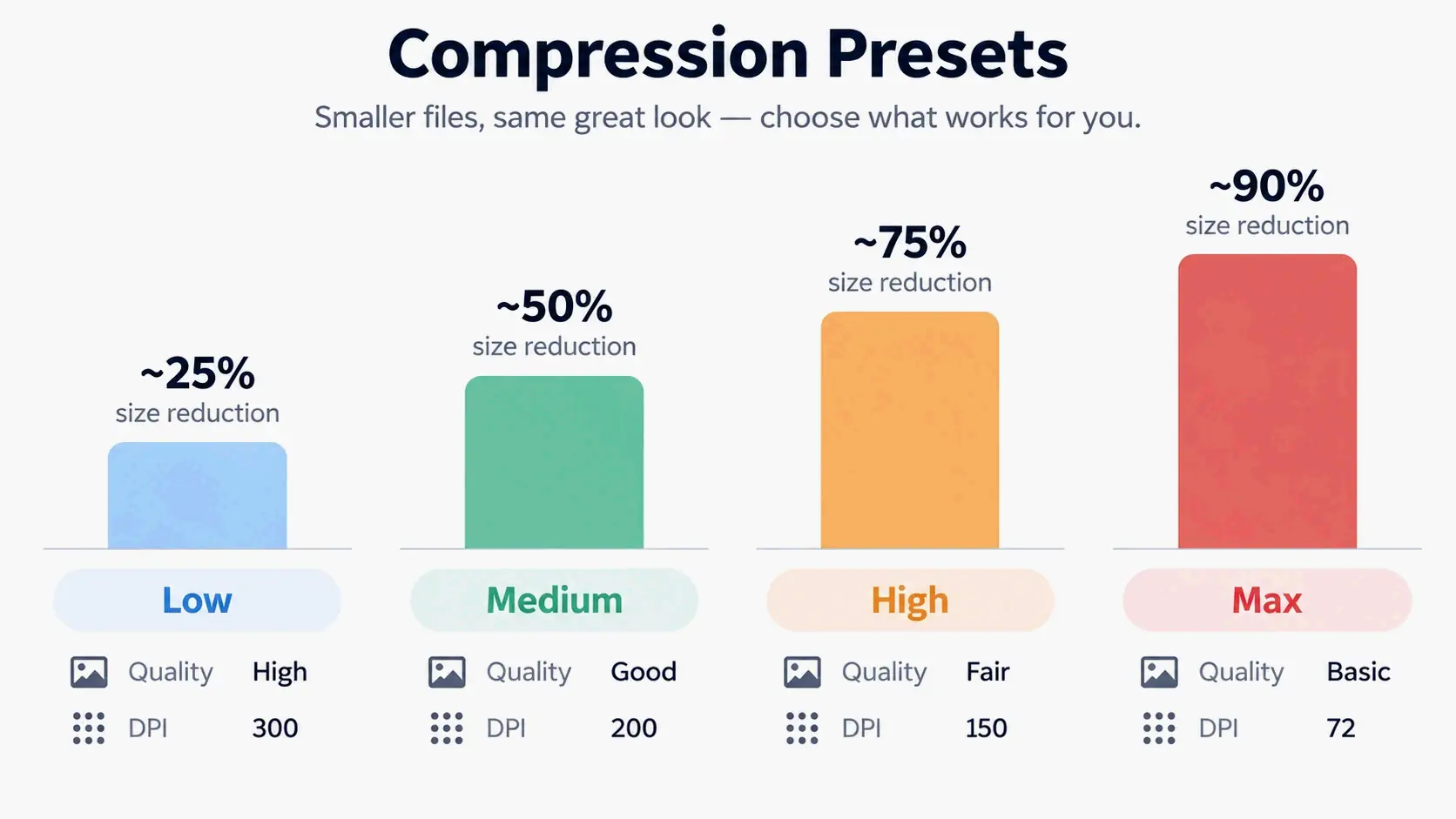
A simple rule: printing or archiving → Low. Email and everyday sharing → Medium. A hard portal cap → High. Last resort before splitting the file → Max.
DPI affects embedded bitmaps, not fonts. In most engines, your text stays vector at every level. That’s why Low is much safer than users who choose “compress nothing” might assume. PdfPixels describes the same three-tier setup—Low for print preservation, Medium as the email standard, and High for strict portal caps—and notes that its engine compresses text streams losslessly with FlateDecode while saving downsampling for raster image objects.
Start with Medium: the default that clears most email and portal limits
Medium is the default for a reason. It clears the most common size limits while keeping documents readable on screen. PdfPixels reports that Medium delivers 60–80% size savings while preserving 150 DPI image clarity, and calls it the “industry sweet spot” for standard email attachments.
PurePDF frames the same choice as “Balanced,” which it says typically cuts 50–70% of file size with no visible difference on screen. Both tools save their most aggressive setting for when you must hit a hard number, such as a government portal limit.
Is Free PDF Compression Really ‘Lossless’? What the Engine Is Actually Doing
There are two engine families, yet the word “lossless” gets used for both. True lossless stream compression rewrites object streams, removes duplicate objects, and strips metadata without touching image pixels. That’s the pikepdf/QPDF route that OneClickPDF documents. The second family re-encodes images: it downsamples bitmaps to 150, 96, or 72 DPI and saves them again as JPEG. That’s where the 40–90% reductions come from—and where pages can get rasterized.
The real numbers vary a lot. OneClickPDF reports that pure lossless compression yields only 10–40% reduction on text-heavy, font-embedded PDFs, with output that looks identical to the original. On the lossy side, PdfPixels reports that documents with 300+ DPI scanner photos typically shrink 60–90%, while text-only exports from Word or LaTeX shrink only 10–30%.
Claims like “no quality loss, maintains 600 DPI+” on free tool pages are marketing copy. Some presets visibly do the opposite of what those lines promise, and none of these numbers are independently verified. Whatever the engine, the output is still a standard ISO 32000 PDF; what changes is which internal objects were replaced. PdfPixels says its engine conforms to ISO 32000-1 and ISO 32000-2, and PurePDF cites ISO 32000-2 (PDF 2.0) as its format reference.
The 10-second text-selection test anyone can run
Open the compressed file, click into a sentence, and try to select it. Then search for a word you know appears in the document. If the text highlights normally and the search returns hits, the text layer survived. If neither works, the pages were rasterized into images.
This test matters because the result isn’t just cosmetic. TrulyFreePDF is unusually direct about its own behavior. It says compression “re-renders each page at an optimised resolution and image quality and rebuilding the PDF, so the output is image-based — its text is no longer selectable or searchable.” By contrast, PdfPixels says the vector text layer is never rasterized or degraded, so characters remain selectable and searchable by screen readers and OCR systems.
When ‘no visible quality loss’ is technically false
Run the check before you send the file, not after someone complains. Two things commonly break: photo detail at very low DPI, and text selection on raster-based tools.
I7 Pixel is candid that on its image-recompression path, each page is rasterized as a JPEG, so text is rendered at the chosen DPI and encoded as an image. It recommends the Low preset at 300 DPI when text sharpness is critical. It also suggests disabling image re-compression entirely and only stripping metadata if you need the text layer intact. That’s the difference between a marketing claim and a documented behavior.
How Much Smaller Will Your PDF Actually Get? Think 40–90% vs 10–40%
Compression results fall into two very different ranges, depending on what’s inside the file. Image-heavy and scanned documents are the big winners: PdfPixels reports 60–90% reduction on 300+ DPI scans, noting that a 40 MB scan often drops to 3–5 MB. Bitmaps are what made the file large in the first place, so removing them is where the savings come from.
Text-only PDFs exported from Word or LaTeX usually shrink just 10–30%, according to the same source. The fonts are lightweight vector commands, so there’s almost nothing heavy to remove. A purely lossless engine tops out around 10–40% on that same document type, according to OneClickPDF.
PurePDF reports 40–90% as the general range across documents, depending on how many images a file contains (page last updated September 22, 2026). pdfFiller makes the same point without numbers: a PDF filled with images may see a much larger reduction than a text-heavy one, and reductions are minimal when the original is already optimized.
The practical takeaway is simple. If a 2 MB text-only PDF must hit 200 KB, no compressor will get there by compression alone. That requires the step ladder in the next section. If your goal is simply fewer megabytes rather than an exact figure, see five fast ways to decrease the MB of a PDF.
Hitting an Exact Size Limit: 200 KB, 500 KB, 1 MB, or 25 MB
A hard number changes the problem. Instead of asking “how small can this get,” you’re asking “which trade-offs do I accept to reach exactly this?” The answer is a ladder, ordered from least to most damaging, and you climb it one rung at a time.
The six-rung ladder when you’re still over the cap
- Retry at Medium. If your first attempt used Low, the balanced preset usually covers the next tier of limits without visible change.
- Drop to High / 72 DPI. I7 Pixel maps High to 50% JPEG quality at 72 DPI and a typical 60–80% reduction.
- Convert to grayscale. PdfPixels recommends this exact sequence: start with High compression. If a 50-page document is still over target, convert it to grayscale first to remove color data channels, then run compression again.
- Delete blank or appendix pages. Removing pages you don’t need is the only rung that reduces content rather than quality.
- Split the file. PdfPixels points users to its Split PDF tool to remove extraneous appendices when text files must go smaller.
- Use Max and accept softer images. Save this for previews and archive thumbnails, not for anything a person has to read closely.
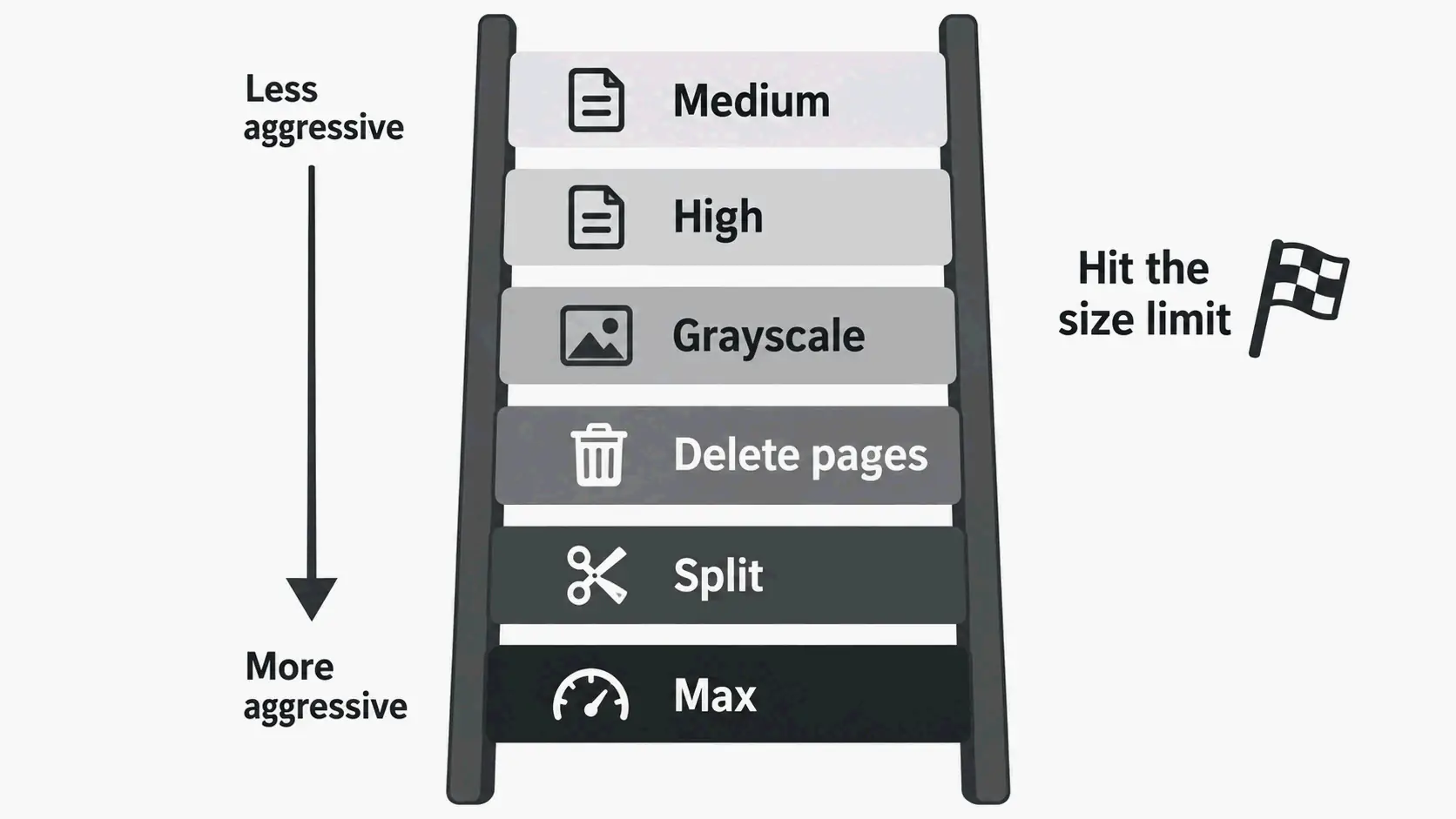
Grayscale is the most underused rung. Color scans carry chroma channels you don’t need for a text document. Dropping to gray can remove a large chunk of data that DPI reduction alone won’t touch.
Email attachments: Gmail 25 MB and Outlook or corporate 10 MB
Email is the most common reason people compress files in the first place. PdfPixels cites Gmail’s 25 MB attachment limit and a 10 MB threshold for Microsoft Outlook and many corporate servers. PurePDF gives the same figures and notes that messaging apps either compress or reject large files outright.
Target playbook: 25 MB → Medium is almost always enough. 10 MB → Medium or High. That covers the overwhelming majority of attachment bounce-backs.
Job portals and government forms: 200 KB–2 MB
Portal caps go much lower than email caps. PurePDF notes that government and job portals often enforce limits as low as 1–2 MB, and PdfPixels describes job candidates compressing illustrated portfolio decks and resumes to meet 2 MB employer portal caps.
At the 200 KB–500 KB end, compression alone often isn’t enough. That’s the tier where you combine High compression, grayscale, and splitting—or extract only the pages the recipient actually asked for.
Court filings, immigration packets, and academic submissions
These destinations combine low caps with high stakes. PdfPixels states that U.S. Federal Court CM/ECF and PACER systems generally mandate black-and-white or grayscale scanned documents at 300 DPI, with per-file size limits typically between 35 MB and 50 MB, and separately lists USCIS and consular portals at under 12 MB.
Treat those numbers as vendor-sourced. PdfPixels doesn’t link an official court or agency source for either figure, so verify directly with the court or agency before relying on them. What’s safe to act on: grayscale at 300 DPI is the direction these systems push you toward, and Low or Medium compression keeps a scanned filing well within a typical cap.
Academic repositories and journal portals add their own limits. PDNob lists dissertation uploads to ProQuest or university repositories and journal article sharing on ResearchGate as common scenarios. That’s a reminder that the cap you’re fighting is set by the destination, not by the file.
Does a Free Browser PDF Compressor Upload Your File? Local vs Server Processing
Client-side tools run the compression engine inside your browser—often a WebAssembly build of a desktop-grade engine—so the file never leaves your device. That’s the strongest privacy position available, and unlike most privacy claims, it’s verifiable: open your browser’s network tab and watch whether any upload happens while you compress a test file.
PurePDF runs a WebAssembly build of Ghostscript, the engine used in professional print workflows, in your browser first and only sends a file to its server if the browser cannot shrink it. I7 Pixel uses PDF-lib and PDF.js entirely client-side and states that your document is never sent to any server.
Server-side tools upload, process, and return the file. PdfPixels says uploaded files reside only in temporary volatile storage and are automatically removed within 60 minutes, protected by TLS 1.3. Those compliance labels are vendor self-descriptions and can’t be independently verified from the page alone.
The real trade-off is capacity, not marketing. In-browser processing is limited by your device’s RAM and CPU. PurePDF states this directly: files in the hundreds of megabytes work on a desktop but may struggle on an older phone. Server tools accept larger inputs—50 MB at PdfPixels, 100 MB at pdfFiller and OneClickPDF—but the file leaves your device during processing.
A workable decision rule: contracts, financial records, medical documents, or ID scans → client-side tool. Very large or numerous files → server tool with a published deletion policy.
Why Won’t Your PDF Compress? Five Common Causes
1. The PDF is password-protected or encrypted. The compression engine can’t parse encrypted streams at all. PdfPixels says password-protected or certificate-encrypted PDFs cannot be parsed directly and tells users to unlock the document first. OneClickPDF says the same, suggesting Adobe Acrobat, macOS Preview, or your PDF reader to remove the password before uploading.
2. The PDF was already optimized. A file compressed before, or exported at low DPI, has little left to remove. pdfFiller notes that minimal reductions occur when the original file is already optimized.
3. The PDF is text-only. PdfPixels reports that Word and Google Docs exports store typography as lightweight vector commands, leaving little raster data to compress — a realistic ceiling of 10–30%.
4. The PDF carries a digital signature. Re-compression rewrites the byte stream and changes the cryptographic hash covered by the X.509 certificate, so an existing signature is invalidated. PdfPixels advises compressing first and applying electronic or digital signatures as the final step.
5. The file exceeds the tool’s input ceiling. PDNob allows 15 MB per file, PdfPixels 50 MB, and pdfFiller and OneClickPDF 100 MB. If you’re over the limit, switch tools, split the document, or move to desktop software.
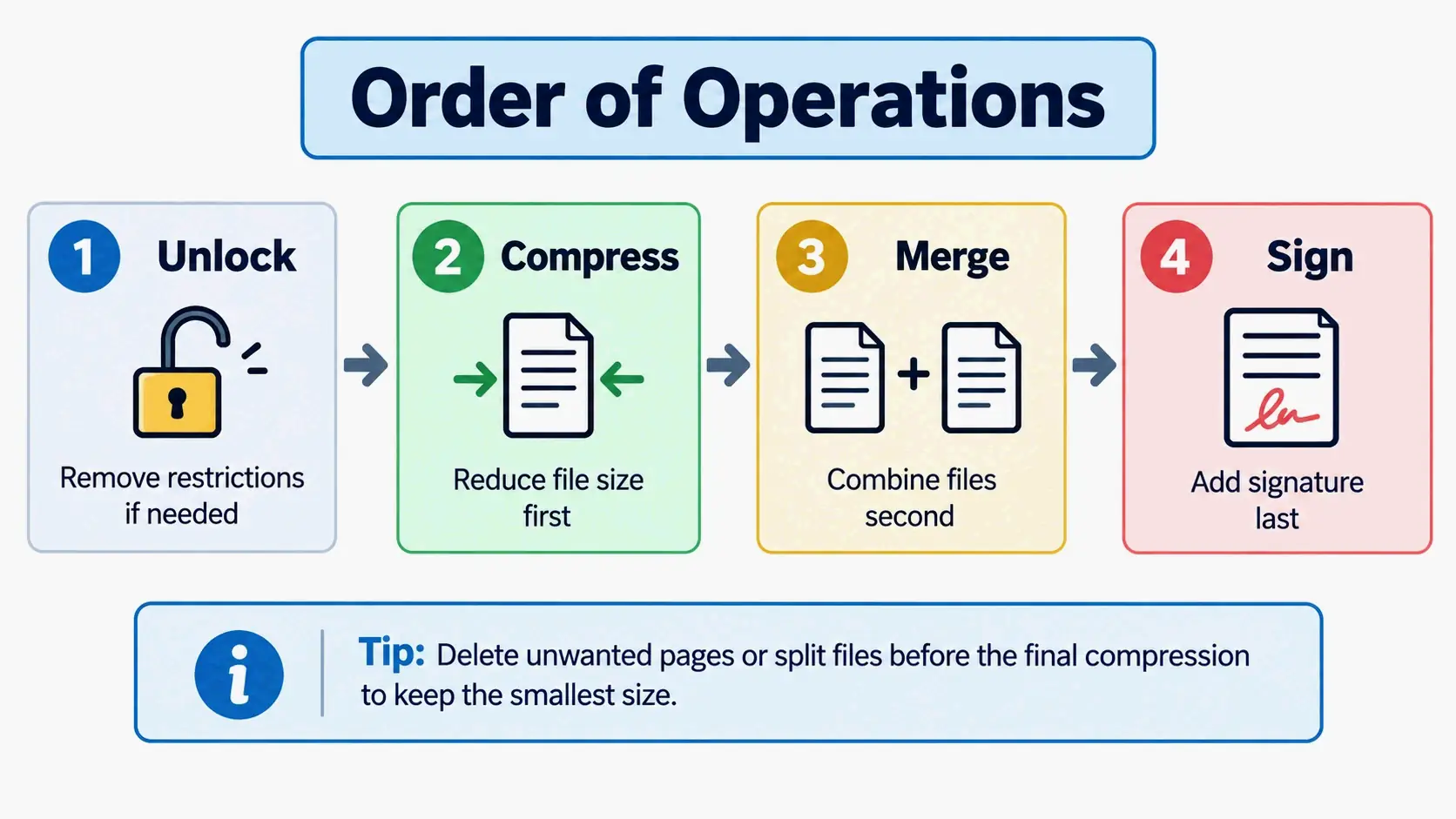
Order of Operations: Compress First, Merge Second, Sign Last
Order matters more than tool choice. Get it wrong, and you either undo your savings or invalidate a signature you already applied.
Compress before merging. PurePDF states the principle directly: smaller inputs make every downstream step faster, and compressing first keeps each file under per-file caps during the merge. Compressing after merging means processing one large file instead of several small ones.
Sign after compressing. PdfPixels notes that re-compressing or modifying internal PDF stream structures can invalidate cryptographic digital signatures because the file’s cryptographic hash changes. Always compress first, then sign the final file.
Unlock before compressing. Encrypted files cannot be parsed by the compression engine. Remove the password with your PDF reader, save a copy, then compress.
Delete or split pages before the final pass. Saving a file you already compressed adds overhead and can undo part of your savings. Do the content edits first, then run one compression pass on the finished document.
Free Online Tool, Desktop Software, or Phone App: Which Fits Your File?
Browser tools win on speed and zero install for one or two files, but free tiers differ sharply, so compare file limits rather than taglines — the same trade-offs you face when compressing PDFs on every platform. The gap is wide: PDNob caps free online uploads at 15 MB, PdfPixels at 50 MB, and pdfFiller and OneClickPDF at 100 MB.
Desktop software gives you batch processing, precise DPI control, and fully offline operation — the right call for hundreds of pages or confidential documents. Wondershare PDFelement offers one-click high, medium, and low presets plus manual DPI adjustment, bulk compression, and additional reduction methods such as splitting files, replacing or deleting large images, and changing colors. macOS users have a built-in option too: PDNob’s FAQ points to Preview’s File > Export > Quartz Filter > Reduce File Size path. For the desktop route in more depth, see five free ways to compress a PDF for Mac and Windows.
The engines behind the interface matter more than the interface itself. Ghostscript compiled to WebAssembly powers some in-browser tools, while pikepdf/QPDF and PDF-lib appear in others. Either way, the output remains a standard ISO 32000 PDF, which is why any compliant viewer can open it.
One trust signal worth citing, with a caveat: as of September 2026, pdfFiller reports a 4.6/5 rating across 125,000+ G2 reviews. That’s useful as a user-satisfaction signal, not as evidence of compression performance.
Phone apps are fine for a single photo-heavy scan on the go — here’s how to compress a PDF on iPhone in three quick ways. But app-store listings often omit version and update dates, so don’t expect documented performance claims to hold. For context on why workflow matters at all, Marshall Orthopaedics reported that manual form-filling cost 30–60 minutes per patient’s paperwork. That figure is about document workflow time, not compression—read it only as a reminder that workflow cost generally exceeds file-size cost.
Conclusion
A free PDF compressor will shrink image-heavy files 40–90% in seconds, but the word “lossless” is doing a lot of unpaid work. Knowing whether your tool rewrites streams or re-encodes images—and in what order you compress, merge, and sign—decides whether the result is usable. Start at Medium, run the 10-second text-selection test on the output, and if you’re still over the cap, climb the ladder one rung at a time: High, grayscale, delete pages, split. For sensitive or very large files, choose your processing model (in-browser vs. server) before you choose your tool.
FAQ
Can I compress a password-protected PDF for free, or do I have to unlock it first?
You have to unlock it first. Encryption stops the compressor from reading the file’s internal streams, so the tool can’t process it at all. Free compressors generally won’t ask for a password—decryption is a separate step. Unlock or decrypt the file in your PDF reader, save a copy, then run the compressor on the unlocked version.
Will compressing a PDF make the text unselectable or blurry?
Not with lossless engines. Those rewrite only streams and duplicate objects, so text stays selectable and searchable. Aggressive presets on image-recompression engines can rasterize whole pages into JPEGs, which breaks text selection entirely. Verify in 10 seconds: open the compressed file, try to select a sentence, and search for a word you know is in the document.
Does compressing a PDF break an existing digital signature?
Yes. Re-compression rewrites the byte stream and changes the cryptographic hash the X.509 signature covers, so the signature will show as invalid even if nothing visible changed. Compress first, then sign the final file. Apply electronic or digital signatures as the last step in your workflow, never before a compression pass.
Why won’t my text-only PDF shrink below 1 MB?
Word and LaTeX exports store text as lightweight vector fonts, so there’s very little bitmap data to compress. A realistic reduction is 10–30% with an image-recompression engine and 10–40% with a lossless one. To go lower, convert to grayscale, remove blank or unnecessary pages, or split the file into smaller parts.
Is a free browser-based PDF compressor private — does my file get uploaded to a server?
It depends on the tool. Client-side compressors run entirely in your browser and never upload the file. Some server-side tools do upload it, and a few publish an auto-purge window, such as 60 minutes. Check the claim yourself: open your browser’s network tab and watch whether an upload happens while you compress a test file.
SectoJoy
Let Compress publishes practical guides for compression, conversion, and browser-based file workflows.
Follow SectoJoy