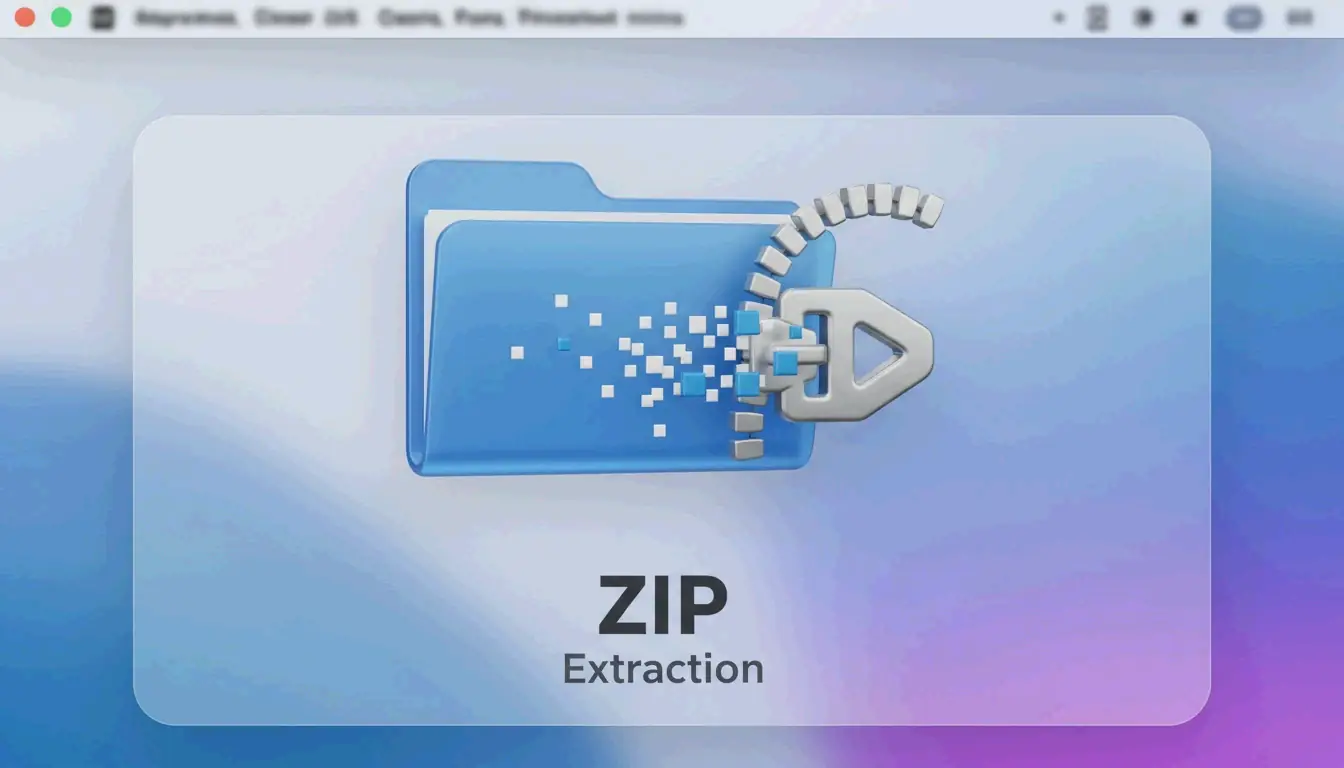
Comment extraire des fichiers ZIP sur Mac : méthodes natives et Terminal (2026)
Pour extraire un fichier ZIP sur Mac, double-cliquez simplement sur le fichier dans Finder — macOS utilise l’utilitaire intégré Archive Utility pour le décompresser instantanément dans le même dossier. Pour plus de contrôle, utilisez la commande Terminal unzip filename.zip. Pour les formats non natifs comme RAR et 7z, installez un outil tiers comme Bandizip ou utilisez un extracteur en ligne.
Trois méthodes pour extraire des fichiers ZIP sur Mac
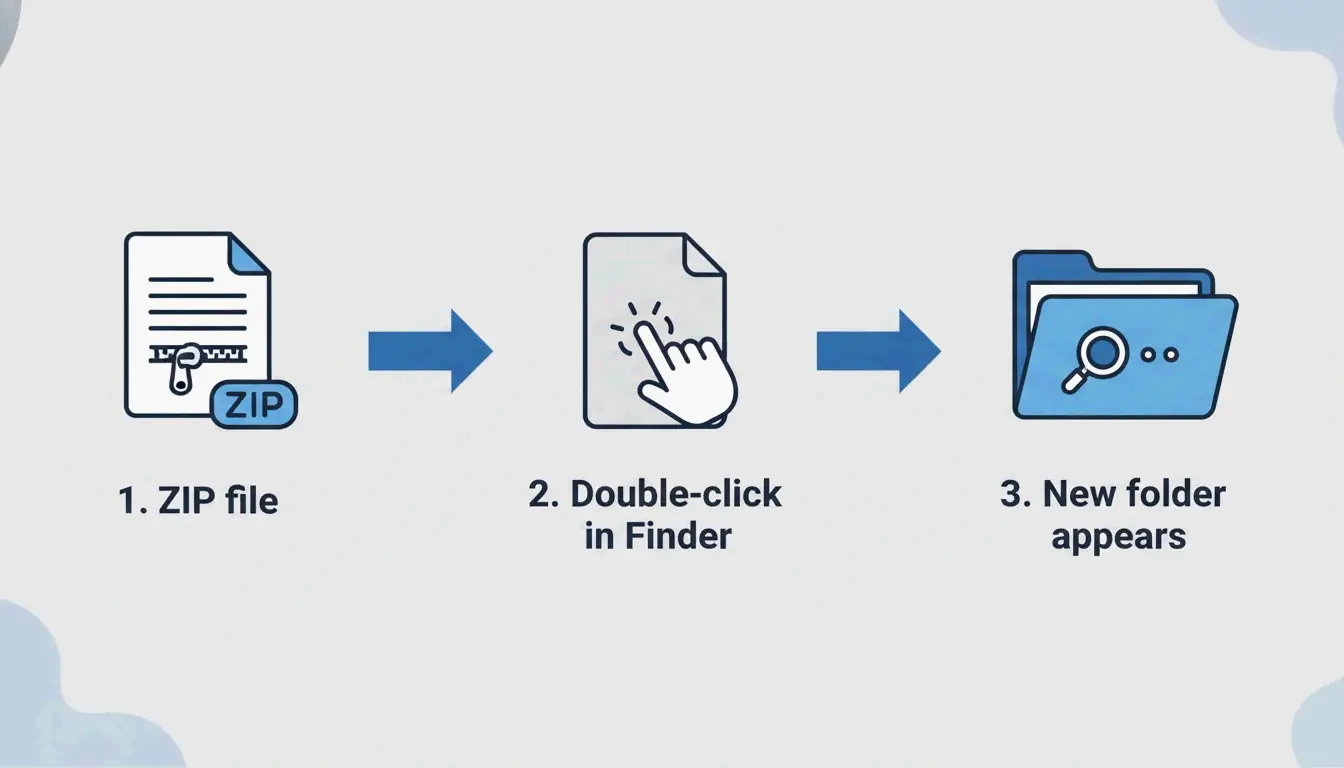
Méthode 1 : Double-clic dans Finder (le plus rapide)
macOS prend en charge nativement le ZIP — aucune application supplémentaire n’est nécessaire. Double-cliquez sur n’importe quel fichier ZIP dans Finder, et Archive Utility s’exécute en arrière-plan, créant un nouveau dossier avec le contenu extrait au même emplacement.
Cela fonctionne sur toutes les versions modernes de macOS (Sonoma et ultérieures) et sur tout le matériel Apple Silicon (M1, M2, M3, M4).
Méthode 2 : Commandes Terminal (pour utilisateurs avancés)
Quand Finder affiche « Decompression Failed » ou des problèmes de permissions « Error 1 », le Terminal est plus fiable :
unzip filename.zip

unzip filename.zip -d ~/Desktop/extracted/

# View contents without extracting
unzip -l filename.zip

# Extract password-protected ZIP
unzip -P yourpassword filename.zip
L’experte Olga Weis recommande de déplacer les paquets de développement vers un dossier propre avant le décompactage : « Cela évite que les fichiers extraits encombrent votre dossier Téléchargements. »
Méthode 3 : Clic droit avec des outils tiers
Pour les formats au-delà du ZIP (RAR, 7z, TAR, GZIP), l’Archive Utility intégré ne peut rien faire. Des applications tierces ajoutent l’extraction par clic droit :
| Outil | Formats pris en charge | Fonctionnalité clé | Prix |
|---|---|---|---|
| Bandizip | 40+ (RAR5, ZIPX, 7z) | Traitement multicœur pour gros fichiers | Gratuit |
| iBoysoft MagicMenu | ZIP, RAR, 7z | Intégration clic droit dans Finder | Payant |
| ZIP Extractor | ZIP, RAR, 7z | En ligne, fonctionne dans Google Drive | Gratuit (plus de 300 millions d’utilisateurs) |
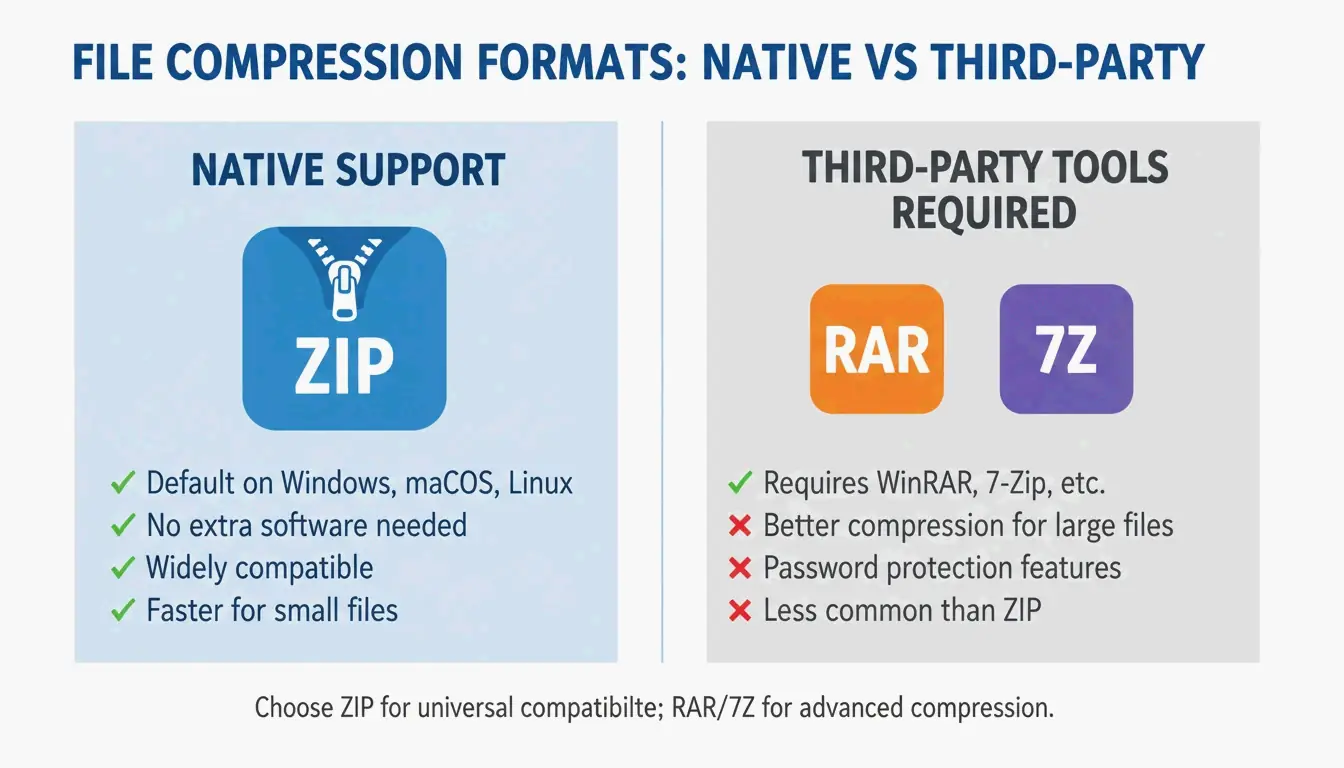
Prise en charge des formats : ce que Mac peut et ne peut pas ouvrir nativement
| Format | Finder (natif) | Terminal | Tiers nécessaire ? |
|---|---|---|---|
| ZIP | Oui | unzip |
Non |
| TAR | Non | tar -xf |
Non |
| GZIP (.gz) | Non | gunzip |
Non |
| RAR | Non | Non | Oui |
| 7z | Non | Non (sans p7zip) | Oui |
| ZIPX | Non | Non | Oui |
Ouverture automatique de Safari : confort contre sécurité
Safari peut décompresser automatiquement les téléchargements : Safari → Réglages (Settings) → Général → « Ouvrir les fichiers « sûrs » après le téléchargement ».
Recommandation : Gardez cette option désactivée. L’ouverture automatique des fichiers ZIP peut exécuter des scripts inconnus à votre insu. Vérifiez manuellement les fichiers téléchargés avant de les extraire.
Dépannage : erreurs « Unable to Expand ZIP »
| Erreur | Cause | Solution |
|---|---|---|
| « Decompression Failed » | Téléchargement corrompu | Retéléchargez le fichier |
| « Error 1 » (permission) | Dossier protégé ou lecteur partagé | Déplacez le ZIP vers le Bureau ou Documents |
| « No space left on device » | Espace disque insuffisant | Libérez du stockage ; les fichiers extraits sont plus volumineux que le ZIP |
| « Unable to expand » (chiffré) | Archive protégée par mot de passe | Utilisez le Terminal : unzip -P password filename.zip |
Vérifiez toujours l’espace disque avant d’extraire de grandes archives — les fichiers décompressés peuvent être nettement plus volumineux que le ZIP.
Conclusion
Le double-clic dans Finder couvre 95% des besoins d’extraction ZIP sur Mac. En cas d’erreur ou pour un contrôle avancé, utilisez les commandes Terminal unzip. Pour RAR, 7z et les autres formats non natifs, installez Bandizip ou utilisez ZIP Extractor dans votre navigateur. Gardez l’ouverture automatique de Safari désactivée pour la sécurité, et extrayez toujours dans un dossier dédié pour rester organisé.
Foire aux questions
Où se trouve l’application « Unzip » sur Mac ?
Il n’y a pas d’application autonome. Archive Utility s’exécute automatiquement lorsque vous double-cliquez sur un fichier ZIP. Vous pouvez aussi faire un clic droit → « Ouvrir avec → Archive Utility ».
Comment décompresser automatiquement les téléchargements de Safari ?
Allez dans Safari → Réglages (Settings) → Général et cochez « Ouvrir les fichiers « sûrs » après le téléchargement ». Cela décompresse automatiquement les fichiers ZIP. Désactivez-le pour plus de sécurité si vous téléchargez depuis des sources non fiables.
Comment extraire un ZIP protégé par mot de passe sur Mac ?
Le double-clic affiche généralement une invite de mot de passe. Si ce n’est pas le cas, utilisez le Terminal : unzip -P yourpassword filename.zip. Remplacez yourpassword par le mot de passe réel et filename.zip par le nom de votre fichier.
SectoJoy
Let Compress publishes practical guides for compression, conversion, and browser-based file workflows.
Follow SectoJoy