
Cara Mengompres File HEIC Tanpa Kehilangan Kualitas (panduan 2026)
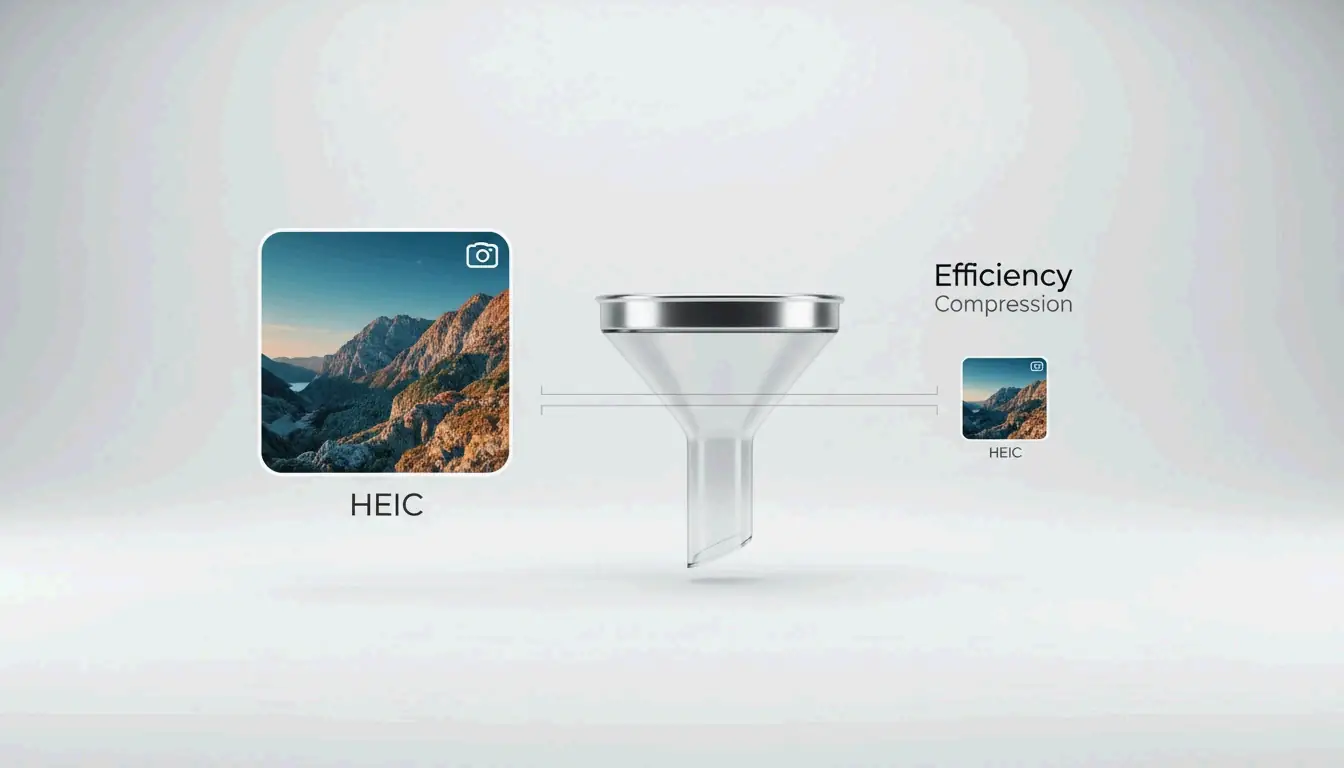
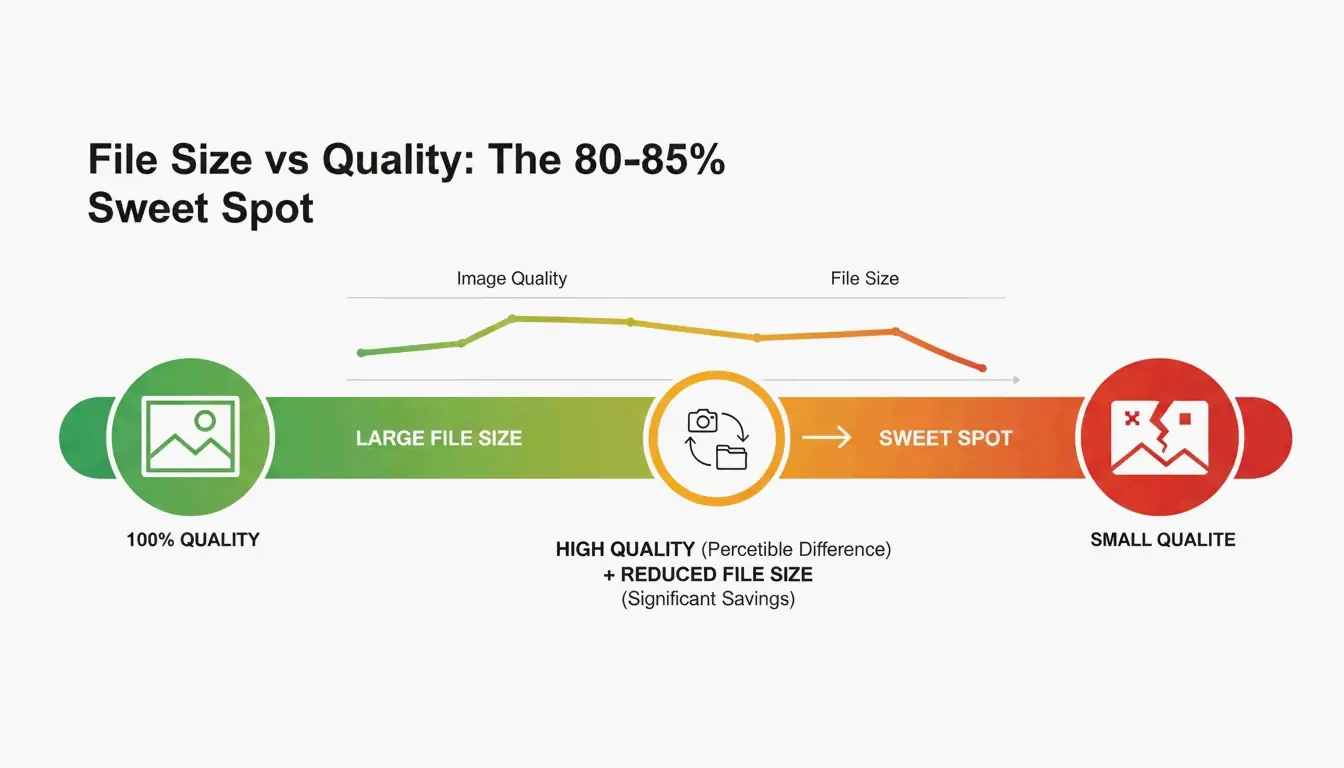
Untuk mengompres file HEIC di 2026, atur slider kualitas ke 80–85% — titik manis yang biasanya mengurangi ukuran file sebesar 40–50% tanpa kehilangan kualitas yang terlihat. Gunakan alat berbasis browser seperti ConvertMinify, yang memproses gambar secara lokal melalui WebAssembly dan menjaga foto Anda tetap privat. Untuk kompatibilitas yang lebih luas, konversi ke WebP atau ke JPEG XL yang bangkit kembali, yang kira-kira 20% lebih efisien daripada JPEG standar.
Titik manis 80–85%: mengapa ini berhasil
HEIC adalah format default Apple sejak iOS 11 (2017) dan kira-kira 50% lebih efisien daripada JPEG — menyimpan dua kali lebih banyak foto dalam ruang yang sama, menurut ConvertMinify. Namun seiring kamera ponsel melampaui 48MP, bahkan file HEIC membengkak hingga 5–8MB.
| Pengaturan kualitas | Pengurangan ukuran | Dampak visual |
|---|---|---|
| 90–100% | Minimal (10–20%) | Tanpa perbedaan terlihat |
| 80–85% | 40–50% | Tidak dapat dibedakan dengan mata telanjang |
| 60–79% | 50–70% | Sedikit pelunakan pada detail halus |
| Di bawah 60% | 70%+ | Artefak terlihat |
Data dari ConvertMinify mengonfirmasi bahwa rentang 80–85% secara konsisten mengurangi ukuran file menjadi setengah sambil mempertahankan ketelitian visual.
Langkah demi langkah: mengompres HEIC secara lokal di browser Anda
- Pilih alat lokal — ConvertMinify atau FreeToolio memproses semuanya di dalam browser melalui WebAssembly; file Anda tidak pernah meninggalkan perangkat Anda
- Unggah — Seret file HEIC ke alat; ia menampilkan dimensi dan ukuran saat ini
- Atur kualitas ke 80–85% — Secara opsional ubah ukuran (lebar 2048px adalah standar umum media sosial)
- Hapus metadata EXIF — Menghemat tambahan 50–100KB per foto dan menghapus koordinat GPS
- Unduh — Simpan file yang dioptimalkan secara lokal
HEVC (H.265) dan warna 10-bit: keunggulan teknis
Kinerja HEIC berasal dari codec video HEVC (H.265), yang menggunakan prediksi spasial dan ukuran blok fleksibel untuk mengatur data gambar jauh lebih efisien daripada JPEG.
| Properti | HEIC | JPEG |
|---|---|---|
| Kedalaman warna | 10-bit (lebih dari 1 miliar warna) | 8-bit (16,7 juta warna) |
| iPhone 15 Pro 48MP tipikal | 5–8 MB | 12–20 MB |
| Efisiensi vs. JPEG | ~50% lebih kecil | Baseline |
Saat mengompres atau mengonversi HEIC ke format 8-bit, Anda kehilangan gradien halus yang ditangkap oleh sensor kelas atas. Untuk mempertahankannya, gunakan alat yang mendukung output kedalaman tinggi atau pilih JPEG XL sebagai format target.
Perbandingan format: HEIC vs. WebP vs. AVIF vs. JPEG XL
| Format | Efisiensi kompresi | Transparansi | Dukungan browser (2026) | Paling cocok untuk |
|---|---|---|---|---|
| HEIC | 50% lebih kecil dari JPEG | Tidak | Terbatas (native di Apple) | Penyimpanan foto iPhone |
| WebP | 25–34% lebih kecil dari JPEG | Ya | 97%+ | Gambar web umum |
| AVIF | ~50% lebih kecil dari JPEG | Ya | 92%+ | Kompresi maksimum |
| JPEG XL | ~20% lebih baik dari HEIC | Ya | Chromium v145+ | Arsip berkualitas tinggi, HDR |
| JPEG | Baseline | Tidak | Universal | Kompatibilitas maksimum |
Cerita 2026 adalah kebangkitan JPEG XL. Ditambahkan ke Chromium v145 di akhir 2025, ini mengungguli HEIC, AVIF, dan WebP dalam kecepatan dan kualitas — menjadi standar emas baru untuk arsip.
Peringatan kompatibilitas
HEIC menyebabkan masalah nyata ketika College Board menolak unggahan HEIC dari iPhone selama pengumpulan ujian AP. Konversi ke format standar web sering kali menjadi langkah yang diperlukan.
Dimensi optimal untuk penggunaan umum
| Penggunaan | Dimensi yang direkomendasikan | Ukuran file target |
|---|---|---|
| Postingan Instagram | 1080 × 1350 px | 200–500 KB |
| Hero situs web | 1920 × 1080 px | 300–800 KB |
| Lampiran email | 1600 × 1200 px | 200–600 KB |
| Arsip lengkap | Resolusi asli | 1.5–3.0 MB |
Windows dan Android: solusi kompatibilitas HEIC
Windows sering menampilkan ikon kosong untuk file HEIC. Solusinya:
- Instal HEIF Image Extensions (gratis, dari Microsoft Store)
- Instal HEVC Video Extensions (mungkin memerlukan biaya lisensi kecil)
Untuk pemrosesan batch, alat seperti Zipic (Mac) atau konverter batch berbasis browser menangani ratusan file sekaligus.
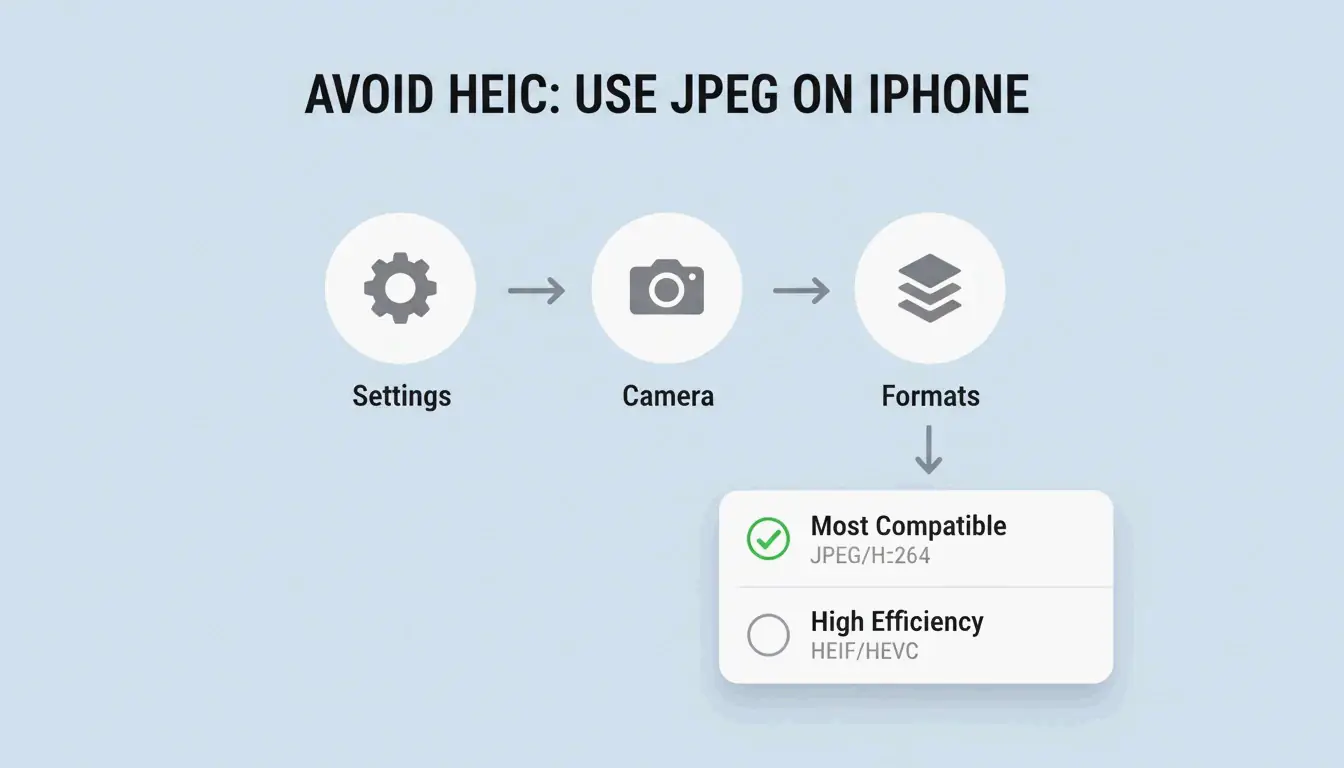
Untuk berhenti menggunakan HEIC di iPhone: Settings → Camera → Formats → «Most Compatible» memaksa semua foto baru disimpan sebagai JPEG.
Kesimpulan
Mengompres HEIC dengan kualitas 80–85% mengurangi file sebesar 40–50% tanpa kehilangan terlihat. Gunakan alat browser yang memprioritaskan privasi dan memproses secara lokal. Untuk penggunaan web, konversi ke WebP atau JPEG XL untuk efisiensi maksimum. Di Windows, instal ekstensi HEIF atau gunakan penampil pihak ketiga gratis. Selalu hapus data EXIF sebelum membagikan secara publik.
Pertanyaan yang sering diajukan
Apakah mengompres HEIC ke JPEG menyebabkan kehilangan kualitas?
Ya — ini adalah konversi lossy-ke-lossy. Anda kehilangan kedalaman warna 10-bit dan dapat memperkenalkan artefak kompresi. ConvertIMG merekomendasikan menjaga kualitas JPEG pada 80% atau lebih tinggi selama konversi untuk meminimalkan degradasi yang terlihat.
Bagaimana cara menghapus metadata GPS dari file HEIC?
Gunakan alat kompresi dengan tombol «EXIF-stripping» atau «Metadata removal». Ini menghemat 50–100KB per file. ConvertMinify menganggap ini penting untuk privasi saat berbagi foto di media sosial atau forum publik.
Mengapa Windows memerlukan ekstensi berbayar untuk HEIC?
Codec HEVC (H.265) memiliki biaya lisensi. Microsoft menyediakan HEIF Image Extensions secara gratis, tetapi dekoder HEVC sering kali merupakan add-on berbayar. iformat.io merekomendasikan alternatif gratis seperti VLC atau kompresor berbasis browser untuk menghindari biaya ini.
SectoJoy
Let Compress publishes practical guides for compression, conversion, and browser-based file workflows.
Follow SectoJoy



