How to Compress HEIC Files Without Losing Quality (2026 Guide)
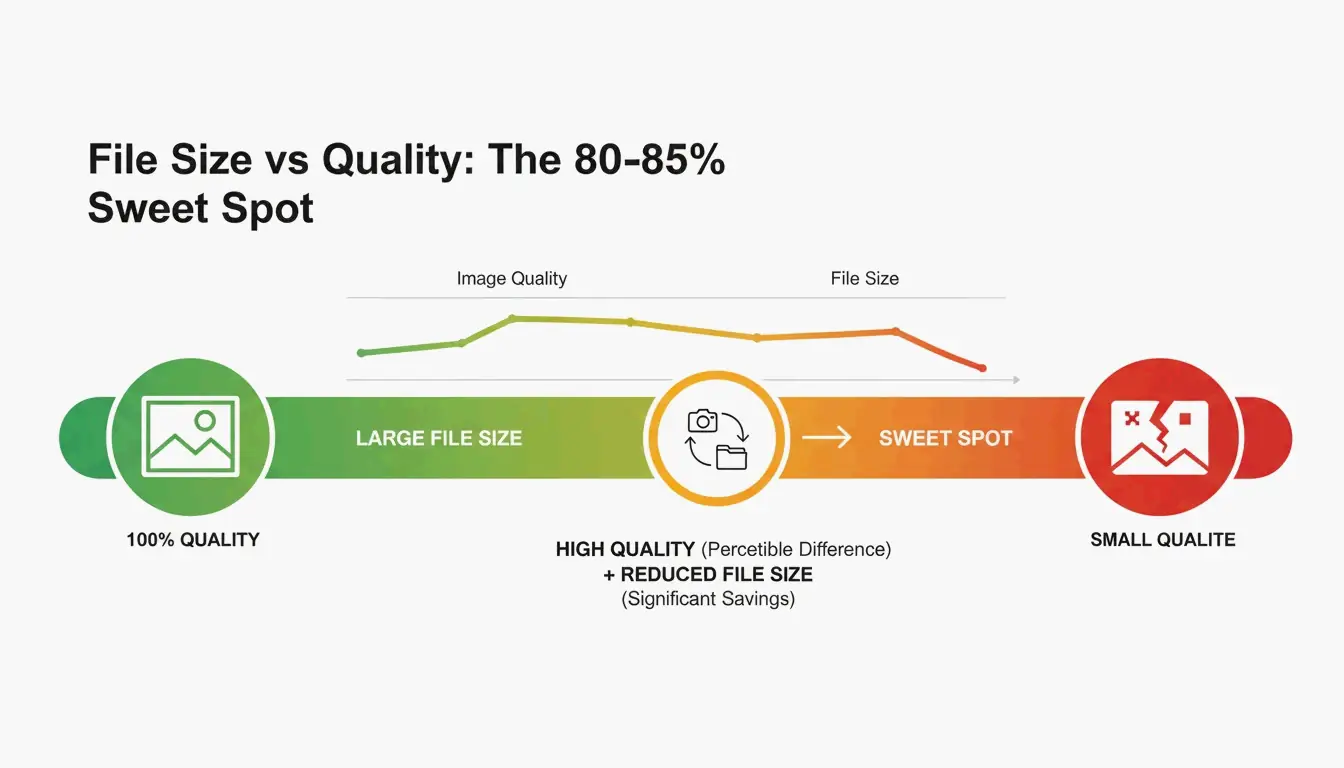
To compress HEIC files in 2026, set the quality slider to 80–85% — the sweet spot that typically cuts file sizes by 40–50% with no visible quality loss. Use browser-based tools like ConvertMinify that process images locally via WebAssembly, keeping your photos private. For broader compatibility, convert to WebP or the resurgent JPEG XL, which is approximately 20% more efficient than standard JPEG.
The 80–85% Sweet Spot: Why It Works
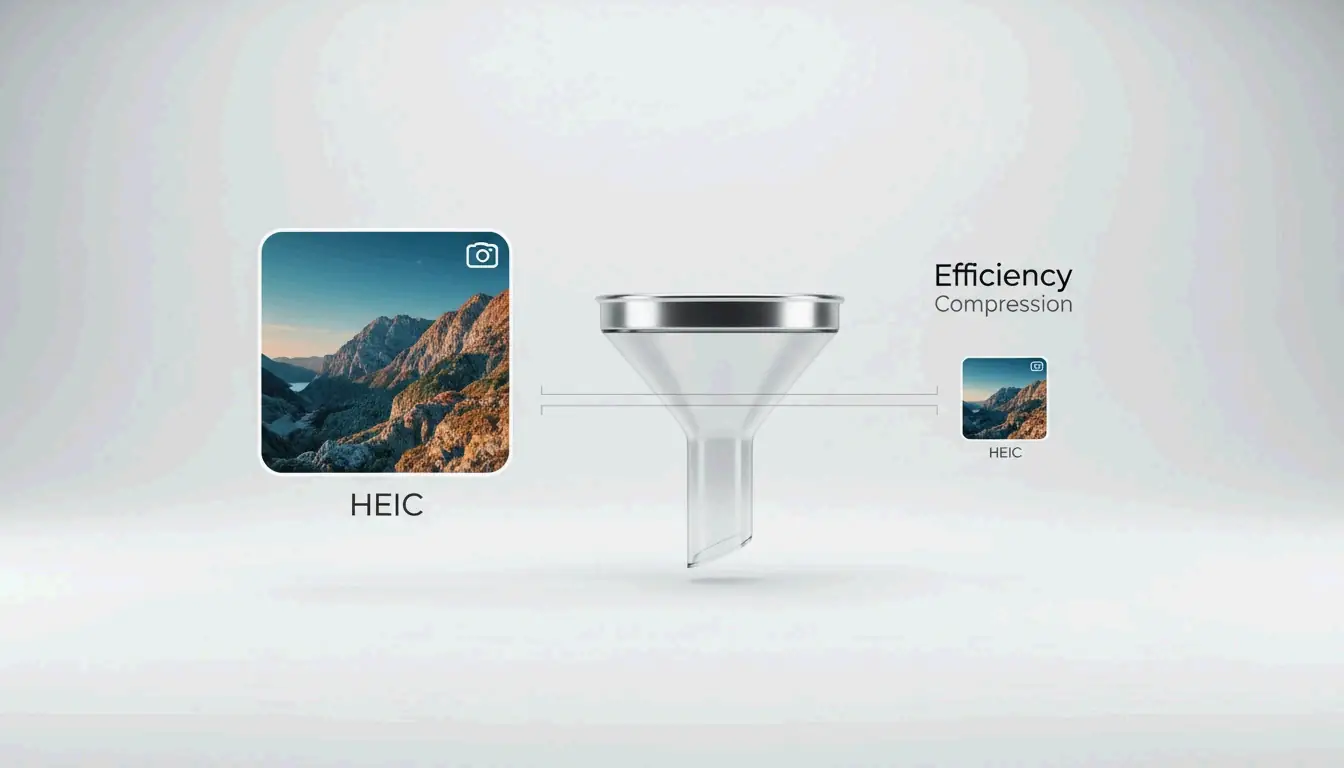
HEIC has been Apple’s default since iOS 11 (2017) and is roughly 50% more efficient than JPEG — storing twice the photos in the same space, according to ConvertMinify. But as phone cameras push past 48MP, even HEIC files balloon to 5–8MB.
| Quality Setting | File Size Reduction | Visual Impact |
|---|---|---|
| 90–100% | Minimal (10–20%) | No visible difference |
| 80–85% | 40–50% | Indistinguishable to the naked eye |
| 60–79% | 50–70% | Slight softening in fine details |
| Below 60% | 70%+ | Visible artifacts |
Data from ConvertMinify confirms that the 80–85% range consistently halves file size while preserving visual fidelity.
Step-by-Step: Compress HEIC Locally in Your Browser
- Pick a local tool — ConvertMinify or FreeToolio process everything in-browser via WebAssembly; your files never leave your device
- Upload — Drag HEIC files into the tool; it shows current dimensions and size
- Set quality to 80–85% — Optionally resize (2048px width is a common social media standard)
- Strip EXIF metadata — Saves an additional 50–100KB per photo and removes GPS coordinates
- Download — Save optimized files locally
HEVC (H.265) and 10-Bit Color: The Technical Edge
HEIC’s performance comes from the HEVC (H.265) video codec, which uses spatial prediction and flexible block sizes to organize image data far more efficiently than JPEG.
| Property | HEIC | JPEG |
|---|---|---|
| Color depth | 10-bit (1 billion+ colors) | 8-bit (16.7 million colors) |
| Typical iPhone 15 Pro 48MP | 5–8 MB | 12–20 MB |
| Efficiency vs. JPEG | ~50% smaller | Baseline |
When compressing or converting HEIC to an 8-bit format, you lose those smooth gradients captured by high-end sensors. To preserve them, use tools that support high-depth output or choose JPEG XL as your target format.
Format Comparison: HEIC vs. WebP vs. AVIF vs. JPEG XL
| Format | Compression Efficiency | Transparency | Browser Support (2026) | Best For |
|---|---|---|---|---|
| HEIC | 50% smaller than JPEG | No | Limited (native on Apple) | iPhone photo storage |
| WebP | 25–34% smaller than JPEG | Yes | 97%+ | General web images |
| AVIF | ~50% smaller than JPEG | Yes | 92%+ | Maximum compression |
| JPEG XL | ~20% better than HEIC | Yes | Chromium v145+ | High-quality archives, HDR |
| JPEG | Baseline | No | Universal | Maximum compatibility |
The 2026 story is JPEG XL’s comeback. Added to Chromium v145 in late 2025, it outperforms HEIC, AVIF, and WebP in both speed and quality — making it the new gold standard for archives.
Compatibility Warning
HEIC caused real problems when the College Board rejected HEIC uploads from iPhones during AP exam submissions. Converting to a web-standard format is often a necessary step.
Optimal Dimensions for Common Use Cases
| Use Case | Recommended Dimensions | Target File Size |
|---|---|---|
| Instagram Post | 1080 × 1350 px | 200–500 KB |
| Website Hero | 1920 × 1080 px | 300–800 KB |
| Email Attachment | 1600 × 1200 px | 200–600 KB |
| Full Archive | Original resolution | 1.5–3.0 MB |
Windows and Android: Solving HEIC Compatibility
Windows often shows blank icons for HEIC files. The fix:
- Install HEIF Image Extensions (free, from Microsoft Store)
- Install HEVC Video Extensions (may require a small licensing fee)
For batch processing, tools like Zipic (Mac) or browser-based batch converters handle hundreds of files at once.
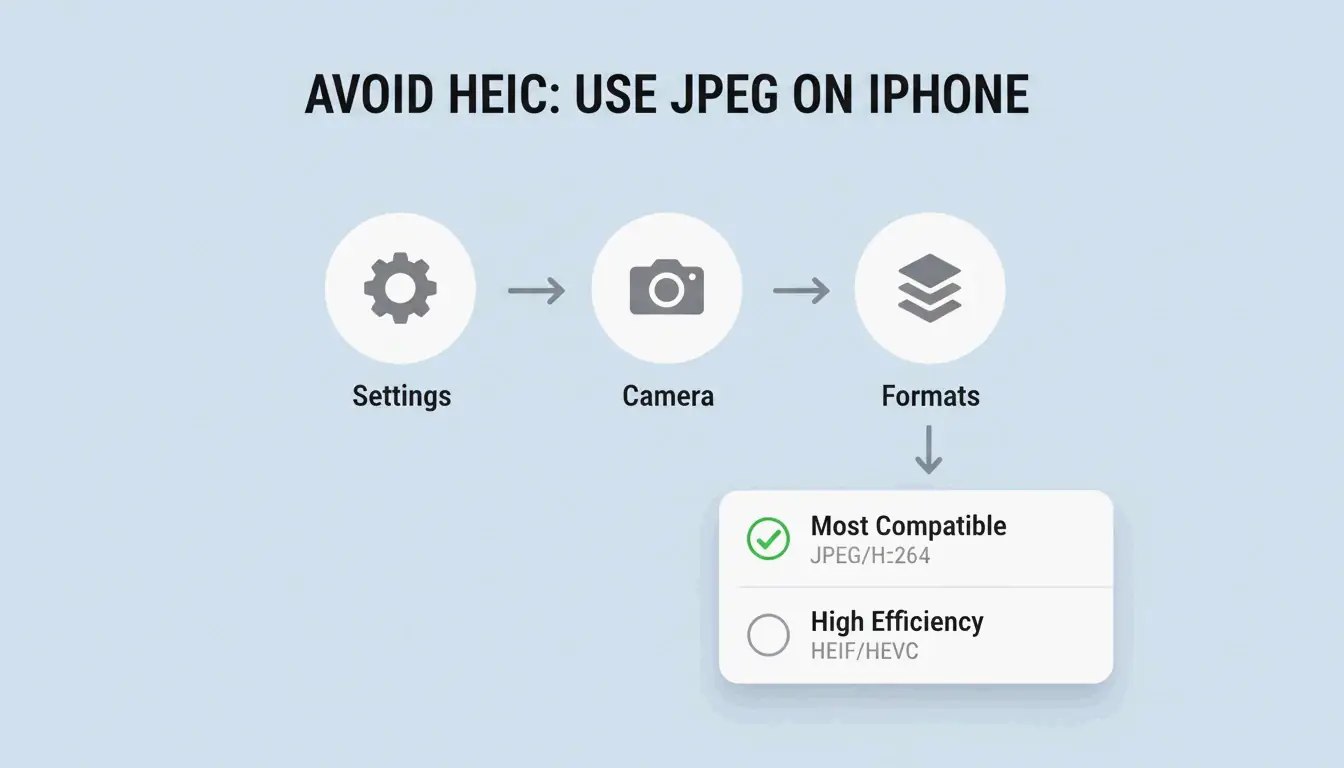
To stop using HEIC on iPhone: Settings → Camera → Formats → “Most Compatible” forces all new photos to save as JPEG.
Conclusion
Compressing HEIC at 80–85% quality cuts files by 40–50% with no visible loss. Use privacy-first browser tools that process locally. For web use, convert to WebP or JPEG XL for maximum efficiency. On Windows, install the HEIF extensions or use free third-party viewers. Always strip EXIF data before sharing publicly.
FAQ
Does compressing HEIC to JPEG result in quality loss?
Yes — it is a lossy-to-lossy conversion. You lose 10-bit color depth and may introduce compression artifacts. ConvertIMG recommends keeping JPEG quality at 80% or higher during conversion to minimize visible degradation.
How can I strip GPS metadata from HEIC files?
Use compression tools with “EXIF-stripping” or “Metadata removal” toggles. This saves 50–100KB per file. ConvertMinify considers this essential for privacy when sharing photos on social media or public forums.
Why does Windows require a paid extension for HEIC?
The HEVC (H.265) codec has licensing fees. Microsoft provides HEIF Image Extensions for free, but the HEVC decoder is often a paid add-on. iformat.io recommends free alternatives like VLC or browser-based compressors to avoid these fees.
SectoJoy
Let Compress publishes practical guides for compression, conversion, and browser-based file workflows.
Follow SectoJoy