
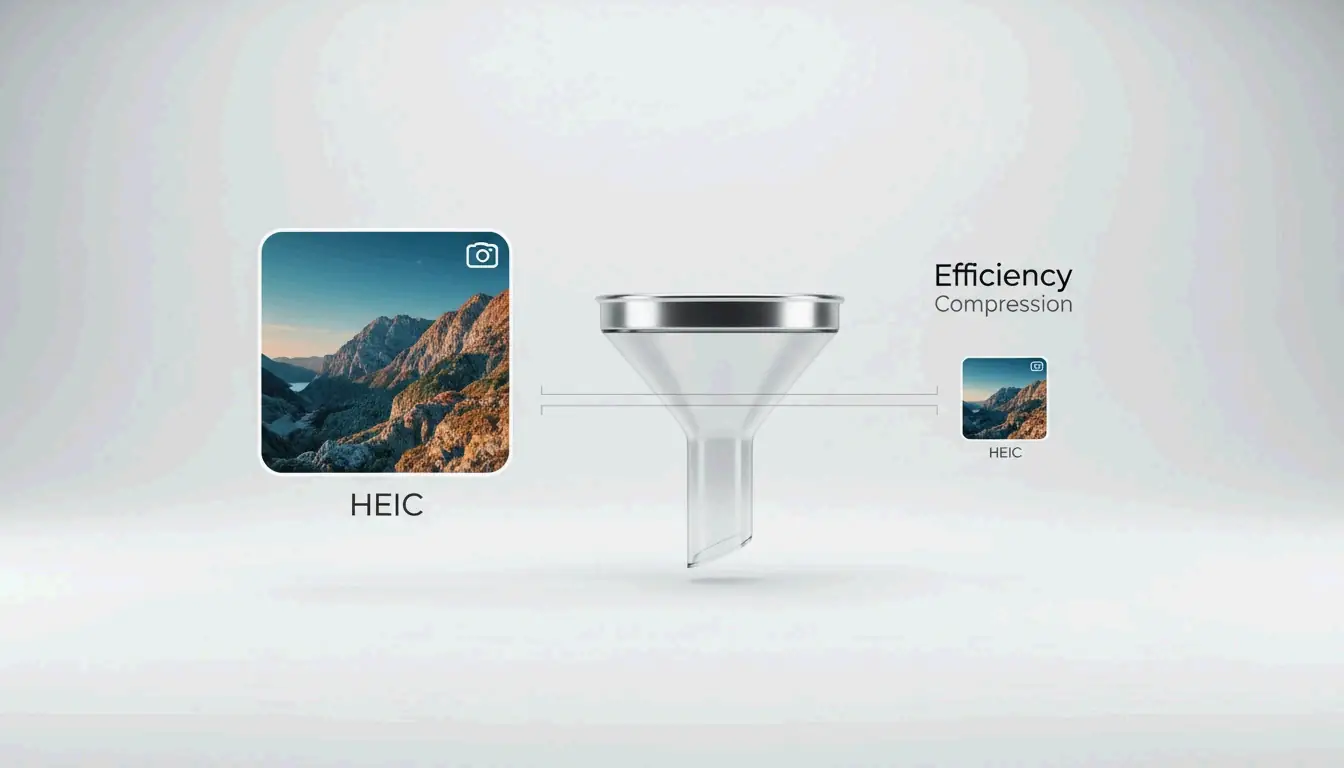
HEIC Dosyalarını Kalite Kaybı Olmadan Sıkıştırma (2026 rehberi)
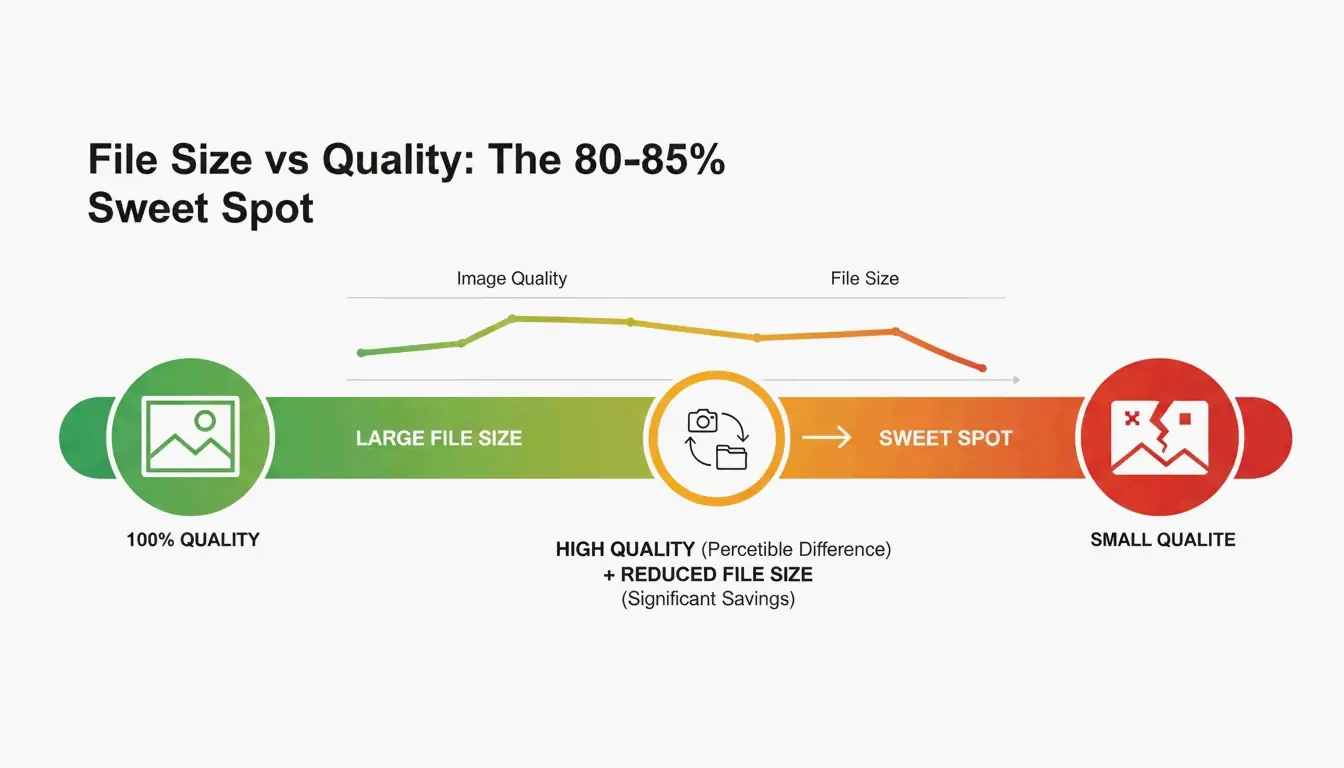
2026’da HEIC dosyalarını sıkıştırmak için kalite kaydırıcısını 80–85%‘ye ayarlayın — görünür kalite kaybı olmadan dosya boyutunu genellikle 40–50% azaltan optimum nokta. ConvertMinify gibi tarayıcı tabanlı araçlar kullanın; bunlar görüntüleri WebAssembly aracılığıyla yerel olarak işler ve fotoğraflarınızı özel tutar. Daha geniş uyumluluk için WebP’ye veya standart JPEG’den yaklaşık 20% daha verimli olan yeniden yükselen JPEG XL‘e dönüştürün.
80–85% optimum noktası: neden işe yarıyor
HEIC, iOS 11’den (2017) beri Apple’ın varsayılan formatıdır ve ConvertMinify‘a göre JPEG’den yaklaşık 50% daha verimlidir — aynı alanda iki kat fazla fotoğraf depolar. Ancak telefon kameraları 48MP’yi geçtikçe, HEIC dosyaları bile 5–8MB’a kadar şişer.
| Kalite ayarı | Dosya boyutu azalması | Görsel etki |
|---|---|---|
| 90–100% | Minimal (10–20%) | Görünür fark yok |
| 80–85% | 40–50% | Çıplak gözle ayırt edilemez |
| 60–79% | 50–70% | İnce detaylarda hafif yumuşama |
| 60%’in altında | 70%+ | Görünür artefaktlar |
ConvertMinify verileri, 80–85% aralığının görsel sadakati korurken dosya boyutunu istikrarlı bir şekilde yarıya indirdiğini doğruluyor.
Adım adım: HEIC’i tarayıcınızda yerel olarak sıkıştırın
- Yerel bir araç seçin — ConvertMinify veya FreeToolio her şeyi WebAssembly aracılığıyla tarayıcıda işler; dosyalarınız hiçbir zaman cihazınızı terk etmez
- Yükleme — HEIC dosyalarını araca sürükleyin; mevcut boyutları ve büyüklüğü gösterir
- Kaliteyi 80–85%’ye ayarlayın — İsteğe bağlı olarak yeniden boyutlandırın (2048px genişlik sosyal medya için yaygın bir standarttır)
- EXIF meta verilerini kaldırın — Fotoğraf başına ekstra 50–100KB tasarruf sağlar ve GPS koordinatlarını kaldırır
- İndirme — Optimize edilmiş dosyaları yerel olarak kaydedin
HEVC (H.265) ve 10-bit renk: teknik avantaj
HEIC’in performansı, görüntü verilerini JPEG’den çok daha verimli düzenlemek için uzamsal tahmin ve esnek blok boyutları kullanan HEVC (H.265) video codec bileşeninden gelir.
| Özellik | HEIC | JPEG |
|---|---|---|
| Renk derinliği | 10-bit (1 milyardan fazla renk) | 8-bit (16,7 milyon renk) |
| Tipik iPhone 15 Pro 48MP | 5–8 MB | 12–20 MB |
| JPEG’ye karşı verimlilik | ~50% daha küçük | Temel |
HEIC’i sıkıştırırken veya 8-bit formata dönüştürürken, üst düzey sensörlerin yakaladığı pürüzsüz gradyanları kaybedersiniz. Onları korumak için yüksek derinlikli çıktıyı destekleyen araçlar kullanın veya hedef format olarak JPEG XL‘i seçin.
Format karşılaştırması: HEIC vs. WebP vs. AVIF vs. JPEG XL
| Format | Sıkıştırma verimliliği | Şeffaflık | Tarayıcı desteği (2026) | En uygun |
|---|---|---|---|---|
| HEIC | JPEG’den 50% daha küçük | Hayır | Sınırlı (Apple’da yerel) | iPhone fotoğraf depolama |
| WebP | JPEG’den 25–34% daha küçük | Evet | 97%+ | Genel web görüntüleri |
| AVIF | JPEG’den ~50% daha küçük | Evet | 92%+ | Maksimum sıkıştırma |
| JPEG XL | HEIC’ten ~20% daha iyi | Evet | Chromium v145+ | Yüksek kaliteli arşiv, HDR |
| JPEG | Temel | Hayır | Evrensel | Maksimum uyumluluk |
2026’nın hikayesi JPEG XL’in geri dönüşü. 2025 sonlarında Chromium v145’e eklendi, hem hız hem kalite açısından HEIC, AVIF ve WebP’yi geride bırakıyor — arşivleme için yeni altın standart haline geldi.
Uyumluluk uyarısı
HEIC, College Board AP sınavı gönderimleri sırasında iPhone’lardan HEIC yüklemelerini reddettiğinde gerçek sorunlara yol açtı. Web standartı bir formata dönüştürme çoğu zaman gerekli bir adımdır.
Yaygın kullanımlar için optimum boyutlar
| Kullanım | Önerilen boyutlar | Hedef dosya boyutu |
|---|---|---|
| Instagram gönderisi | 1080 × 1350 px | 200–500 KB |
| Web sitesi kahramanı | 1920 × 1080 px | 300–800 KB |
| E-posta eki | 1600 × 1200 px | 200–600 KB |
| Tam arşiv | Orijinal çözünürlük | 1.5–3.0 MB |
Windows ve Android: HEIC uyumluluk çözümü
Windows genellikle HEIC dosyaları için boş simgeler gösterir. Çözüm:
- HEIF Image Extensions‘ı yükleyin (ücretsiz, Microsoft Store’dan)
- HEVC Video Extensions‘ı yükleyin (küçük bir lisans ücreti gerektirebilir)
Toplu işleme için, Zipic (Mac) gibi araçlar veya tarayıcı tabanlı toplu dönüştürücüler aynı anda yüzlerce dosyayı işler.
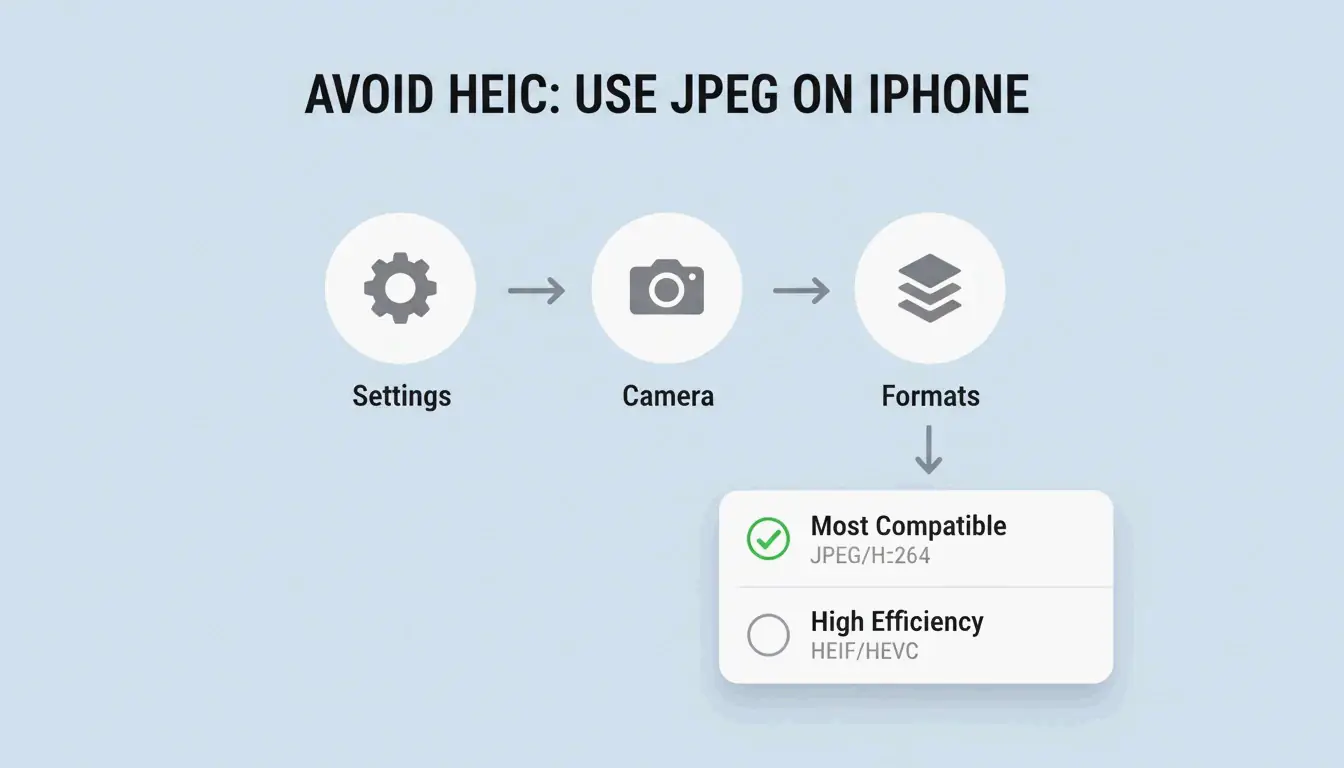
iPhone’da HEIC kullanmayı bırakmak için: Ayarlar → Kamera → Formatlar → «En uyumlu» tüm yeni fotoğrafları JPEG olarak kaydetmeye zorlar.
Sonuç
HEIC’i 80–85% kalitede sıkıştırmak, görünebilir kayıp olmadan dosyaları 40–50% küçültür. Yerel olarak işleyen, gizlilik öncelikli tarayıcı araçları kullanın. Web kullanımı için maksimum verimlilik adına WebP veya JPEG XL’e dönüştürün. Windows’ta HEIF uzantılarını yükleyin veya ücretsiz üçüncü taraf görüntüleyiciler kullanın. Herkese açık paylaşmadan önce daima EXIF verilerini kaldırın.
Sıkça sorulan sorular
HEIC’i JPEG’e sıkıştırmak kalite kaybına yol açar mı?
Evet — bu lossy’den lossy’ye bir dönüşümdür. 10-bit renk derinliğini kaybedersiniz ve sıkıştırma artefaktları oluşabilir. ConvertIMG, görünür bozulmayı en aza indirmek için dönüştürme sırasında JPEG kalitesini 80% veya daha yüksek tutmanızı önerir.
HEIC dosyalarından GPS meta verilerini nasıl kaldırırım?
«EXIF temizleme» veya «Meta veri kaldırma» anahtarlarına sahip sıkıştırma araçları kullanın. Bu, dosya başına 50–100KB tasarruf sağlar. ConvertMinify, sosyal medya veya herkese açık forumlarda fotoğraf paylaşırken bunu gizlilik açısından zorunlu görür.
Windows neden HEIC için ücretli bir uzantı gerektiriyor?
HEVC (H.265) codec bileşeninin lisans ücretleri vardır. Microsoft HEIF Image Extensions’ı ücretsiz olarak sunar, ancak HEVC kod çözücü genellikle ücretli bir eklentidir. iformat.io, bu ücretlerden kaçınmak için VLC veya tarayıcı tabanlı sıkıştırıcılar gibi ücretsiz alternatifler önerir.
SectoJoy
Let Compress publishes practical guides for compression, conversion, and browser-based file workflows.
Follow SectoJoy



