Mac에서 ZIP 파일 압축 푸는 방법: 기본 및 터미널 방식 (2026)
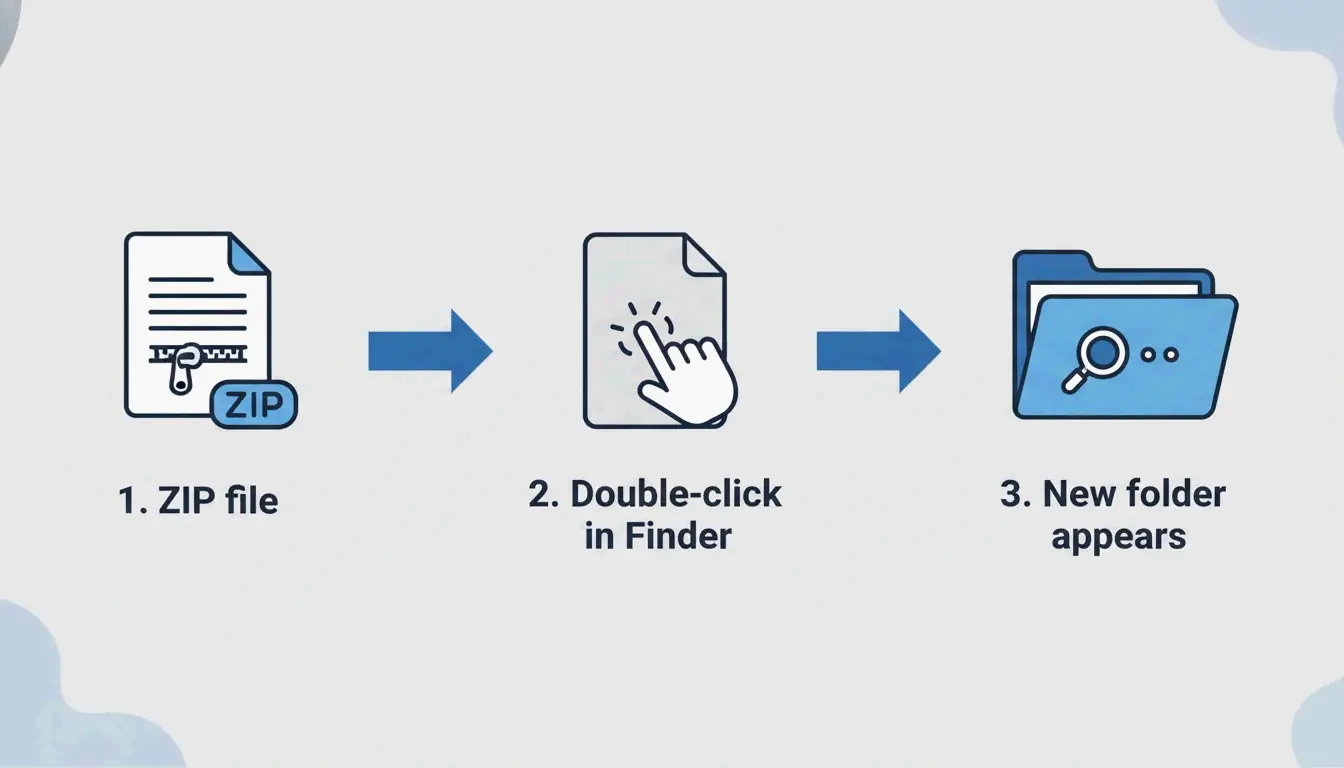
Mac에서 ZIP 파일의 압축을 풀려면 Finder에서 해당 파일을 더블 클릭하기만 하면 됩니다. macOS는 내장 Archive Utility를 사용하여 같은 폴더에 즉시 압축을 풉니다. 더 세밀한 제어가 필요하면 터미널 명령 unzip filename.zip을 사용하세요. RAR과 7z 같은 비기본 형식에는 Bandizip 같은 타사 도구를 설치하거나 브라우저 기반 압축 해제기를 사용하세요.
Mac에서 ZIP 파일 압축 푸는 3가지 방법
방법 1: Finder에서 더블 클릭 (가장 빠름)
macOS는 ZIP을 기본적으로 지원하므로 추가 앱이 필요 없습니다. Finder에서 ZIP 파일을 더블 클릭하면 Archive Utility가 백그라운드에서 실행되어 같은 위치에 압축이 풀린 내용이 담긴 새 폴더를 만듭니다.
이 방법은 모든 최신 macOS 버전(Sonoma 이상)과 모든 Apple Silicon 하드웨어(M1, M2, M3, M4)에서 작동합니다.
방법 2: 터미널 명령 (파워 유저용)
Finder에 「Decompression Failed」 또는 「Error 1」 권한 문제가 표시될 때 터미널이 더 안정적입니다:
unzip filename.zip

unzip filename.zip -d ~/Desktop/extracted/

# View contents without extracting
unzip -l filename.zip

# Extract password-protected ZIP
unzip -P yourpassword filename.zip
전문가 Olga Weis는 압축을 풀기 전에 개발 패키지를 깨끗한 폴더로 옮길 것을 권장합니다. “이렇게 하면 압축이 풀린 파일이 다운로드 폴더를 어지르지 않습니다.”
방법 3: 타사 도구로 마우스 오른쪽 버튼 압축 해제
ZIP 이외의 형식(RAR, 7z, TAR, GZIP)에는 내장 Archive Utility가 도움이 되지 않습니다. 타사 앱을 추가하면 마우스 오른쪽 버튼 압축 해제를 사용할 수 있습니다:
| 도구 | 지원 형식 | 주요 기능 | 가격 |
|---|---|---|---|
| Bandizip | 40개 이상 (RAR5, ZIPX, 7z) | 대용량 파일의 멀티코어 처리 | 무료 |
| iBoysoft MagicMenu | ZIP, RAR, 7z | Finder 마우스 오른쪽 버튼 통합 | 유료 |
| ZIP Extractor | ZIP, RAR, 7z | 브라우저 기반, Google Drive에서 작동 | 무료 (3억 명 이상 사용자) |
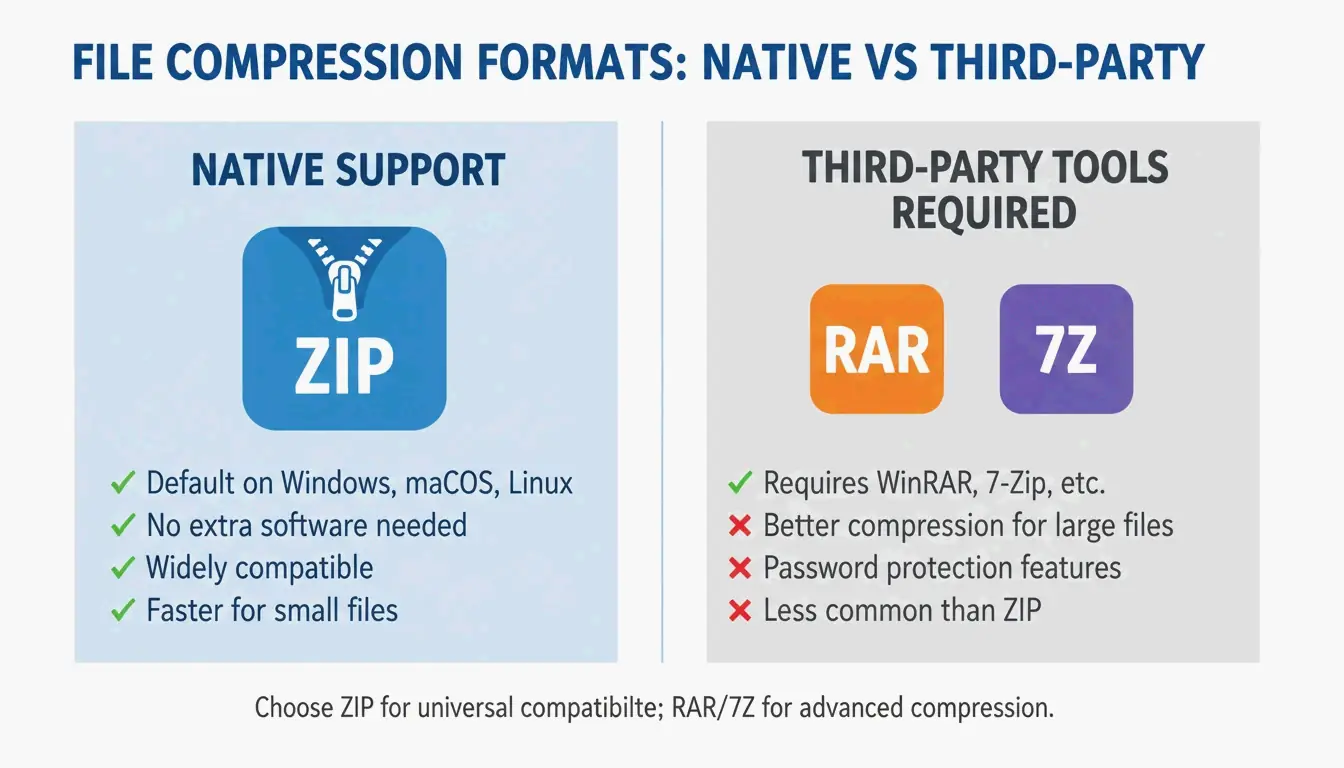
형식 지원: Mac이 기본으로 열 수 있고 없는 형식
| 형식 | Finder (기본) | 터미널 | 타사 필요? |
|---|---|---|---|
| ZIP | 예 | unzip |
아니오 |
| TAR | 아니오 | tar -xf |
아니오 |
| GZIP (.gz) | 아니오 | gunzip |
아니오 |
| RAR | 아니오 | 아니오 | 예 |
| 7z | 아니오 | 아니오 (p7zip 없이) | 예 |
| ZIPX | 아니오 | 아니오 | 예 |
Safari 자동 열기: 편의성과 보안
Safari는 다운로드를 자동으로 압축 해제할 수 있습니다: Safari → 설정(Settings) → 일반 → “다운로드 후 ‘안전한’ 파일 열기”.
권장 사항: 이 옵션은 꺼진 상태로 두세요. ZIP 파일을 자동으로 열면 모르는 사이에 알 수 없는 스크립트가 실행될 수 있습니다. 압축을 풀기 전에 다운로드한 파일을 수동으로 확인하세요.
문제 해결: “Unable to Expand ZIP” 오류
| 오류 | 원인 | 해결 방법 |
|---|---|---|
| 「Decompression Failed」 | 다운로드 손상 | 파일을 다시 다운로드 |
| 「Error 1」 (권한) | 보호된 폴더 또는 공유 드라이브 | ZIP을 바탕화면이나 문서 폴더로 이동 |
| 「No space left on device」 | 디스크 공간 부족 | 저장 공간 확보; 압축 해제된 파일이 ZIP보다 큼 |
| 「Unable to expand」 (암호화됨) | 비밀번호로 보호된 아카이브 | 터미널 사용: unzip -P password filename.zip |
큰 아카이브의 압축을 풀기 전에 항상 디스크 공간을 확인하세요 — 압축이 풀린 파일은 ZIP보다 훨씬 클 수 있습니다.
결론
Mac에서는 Finder의 더블 클릭으로 ZIP 압축 해제 요구의 95%를 처리할 수 있습니다. 오류가 발생하거나 고급 제어가 필요할 때는 터미널 unzip 명령을 사용하세요. RAR, 7z 및 기타 비기본 형식에는 Bandizip을 설치하거나 브라우저에서 ZIP Extractor를 사용하세요. 보안을 위해 Safari의 자동 열기는 꺼진 상태로 두고, 정리된 상태를 유지하려면 항상 전용 폴더에 압축을 푸세요.
자주 묻는 질문
Mac의 “Unzip” 앱은 어디에 있나요?
단독 앱은 없습니다. ZIP 파일을 더블 클릭하면 Archive Utility가 자동으로 실행됩니다. 마우스 오른쪽 버튼 클릭 → “연결 프로그램 → Archive Utility”도 가능합니다.
Safari 다운로드를 자동으로 압축 해제하려면 어떻게 하나요?
Safari → 설정(Settings) → 일반으로 이동하여 “다운로드 후 ‘안전한’ 파일 열기”를 선택하세요. 그러면 ZIP 파일이 자동으로 압축 해제됩니다. 신뢰할 수 없는 출처에서 다운로드하는 경우 보안을 위해 이 기능을 끄세요.
Mac에서 비밀번호로 보호된 ZIP의 압축을 어떻게 풀 수 있나요?
더블 클릭하면 보통 비밀번호 입력 프롬프트가 표시됩니다. 표시되지 않으면 터미널을 사용하세요: unzip -P yourpassword filename.zip. yourpassword를 실제 비밀번호로, filename.zip을 파일 이름으로 바꾸세요.
SectoJoy
Let Compress publishes practical guides for compression, conversion, and browser-based file workflows.
Follow SectoJoy