Как распаковать файлы в Windows: полное руководство для Windows 11 и 10 (2026)
Чтобы распаковать файлы в Windows, откройте Проводник, щёлкните правой кнопкой мыши по папке ZIP и выберите «Извлечь всё», затем укажите папку назначения. Начиная с мая 2026 года, Windows 11 также нативно поддерживает распаковку файлов .rar и .7z, поэтому большинству пользователей больше не нужно стороннее ПО для базовой распаковки.
Три способа распаковки в Windows
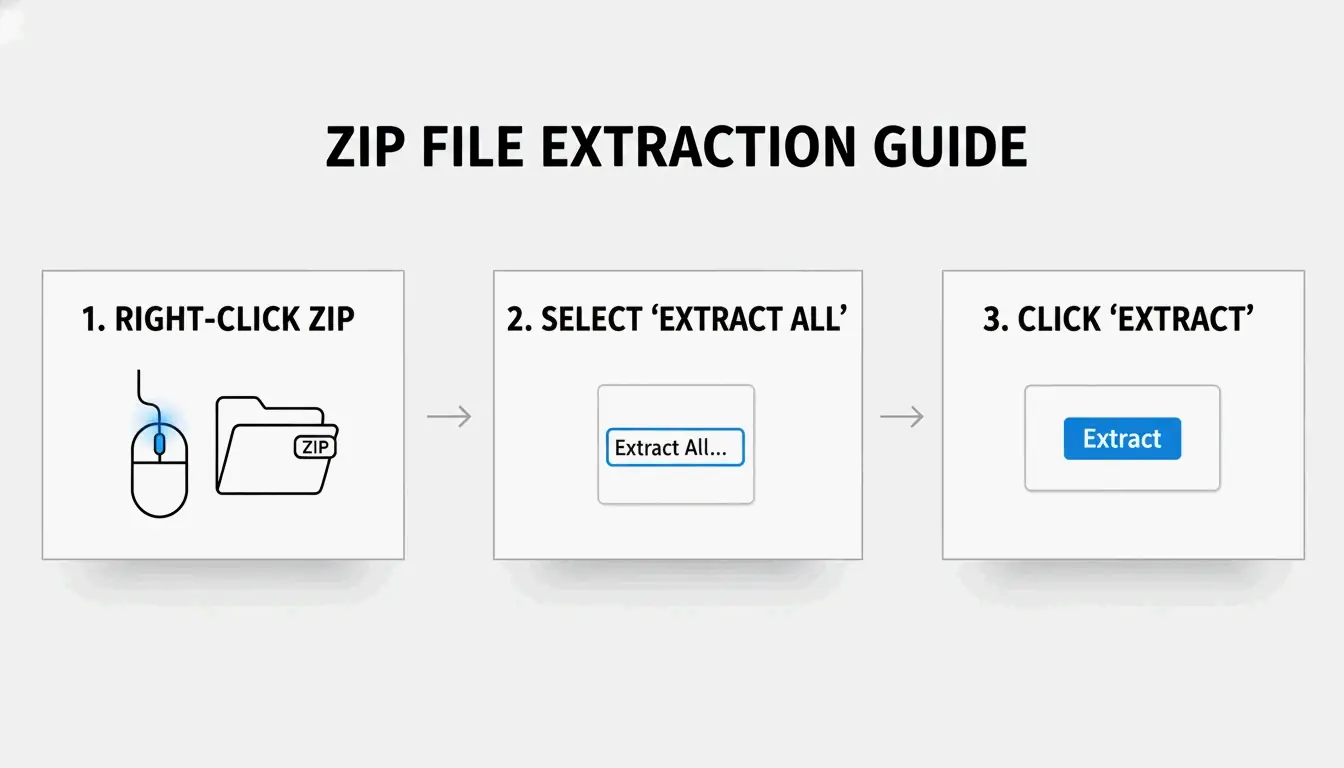
Способ 1: правый клик «Извлечь всё» (самый простой)
- Найти ZIP-файл в Проводнике (ищите значок молнии)
- Правый клик → Выбрать «Извлечь всё»
- Выбрать папку назначения — Windows предлагает новую папку в том же месте
- Нажать «Извлечь» — Для больших архивов появляется индикатор выполнения
SupportYourTech отмечает, что это самый быстрый способ для большинства пользователей.
Способ 2: перетаскивание отдельных файлов
Нужен только один-два файла из большого архива? Дважды щёлкните по ZIP, чтобы просмотреть содержимое, и перетащите нужные элементы на рабочий стол или в другую папку. Windows мгновенно извлекает только эти файлы — без полной распаковки.
Способ 3: пакетная распаковка через PowerShell
Для десятков или сотен архивов автоматизируйте процесс с помощью PowerShell:
Get-ChildItem -Path "C:\SourceFolder" -Filter *.zip |
  ForEach-Object {
    Expand-Archive -Path $_.FullName -DestinationPath "C:\DestinationFolder"
  }
Serverman рекомендует этот метод ИТ-администраторам, обрабатывающим большие объёмы данных или настраивающим еженедельные автоматические резервные копии.
Windows 11: нативная поддержка RAR и 7z
После обновления ноября 2023 года Windows 11 может извлекать файлы .rar и .7z напрямую в Проводнике — так же, как файлы ZIP. Microsoft интегрировала проект libarchive с открытым исходным кодом, чтобы это стало возможным, как отмечает PandaOffice Drecov.
Ограничение: вы можете извлекать RAR/7z, но Windows по-прежнему только создаёт ZIP-архивы. Для создания файлов .7z или .rar требуется отдельное приложение.
| Формат | Извлечение (Win 11) | Создание (Win 11) | Windows 10 |
|---|---|---|---|
| ZIP | Нативно | Нативно | Нативно |
| RAR | Нативно | Нет | Требуется стороннее приложение |
| 7z | Нативно | Нет | Требуется стороннее приложение |
| GZIP / TAR / BZIP2 | Нет | Нет | Требуется стороннее приложение |
Когда использовать 7-Zip или WinRAR
Встроенное средство Windows не поддерживает шифрование AES-256 для создания архивов, защищённых паролем. Для конфиденциальных данных (медицинские карты, налоговые декларации) используйте специализированное средство.
| Функция | Встроено в Windows | 7-Zip | WinRAR |
|---|---|---|---|
| Создание ZIP | Да | Да | Да |
| Создание 7z (LZMA2) | Нет | Да | Нет |
| Создание RAR | Нет | Нет | Да |
| Шифрование AES-256 | Нет | Да | Да |
| Восстановление ошибок CRC | Ограничено | Сильное | Сильное |
| Цена | Бесплатно | Бесплатно | Платно (пробная версия) |
ZIP Extractor отмечает, что десктопные приложения, такие как 7-Zip, лучше защищают от повреждённых файлов и ошибок CRC, чем браузерные инструменты.
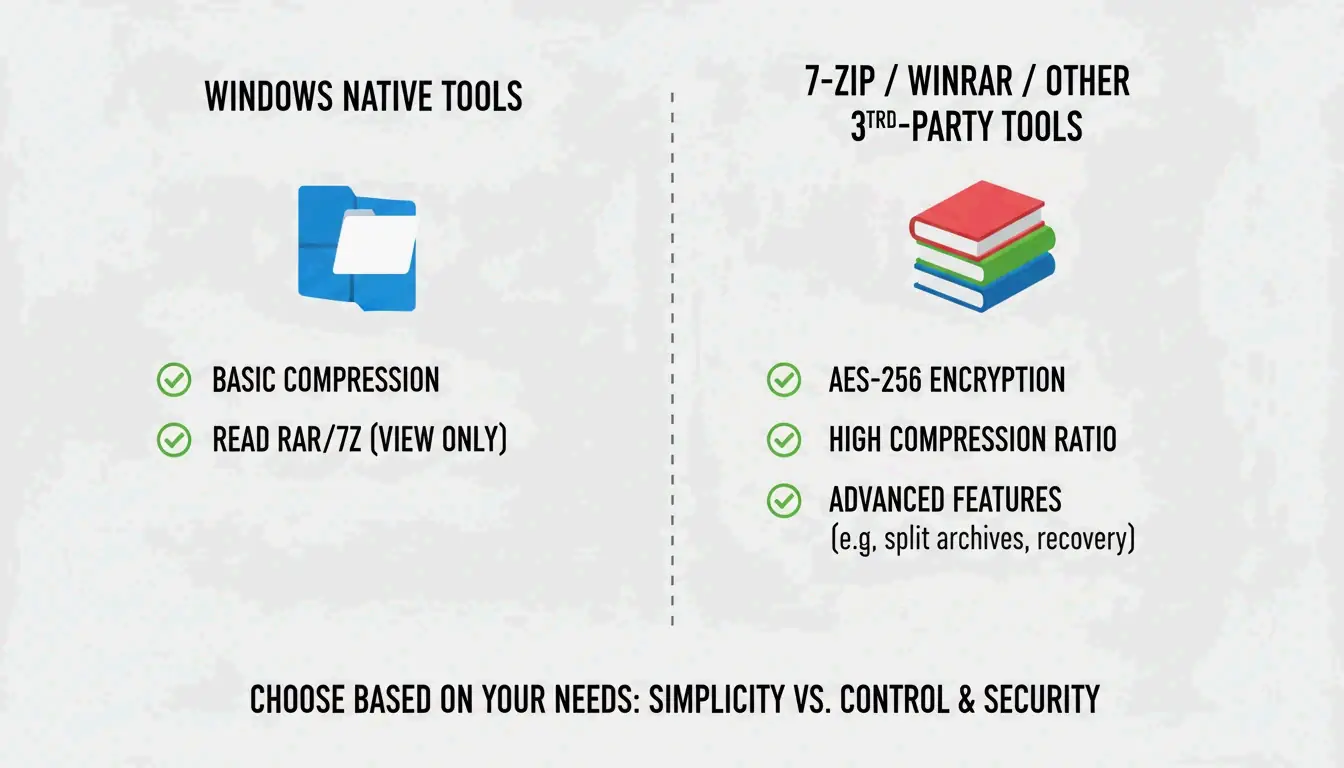
Используйте 7-Zip или WinRAR, когда:
– открываете защищённые паролем файлы с шифрованием AES-256
– требуется максимальное сжатие (алгоритмы LZMA/LZMA2)
– работаете с форматами GZIP, TAR или BZIP2
Степени сжатия по типам файлов
Не все файлы сжимаются одинаково. Serverman приводит полезные ориентиры:
| Тип файла | Типичное сжатие | Почему |
|---|---|---|
| Текстовые документы / таблицы | 60–90% | Сильно повторяющиеся данные хорошо сжимаются |
| 20–40% | Уже частично сжат | |
| JPEG / MP3 / MP4 | Менее 1% | Уже сжат собственными кодеками |
| RAW-изображения / BMP | 40–70% | Несжатые данные пикселей |
Современная Windows использует расширение ZIP64 и поддерживает архивы размером до 16 exabytes (ЭБ) — более чем достаточно для любого реального сценария, согласно Wikipedia.
Заключение
Для большинства пользователей правый клик «Извлечь всё» в Проводнике решает задачу извлечения ZIP, RAR и 7z в Windows 11. Используйте PowerShell для пакетной обработки и установите 7-Zip, когда требуется шифрование AES-256 или максимальное сжатие. Всегда убедитесь в наличии достаточного места на диске перед извлечением больших архивов.
Часто задаваемые вопросы
В чём разница между «Извлечь всё» и двойным щелчком по ZIP?
Двойной щелчок позволяет просматривать содержимое без распаковки — файлы видны, но не будут работать корректно. «Извлечь всё» полностью распаковывает данные в обычную папку, что необходимо для приложений, установщиков и файлов, взаимодействующих с системой.
Почему я не вижу опцию «Извлечь всё»?
Возможно, вы щёлкнули по обычной папке, а не по архиву (проверьте, что расширение — .zip, .rar или .7z). Если установлен WinRAR, он мог заменить контекстное меню по умолчанию. Попробуйте «Открыть с помощью → Проводник», чтобы восстановить нативную опцию.
Как распаковать защищённые паролем файлы, когда Windows не справляется?
Встроенное средство не обрабатывает шифрование высокого уровня. Используйте 7-Zip или WinRAR — оба поддерживают шифрование AES-256, которое Windows не может обработать нативно.
SectoJoy
Let Compress publishes practical guides for compression, conversion, and browser-based file workflows.
Follow SectoJoy