PNG Dosyalarını 2026’da Nasıl Sıkıştırırsınız: kayıpsız, kayıplı ve PNG 3.0
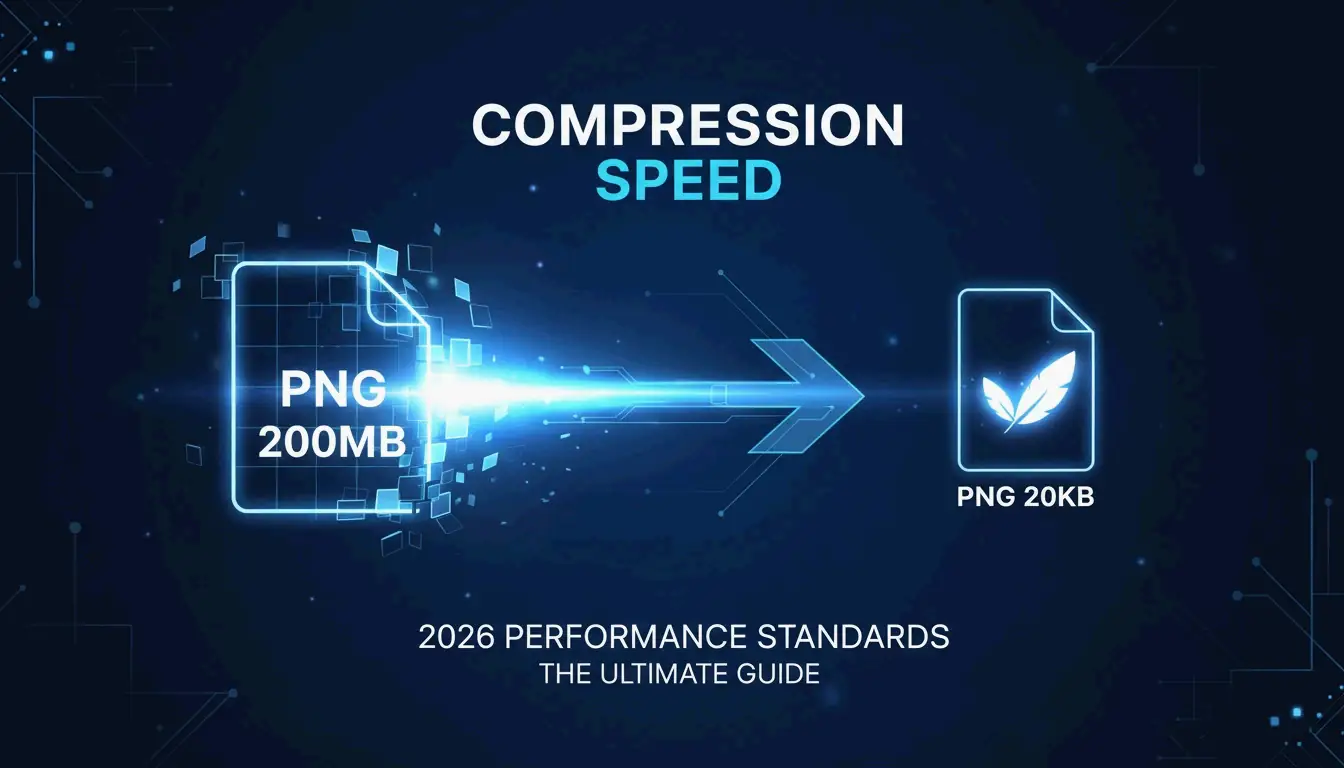
2026’da PNG dosyalarını etkili şekilde sıkıştırmak için kalite kaybı olmayan (kayıpsız) optimizasyon için oxipng, veya kayıplı niceleme için pngquant kullanın (60–80% küçülme, neredeyse görünmez etki). ToolTea gibi tarayıcı araçları WebAssembly aracılığıyla hızlı işleri yerel olarak hallederken, CLI araçları geliştirme süreçlerinde toplu işlemeyi otomatikleştirir.
Kayıpsız ve kayıplı: hangi yöntem hangi dosya için?
| Yöntem | Araç | Nasıl çalışır | En uygun | Tipik tasarruf |
|---|---|---|---|---|
| Kayıpsız | oxipng | DEFLATE’i yeniden kodlar, meta verileri kaldırır | Logolar, metin ekran görüntüleri, simgeler | 15–40% |
| Kayıplı niceleme | pngquant | Renk paletini azaltır (32-bit → 8-bit) | İllüstrasyonlar, fotoğraflar, UI öğeleri | 60–80% |
Kayıpsız, hiçbir şeyi atmadan bir bavulu yeniden düzenlemek gibidir – her piksel aynı kalır. Kayıplı niceleme, benzersiz renkleri sınırlayarak gerçekten veri kaldırır, ancak insan gözü bunu nadiren fark eder.
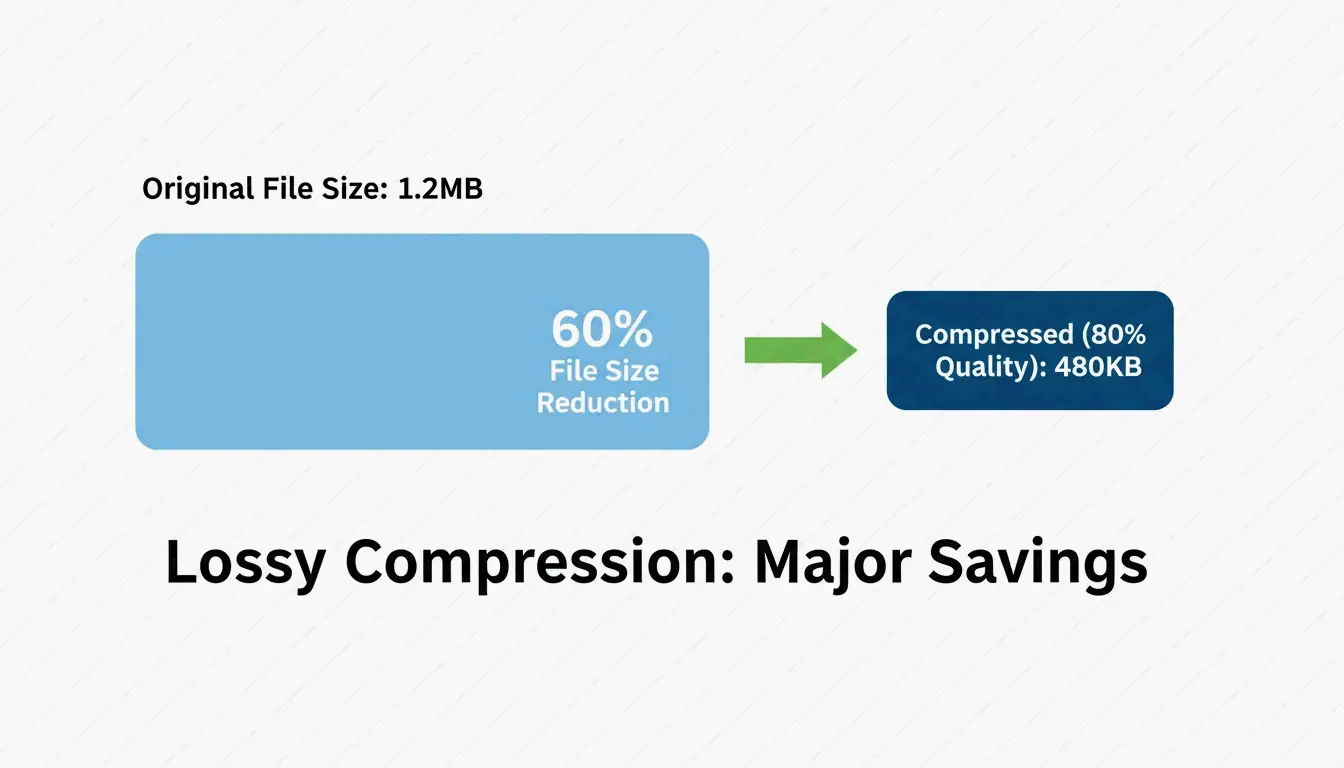
Pixotter bir vaka çalışması paylaştı: bir UI ekran görüntüsü 80% kalitede 1.2MB’den 480KB’a düştü – orijinalinden neredeyse ayırt edilemez.
Her iki yöntem de alfa kanalını korur. JPEG’in aksine PNG, agresif sıkıştırmadan sonra bile şeffaflığı bozulmamış tutar.
Tarayıcı sıkıştırması: hızlı ve özel
Günlük işler için tarayıcı araçları en hızlısıdır – ve verilerinizi özel tutar.
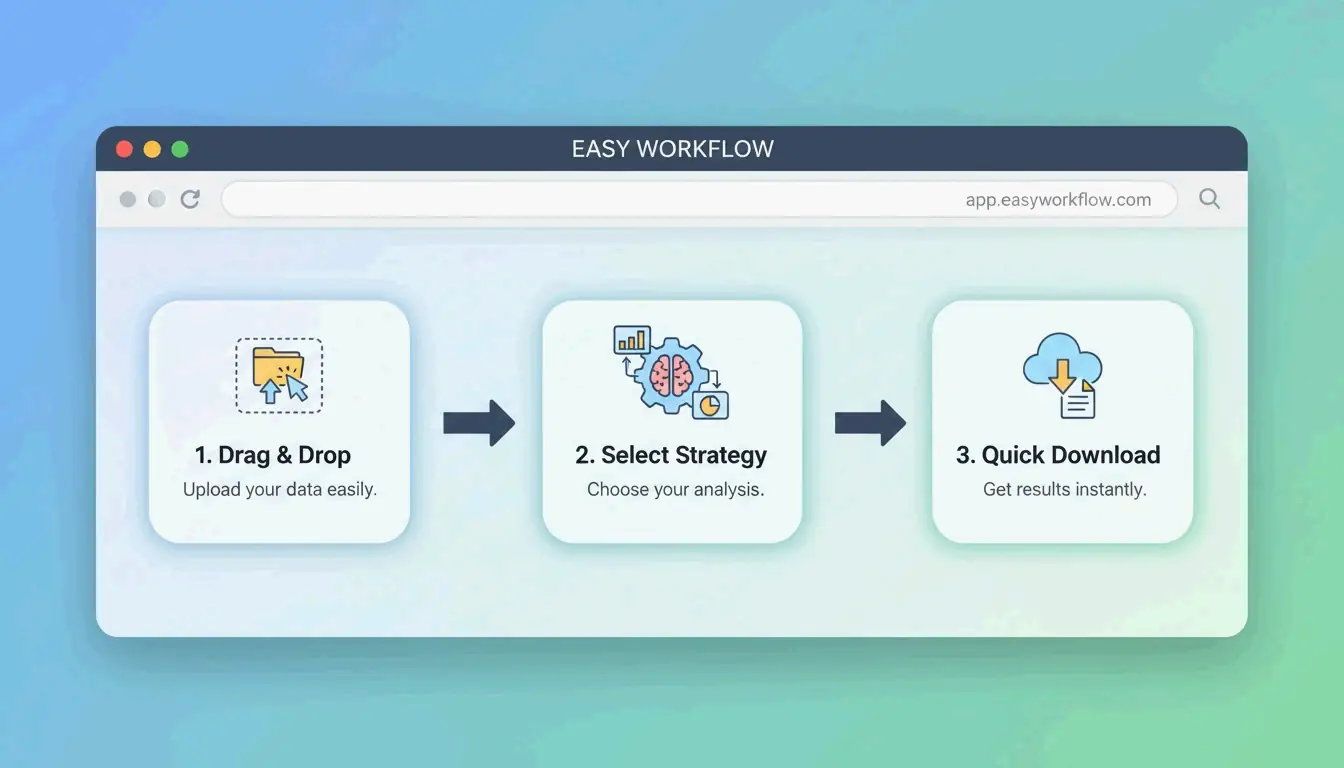
ToolTea, görüntüleri WebAssembly kullanarak yerel olarak işler; yani dosyalar hiçbir zaman bilgisayarınızdan çıkmaz:
- Yükle — PNG’leri veya bir ZIP dosyasını tarayıcıya sürükleyin
- Strateji seçin — Piksel mükemmel sonuçlar için “Kayıpsız”, veya maksimum küçültme için belirli bir renk sayısı (ör. 256)
- Yeniden boyutlandır — Ek tasarruf için web standartı genişliklere (ör. 1920px) düşürün
- İndir — “Compress All”a tıklayın ve kaydedin
CLI araçları: geliştirici düzeyinde optimizasyon
oxipng (v9.1.1) — kayıpsız altın standart
Rust ile yazılmış oxipng, eski araçlardan önemli ölçüde daha hızlıdır. Pixotter, onu kayıpsız PNG optimizasyonu için mevcut en iyi araç olarak önerir.
oxipng --opt 4 --strip all input.png

oxipng --opt 4 --strip all *.png
pngquant (v3.0) — kayıplı niceleme
32-bit PNG’leri 8-bit paletlere dönüştürür ve 60–80% boyut küçülmesi sağlar. ToolTea kıyaslamaları, bunun logo ve UI öğeleri için neredeyse görünmez olduğunu doğrular.
# Compress to 256 colors (80% quality)
pngquant --quality=65-80 --output output.png input.png

# Batch with fallback
pngquant --force --quality=65-80 --ext .png *.png
PNG 3.0: 2025 güncellemesi
PNG 3.0 sürümü (24 Haziran 2025) önemli iyileştirmeler getirdi:
| Özellik | Etki |
|---|---|
| HDR desteği | Modern ekranlar için daha yüksek dinamik aralık |
| Yerel APNG | Animasyonlu PNG’ler artık bir W3C Önerisi |
| Geliştirilmiş Exif öbekleri | Daha temiz meta veri yönetimi |
PNG vs. WebP vs. AVIF: ne zaman geçiş yapmalı
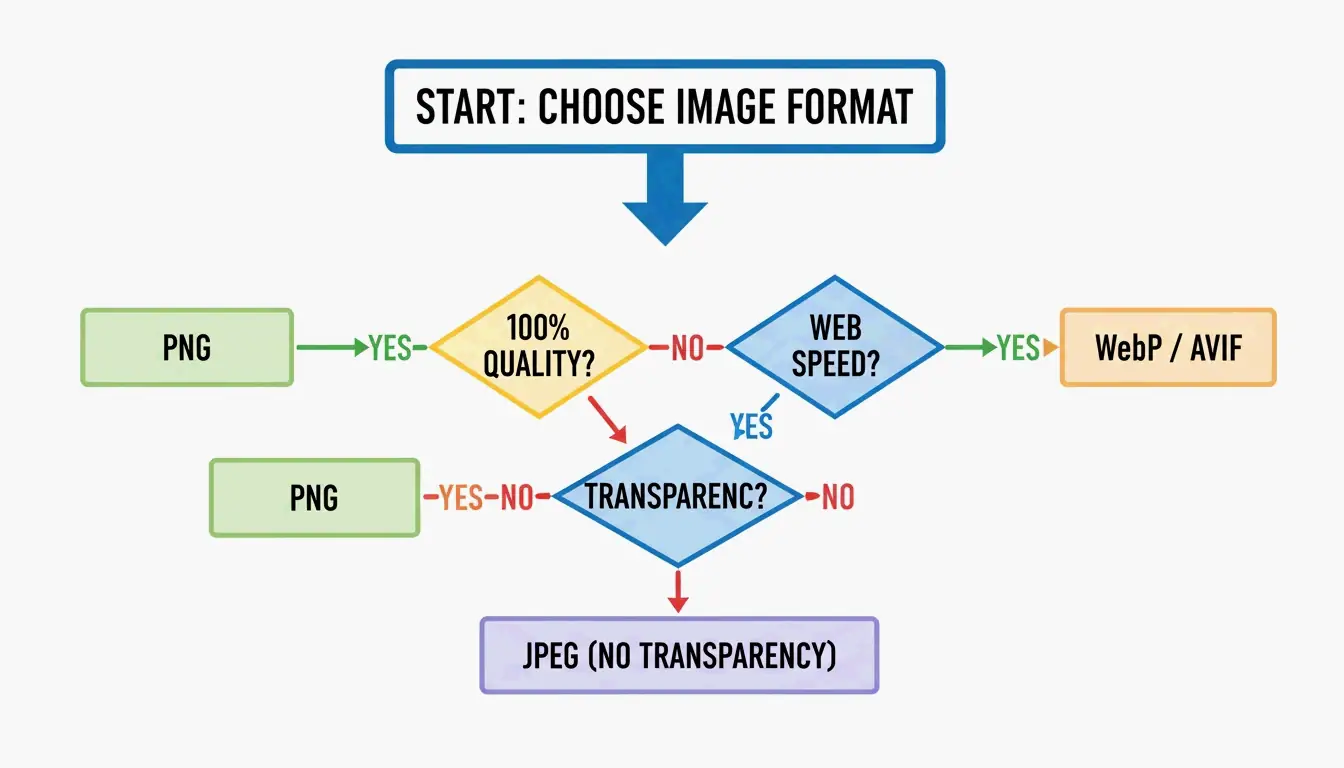
PNG 3.0 ile bile PNG web için her zaman doğru seçim değildir:
| Biçim | Sıkıştırma | Şeffaflık | Tarayıcı desteği | Kullanım durumu |
|---|---|---|---|---|
| PNG | Kayıpsız veya kayıplı | Evet (alfa) | Evrensel | Logolar, simgeler, piksel mükemmel varlıklar |
| WebP | JPEG’ten 25–34% daha küçük | Evet | 97%+ | Genel web görüntüleri, fotoğraflar |
| AVIF | JPEG’ten 50% daha küçük | Evet | 92%+ | Maksimum sıkıştırma, modern tarayıcılar |
SammaPix not ediyor: tek amacınız hızlı sayfa yüklemeleri ise PNG’yi WebP veya AVIF’e dönüştürün. PNG’yi yalnızca piksel mükemmel oluşturma veya e-posta uyumluluğu gerektiğinde tutun.
DEFLATE ve filtreleme nasıl birlikte çalışır
PNG sıkıştırması iki aşamalı bir süreçtir:
- Filtreleme — Sıkıştırmadan önce kodlayıcı, piksel değerlerini komşu piksellerden tahmin etmek için beş filtre türünden birini (Sub, Up, Average, Paeth, None) uygular. Bu, veriyi daha öngörülebilir hale getirir.
- DEFLATE — LZ77 + Huffman kodlama motoru, filtrelenmiş veride tekrar eden desenleri bulur ve sıkıştırır.
Filtreleme ne kadar iyi olursa, DEFLATE o kadar etkili olur. oxipng gibi araçlar satır başına beş filtre stratejisini de sınar ve en uygununu seçer – temel kodlayıcıları bu nedenle geride bırakırlar.
Kullanıcı deneyimi için Adam7 interlacing algoritması, tam görüntü yüklenirken neredeyse anında bulanık bir önizleme oluşturur – yavaş mobil bağlantılar için değerlidir.
Sonuç
2026’da PNG sıkıştırması, iş için doğru aracı seçmek demektir: kayıpsız hassasiyet için oxipng (logolar, simgeler), agresif tasarruf için pngquant (illüstrasyon ve UI’da 60–80%). Web performansı için, piksel mükemmel şeffaflık gerekmedikçe WebP veya AVIF’e dönüştürmeyi düşünün.
Eylem planı: En ağır PNG’lerinizi pngquant’tan geçirin. 60–80% tasarruf iyi görünüyorsa benimseyin. Geliştirme süreçleri için, meta verileri kaldırmak ve otomatik olarak en iyi hale getirmek üzere derleme sürecinize oxipng veya Sharp ekleyin.
Sık sorulan sorular
Bir PNG’yi kalite kaybı olmadan sıkıştırabilir miyim?
Evet. oxipng veya ToolTea’nın kayıpsız modu gibi kayıpsız araçlar kullanın. Bunlar DEFLATE verisini yeniden kodlar ve tek bir pikseli değiştirmeden meta verileri kaldırır. 15–40% tasarruf bekleyin.
Bir PNG’yi kayıplı yöntemlerle ne kadar sıkıştırabilirim?
pngquant ile 60–80% tipiktir; renk paletini milyonlarca renkten 256 veya daha az renge indirir. Logo ve UI öğeleri için görsel fark neredeyse görünmezdir. Fotoğraflar için bunun yerine WebP’ye geçmeyi düşünün.
Sitem için PNG’yi WebP’ye dönüştürmeli miyim?
Genel web kullanımı için evet. WebP dosyaları, eşdeğer JPEG’lerden 25–34% daha küçüktür ve PNG gibi şeffaflığı destekler. PNG’yi yalnızca piksel mükemmel oluşturma gerektiren varlıklar (keskin kenarlı logolar, e-posta şablonları) için veya eski yazılıma sahip istemcileri hedeflediğinizde tutun.
SectoJoy
Let Compress publishes practical guides for compression, conversion, and browser-based file workflows.
Follow SectoJoy