PNG-bestanden comprimeren in 2026: lossless, lossy en PNG 3.0
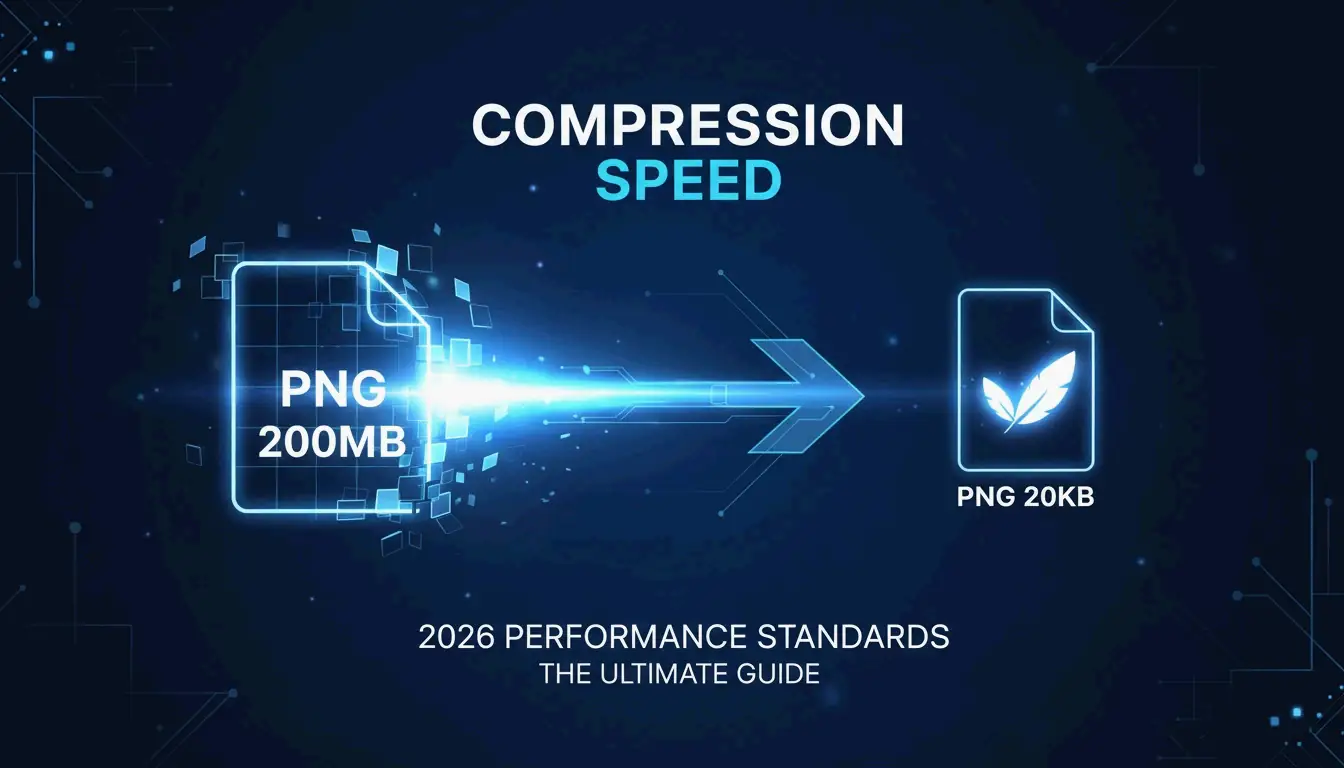
Om PNG-bestanden effectief te comprimeren in 2026, gebruik je oxipng voor lossless optimalisatie (nul kwaliteitsverlies) of pngquant voor lossy kwantisatie (60–80% reductie met nauwelijks zichtbaar effect). Browsertools zoals ToolTea verwerken snelle taken lokaal via WebAssembly, terwijl CLI-tools bulkverwerking automatiseren in ontwikkelingspipelines.
Lossless vs. lossy: welke methode voor welk bestand?
| Methode | Tool | Hoe het werkt | Geschikt voor | Typische besparing |
|---|---|---|---|---|
| Lossless | oxipng | Codeert DEFLATE opnieuw, verwijdert metadata | Logo’s, tekst-schermafbeeldingen, pictogrammen | 15–40% |
| Lossy kwantisatie | pngquant | Verkleint het kleurenpalet (32-bit → 8-bit) | Illustraties, foto’s, UI-elementen | 60–80% |
Lossless is als een koffer herindelen zonder iets weg te gooien – elke pixel blijft identiek. Lossy kwantisatie verwijdert daadwerkelijk data door unieke kleuren te beperken, maar het menselijk oog merkt het zelden op.
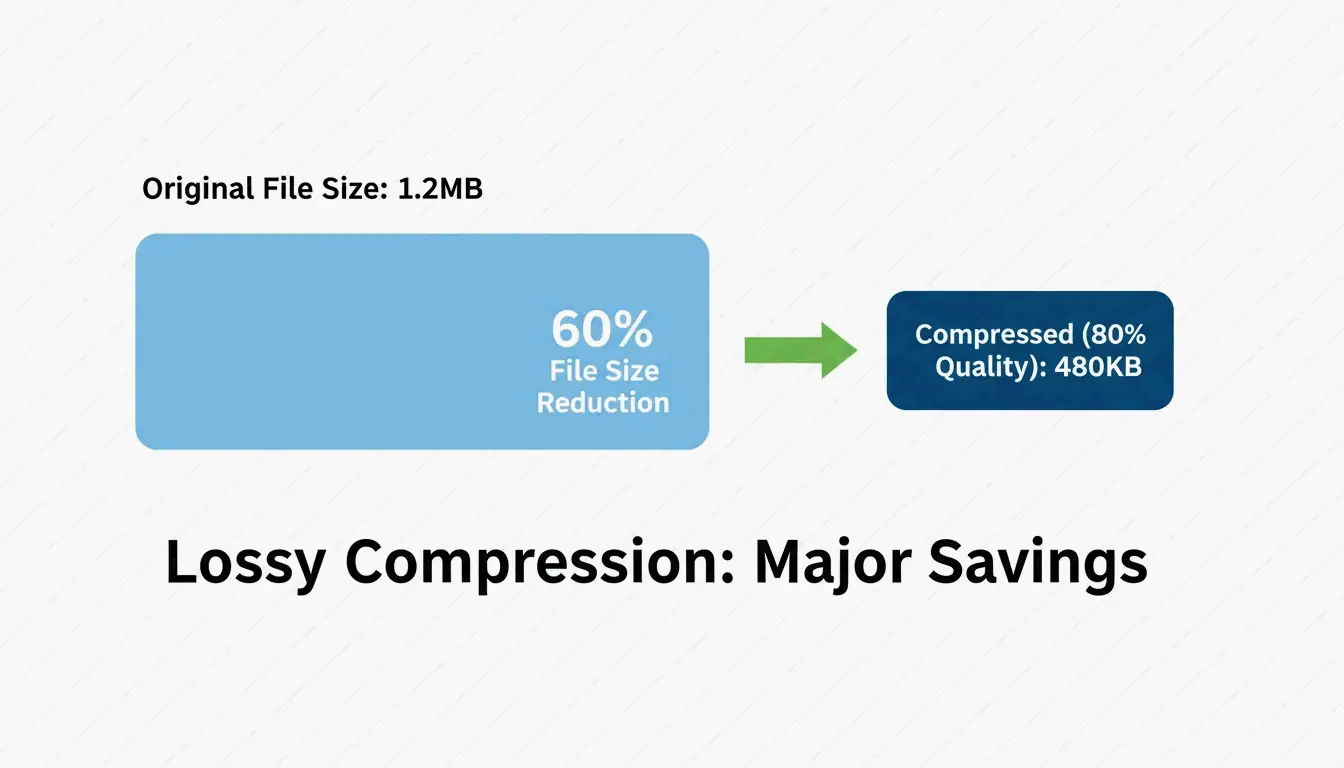
Pixotter deelde een casestudy: een UI-schermafbeelding ging van 1.2MB naar 480KB bij 80% kwaliteit – vrijwel niet te onderscheiden van het origineel.
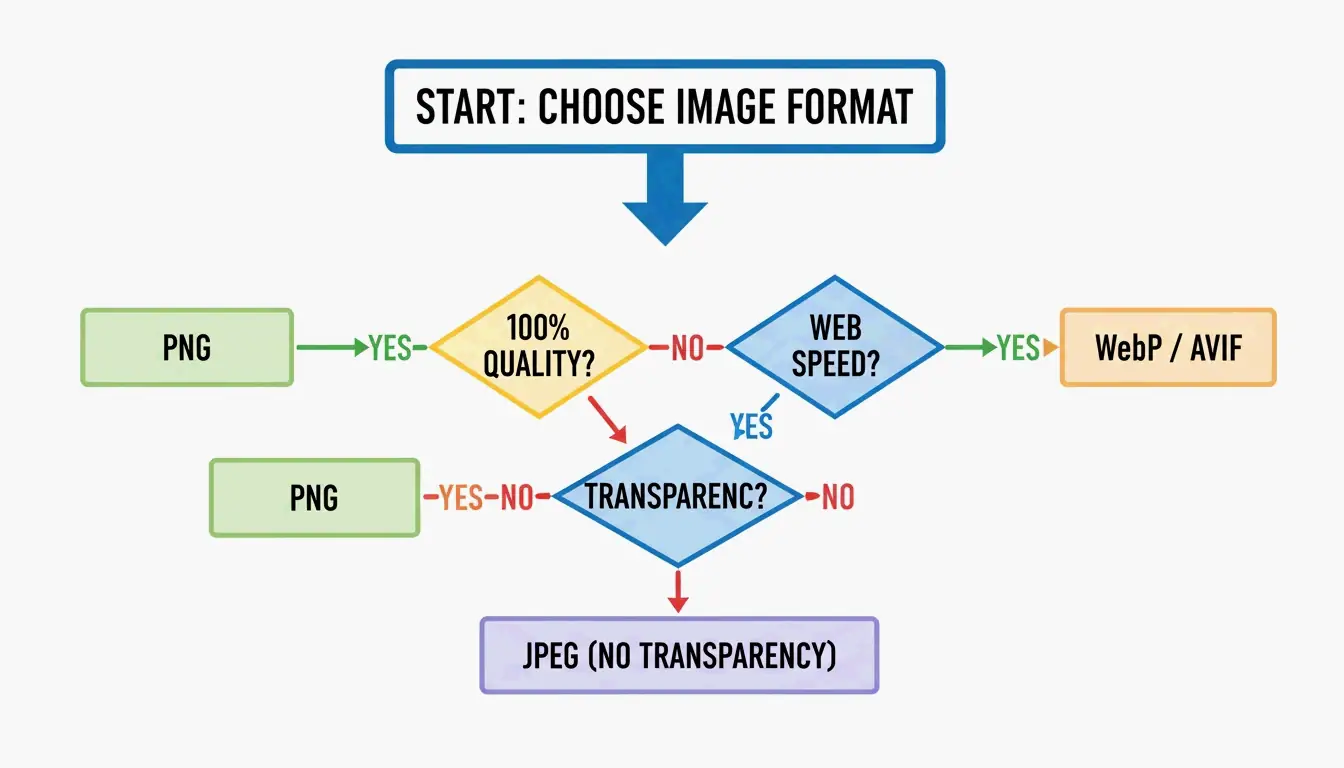
Beide methoden behouden het alfakanaal. In tegenstelling tot JPEG behoudt PNG de transparantie intact, zelfs na agressieve compressie.
Browsercompressie: snel en privé
Voor dagelijkse taken zijn browsertools het snelst – en houden ze je gegevens privé.
ToolTea verwerkt afbeeldingen lokaal met WebAssembly, wat betekent dat bestanden nooit je computer verlaten:
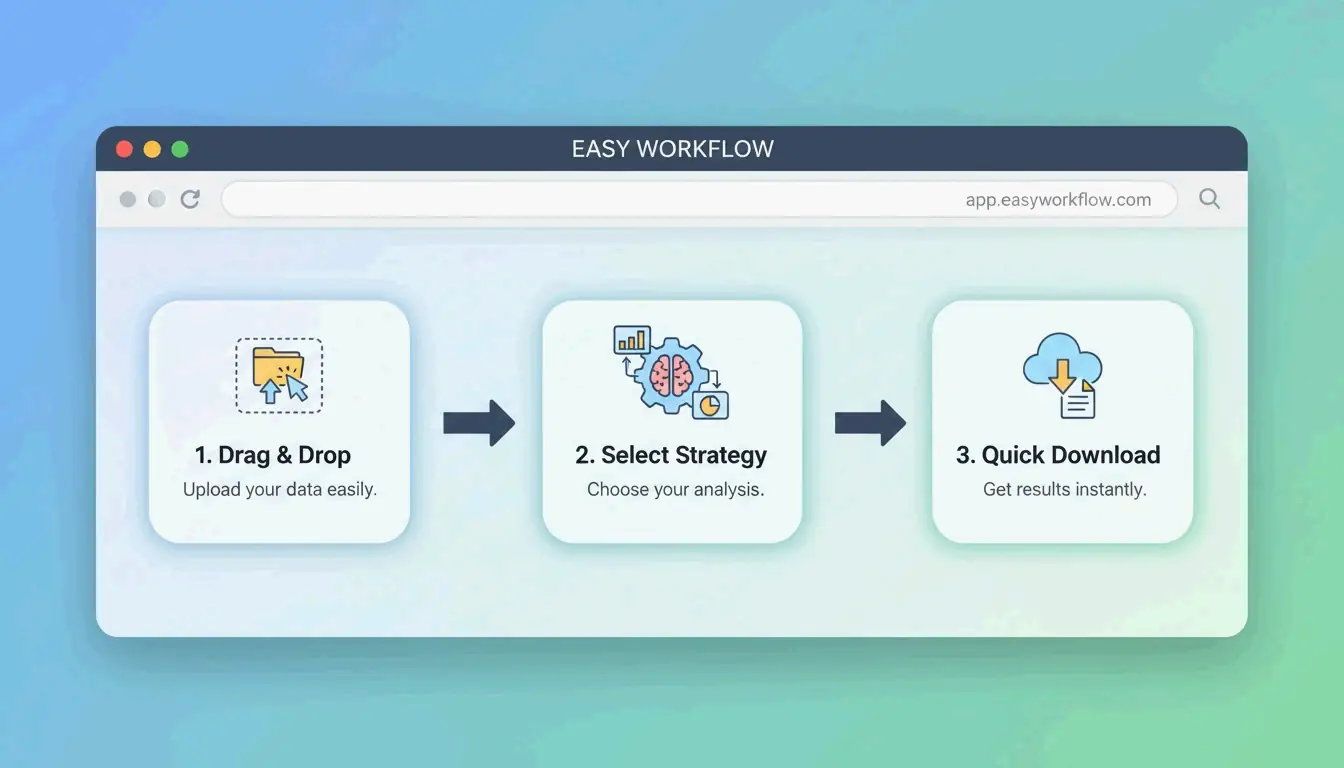
- Uploaden — Sleep PNG’s of een ZIP-bestand in de browser
- Strategie kiezen — “Lossless” voor pixel-perfecte resultaten, of een specifiek aantal kleuren (bijv. 256) voor maximale verkleining
- Formaat wijzigen — Verlaag naar webstandaard-breedtes (bijv. 1920px) voor extra besparing
- Downloaden — Klik op “Compress All” en sla op
CLI-tools: optimalisatie op ontwikkelaarsniveau
oxipng (v9.1.1) — lossless gouden standaard
Gebouwd in Rust is oxipng aanzienlijk sneller dan oudere tools. Pixotter beveelt het aan als de huidige beste in zijn klasse voor lossless PNG-optimalisatie.
oxipng --opt 4 --strip all input.png

oxipng --opt 4 --strip all *.png
pngquant (v3.0) — lossy kwantisatie
Converteert 32-bit PNG’s naar 8-bit paletten en bereikt een groottereductie van 60–80%. ToolTea-benchmarks bevestigen dat dit vrijwel onzichtbaar is voor logo’s en UI-elementen.
# Compress to 256 colors (80% quality)
pngquant --quality=65-80 --output output.png input.png

# Batch with fallback
pngquant --force --quality=65-80 --ext .png *.png
PNG 3.0: de update van 2025
De release van PNG 3.0 (24 juni 2025) bracht belangrijke verbeteringen:
| Functie | Impact |
|---|---|
| HDR-ondersteuning | Hoger dynamisch bereik voor moderne schermen |
| Ingebouwde APNG | Geanimeerde PNG’s zijn nu een W3C-aanbeveling |
| Verbeterde Exif-segmenten | Schonere metadata-afhandeling |
PNG vs. WebP vs. AVIF: wanneer overstappen
Zelfs met PNG 3.0 is PNG niet altijd de juiste keuze voor het web:
| Formaat | Compressie | Transparantie | Browserondersteuning | Gebruiksvoorbeeld |
|---|---|---|---|---|
| PNG | Lossless of lossy | Ja (alfa) | Universeel | Logo’s, pictogrammen, pixel-perfecte assets |
| WebP | 25–34% kleiner dan JPEG | Ja | 97%+ | Algemene webafbeeldingen, foto’s |
| AVIF | 50% kleiner dan JPEG | Ja | 92%+ | Maximale compressie, moderne browsers |
SammaPix merkt op: als je enige doel snelle paginalaadtijden zijn, converteer PNG dan naar WebP of AVIF. Behoud PNG alleen wanneer je pixel-perfecte weergave of e-mailcompatibiliteit nodig hebt.
Hoe DEFLATE en filtering samenwerken
PNG-compressie is een proces in twee stappen:
- Filtering — Vóór compressie past de encoder één van vijf filtertypen toe (Sub, Up, Average, Paeth, None) om pixelwaarden te voorspellen op basis van buurpixels. Dit maakt de data voorspelbaarder.
- DEFLATE — De LZ77 + Huffman-coderingsmotor vindt herhalende patronen in de gefilterde data en comprimeert deze.
Hoe beter de filtering, des te effectiever DEFLATE wordt. Tools zoals oxipng testen alle vijf filterstrategieën per rij en kiezen de optimale – daarom overtreffen ze basis-encoders.
Voor de gebruikerservaring geeft het Adam7-interlacing-algoritme vrijwel direct een wazige voorvertoning weer terwijl de volledige afbeelding laadt – waardevol voor trage mobiele verbindingen.
Conclusie
PNG-compressie in 2026 betekent de juiste tool kiezen voor de taak: oxipng voor lossless precisie (logo’s, pictogrammen), pngquant voor agressieve besparing (60–80% bij illustraties en UI). Voor webprestaties kun je overwegen om naar WebP of AVIF te converteren, tenzij pixel-perfecte transparantie vereist is.
Actieplan: Voer je zwaarste PNG’s door pngquant. Als de 60–80% besparing er goed uitziet, neem het in gebruik. Voor ontwikkelingspipelines voeg je oxipng of Sharp toe aan je build-proces om metadata te verwijderen en automatisch te optimaliseren.
Veelgestelde vragen
Kan ik een PNG comprimeren zonder kwaliteitsverlies?
Ja. Gebruik lossless tools zoals oxipng of de lossless modus van ToolTea. Deze hercoderen de DEFLATE-data en verwijderen metadata zonder een enkele pixel te wijzigen. Reken op 15–40% besparing.
Hoeveel kan ik een PNG comprimeren met lossy methoden?
60–80% is typisch met pngquant, dat het kleurenpalet verkleint van miljoenen naar 256 of minder kleuren. Voor logo’s en UI-elementen is het visuele verschil vrijwel onzichtbaar. Voor foto’s kun je overwegen om over te stappen naar WebP.
Moet ik PNG naar WebP converteren voor mijn website?
Voor algemeen webgebruik, ja. WebP-bestanden zijn 25–34% kleiner dan equivalente JPEG’s en ondersteunen transparantie zoals PNG. Behoud PNG alleen voor assets die pixel-perfecte weergave vereisen (logo’s met scherpe randen, e-mailsjablonen) of wanneer je richt op clients met verouderde software.
SectoJoy
Let Compress publishes practical guides for compression, conversion, and browser-based file workflows.
Follow SectoJoy