How to Generate an ISBN Barcode: Bookland EAN Requirements (2026)
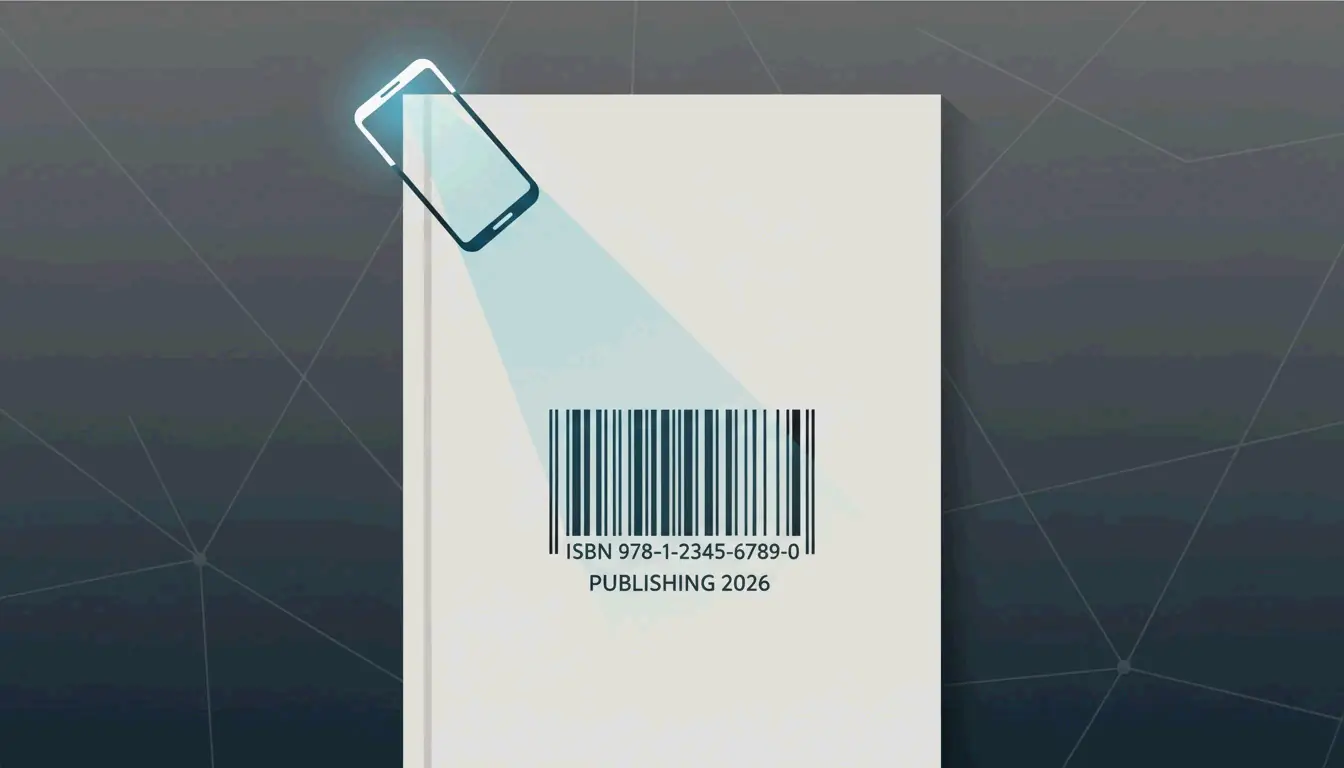
To generate an ISBN barcode in 2026, purchase an official ISBN from Bowker, then encode your 13-digit number into the Bookland EAN-13 format using a free barcode generator. Place the scannable graphic on your back cover with proper quiet zones. This is required for selling through global retailers, libraries, and wholesalers.
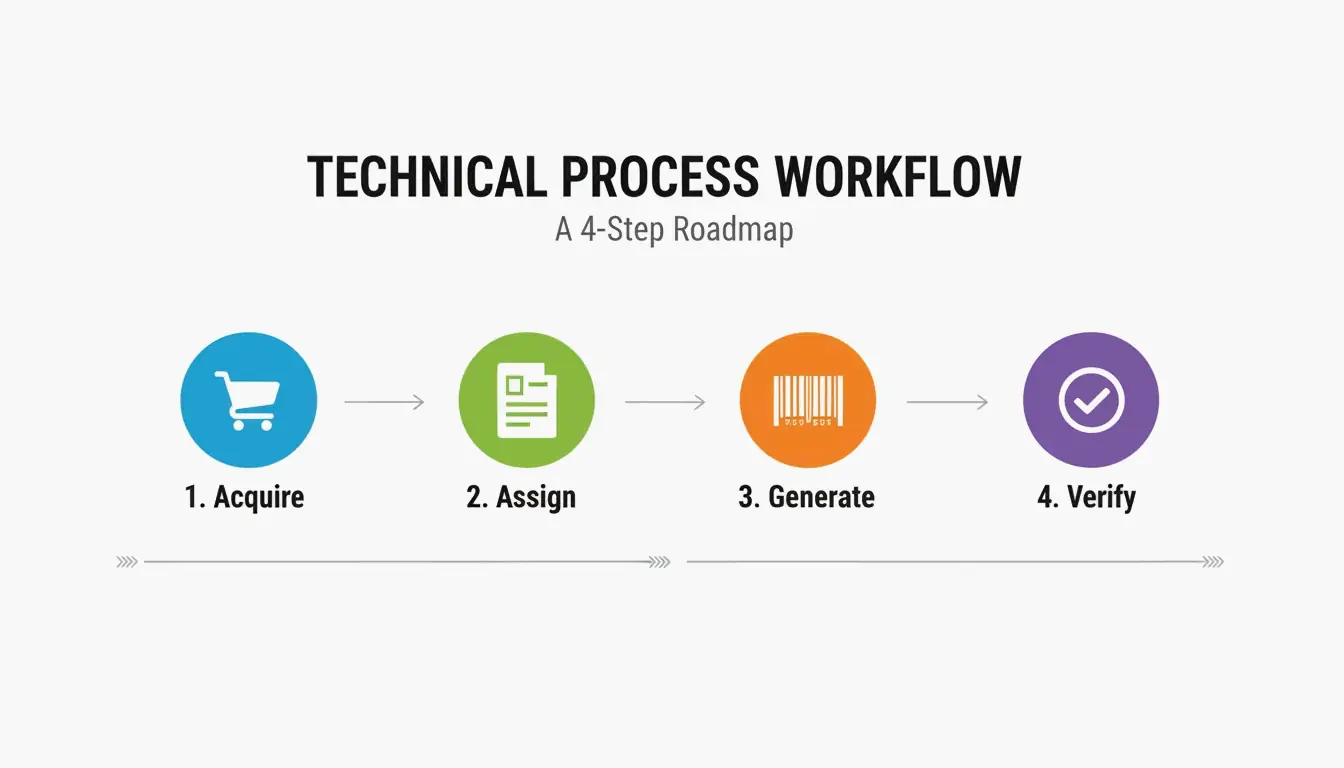
The 4-Step ISBN Barcode Process
| Step | Action | Key Detail |
|---|---|---|
| 1. Acquire | Buy ISBN from Bowker (MyIdentifiers.com) | Only authorized U.S. source |
| 2. Assign | Link ISBN to your book’s metadata | Title, author, format (paperback/hardcover/ebook) |
| 3. Generate | Create Bookland EAN-13 barcode graphic | Free tools available — no need to pay Bowker $25 |
| 4. Verify | Test scan before printing | Check readability and quiet zones |
Books.by reports that over 2.3 million ISBNs were issued in the U.S. in 2023 alone.
ISBN vs. Barcode: Understanding the Difference
- ISBN — The unique 13-digit identifier (like a Social Security number for your book)
- Barcode — The scannable graphic that represents that ISBN number
Ash Davies, Founder of Books.by: “The ISBN is the number. The barcode is the scannable graphic. Most publishing platforms generate barcodes automatically and for free.”
Free Barcode Generators
| Tool | Cost | Notes |
|---|---|---|
| Author Media | Free | Reliable, no account needed |
| Do Generator | Free | Specialized book barcode tool |
| Bowker barcode service | $25 | Unnecessary — free tools work just as well |
Bookland EAN-13 Structure
The Bookland EAN is a specialized EAN-13 barcode for books. It uses a 978 or 979 prefix that identifies the product as a book globally.
| Component | Length | Example | Purpose |
|---|---|---|---|
| GS1 Prefix | 3 digits | 978 or 979 | Identifies “Bookland” |
| Registration Group | 1–5 digits | 0 or 1 | Country/language area |
| Publisher Code | Variable | 237 | Assigned by ISBN agency |
| Publication Element | Variable | 45892 | Specific title/edition |
| Check Digit | 1 digit | 6 | Catches scanning errors |
Check Digit Calculation (Modulo 10)
- Multiply each of the first 12 digits by alternating weights of 1 and 3
- Sum all products
- Take sum modulo 10 (remainder after dividing by 10)
- Subtract from 10 (if result is 10, check digit = 0)
Wikipedia confirms this catches 100% of single-digit errors and most transposition errors.
EAN-5 Price Extension
Professional Bookland EANs often include a smaller EAN-5 supplemental barcode showing the retail price and currency.
| Price | Currency Prefix | EAN-5 Code |
|---|---|---|
| $14.99 USD | 5 | 51499 |
| $9.99 USD | 5 | 50999 |
| £12.99 GBP | 3 | 31299 |
- USD prefix = 5, GBP = 3, CAD = 5, EUR = 3
- Required by major U.S. retailers like Barnes & Noble
- Optional for online-only sales (Amazon doesn’t require it)
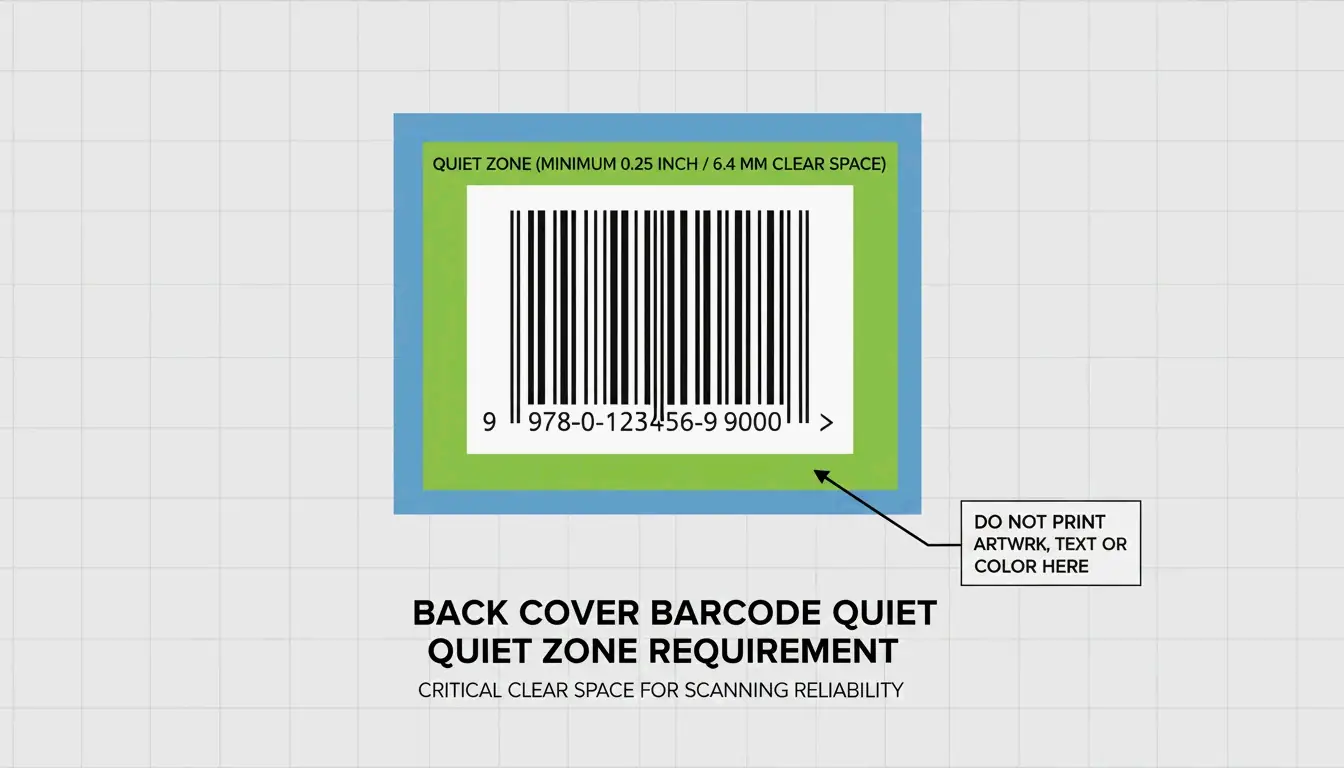
Back Cover Placement: Quiet Zone Requirements
Jason Pearce recommends placing the barcode in the bottom-right corner of the back cover with a white rectangle of at least 2 inches × 1.2 inches.
| Requirement | Specification |
|---|---|
| Location | Bottom-right corner of back cover |
| Minimum size | 2″ × 1.2″ white rectangle |
| Quiet zone | Clear white margin on all sides of the barcode |
| Resolution | 300 DPI minimum for print |
ISBN Costs: Why You Should Be the Publisher of Record
| Source | Cost | Publisher of Record |
|---|---|---|
| Bowker (single) | $125 | You / your imprint |
| Bowker (10-pack) | $295 ($29.50 each) | You / your imprint |
| Amazon KDP (free) | $0 | “Independently Published” |
| Other platforms (free) | $0 | The platform, not you |
SelfPublishing.com recommends buying your own ISBNs — many bookstores and libraries refuse to stock books with platform-assigned ISBNs.
ISBN vs. ASIN
| Identifier | Scope | Use Case |
|---|---|---|
| ISBN | Global standard | All retailers, libraries, distributors |
| ASIN | Amazon only | Kindle ebooks sold exclusively on Amazon |
Physical bookstores and libraries require an ISBN — an ASIN is not sufficient.
2027 Sunrise: Dual-Marking with GS1 Digital Link
The industry is moving toward GS1 Sunrise 2027, transitioning from 1D barcodes to 2D codes. For 2026 book releases, use a dual-marking strategy:
- Traditional EAN-13 — Required for current checkout systems
- GS1 Digital Link QR code — Links to updated metadata, marketing materials, purchase links
Automateed notes this moves beyond the limits of scan-only codes and prepares your book for modern inventory systems.
Conclusion
Generate your ISBN barcode by purchasing from Bowker, using a free Bookland EAN-13 generator, and placing it correctly on your back cover with quiet zones. Buy your own ISBNs to remain publisher of record. For 2026 releases, consider dual-marking with both EAN-13 and a GS1 Digital Link QR code to future-proof your book.
FAQ
Do I need a separate ISBN for ebook and paperback?
Yes. International standards require a unique ISBN for every distinct format — hardcover, paperback, and epub each need their own number. This ensures accurate sales tracking across distributors.
Can I use a free KDP ISBN for bookstores?
Technically yes, but it lists “Independently Published” as the publisher. Many physical bookstores and libraries avoid stocking books with platform-assigned ISBNs. Buy your own ISBN to maintain professional credibility.
What is the EAN-5 price extension?
A small secondary barcode encoding the book’s retail price and currency (e.g., 51499 = $14.99 USD). Optional for online sales but required by major U.S. retail chains for physical shelf pricing.
SectoJoy
Let Compress publishes practical guides for compression, conversion, and browser-based file workflows.
Follow SectoJoy