

How to Reduce Image Size: A Complete Guide to Compressing Photos Without Losing Quality
You can reduce image size by compressing files to a spe […]
You can reduce image size by compressing files to a specific KB limit or resizing their physical dimensions. Free online tools like Adobe Express or Pi7 allow you to batch-process JPG, PNG, and WebP files instantly. To keep your photos sharp for web or print, use smart compression or AI upscaling to maintain high resolution.
How to Reduce Image Size in KB or MB Fast?
Reducing an image’s file size is all about lowering its “digital weight” so it takes up less storage and loads faster on a page. This usually happens through File Compression (KB/MB), which comes in two flavors: lossy and lossless. Lossy compression strips away invisible data to shrink files dramatically, while lossless compression cuts the size without touching a single pixel of quality.
If you need a quick fix, online compressors let you set exact targets—like 50KB or 100KB—which are standard requirements for government or web forms. Data from ReduceImages.com shows that a typical 10MP photo can eat up 30MB of space, making compression a must if you’re sharing via email or browsing on a slow mobile network. Most 2026 tools now use “Smart Compression” to remove heavy metadata (EXIF data) like GPS tags and camera settings. This can save several kilobytes without changing how the photo actually looks.
Choosing the Right Format: JPG vs. PNG vs. WebP

Picking the right JPG/PNG/WebP Formats is the first step in optimization. JPG is the go-to for complex photos because it compresses well. PNG is better for graphics that need transparency, though the files tend to be heavier. However, WebP is now the preferred web standard. It offers file sizes roughly 26% smaller than PNG while keeping the quality identical. Switching to WebP is easily the most effective way to reduce image size for site speed.
Why Locking Aspect Ratio is Critical for Visual Quality

Keeping a consistent Aspect Ratio is the only way to avoid distorting your image. If you turn a 4:3 photo into a 1:1 square without locking the ratio, people in the photo will look unnaturally thin or wide. Tools like Adobe Express and Watermarkly lock this by default, so when you change the width, the height adjusts itself to keep the original composition intact.
Universal Image Size Cheat Sheet for Social Media & Government Forms
Every platform has its own rules for dimensions and KB limits. If you don’t follow them, your upload might get rejected or end up looking blurry due to the site’s own aggressive auto-compression. Social Media Presets for Instagram usually require a 1:1 ratio at 1080 x 1080 pixels, while LinkedIn performs best with 1200 x 627 pixels for shared links.
[Image of social media image size cheat sheet]
Official documents are even more strict. US Passport and Visa applications in 2026 generally require a 2×2 inch photo (600 x 600 pixels) with a file size capped at 240KB. Getting these sizes right pays off; LinkedIn found that sponsored content with correctly sized, high-quality visuals saw a 38% jump in Click-Through Rate (CTR).
| Platform | Recommended Dimensions | Max File Size |
|---|---|---|
| Instagram Post | 1080 x 1080 px | 8 MB |
| LinkedIn Profile | 400 x 400 px | 8 MB |
| US Passport | 600 x 600 px | 240 KB |
| Shopify Product | 2048 x 2048 px | 20 MB |
Efficiency at Scale: Using Batch Processing for Multiple Images
If you’re dealing with hundreds of product photos for an online store or a massive vacation album, resizing them one by one is a waste of time. Batch Processing lets you apply the same compression and size settings to a whole folder at once. PicResize, which has processed over 301,259,401+ images, lets you upload a batch and convert them to a single format (like JPG) and size with one click.
The real win here is consistency. Using bulk tools ensures every image on your site has the same resolution, which makes your brand look much more professional. It saves hours of manual work, moving you from raw files to web-ready assets in seconds.
Advanced Techniques: AI Upscaling vs. Lanczos Interpolation
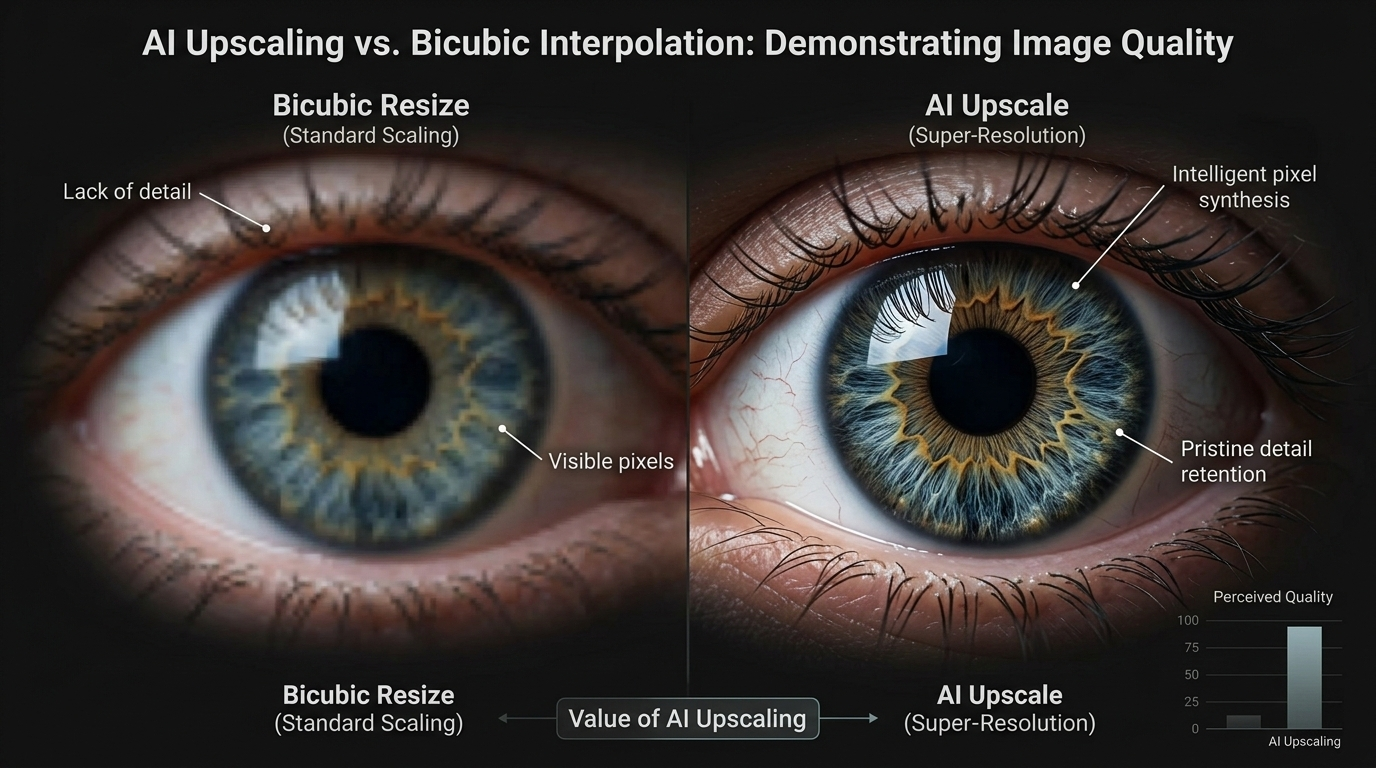
If you need to make a small image bigger, standard resizing usually makes it look “blocky” or pixelated. That’s where AI Upscaling helps. These tools study the existing pixels and generate new details to fill the gaps, letting you double a photo’s size while keeping it crisp. On the other hand, Lanczos Interpolation is a high-quality math algorithm used by pros to keep edges sharp when downscaling or doing minor upscaling.
It is also important to know the difference between PPI (Pixels Per Inch) and DPI (Dots Per Inch). Stick to 72-96 PPI for screens to keep file sizes low. If you’re heading to the printer, you’ll need 300 DPI. Using AI to boost a digital photo to 300 DPI ensures it stays clear even when printed as a physical poster.
FAQ
How can I reduce image size in KB without losing quality?
To shrink the file size without a visible drop in quality, use “Smart Compression” to strip out hidden metadata and excess color data. Tools like TinyPNG or Adobe Express use algorithms that lower the KB count while keeping the pixels sharp. Also, switching to WebP usually cuts the size by 25-30% compared to a JPG with no visible difference.
Can I resize images directly on my Android or iPhone?
Yes. On an iPhone, use the “Reduce File Size” option when emailing a photo, or use the “Edit” tool in the Photos app to crop it. On Android, Google Photos makes cropping and basic resizing easy. For exact KB targets, a mobile browser tool like Adobe Express works perfectly in Chrome or Safari without needing to download an app.
What is the difference between resizing and cropping an image?

Resizing scales the whole image down by reducing the total pixel count (like shrinking a huge photo to fit a small screen). Cropping cuts off the outer edges to change the focus or Aspect Ratio. Both methods reduce the file size, but cropping changes the actual content of the photo, while resizing keeps the full scene at a lower resolution.
How do I reduce the file size of a PNG while keeping the background transparent?
You need a tool that supports “Alpha Channel” compression, such as TinyPNG or Watermarkly. For the smallest possible file, use the PNG-8 format if the colors are simple. For modern web use, convert the file to a transparent WebP; it keeps the transparency perfect but at a much lower weight than a standard PNG-24.
Conclusion
Reducing image size is about finding the sweet spot between physical dimensions (pixels) and file density (compression). By using tools like Adobe Express for resizing or Pi7 for hitting specific KB targets, you can keep your visuals high-quality without slowing down your site or app.
Start by checking the requirements for your platform—whether that is a 240KB limit for a 2026 government form or a 1080px width for an Instagram post. Use batch processing to flip your files to WebP or optimized JPG to get the fastest load speeds possible without losing visual sharpness.


