Compress PNG: Shrink Images Fast Without Losing Quality (2026)
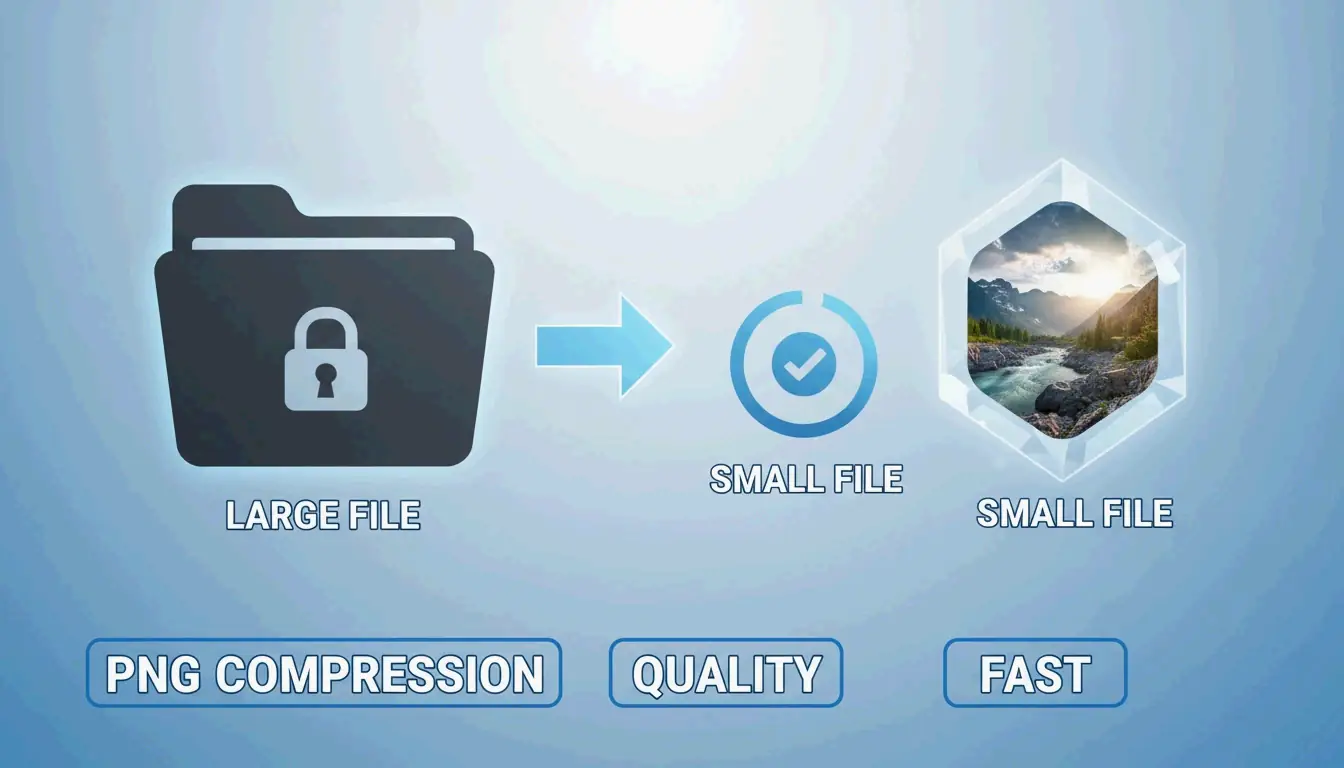
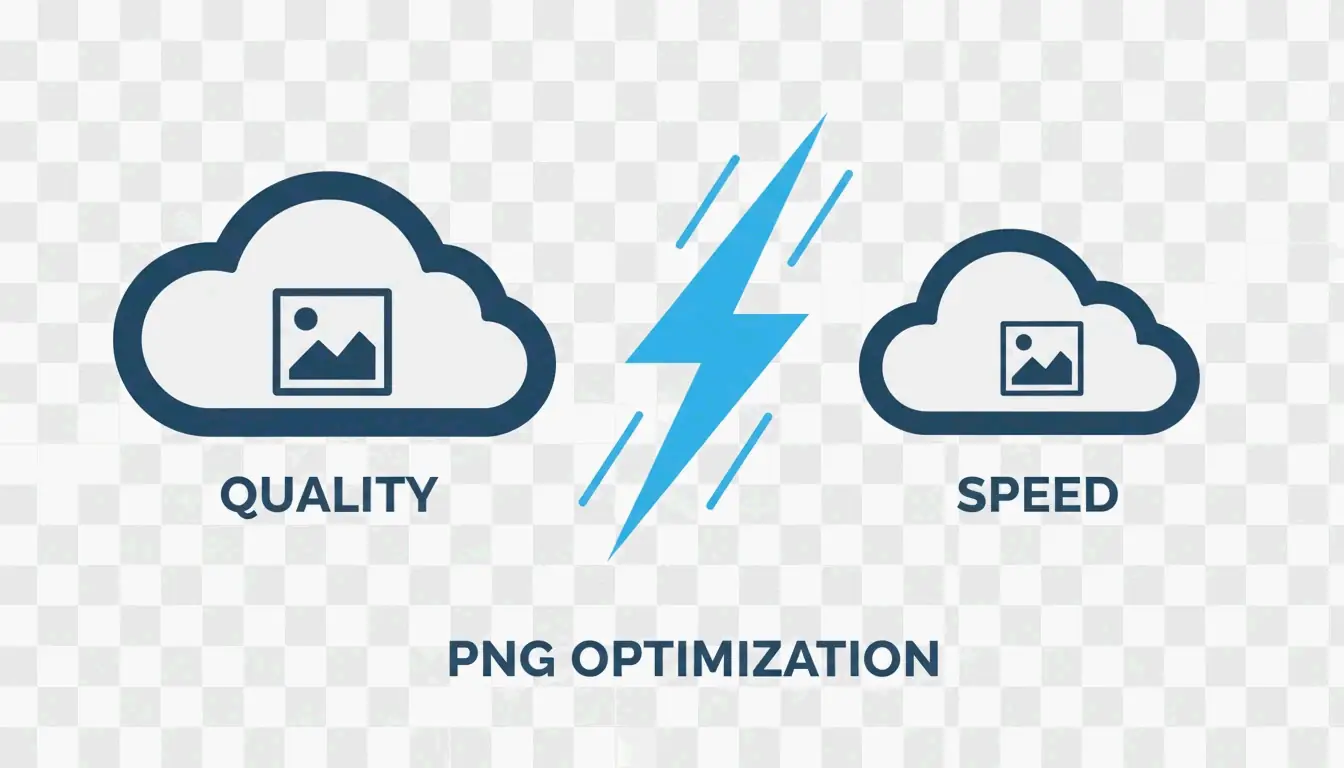
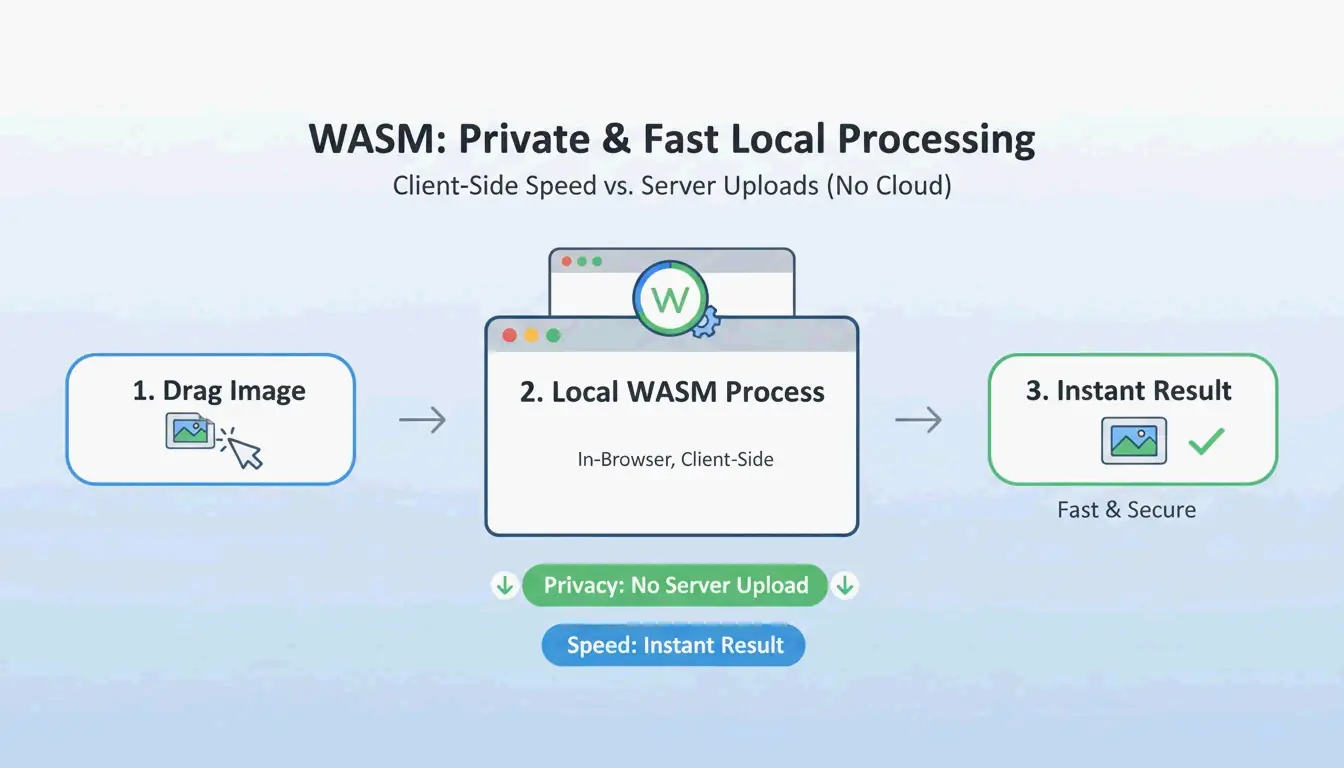
To compress PNG files without losing quality, use lossless DEFLATE optimization (bit-identical output) or 8-bit quantization (70–85% smaller, visually identical). Modern WASM-based tools process everything locally in your browser — no upload, no privacy risk, instant results.
Compression Method Comparison
| Method | Reduction | Quality | Best For |
|---|---|---|---|
| Lossless DEFLATE | 10–30% | Bit-identical (SHA-256 verifiable) | Archives, re-editable assets |
| 8-bit Quantization | 70–85% | Visually identical | UI elements, logos, screenshots |
| Metadata Stripping | 50–200 KB per file | No pixel change | All PNGs (privacy + size) |
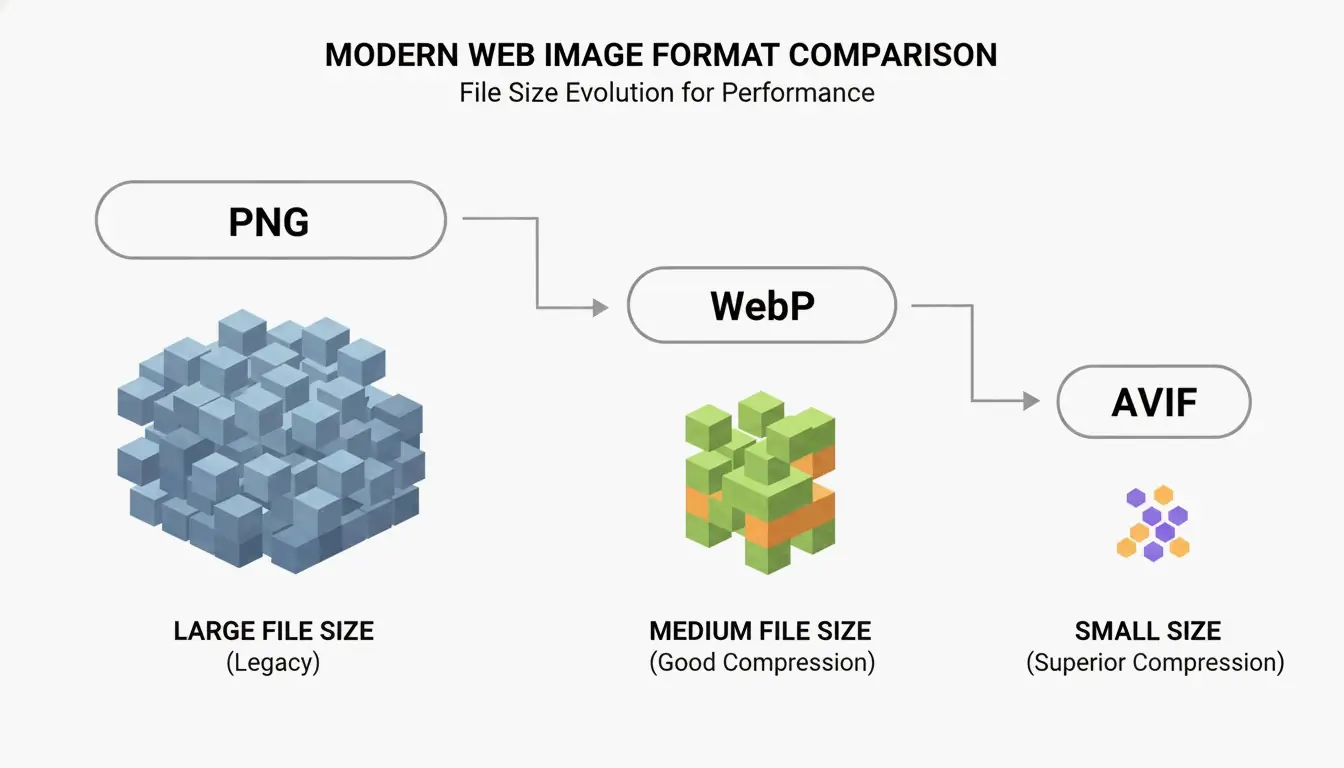
| WebP Conversion | 25–35% smaller than lossless PNG | Identical | Web delivery |
| AVIF Conversion | 50%+ smaller than PNG | Near-identical | Modern browsers only |
Why PNG Compression Matters for SEO
SammaPix reports that images are the Largest Contentful Paint (LCP) element on 70% of web pages. Slow-loading PNGs directly hurt Core Web Vitals and search rankings.
Method 1: Lossless DEFLATE Optimization
Lossless compression repacks pixel data using the DEFLATE algorithm — no pixels change. As Let Compress describes it: “tidying up a suitcase without throwing anything away.”
When to use: Professional archives, images you plan to re-edit, legal documents requiring bit-exact preservation.
Verify with SHA-256
To confirm a lossless tool truly preserves pixels, compare the SHA-256 hash of raw pixel data between original and compressed files. Use hash.ikit.app to run this check privately in your browser.
Method 2: 8-Bit Quantization (70–85% Reduction)
PNG-24 holds millions of colors, but most UI designs and logos use fewer than 256 unique shades. Converting to an 8-bit indexed palette slashes file size with no visible difference at 1:1 zoom.
iKit benchmark: a batch of UI screenshots reduced from 42.1 MB to 6.2 MB — an 85% reduction — while looking identical.
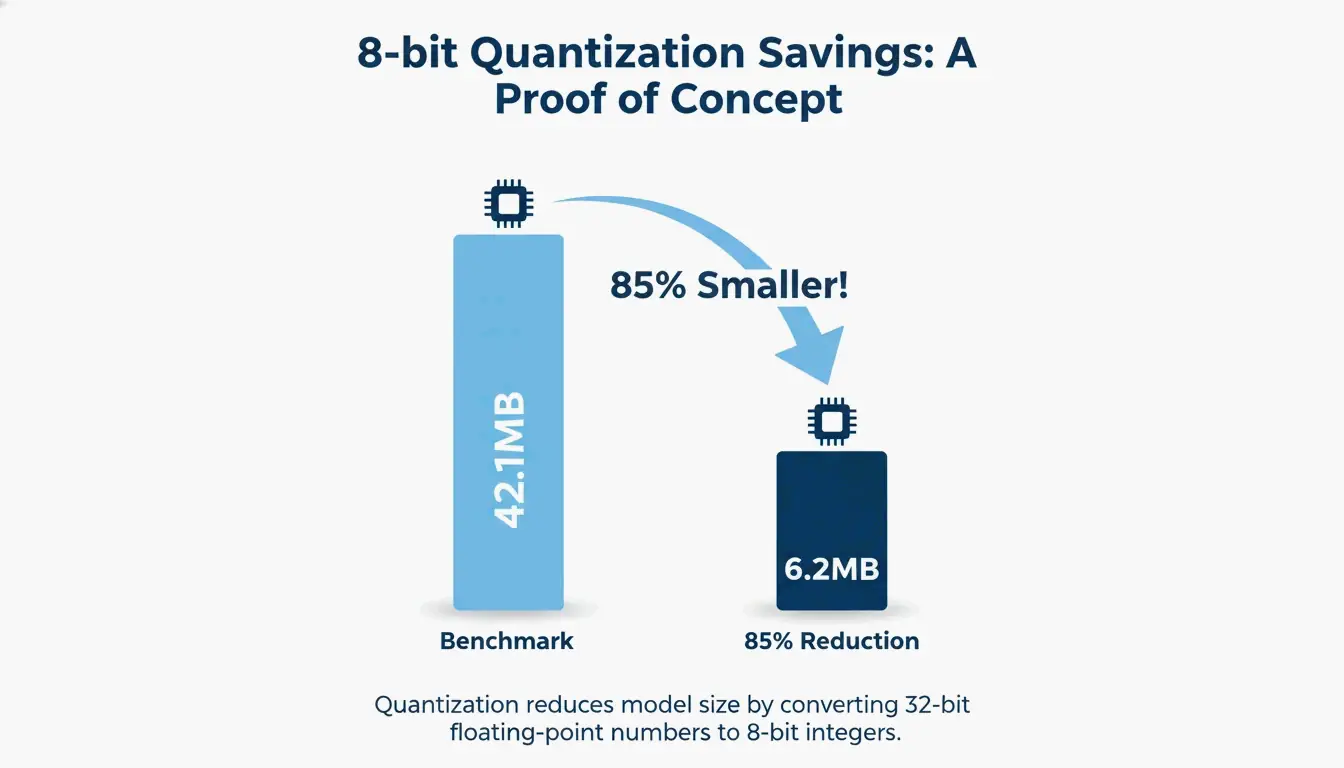
When to use: Website UI assets, logos, icons, screenshots — anything that doesn’t need millions of colors.
Metadata Stripping: Free Size Reduction
Design apps embed ICC color profiles, GPS data, timestamps, and creation metadata inside PNG files. iKit notes that stripping this data saves 50–200 KB per file with zero visual impact.
| Metadata Type | Typical Size | Privacy Risk |
|---|---|---|
| ICC Color Profile | 2–50 KB | Low |
| EXIF / GPS Data | 0.5–5 KB | High — exposes location |
| Creation Timestamp | 0.2–1 KB | Medium |
| Software Generator Tag | 0.1–0.5 KB | Low |
| Thumbnail | 5–50 KB | Low |
Stripping EXIF is also a privacy best practice — it prevents accidental location sharing from screenshots.
CLI Tools for Batch Processing
| Tool | Language | Method | Command |
|---|---|---|---|
| oxipng | Rust | Lossless DEFLATE | oxipng --opt 4 --strip all *.png |
| pngquant | C | Lossy 8-bit quantization | pngquant --quality=65-80 *.png |
CI/CD Integration
- name: Optimize PNGs
  run: |
    npm install -g oxipng
    find ./src -name "*.png" -exec oxipng --opt 4 --strip all {} \;
Industry benchmarks show pngquant consistently achieves 60–80% reduction on UI assets.
When to Use WebP or AVIF Instead
Even optimized PNGs can’t match next-gen formats for web delivery.
| Format | vs PNG Lossless | Transparency | Browser Support (2026) |
|---|---|---|---|
| WebP | 25–35% smaller | Yes | 97%+ |
| AVIF | 50%+ smaller | Yes | 92%+ |
A Google study confirmed WebP matches PNG’s lossless quality at significantly smaller sizes.
Best Strategy: Next-Gen Fallback
Use the <picture> element with AVIF and WebP sources, falling back to PNG for older browsers. This pattern serves the smallest compatible format automatically.
Serve AVIF/WebP to modern browsers, fallback to compressed PNG for older ones.
PNG 3.0 (June 2025 Update)
The PNG 3.0 specification added HDR image support and elevated Animated PNG (APNG) to a formal W3C Recommendation. For 2026 workflows, PNG 3.0 handles high-contrast visuals better while preserving the transparency features essential for UI design.
Conclusion
For maximum PNG compression: use 8-bit quantization for UI assets (70–85% smaller), lossless DEFLATE for archives, and strip metadata on all files. For web delivery, convert to WebP or AVIF with a <picture> fallback. Always verify lossless output with SHA-256 hash comparison.
FAQ
Does compressing a PNG make the image blurry?
No. Lossless compression is bit-identical. 8-bit quantization uses a 256-color palette that remains perceptually identical for UI elements and logos. Blurriness only occurs with low-quality general lossy algorithms not designed for sharp edges.
Why is my compressed PNG still too large?
Three causes: (1) Oversized pixel dimensions — resize to actual display width (e.g., 1920px). (2) Complex noise/gradients that DEFLATE can’t simplify. (3) Heavy embedded metadata — enable “Strip Metadata” in your tool settings.
Is it safe to use online PNG compressors?
Only if the tool uses WebAssembly (WASM) for local browser processing — files never leave your device. Avoid upload-based compressors for sensitive documents, as files are processed on remote servers.
What is the difference between oxipng and pngquant?
oxipng performs lossless optimization — tests every filter combination for the smallest bit-identical file. pngquant performs lossy 8-bit quantization — converts 32-bit RGBA to 8-bit palette for 60–80% reduction. Use oxipng for archives, pngquant for web assets.
SectoJoy
Let Compress publishes practical guides for compression, conversion, and browser-based file workflows.
Follow SectoJoy