ونڈوز میں فائلیں ان زپ کرنے کا طریقہ: ونڈوز 11 اور 10 کے لیے مکمل گائیڈ (2026)
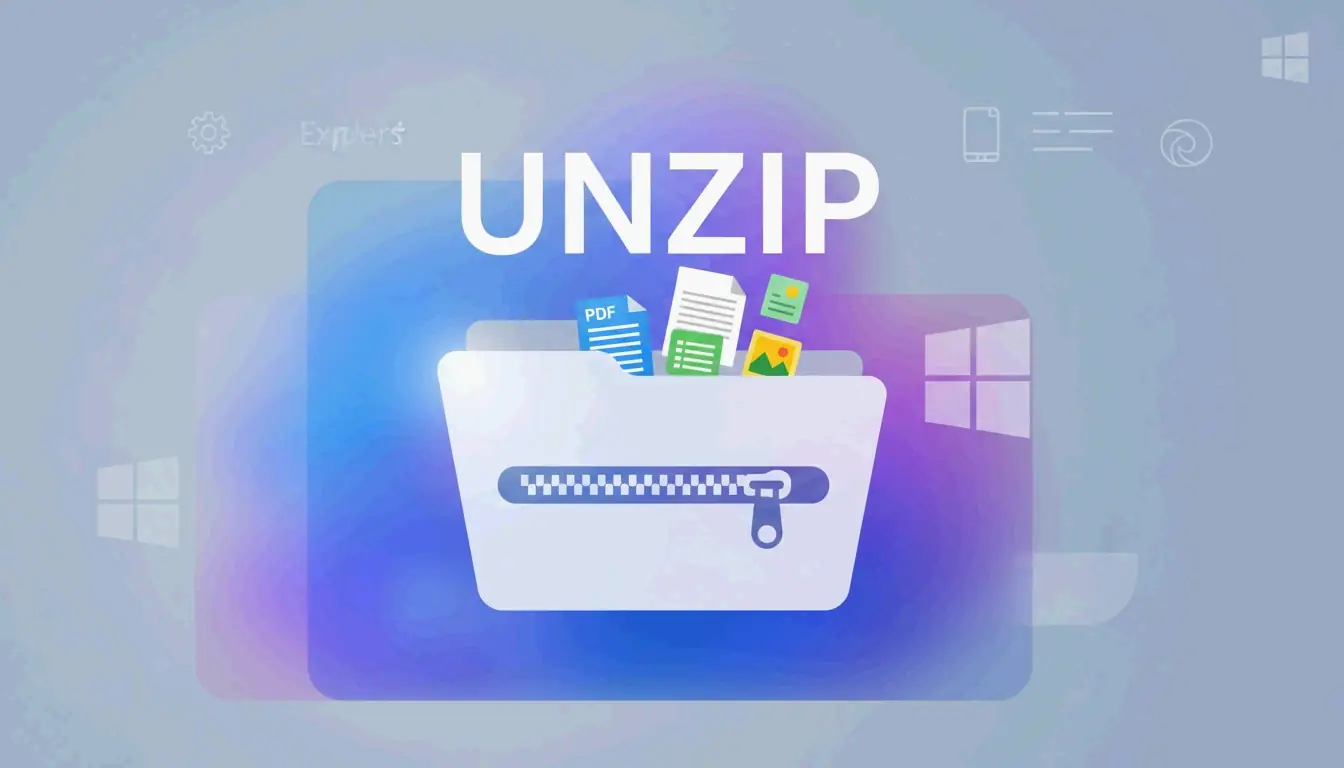
ونڈوز میں فائلیں ان زپ کرنے کے لیے، فائل ایکسپلورر کھولیں، ZIP فولڈر پر دائیں کلک کریں اور «سب نکالیں» منتخب کریں، پھر منزل فولڈر کا انتخاب کریں۔ مئی 2026 تک، ونڈوز 11 .rar اور .7z فائلوں کے نکالنے کی اصل حمایت بھی کرتا ہے، لہذا زیادہ تر صارفین کو بنیادی ان زپ کے لیے تھرڈ پارٹی سافٹ ویئر کی ضرورت نہیں۔
ونڈوز میں ان زپ کرنے کے تین طریقے
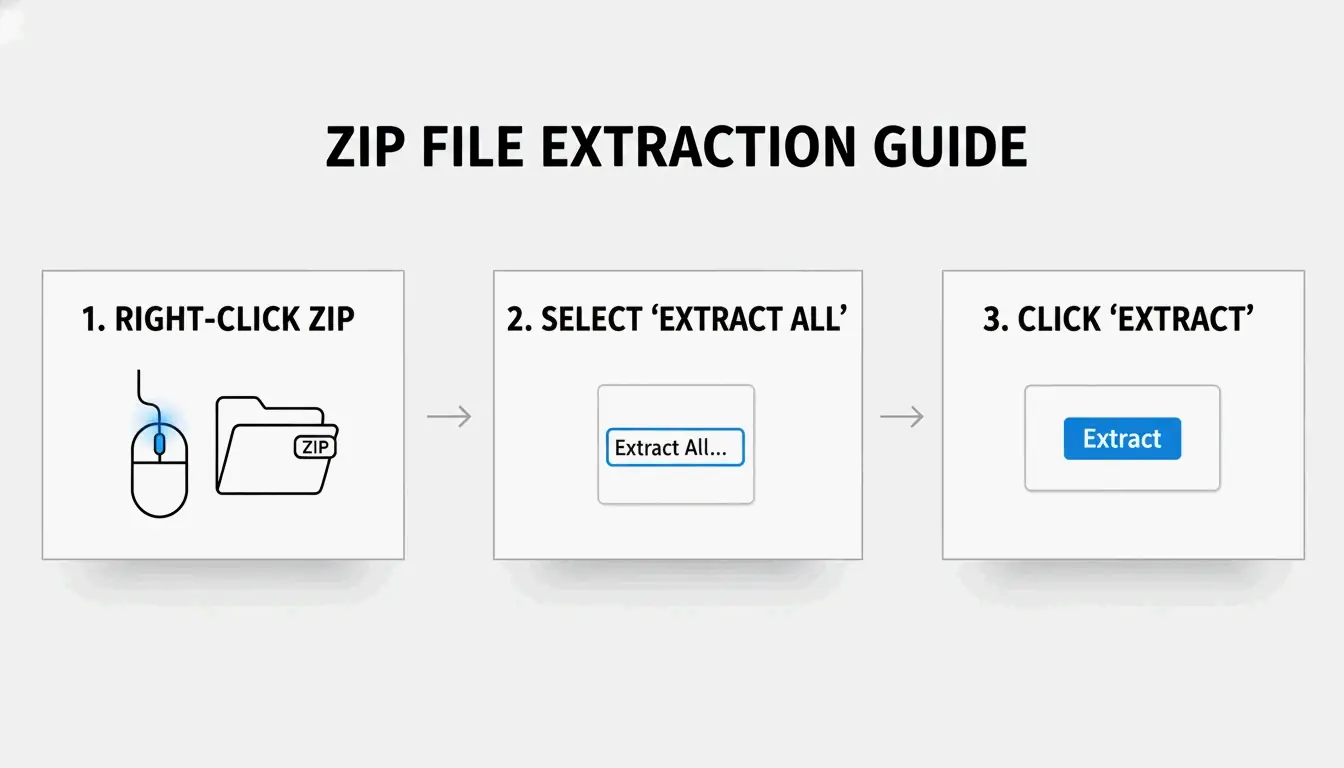
طریقہ 1: دائیں کلک «سب نکالیں» (سب سے آسان)
- تلاش کریں فائل ایکسپلورر میں ZIP فائل (زپر آئیکن تلاش کریں)
- دائیں کلک ← «سب نکالیں» منتخب کریں
- منزل کا انتخاب — ونڈوز اسی جگہ نیا فولڈر تجویز کرتا ہے
- «نکالیں» پر کلک کریں — بڑے آرکائیوز کے لیے پروگریس بار ظاہر ہوتا ہے
SupportYourTech بتاتا ہے کہ یہ زیادہ تر صارفین کے لیے تیز ترین طریقہ ہے۔
طریقہ 2: انفرادی فائلیں ڈریگ اور ڈراپ کریں
بڑے آرکائیو سے صرف ایک یا دو فائلیں چاہیے؟ ZIP پر ڈبل کلک کر کے مواد دیکھیں، پھر مخصوص عناصر کو اپنے ڈیسک ٹاپ یا کسی دوسرے فولڈر میں ڈریگ کریں۔ ونڈوز صرف ان فائلوں کو فوراً نکالتا ہے — مکمل ان زپ کی ضرورت نہیں۔
طریقہ 3: PowerShell سے بیچ نکالنا
درجنوں یا سینکڑوں آرکائیوز کے لیے، PowerShell سے خودکاری کریں:
Get-ChildItem -Path "C:\SourceFolder" -Filter *.zip |
  ForEach-Object {
    Expand-Archive -Path $_.FullName -DestinationPath "C:\DestinationFolder"
  }
Serverman یہ طریقہ ان آئی ٹی ایڈمنسٹریٹرز کو تجویز کرتا ہے جو بڑی مقدار میں ڈیٹا پروسیس کرتے ہیں یا ہفتہ وار خودکار بیک اپ سیٹ اپ کرتے ہیں۔
ونڈوز 11: RAR اور 7z کی اصل حمایت
نومبر 2023 کی اپڈیٹ کے بعد، ونڈوز 11 فائل ایکسپلورر میں .rar اور .7z فائلیں براہ راست نکال سکتا ہے — بالکل ZIP فائلوں کی طرح۔ مائیکروسافٹ نے یہ ممکن بنانے کے لیے اوپن سورس libarchive پروجیکٹ کو ضم کیا، جیسا کہ PandaOffice Drecov بیان کرتا ہے۔
حد: آپ RAR/7z نکال سکتے ہیں، لیکن ونڈوز اب بھی صرف ZIP آرکائیوز بناتا ہے۔ .7z یا .rar فائلیں بنانے کے لیے آپ کو مخصوص ایپ کی ضرورت ہے۔
| فارمیٹ | نکالنا (Win 11) | بنانا (Win 11) | Windows 10 |
|---|---|---|---|
| ZIP | اصل | اصل | اصل |
| RAR | اصل | نہیں | تھرڈ پارٹی ایپ درکار |
| 7z | اصل | نہیں | تھرڈ پارٹی ایپ درکار |
| GZIP / TAR / BZIP2 | نہیں | نہیں | تھرڈ پارٹی ایپ درکار |
7-Zip یا WinRAR کب استعمال کریں
ونڈوز کا بلٹ ان ٹول پاس ورڈ سے محفوظ آرکائیوز بنانے کے لیے AES-256 انکرپشن کی حمایت نہیں کرتا۔ حساس ڈیٹا (طبی ریکارڈز، ٹیکس ریٹرنز) کے لیے، مخصوص ٹول استعمال کریں۔
| خصوصیت | ونڈوز بلٹ ان | 7-Zip | WinRAR |
|---|---|---|---|
| ZIP بنانا | ہاں | ہاں | ہاں |
| 7z (LZMA2) بنانا | نہیں | ہاں | نہیں |
| RAR بنانا | نہیں | نہیں | ہاں |
| AES-256 انکرپشن | نہیں | ہاں | ہاں |
| CRC ایرر ریکوری | محدود | مضبوط | مضبوط |
| قیمت | مفت | مفت | ادا (ٹرائل) |
ZIP Extractor بتاتا ہے کہ 7-Zip جیسی ڈیسک ٹاپ ایپس براؤزر مبنی ٹولز کے مقابلے میں خراب فائلوں اور CRC ایررز کے خلاف بہتر تحفظ فراہم کرتی ہیں۔
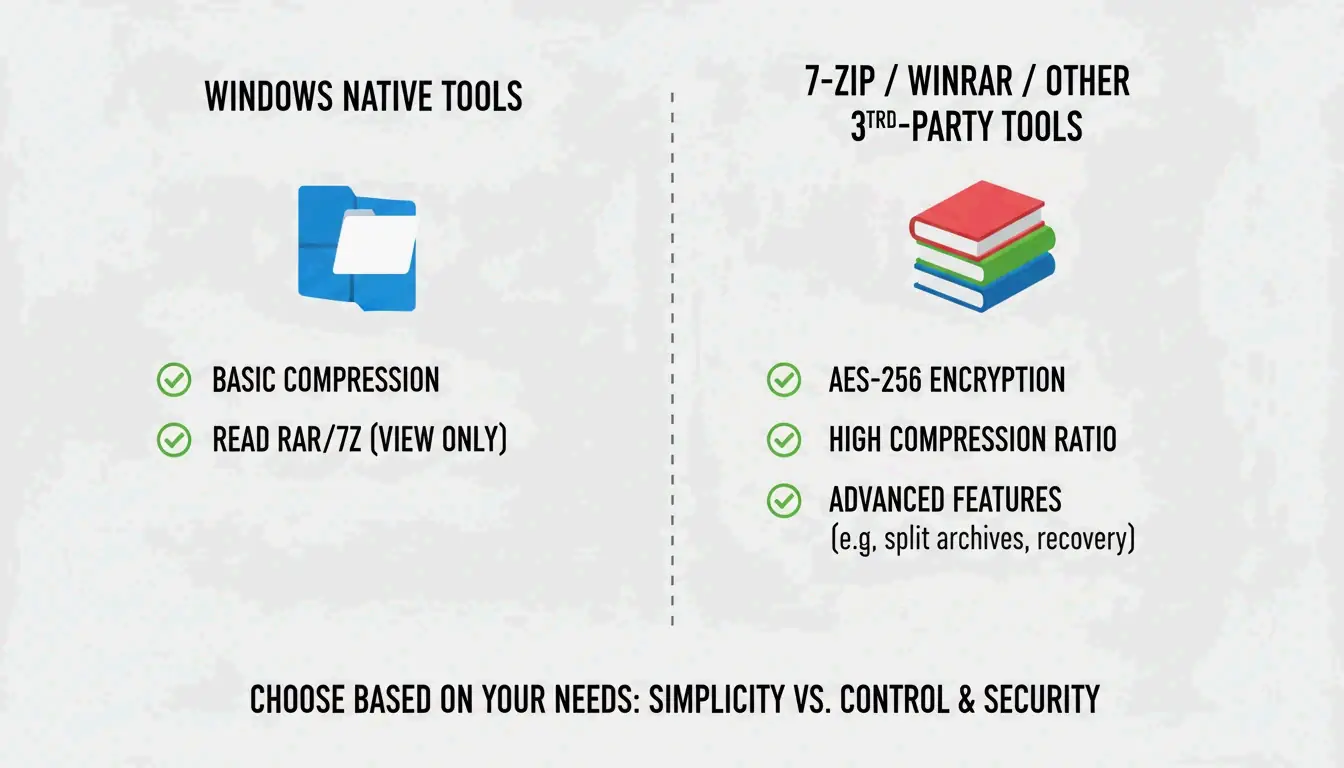
جب استعمال کریں 7-Zip یا WinRAR:
– پاس ورڈ سے محفوظ فائلیں AES-256 انکرپشن کے ساتھ کھولیں
– زیادہ سے زیادہ کمپریشن درکا ہو (LZMA/LZMA2 الگورتھم)
– GZIP، TAR یا BZIP2 فارمیٹس کے ساتھ کام کریں
فائل کی قسم کے لحاظ سے کمپریشن ریٹس
تمام فائلیں یکساں نہیں کمپریس ہوتیں۔ Serverman مفید حوالہ جات فراہم کرتا ہے:
| فائل کی قسم | عام کمپریشن | کیوں |
|---|---|---|
| ٹیکسٹ دستاویزات / اسپریڈ شیٹس | 60–90% | انتہائی دہرائی گئی ڈیٹا اچھی طرح کمپریس ہوتی ہے |
| 20–40% | پہلے سے جزوی طور پر کمپریسڈ | |
| JPEG / MP3 / MP4 | 1 فیصد سے کم | اپنے کوڈیکس سے پہلے ہی کمپریسڈ |
| RAW تصاویر / BMP | 40–70% | غیر کمپریسڈ پکسل ڈیٹا |
جدید ونڈوز ZIP64 ایکسٹینشن استعمال کرتا ہے اور 16 exabytes تک کے آرکائیوز کی حمایت کرتا ہے — کسی بھی حقیقی منظرنامے کے لیے کافی سے زیادہ، Wikipedia کے مطابق۔
نتیجہ
زیادہ تر صارفین کے لیے، فائل ایکسپلورر میں دائیں کلک «سب نکالیں» ونڈوز 11 پر ZIP، RAR اور 7z نکالنے کا کام سنبھال لیتا ہے۔ بیچ پروسیسنگ کے لیے PowerShell استعمال کریں، اور جب آپ کو AES-256 انکرپشن یا زیادہ سے زیادہ کمپریشن درکا ہو تو 7-Zip انسٹال کریں۔ بڑے آرکائیوز نکالنے سے پہلے ہمیشہ کافی ڈسک سپیس یقینی بنائیں۔
اکثر پوچھے جانے والے سوالات
«سب نکالیں» اور ZIP پر ڈبل کلک میں کیا فرق ہے؟
ڈبل کلک ان زپ کیے بغیر مواد دیکھنے کی اجازت دیتا ہے — فائلیں نظر آتی ہیں لیکن درست کام نہیں کریں گی۔ «سب نکالیں» ڈیٹا کو مکمل طور پر ایک عام فولڈر میں کھول دیتا ہے، جو ایپس، انسٹالرز اور آپ کے سسٹم سے تعامل کرنے والی فائلوں کے لیے ضروری ہے۔
میں «سب نکالیں» آپشن کیوں نہیں دیکھتا؟
ہو سکتا ہے آپ نے کمپریسڈ آرکائیو کے بجائے عام فولڈر پر کلک کیا ہو (چیک کریں کہ ایکسٹینشن .zip، .rar یا .7z ہے)۔ اگر WinRAR انسٹال ہے، تو اس نے ڈیفالٹ کانٹیکسٹ مینیو کو بدل دیا ہو گا۔ اصل آپشن بحال کرنے کے لیے «کھولیں بذریعہ ← فائل ایکسپلورر» آزمائیں۔
جب ونڈوز ناکام ہو تو پاس ورڈ سے محفوظ فائلیں کیسے ان زپ کریں؟
بلٹ ان ٹول اعلیٰ درجے کی انکرپشن کو ہینڈل نہیں کرتا۔ 7-Zip یا WinRAR استعمال کریں — دونوں AES-256 انکرپشن کی حمایت کرتے ہیں جسے ونڈوز اصل میں پروسیس نہیں کر سکتا۔
SectoJoy
Let Compress publishes practical guides for compression, conversion, and browser-based file workflows.
Follow SectoJoy