Windows’ta dosyaları nasıl açılır (unzip): Windows 11 ve 10 için eksiksiz kılavuz (2026)
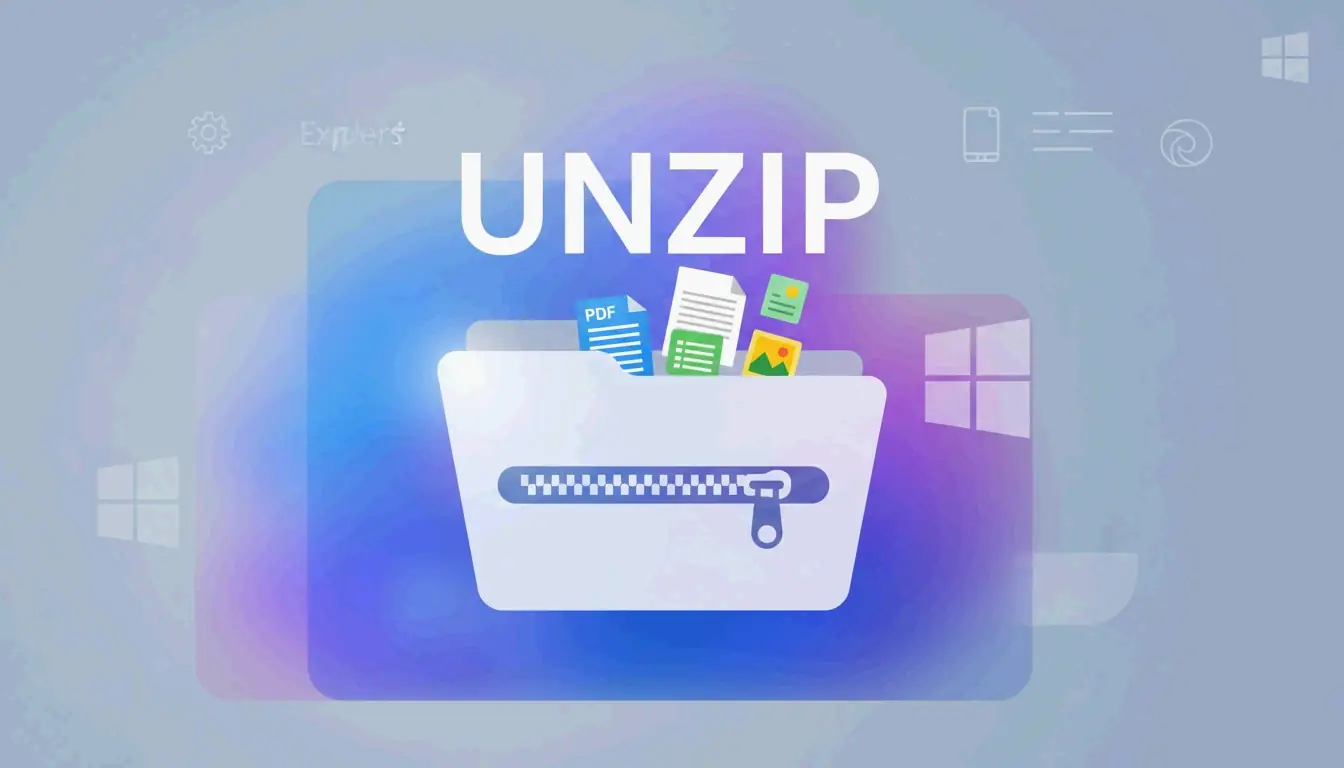
Windows”ta dosyaları açmak için Dosya Gezgini”ni açın, ZIP klasörüne sağ tıklayın ve «Tümünü Ayıkla»yı seçin, ardından bir hedef klasör seçin. Mayıs 2026 itibarıyla Windows 11, .rar ve .7z dosyalarını ayıklamayı da yerel olarak destekler, böylece çoğu kullanıcı temel açma işlemi için üçüncü taraf yazılıma artık ihtiyaç duymaz.
Windows”ta açmanın üç yöntemi
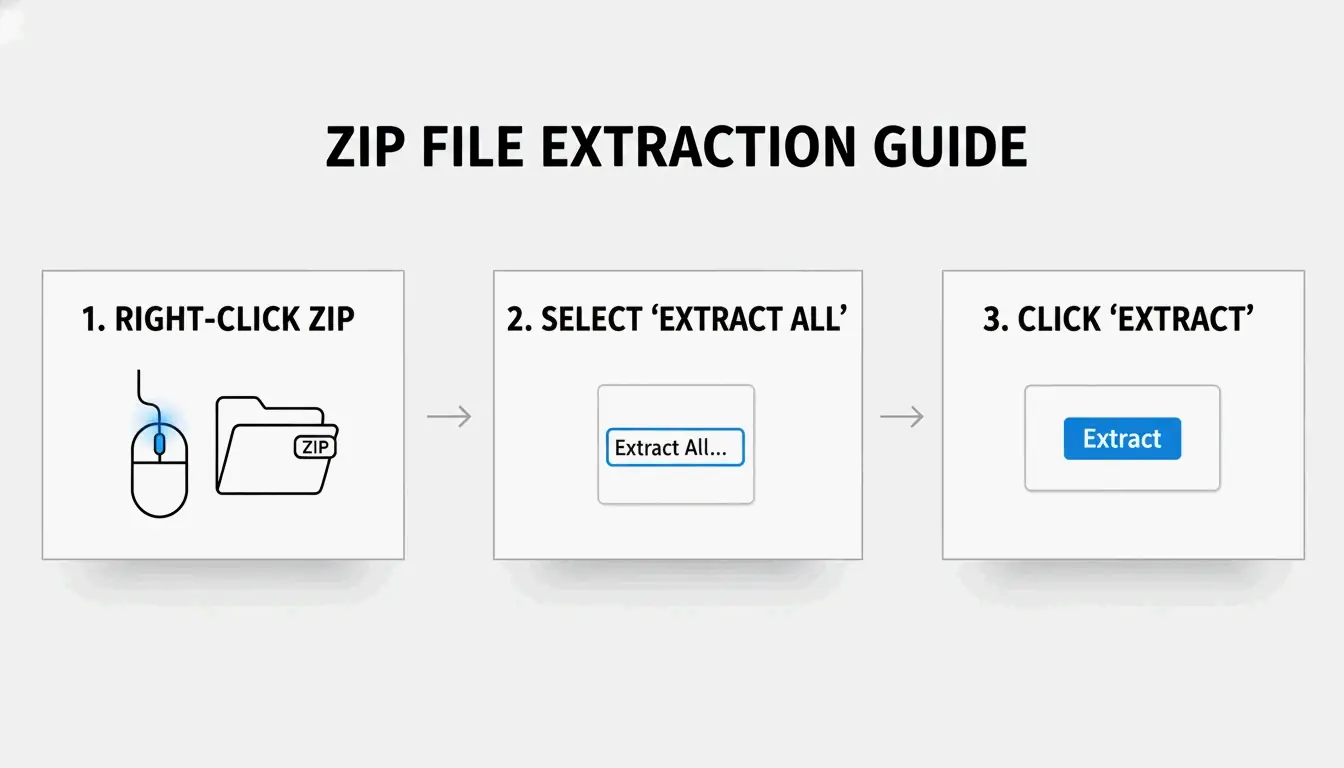
Yöntem 1: sağ tık «Tümünü Ayıkla» (en kolay)
- Bulun Dosya Gezgini”nde ZIP dosyasını (fermuar simgesini arayın)
- Sağ tıklayın → «Tümünü Ayıkla»yı seçin
- Hedefi seçin — Windows aynı konumda yeni bir klasör önerir
- «Ayıkla»ya tıklayın — Büyük arşivler için bir ilerleme çubuğu görünür
SupportYourTech bunun çoğu kullanıcı için en hızlı yöntem olduğunu belirtir.
Yöntem 2: tek tek dosyaları sürükleyip bırakma
Büyük bir arşivden yalnızca bir veya iki dosyaya mı ihtiyacınız var? İçeriğe göz atmak için ZIP”e çift tıklayın, ardından belirli öğeleri masaüstünüze veya başka bir klasöre sürükleyin. Windows yalnızca bu dosyaları anında ayıklar — tam açma gerekmez.
Yöntem 3: PowerShell ile toplu ayıklama
Onlarca veya yüzlerce arşiv için PowerShell ile otomatikleştirin:
Get-ChildItem -Path "C:\SourceFolder" -Filter *.zip |
  ForEach-Object {
    Expand-Archive -Path $_.FullName -DestinationPath "C:\DestinationFolder"
  }
Serverman bu yöntemi büyük veri kümelerini işleyen veya haftalık otomatik yedeklemeler ayarlayan BT yöneticilerine önerir.
Windows 11: RAR ve 7z için yerel destek
Kasım 2023 güncellemesinden sonra Windows 11, .rar ve .7z dosyalarını Dosya Gezgini”nde doğrudan ayıklayabilir — tıpkı ZIP dosyaları gibi. Microsoft bunu mümkün kılmak için açık kaynaklı libarchive projesini entegre etti, PandaOffice Drecov belirttiği gibi.
Sınırlama: RAR/7z”yi ayıklayabilirsiniz, ancak Windows hâlâ yalnızca ZIP arşivleri oluşturur. .7z veya .rar dosyaları oluşturmak için özel bir uygulamaya ihtiyacınız vardır.
| Biçim | Ayıklama (Win 11) | Oluşturma (Win 11) | Windows 10 |
|---|---|---|---|
| ZIP | Yerel | Yerel | Yerel |
| RAR | Yerel | Hayır | Üçüncü taraf uygulama gerekli |
| 7z | Yerel | Hayır | Üçüncü taraf uygulama gerekli |
| GZIP / TAR / BZIP2 | Hayır | Hayır | Üçüncü taraf uygulama gerekli |
7-Zip veya WinRAR ne zaman kullanılır
Windows”un yerleşik aracı, parolayla korunmuş arşivler oluşturmak için AES-256 şifrelemesini desteklemez. Hassas veriler (tıbbi kayıtlar, vergi beyannameleri) için özel bir araç kullanın.
| Özellik | Windows”a yerleşik | 7-Zip | WinRAR |
|---|---|---|---|
| ZIP oluşturma | Evet | Evet | Evet |
| 7z (LZMA2) oluşturma | Hayır | Evet | Hayır |
| RAR oluşturma | Hayır | Hayır | Evet |
| AES-256 şifreleme | Hayır | Evet | Evet |
| CRC hata kurtarma | Sınırlı | Güçlü | Güçlü |
| Fiyat | Ücretsiz | Ücretsiz | Ücretli (deneme) |
ZIP Extractor 7-Zip gibi masaüstü uygulamalarının, tarayıcı tabanlı araçlardan daha iyi bozuk dosya ve CRC hatası koruması sunduğunu belirtir.
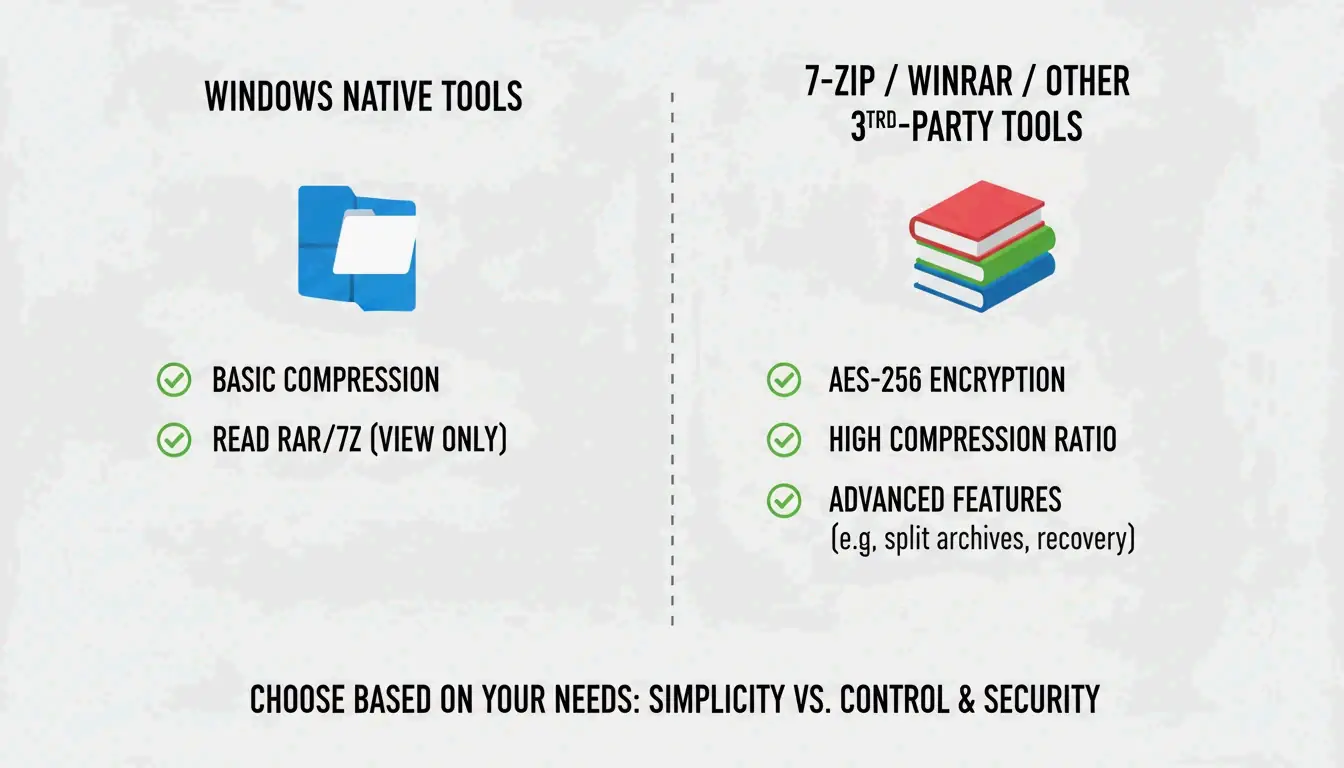
7-Zip veya WinRAR”ı şu durumlarda kullanın:
– AES-256 şifrelemeli parolayla korunmuş dosyaları açarken
– maksimum sıkıştırma gerektiğinde (LZMA/LZMA2 algoritmaları)
– GZIP, TAR veya BZIP2 biçimleriyle çalışırken
Dosya türüne göre sıkıştırma oranları
Tüm dosyalar eşit derecede sıkıştırılmaz. Serverman yararlı başvuru noktaları sunar:
| Dosya türü | Tipik sıkıştırma | Neden |
|---|---|---|
| Metin belgeleri / tablolar | 60–90% | Çok tekrarlayan veriler iyi sıkışır |
| 20–40% | Zaten kısmen sıkıştırılmış | |
| JPEG / MP3 / MP4 | 1%”den az | Zaten kendi codec”leriyle sıkıştırılmış |
| RAW görüntüler / BMP | 40–70% | Sıkıştırılmamış piksel verileri |
Modern Windows ZIP64 uzantısını kullanır ve 16 exabytes boyutuna kadar arşivleri destekler — herhangi bir gerçekçi senaryo için fazlasıyla yeterli, Wikipedia”ya göre.
Sonuç
Çoğu kullanıcı için Dosya Gezgini”nde sağ tık «Tümünü Ayıkla» Windows 11”de ZIP, RAR ve 7z ayıklamayı halleder. Toplu işleme için PowerShell kullanın ve AES-256 şifreleme veya maksimum sıkıştırmaya ihtiyaç duyduğunuzda 7-Zip”i kurun. Büyük arşivleri ayıklamadan önce her zaman yeterli disk alanı olduğundan emin olun.
Sıkça sorulan sorular
«Tümünü Ayıkla» ile ZIP”e çift tıklama arasındaki fark nedir?
Çift tıklama, açmadan içeriğe göz atmanıza olanak tanır — dosyalar görünür ancak düzgün çalışmaz. «Tümünü Ayıkla» verileri tamamen normal bir klasöre açar, bu da uygulamalar, yükleyiciler ve sisteminizle etkileşim kuran dosyalar için gereklidir.
«Tümünü Ayıkla» seçeneğini neden göremiyorum?
Sıkıştırılmış bir arşiv yerine normal bir klasöre tıklamış olabilirsiniz (uzantının .zip, .rar veya .7z olduğunu kontrol edin). WinRAR yüklüyse, varsayılan bağlam menüsünü değiştirmiş olabilir. Yerleşik seçeneği geri yüklemek için «Birlikte aç → Dosya Gezgini»ni deneyin.
Windows başarısız olduğunda parolayla korunmuş dosyaları nasıl açarım?
Yerleşik araç üst düzey şifrelemeyi işlemez. 7-Zip veya WinRAR kullanın — her ikisi de Windows”un yerel olarak işleyemediği AES-256 şifrelemeyi destekler.
SectoJoy
Let Compress publishes practical guides for compression, conversion, and browser-based file workflows.
Follow SectoJoy