Bestanden uitpakken in Windows: volledige gids voor Windows 11 en 10 (2026)
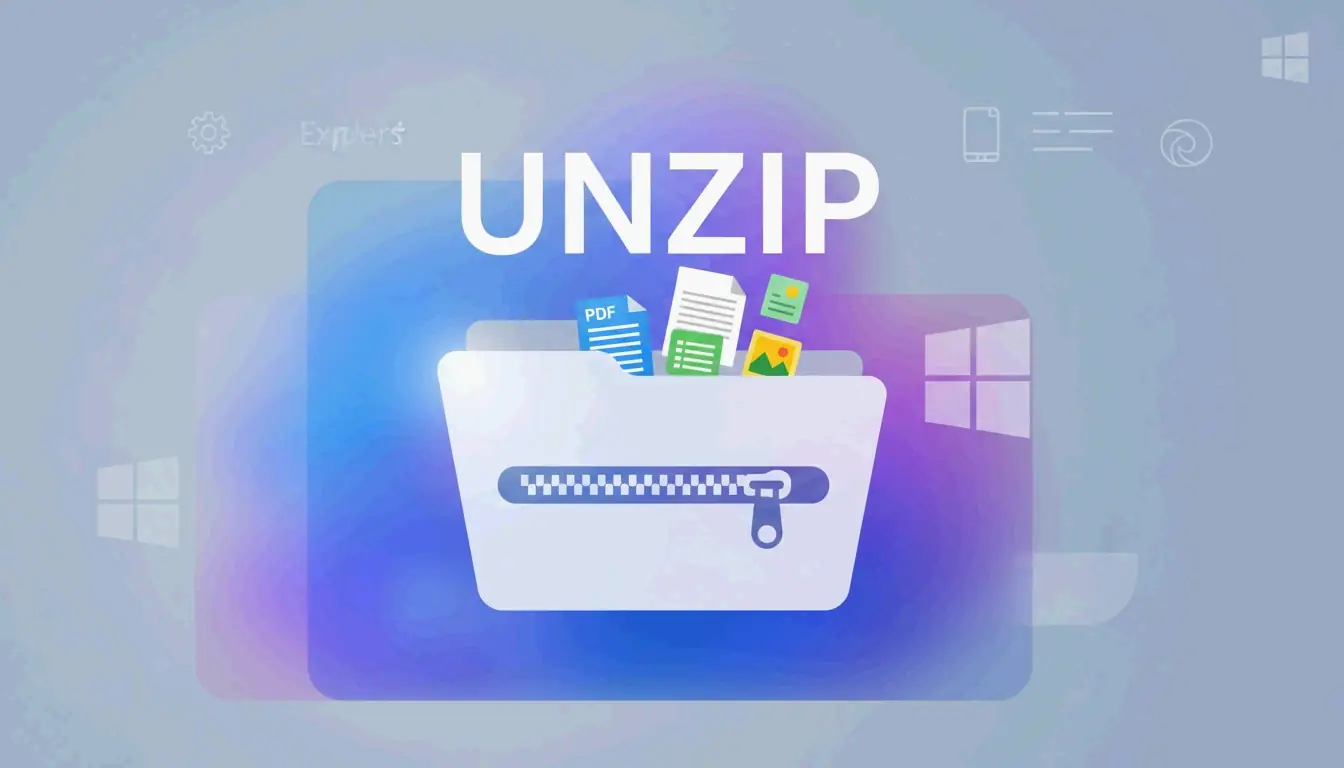
Om bestanden uit te pakken in Windows, open Verkenner, klik met de rechtermuisknop op de ZIP-map en kies «Alles extraheren», en selecteer vervolgens een doelmap. Vanaf mei 2026 ondersteunt Windows 11 ook ingebouwd het uitpakken van .rar- en .7z-bestanden, zodat de meeste gebruikers geen software van derden meer nodig hebben voor eenvoudige decompressie.
Drie methoden om uit te pakken in Windows
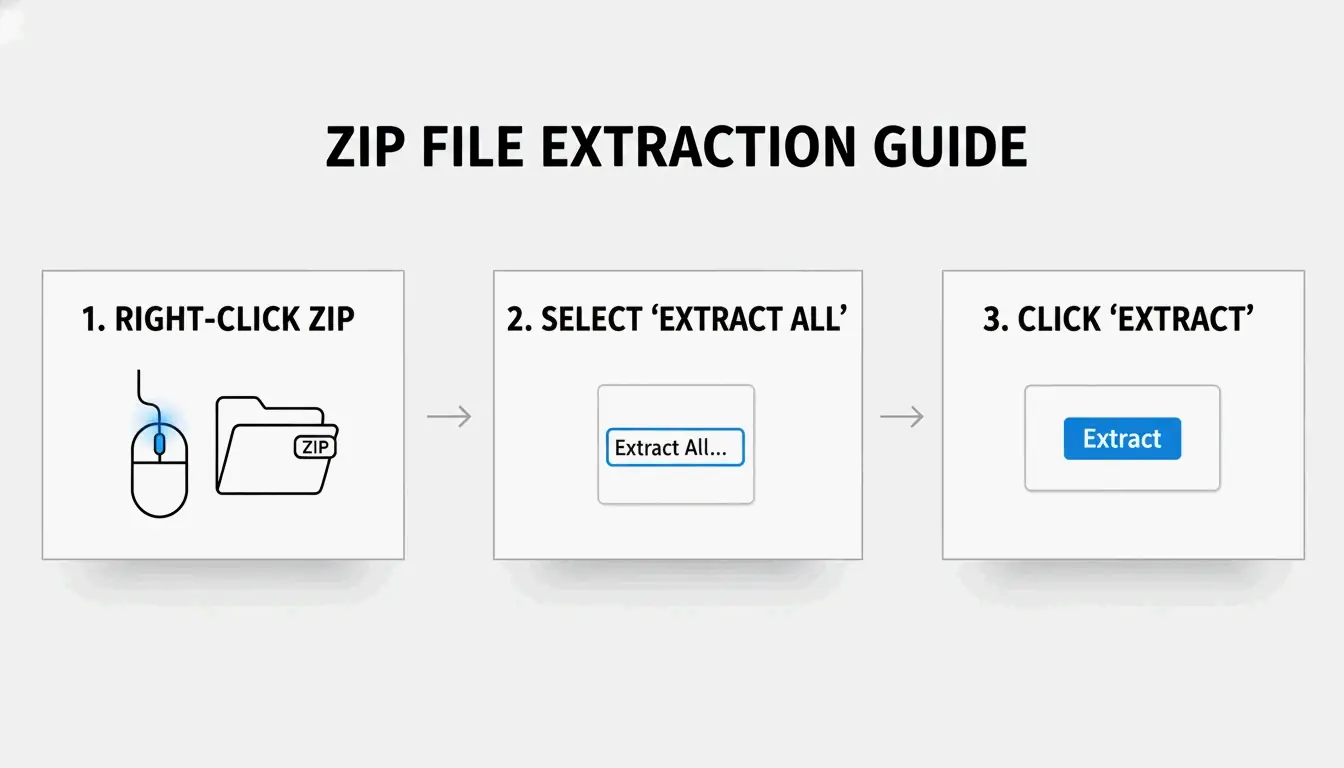
Methode 1: rechtsklik «Alles extraheren» (het eenvoudigst)
- Zoeken naar het ZIP-bestand in Verkenner (zoek het ritssluiting-symbool)
- Rechtsklik → Kies «Alles extraheren»
- Bestemming kiezen — Windows stelt een nieuwe map op dezelfde locatie voor
- Klik op «Extraheren» — Bij grote archieven verschijnt een voortgangsbalk
SupportYourTech stelt dat dit de snelste methode is voor de meeste gebruikers.
Methode 2: afzonderlijke bestanden slepen-en-neerzetten
Heb je slechts één of twee bestanden uit een groot archief nodig? Dubbelklik op de ZIP om door de inhoud te bladeren en sleep specifieke items naar je bureaublad of een andere map. Windows pakt alleen die bestanden direct uit — geen volledige decompressie nodig.
Methode 3: batch-extractie met PowerShell
Voor tientallen of honderden archieven automatiseer je met PowerShell:
Get-ChildItem -Path "C:\SourceFolder" -Filter *.zip |
  ForEach-Object {
    Expand-Archive -Path $_.FullName -DestinationPath "C:\DestinationFolder"
  }
Serverman beveelt deze methode aan voor IT-beheerders die grote hoeveelheden gegevens verwerken of wekelijkse automatische back-ups instellen.
Windows 11: ingebouwde ondersteuning voor RAR en 7z
Na de update van november 2023 kan Windows 11 .rar- en .7z-bestanden direct in Verkenner uitpakken — net als ZIP-bestanden. Microsoft integreerde het open-source project libarchive om dit mogelijk te maken, zoals PandaOffice Drecov opmerkt.
Beperking: je kunt RAR/7z uitpakken, maar Windows maakt nog steeds alleen ZIP-archieven. Om .7z- of .rar-bestanden te maken heb je een speciale app nodig.
| Formaat | Uitpakken (Win 11) | Maken (Win 11) | Windows 10 |
|---|---|---|---|
| ZIP | Ingebouwd | Ingebouwd | Ingebouwd |
| RAR | Ingebouwd | Nee | App van derden vereist |
| 7z | Ingebouwd | Nee | App van derden vereist |
| GZIP / TAR / BZIP2 | Nee | Nee | App van derden vereist |
Wanneer 7-Zip of WinRAR gebruiken
Het ingebouwde Windows-hulpmiddel ondersteunt geen AES-256-versleuteling voor het maken van wachtwoordbeveiligde archieven. Gebruik voor gevoelige gegevens (medische dossiers, belastingaangiften) een speciaal hulpmiddel.
| Functie | Ingebouwd in Windows | 7-Zip | WinRAR |
|---|---|---|---|
| ZIP maken | Ja | Ja | Ja |
| 7z (LZMA2) maken | Nee | Ja | Nee |
| RAR maken | Nee | Nee | Ja |
| AES-256-versleuteling | Nee | Ja | Ja |
| CRC-fouten herstellen | Beperkt | Sterk | Sterk |
| Prijs | Gratis | Gratis | Betaald (proefversie) |
ZIP Extractor wijst erop dat desktop-apps zoals 7-Zip betere bescherming bieden tegen corrupte bestanden en CRC-fouten dan browsergebaseerde hulpmiddelen.
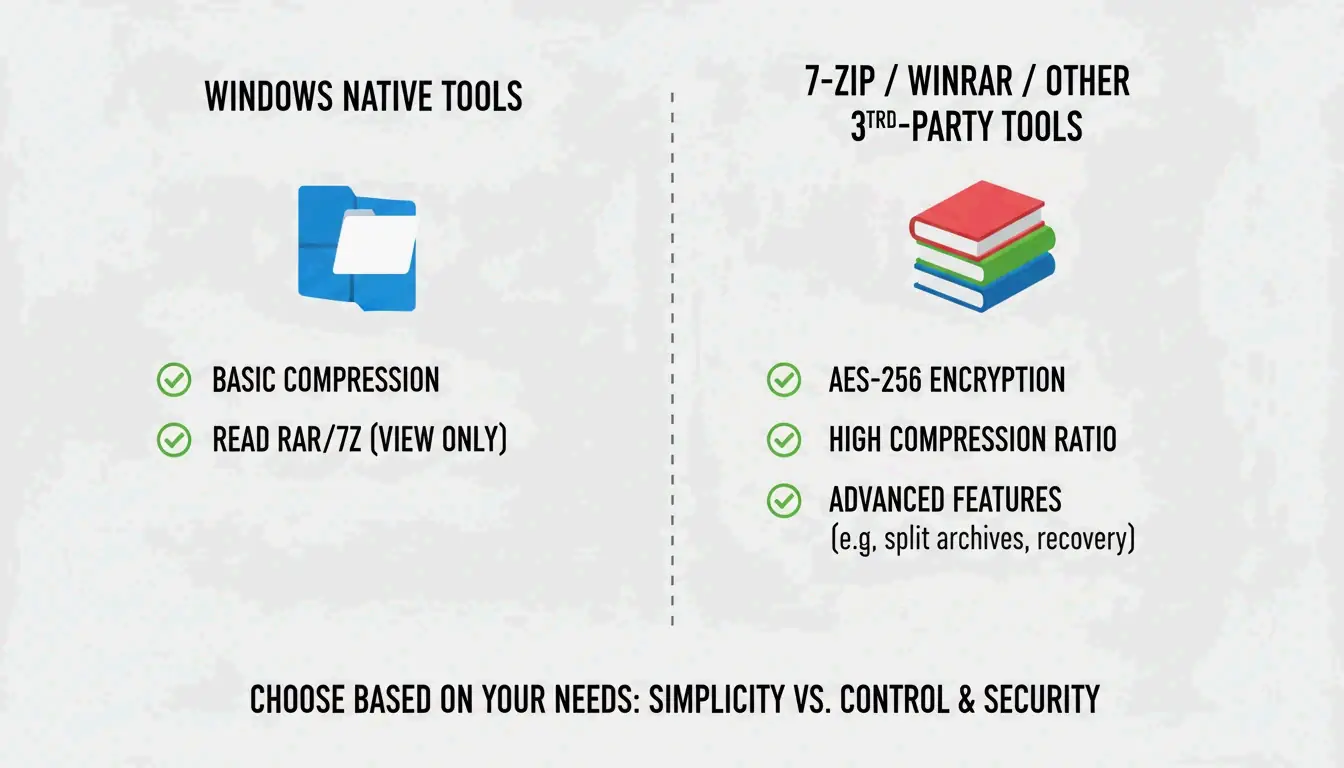
Gebruik 7-Zip of WinRAR wanneer je:
– wachtwoordbeveiligde bestanden met AES-256-versleuteling opent
– maximale compressie nodig hebt (LZMA/LZMA2-algoritmen)
– werkt met GZIP-, TAR- of BZIP2-formaten
Compressiegraden per bestandstype
Niet alle bestanden comprimeren even goed. Serverman levert nuttige richtlijnen:
| Bestandstype | Typische compressie | Waarom |
|---|---|---|
| Tekstdocumenten / spreadsheets | 60–90% | Zeer repeterende gegevens comprimeren goed |
| PDF”s | 20–40% | Al gedeeltelijk gecomprimeerd |
| JPEG / MP3 / MP4 | Minder dan 1% | Al gecomprimeerd door eigen codecs |
| RAW-afbeeldingen / BMP | 40–70% | Niet-gecomprimeerde pixelgegevens |
Modern Windows gebruikt de ZIP64-extensie en ondersteunt archieven tot 16 exabytes — meer dan genoeg voor elk realistisch scenario, volgens Wikipedia.
Conclusie
Voor de meeste gebruikers regelt een rechtsklik «Alles extraheren» in Verkenner het uitpakken van ZIP, RAR en 7z in Windows 11. Gebruik PowerShell voor batchverwerking en installeer 7-Zip wanneer je AES-256-versleuteling of maximale compressie nodig hebt. Zorg altijd voor voldoende schijfruimte voordat je grote archieven uitpakt.
Veelgestelde vragen
Wat is het verschil tussen «Alles extraheren» en dubbelklikken op een ZIP?
Dubbelklikken laat je door de inhoud bladeren zonder uit te pakken — bestanden worden weergegeven maar werken niet correct. «Alles extraheren» pakt alle gegevens volledig uit naar een gewone map, wat nodig is voor apps, installers en bestanden die met je systeem communiceren.
Waarom zie ik de optie «Alles extraheren» niet?
Mogelijk heb je op een gewone map geklikt in plaats van op een gecomprimeerd archief (controleer of de extensie .zip, .rar of .7z is). Als WinRAR is geïnstalleerd, heeft het mogelijk het standaard contextmenu vervangen. Probeer «Openen met → Verkenner» om de ingebouwde optie te herstellen.
Hoe pak ik wachtwoordbeveiligde bestanden uit wanneer Windows faalt?
Het ingebouwde hulpmiddel verwerkt geen versleuteling op hoog niveau. Gebruik 7-Zip of WinRAR — beide ondersteunen AES-256-versleuteling die Windows niet ingebouwd kan verwerken.
SectoJoy
Let Compress publishes practical guides for compression, conversion, and browser-based file workflows.
Follow SectoJoy