تغيير حجم الصورة: دليل سريع لأحجام الصور للويب ووسائل التواصل (2026)
لاستخدام دليل تغيير حجم الصورة السريع هذا بفعالية في 2026، تساعدك أدوات مثل Adobe Express على ضبط أبعاد البكسل بسرعة — مثل 1080×1350px لإنستغرام أو 1200px للبانرات. ثبّت دائمًا نسبة العرض إلى الارتفاع، وأعطِ أولوية لصيغ WebP/AVIF لتحميل أسرع، واحفظ صور JPEG بجودة 80% لإبقائها حادة دون إبطاء موقعك.
التنفيذ السريع: كيف تغيّر حجم الصور دون فقدان الجودة؟
يعني تغيير حجم الصورة تعديل إجمالي عدد البكسلات لضبط الأبعاد المادية وحجم الملف. وفقًا لـ O’Brien Media ، يمكن لتغيير الحجم المناسب تصغير الملف بنسبة 80%. هذا يحوّل صورة ضخمة بحجم 4 ميغابايت إلى ملف صغير بحجم 200 كيلوبايت يظل يبدو رائعًا على الشاشات الرقمية.
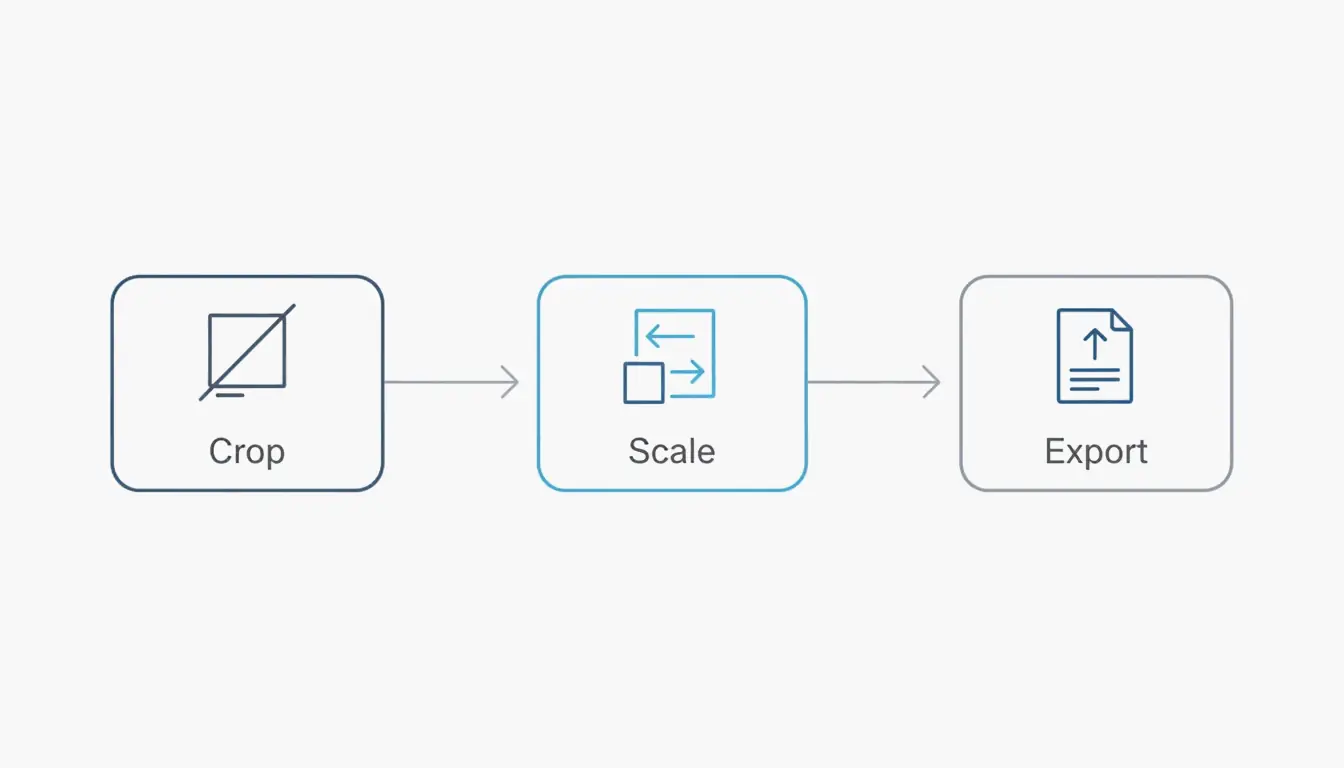
يتبع سير العمل الاحترافي تسلسلًا بسيطًا من ثلاث خطوات: القص، التحجيم، والتصدير. أولًا، قصّ الصورة إلى الشكل المستهدف حتى لا تبدو ممطوطة لاحقًا. ثانيًا، حجّم البكسلات إلى العرض الذي تحتاجه. أخيرًا، صدّر باستخدام صيغة حديثة وفعالة. القاعدة الأهم هي الحفاظ على نسبة العرض إلى الارتفاع؛ إذا لم تثبّت هذا الإعداد، ستبدو صورك في النهاية «مسطّحة» أو مشوّهة.
عند تصغير صورة، تستخدم الأدوات عالية الجودة خوارزميات استيفاء مثل «Bicubic Sharper». تتولى هذه التقنية إزالة البكسلات بشكل نظيف، وتعيد حساب البيانات المتبقية للحفاظ على حدّة الحواف. يمكنك تصغير الصورة بقدر ما تشاء، لكن تكبيرها (الرفع) أصعب. فهو يجبر البرنامج على «اختراع» بكسلات جديدة، ما يؤدي عادةً إلى الضبابية ما لم تستخدم أداة تكبير توليدية قائمة على الذكاء الاصطناعي.
خطوة بخطوة: تغيير الحجم للويب مقابل وسائل التواصل
يجب أن تكون صور الويب خفيفة من أجل السرعة، بينما يجب أن تتناسب صور وسائل التواصل مع حاويات محددة حتى لا تقطع المنصة أجزاءً مهمة من صورتك.
- اختر أداة: استخدم Adobe Express للتعديلات السريعة عبر المتصفح أو تطبيقًا مثل Photo & Picture Resizer على أندرويد.
- أدخل الأبعاد: اختر عرضًا من 1200px إلى 1600px لمنشورات المدونة، أو 1080px لإنستغرام.
- ثبّت النسب: تأكد من تفعيل خيار «الحفاظ على النسب» أو أيقونة السلسلة.
- احفظ: نزّل كصيغة JPEG للصور أو PNG للرسومات ذات الخلفية الشفافة.
ورقة مرجعية 2026: ما هي أبعاد البكسل القياسية؟
في 2026، أبعاد البكسل هي العامل الرئيسي في كيفية رؤية كل من المستخدمين والخوارزميات لمحتواك. إذا رفعت صورة ضخمة بدقة 4000px من هاتفك إلى موقع يعرضها فقط بدقة 1080px، فأنت تهدر البيانات. والأسوأ من ذلك، قد تستخدم المنصة ضغطها القاسي الخاص لتصغيرها، ما يدمر جودة الصورة غالبًا.
للحصول على أفضل تفاعل، فإن نسبة الوضع الطولي 4:5 (1080 × 1350 px) هي المعيار الذهبي الحالي. تُظهر بيانات Picssizer 2026 أن هذه الصيغة تعمل بشكل أفضل لأنها تشغل مساحة «أكبر من الشاشة» في الخلاصات على الجوال. فهو حرفيًا يجبر المستخدمين على التمرير أكثر لتجاوز منشورك مقارنةً بصورة مربعة.
بالنسبة للمواقع، يجب أن تبقى صور «الهيرو» التي تملأ شاشة سطح المكتب حول عرض 1920px. أما صور المدونة القياسية أو الصور المصغّرة للشبكة، فغالبًا ما يكون 1200px هو النقطة المثلى للأداء.
مصفوفة أحجام وسائل التواصل 2026 (إنستغرام، تيك توك، لينكدإن)
عند النشر عبر مواقع مختلفة، تحتاج إلى استراتيجية «المنطقة الآمنة». للمحتوى العمودي مثل الريلز والستوريز (1080 × 1920 px)، احتفظ بنصك ووجوهك في المنطقة الوسطى 1080 × 1420 px. هذا يضمن ألا تغطيها الأزرار أو الترجمات أو أيقونات الملف الشخصي.
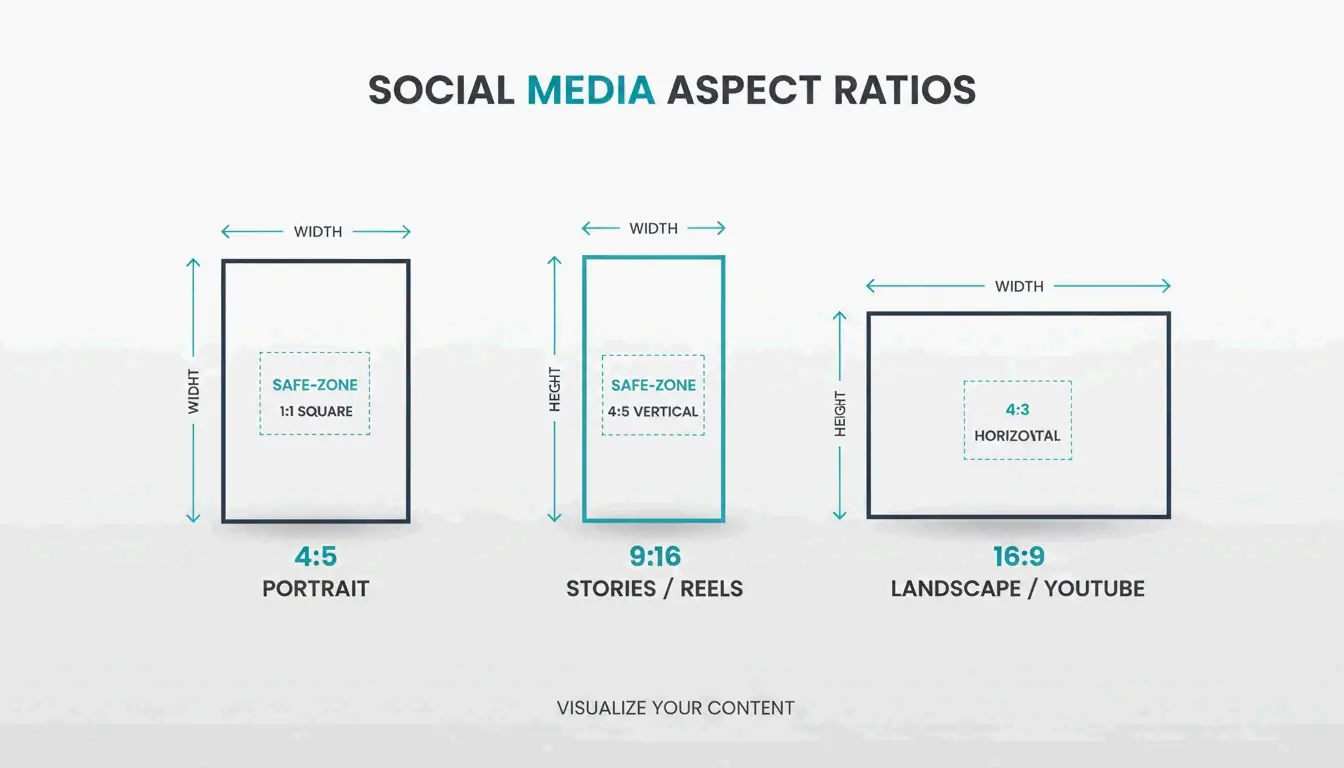
- خلاصة إنستغرام: 1080 × 1350 px (طولي) أو 1080 × 1080 px (مربع).
- تيك توك/الريلز: 1080 × 1920 px (نسبة 9:16).
- ملف لينكدإن الشخصي: 400 × 400 px.
- صورة يوتيوب المصغّرة: 1280 × 720 px.
- بانرات الويب: 1920 × 1080 px (كامل) أو 1200 × 400 px (مضغوط).
JPEG مقابل PNG مقابل AVIF: اختيار الصيغة الصحيحة من أجل السرعة
اختيار صيغة الملف الصحيحة لا يقل أهمية عن اختيار الحجم الصحيح. لا يزال JPEG هو الخيار الأمثل للتصوير القياسي لأنه يتعامل مع الألوان المعقدة بشكل جيد. وPNG هو الأفضل للشعارات أو أي رسم تحتاج فيه إلى خلفية شفافة.
لكن بحلول 2026، أصبحت WebP وAVIF المعيار لأداء الويب. تقدّم هذه الصيغ ضغطًا أفضل بكثير، ما يجعل الملفات أصغر بنسبة 30% من صور JPEG غالبًا دون فقدان الجودة. هذا مفيد بشكل خاص للبريد الإلكتروني. وجدت دراسة حالة حول حدود مرفقات البريد الإلكتروني أن تصغير صورة بحجم 5 ميغابايت إلى 400 كيلوبايت (تخفيض بنسبة 10:1) يتيح لك إرسال مرفقات متعددة دون التعرض لخطأ «الرسالة كبيرة جدًا».
فيما يتعلق بـ DPI (النقاط لكل بوصة)، يظل 72 DPI هو المعيار للويب. رغم أنك تحتاج إلى 300 DPI للطباعة عالية الجودة، فإن استخدام DPI مرتفع على شاشة رقمية يزيد حجم الملف فقط دون أن يجعل الصورة تبدو أفضل للمشاهد.
حيلة للكفاءة: تغيير الحجم الدفعي والاختصارات الأصلية على الجوال
إذا كنت تجري حملة أو تحدّث موقعًا كاملًا، فإن تغيير حجم الصور واحدة تلو الأخرى يستغرق وقتًا طويلًا. تتيح لك أدوات تغيير الحجم الدفعي معالجة أكثر من 100 صورة في ثوانٍ. على الكمبيوتر، تتيح لك تطبيقات مثل Quick Photo Resizer سحب وإفلات مجلدات كاملة لتغيير حجم كل شيء دفعة واحدة.
بالنسبة لمستخدمي الجوال، يتيح لك iOS 26 إنشاء اختصار «تغيير الحجم». بمجرد إعداده في تطبيق الاختصارات الأصلي، يمكنك اختيار الصور من معرضك وتحجيمها إلى عرض محدد (مثل 1080px) فورًا. على أندرويد، يقدّم تطبيق «الملفات» وأدوات مساعدة مثل Photo & Picture Resizer «إجراءات سريعة» لخفض الدقة قبل المشاركة مباشرة.
الخلاصة
تغيير الحجم لا يتعلق فقط بتوفير المساحة؛ بل يتعلق بالتأكد من أن صورك تنسجم مع خوارزميات المنصات وتوقعات المستخدمين. في 2026، يعتمد المظهر الاحترافي على مطابقة أبعاد البكسل الدقيقة لمنصتك المستهدفة. من خلال تثبيت نسبة العرض إلى الارتفاع واستخدام صيغ حديثة مثل WebP، ستضمن تحميل محتواك المرئي بسرعة ووضوح على كل شاشة.
اقتراح إجراء: ألقِ نظرة على موقعك أو ملفاتك الشخصية على وسائل التواصل اليوم. إذا وجدت أي صور تزيد عن 2 ميغابايت، فغيّر حجمها وفقًا لمعايير 2026 هذه لتحسين SEO والحفاظ على تفاعل جمهورك.
الأسئلة الشائعة
لماذا تبدو صوري ضبابية بعد رفعها إلى إنستغرام؟
يضغط إنستغرام تلقائيًا أي صورة يزيد عرضها عن 1080px. للحفاظ على الجودة، غيّر حجم صورتك إلى عرض 1080px تمامًا قبل الرفع. تأكد من استخدام نسبة 4:5 أو 1:1 لتجنب القص التلقائي، وتحقق من تفعيل مفتاح «الرفعات عالية الجودة» في إعدادات حساب إنستغرام.
ما الفرق بين تغيير الحجم والقص؟
يغيّر تغيير الحجم حجم الصورة بأكملها من خلال تعديل إجمالي عدد البكسلات مع الحفاظ على كل المحتوى المرئي سليمًا. بينما يزيل القص الحواف الخارجية للصورة لتغيير تكوينها أو نسبة العرض إلى الارتفاع. للحصول على أفضل النتائج، قُص صورتك إلى النسبة الصحيحة أولًا، ثم غيّر حجمها إلى أبعاد البكسل المطلوبة.
هل يمكنني تكبير صورة دون فقدان الجودة؟
يؤدي تغيير الحجم القياسي، أو الرفع، عادةً إلى ظهور البكسلات لأن البرنامج يجب أن «يخمّن» البيانات المفقودة. في 2026، يُنصح باستخدام «أدوات التكبير التوليدية» القائمة على الذكاء الاصطناعي التي يمكنها إعادة إنشاء التفاصيل المفقودة. ومع ذلك، فإن أفضل ممارسة هي دائمًا البدء بأعلى دقة ممكنة للملف المصدر قبل التصغير.
كيف أغيّر حجم الصور على آيفون دون تطبيق طرف ثالث؟
يمكنك استخدام تطبيق «الاختصارات» الأصلي لإنشاء إجراء يغيّر حجم الصور إلى عرض محدد تلقائيًا. حيلة سريعة أخرى هي استخدام تطبيق «البريد»: أرسل الصورة إلى نفسك عبر البريد الإلكتروني، وسيطالبك iOS باختيار أحجام «صغير» أو «متوسط» أو «كبير»، ما يغيّر حجم الملف فعليًا نيابةً عنك.
SectoJoy
Let Compress publishes practical guides for compression, conversion, and browser-based file workflows.
Follow SectoJoy