iPhone पर PDF कैसे कम्प्रेस करें: साइज़ कम करने के 3 त्वरित तरीके (2026)
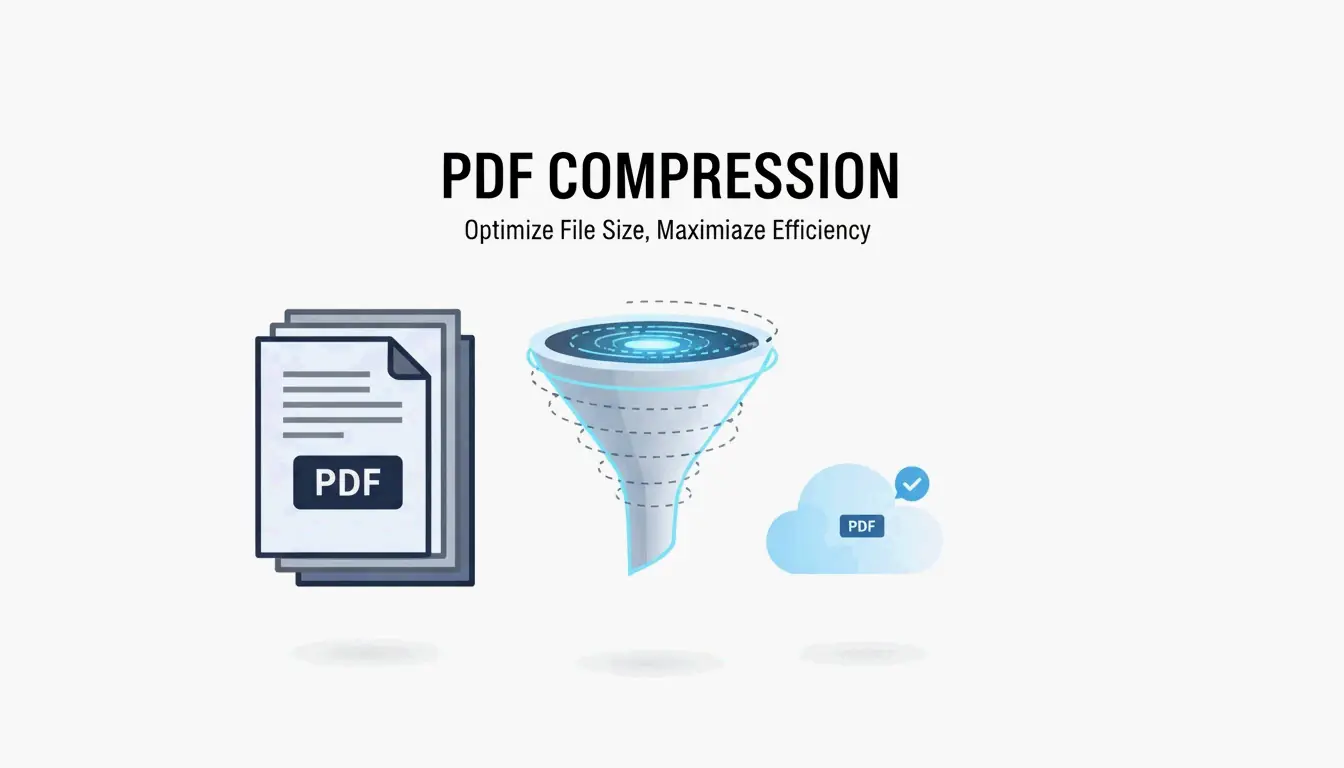
2026 में iPhone पर PDF कम्प्रेस करने के लिए, सबसे तेज़ तरीका इन-बिल्ट Files app है — अपने दस्तावेज़ को दबाकर रखें और «फ़ाइल का साइज़ अनुकूलित करें» चुनें। संवेदनशील दस्तावेज़ों के लिए स्थानीय ब्राउज़र टूल का उपयोग करें जो आपके डिवाइस की RAM में प्रोसेस होते हैं। सटीक साइज़ लक्ष्यों (जैसे सरकारी पोर्टल के लिए 500 KB) के लिए App Store से pdfFiller का उपयोग करें।
तीन तरीकों की तुलना
| तरीका | गति | गोपनीयता | साइज़ नियंत्रण | बैच | आदर्श बनाम |
|---|---|---|---|---|---|
| Files app (नेटिव) | तुरंत | पूर्ण (डिवाइस कभी नहीं छोड़ता) | कोई नहीं (स्वचालित) | नहीं | रोज़मर्रा का तेज़ कम्प्रेशन |
| स्थानीय ब्राउज़र टूल | तेज़ | पूर्ण (RAM में प्रोसेस) | कुछ (गुणवत्ता स्लाइडर) | सीमित | KYC दस्तावेज़, बैंक स्टेटमेंट |
| pdfFiller (App Store) | तेज़ | क्लाउड अपलोड | सटीक MB लक्ष्य | हाँ | सरकारी पोर्टल, टैक्स फ़ॉर्म |
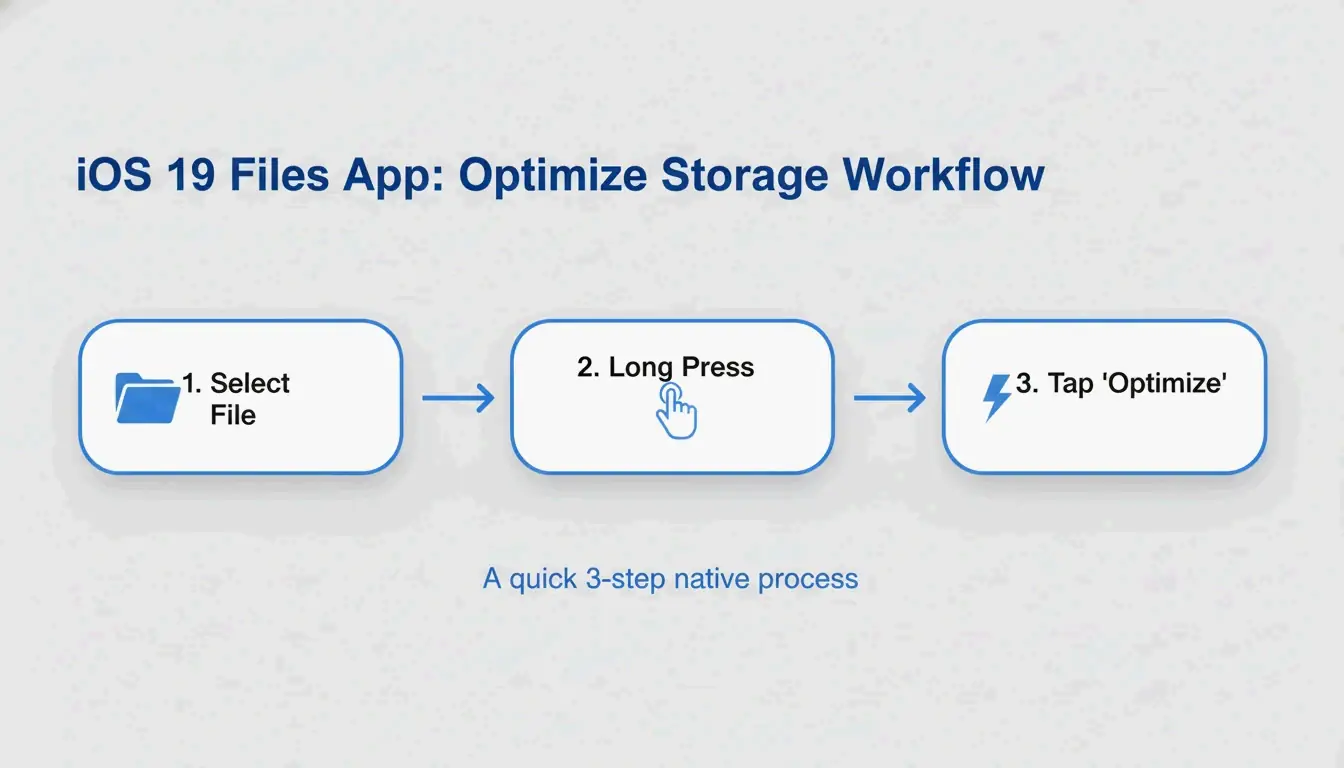
तरीका 1: Files app «फ़ाइल का साइज़ अनुकूलित करें» (iOS 19+)
एप्पल ने PDF कम्प्रेशन को सीधे Files app में शामिल किया है — किसी अतिरिक्त ऐप की आवश्यकता नहीं।
- iPhone पर Files app खोलें
- वह PDF खोजें जिसे आप कम्प्रेस करना चाहते हैं
- फ़ाइल आइकन को दबाकर रखें
- «फ़ाइल का साइज़ अनुकूलित करें» चुनें
- उसी फ़ोल्डर में एक छोटा वर्ज़न दिखाई देता है (आमतौर पर नाम में «optimized»)
FreePDFCompress नोट करता है कि आधुनिक कम्प्रेशन इमेज को फिर से एन्कोड करता है और अप्रयुक्त मेटाडेटा हटाता है, अक्सर फ़ाइल का साइज़ 90% तक कम कर देता है — जबकि वेक्टर टेक्स्ट पूरी तरह स्पष्ट रहता है।
फायदे: तुरंत, मुफ़्त, पूरी तरह निजी, इंटरनेट की आवश्यकता नहीं।
नुकसान: साइज़ नियंत्रण नहीं («बिल्कुल 500 KB» लक्ष्यित नहीं कर सकते), बैच प्रोसेसिंग नहीं।
तरीका 2: स्थानीय ब्राउज़र टूल (अधिकतम गोपनीयता)
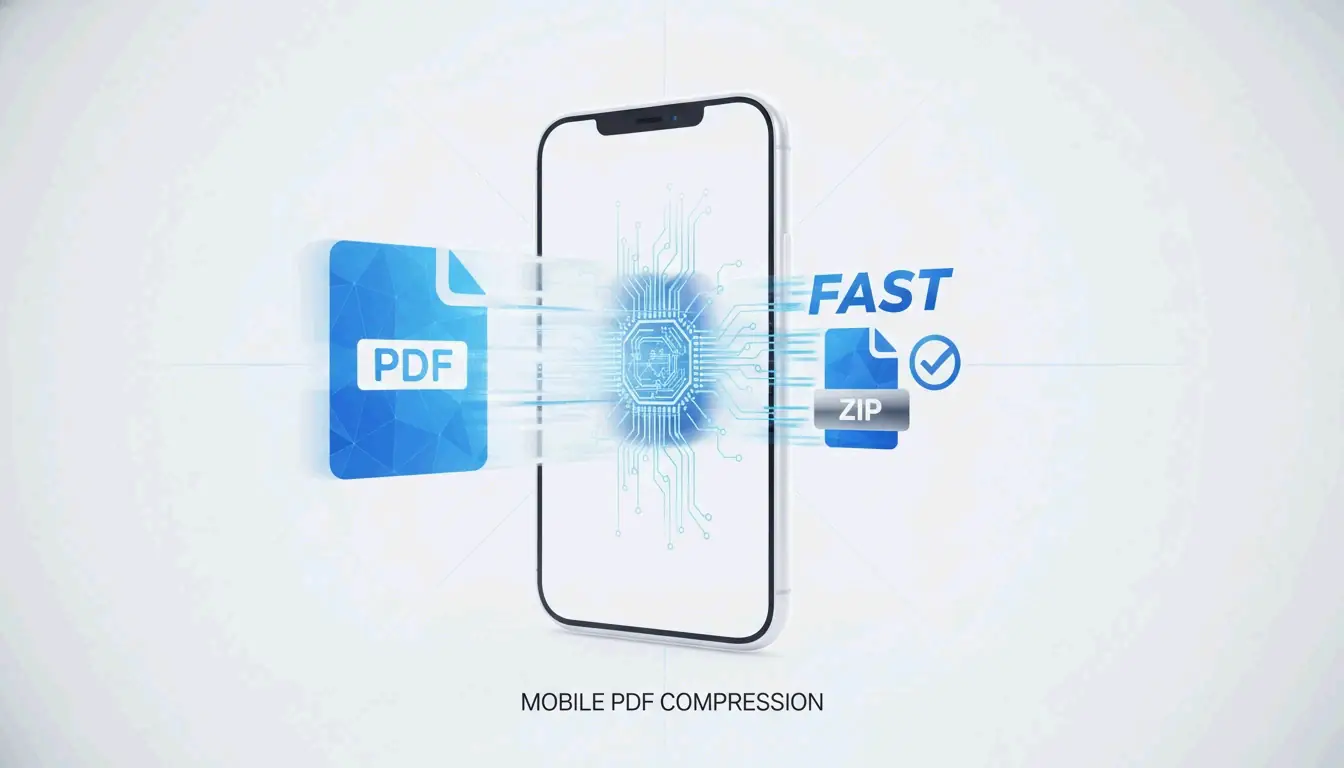
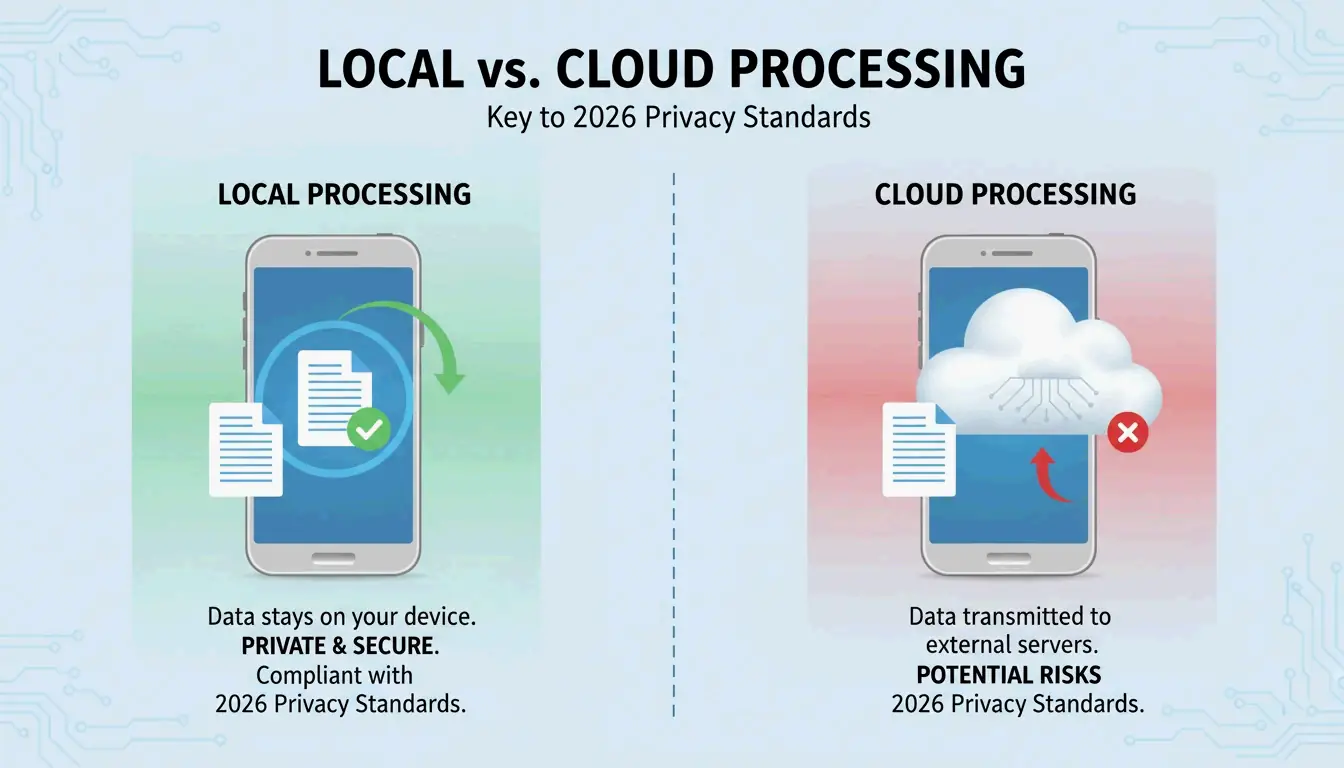
2026 तक, गोपनीयता मानक «सब कुछ क्लाउड में» के दृष्टिकोण से दूर चले गए हैं। स्थानीय ब्राउज़र टूल PDF को पूरी तरह आपके iPhone की RAM में प्रोसेस करने के लिए JavaScript का उपयोग करते हैं — आपका डेटा कभी भी किसी सर्वर पर प्रेषित नहीं किया जाता।
FreePDFCompress की पुष्टि करता है कि ये टूल अभी भी 90% साइज़ कमी हासिल करते हैं जबकि डेटा पूरी तरह डिवाइस पर रहता है। Safari में, गारंटी के रूप में एक «Processed Locally» बैज खोजें।
इस विधि का उपयोग कब करें:
– KYC (नो योर कस्टमर) दस्तावेज़
– बैंक स्टेटमेंट और टैक्स दस्तावेज़
– पहचान स्कैन और पासपोर्ट कॉपी
– कोई भी दस्तावेज़ जिसे आप ईमेल से किसी अजनबी को नहीं भेजेंगे
तरीका 3: pdfFiller (सटीक साइज़ लक्ष्य)
जब किसी सरकारी पोर्टल को बिल्कुल 500 KB या उससे कम की आवश्यकता हो, तो नेटिव विधि का «वन-साइज़-फिट्स-ऑल» दृष्टिकोण पर्याप्त नहीं है। pdfFiller (App Store) आपको विशिष्ट गुणवत्ता स्तर चुनने और पुष्टि से पहले अनुमानित फ़ाइल साइज़ देखने की सुविधा देता है।
pdfFiller तीन कम्प्रेशन स्तर प्रदान करता है — High, Medium, Low — वास्तविक समय के साइज़ अनुमानों के साथ।
- App Store से pdfFiller डाउनलोड करें
- अपना PDF अपलोड करें
- Compress पर टैप करें और अपना लक्ष्य स्तर चुनें
- अनुकूलित फ़ाइल सहेजें
एक साथ कई फ़ाइलों के लिए बैच प्रोसेसिंग का समर्थन करता है।
PDF कम्प्रेशन कैसे काम करता है: DPI, JPEG पुनः-एन्कोडिंग और वेक्टर टेक्स्ट
| घटक | कम्प्रेशन क्या करता है | गुणवत्ता पर प्रभाव |
|---|---|---|
| इमेज | कम गुणवत्ता पर JPEG पुनः-एन्कोडिंग | 96 DPI से नीचे दृश्यमान सॉफ्टनेस |
| DPI (रिज़ॉल्यूशन) | 300 → 96–150 DPI तक कम | स्क्रीन के लिए अच्छा; प्रिंटिंग से बचें |
| वेक्टर टेक्स्ट | अपरिवर्तित — किसी भी साइज़ पर स्पष्ट रहता है | गुणवत्ता में कोई हानि नहीं |
| मेटाडेटा | हटाए गए (EXIF, अप्रयुक्त फ़ॉन्ट) | कोई दृश्य प्रभाव नहीं; KB बचाता है |
IRCC Canada 2026 के डिजिटल मानकों के लिए 96–150 DPI को आदर्श बिंदु के रूप में अनुशंसित करता है — फ़ोन स्क्रीन पर टेक्स्ट को स्पष्ट रखते हुए फ़ाइल के वजन को काफी कम करता है।
मुख्य जानकारी: टेक्स्ट वेक्टर-आधारित है और कम्प्रेशन से परवाह किए बिना पूरी तरह स्पष्ट रहता है। केवल इमेज और स्कैन ही गुणवत्ता परिवर्तन दिखाते हैं।
2026 के लिए अपलोड लक्ष्य साइज़
| प्लेटफ़ॉर्म | अपलोड सीमा | अनुशंसित लक्ष्य |
|---|---|---|
| सरकारी / KYC पोर्टल | 200 KB – 2 MB | 500 KB |
| HR / रिज़्यूमे पोर्टल | 2 MB | 1 MB |
| Gmail / Outlook | 20–25 MB | 5 MB |
| WhatsApp (उपभोक्ता) | 16 MB | 2 MB |
| WhatsApp Business | 100 MB | 10 MB |
पहले से कम्प्रेस किए गए PDF को फिर से कभी कम्प्रेस न करें। FreePDFCompress चेतावनी देता है कि बार-बार कम्प्रेशन कलाकृतियां और धुंधलापन पैदा करता है। हमेशा मूल दस्तावेज़ से शुरू करें।
निष्कर्ष
रोज़मर्रा के कम्प्रेशन के लिए, Files app सबसे तेज़ और सबसे निजी है। संवेदनशील दस्तावेज़ों के लिए, «Processed Locally» बैज के साथ स्थानीय ब्राउज़र टूल का उपयोग करें। सटीक साइज़ लक्ष्यों (सरकारी फ़ॉर्म, टैक्स सबमिशन) के लिए, pdfFiller का उपयोग करें। सबमिट करने से पहले हमेशा 150 DPI पर टेक्स्ट पठनीयता की जांच करें।
अक्सर पूछे जाने वाले प्रश्न
क्या PDF को कम्प्रेस करने से टेक्स्ट पठनीयता क्षतिग्रस्त होती है?
नहीं। PDF टेक्स्ट वेक्टर-आधारित है — यह किसी भी कम्प्रेशन स्तर पर स्पष्ट रहता है। केवल एम्बेडेड इमेज और स्कैन ही DPI कमी से प्रभावित होते हैं। FreePDFCompress की पुष्टि है कि 150 DPI 2026 की मोबाइल स्क्रीन पर सब कुछ पठनीय रखता है।
मैं PDF को बिल्कुल 200 KB या 500 KB में कैसे कम्प्रेस करूं?
नेटिव Files app साइज़ नियंत्रण प्रदान नहीं करती। pdfFiller या StrongPDF का उपयोग करें — दोनों गुणवत्ता स्लाइडर और प्रीसेट प्रदान करते हैं। 200 KB तक पहुंचने के लिए, आपको आमतौर पर इमेज रिज़ॉल्यूशन 96 DPI तक नीचे लाना होगा।
क्या गोपनीय PDF को ऑनलाइन कम्प्रेशन सर्वर पर अपलोड करना सुरक्षित है?
संवेदनशील दस्तावेज़ों (पहचान पत्र, बैंक स्टेटमेंट, टैक्स फ़ॉर्म) के लिए, क्लाउड-आधारित कम्प्रेसर से बचें। स्थानीय ब्राउज़र टूल का उपयोग करें जो आपके डिवाइस की RAM में प्रोसेस होते हैं। यह पुष्टि करने के लिए कि आपका डेटा कभी आपका फ़ोन नहीं छोड़ता, «Processed Locally» बैज खोजें।
SectoJoy
Let Compress publishes practical guides for compression, conversion, and browser-based file workflows.
Follow SectoJoy