Slik komprimerer du PDF på iPhone: 3 raske måter å redusere størrelsen på (2026)
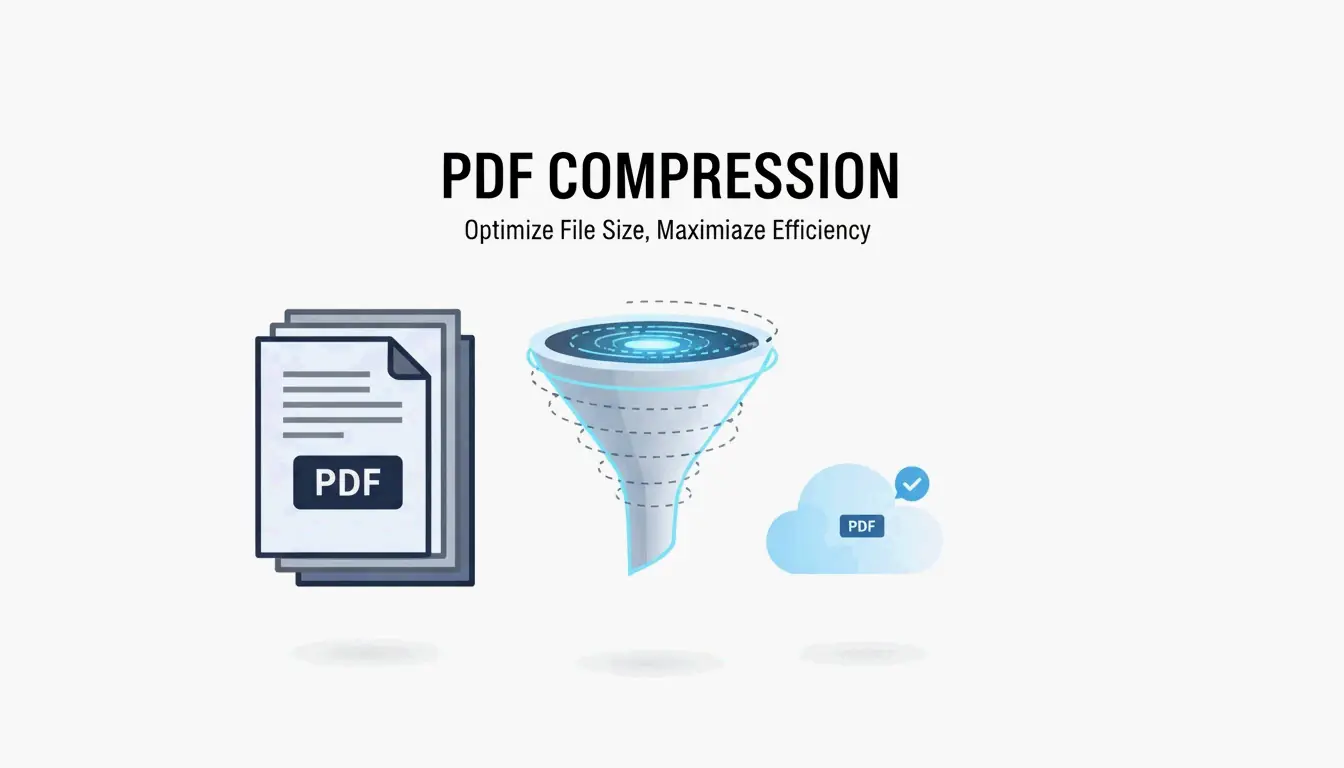
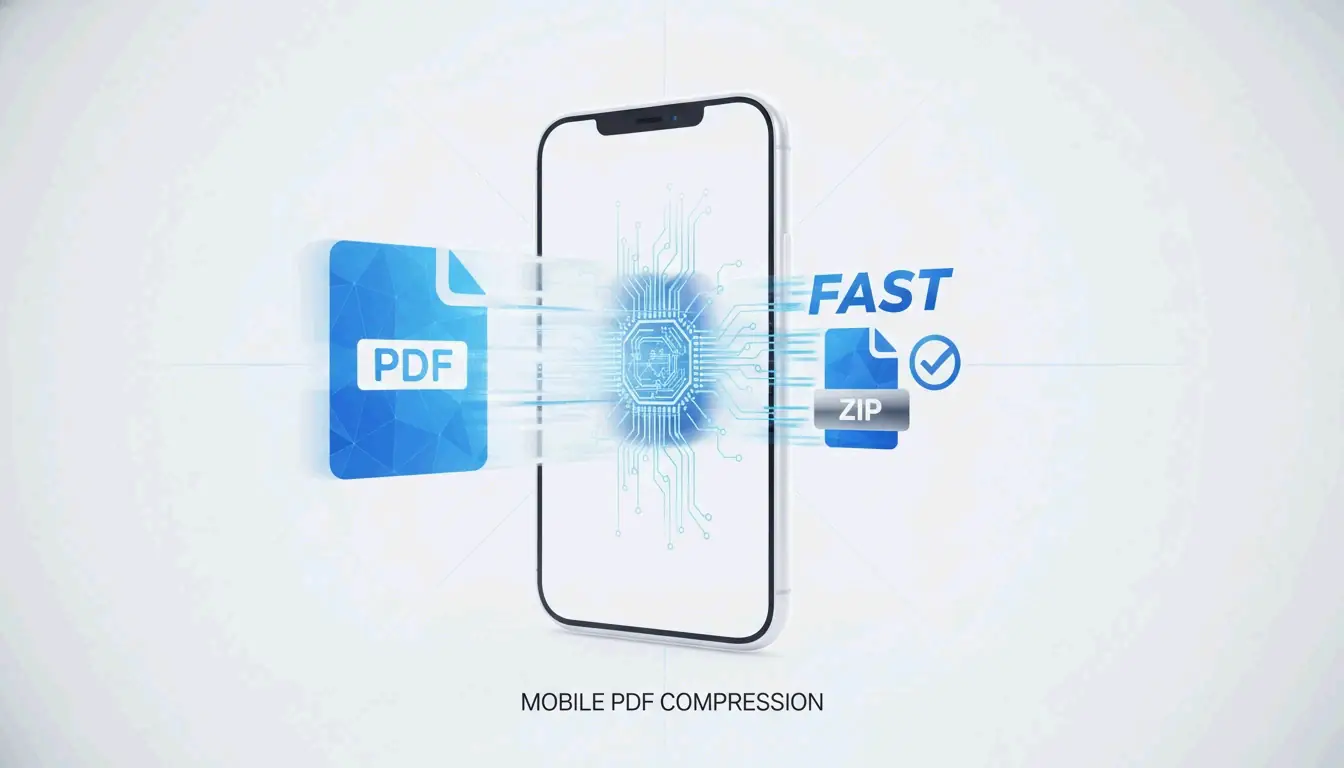
For å komprimere PDF på iPhone i 2026 er den raskeste metoden den innebygde Files app — hold dokumentet ditt og trykk på «Optimaliser filstørrelse». For sensitive dokumenter bruker du lokale nettleserverktøy som behandles i enhetens RAM. For nøyaktige størrelsesmål (f.eks. 500 KB for en offentlig portal) bruker du pdfFiller fra App Store.
Sammenligning av tre metoder
| Metode | Hastighet | Personvern | Størrelseskontroll | Bunke | Ideell for |
|---|---|---|---|---|---|
| Files app (innebygd) | Øyeblikkelig | Full (forlater aldri enheten) | Ingen (automatisk) | Nei | Rask daglig komprimering |
| Lokale nettleserverktøy | Rask | Full (behandles i RAM) | Litt (kvalitetsskyver) | Begrenset | KYC-dokumenter, bankutskrifter |
| pdfFiller (App Store) | Rask | Opplasting til sky | Nøyaktige MB-mål | Ja | Offentlige portaler, skjemaer |
Metode 1: Files app «Optimaliser filstørrelse» (iOS 19+)
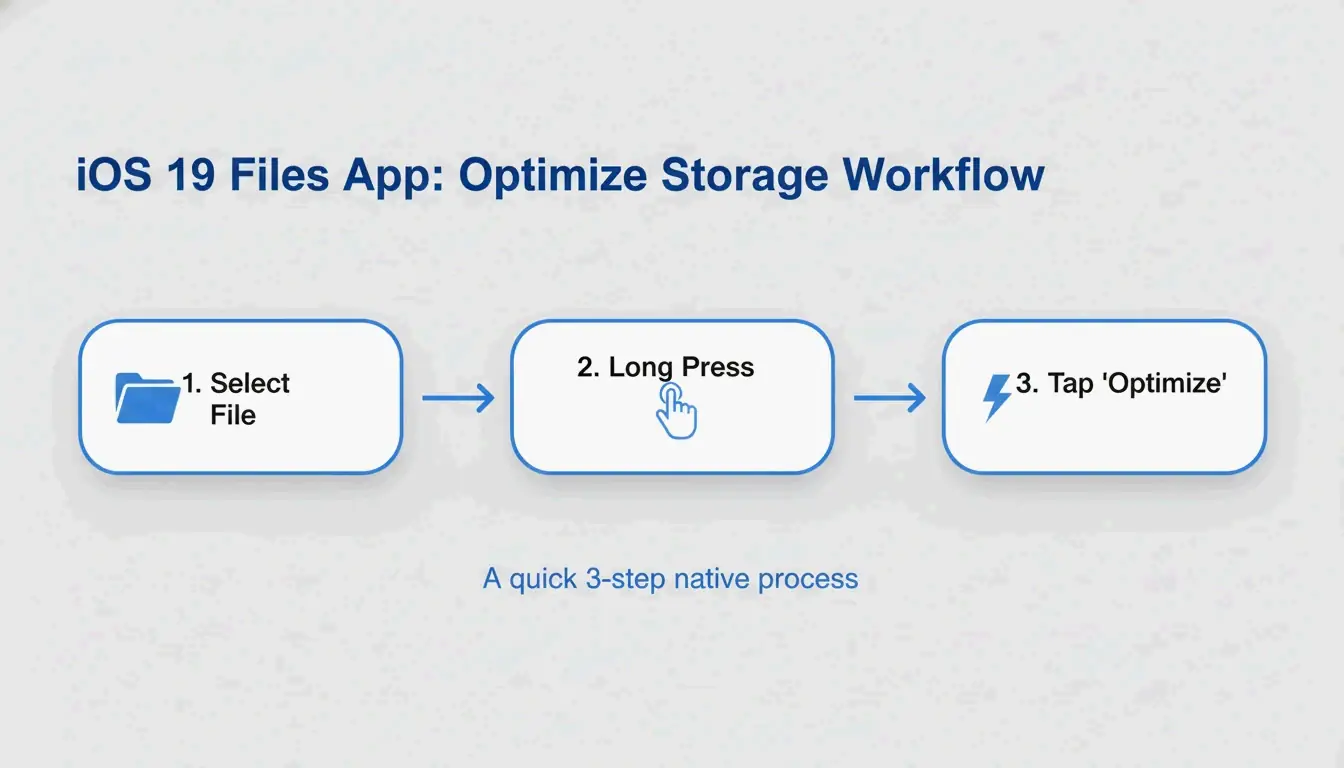
Apple har bygget PDF-komprimering rett inn i Files-appen — ingen ekstra apper trengs.
- Åpne Files app på iPhone
- Finn PDF-en du vil komprimere
- Hold inne filikonet
- Trykk på «Optimaliser filstørrelse»
- En mindre versjon vises i samme mappe (vanligvis med «optimized» i navnet)
FreePDFCompress bemerker at moderne komprimering omkoderer bilder og fjerner ubrukte metadata, og reduserer ofte filstørrelsen med opptil 90% — mens vektortekst holdes knivskarp.
Fordeler: Øyeblikkelig, gratis, fullt privat, trenger ikke internett.
Ulemper: Ingen størrelseskontroll (kan ikke sikte mot «nøyaktig 500 KB»), ingen bunkebehandling.
Metode 2: Lokale nettleserverktøy (maksimalt personvern)
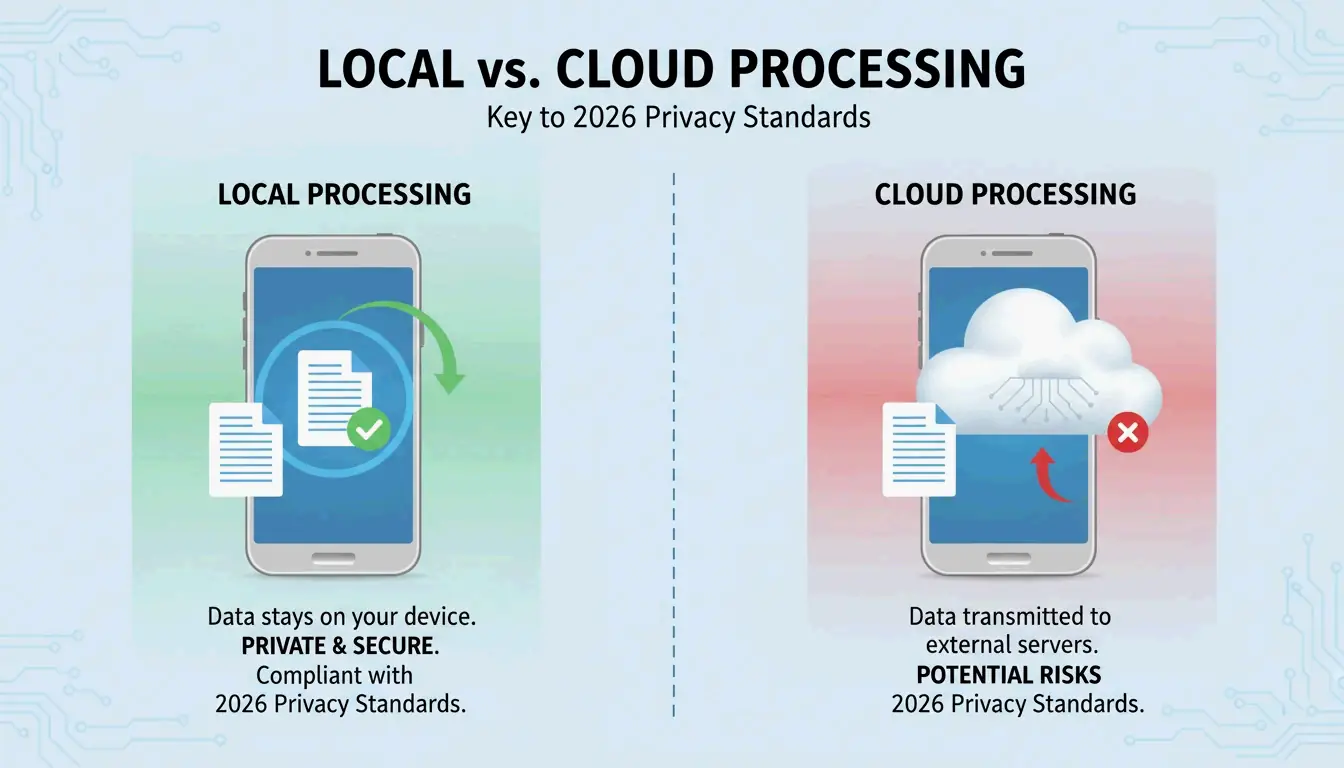
Innen 2026 har personvernstandarder beveget seg bort fra «alt-i-skyen»-tilnærmingen. Lokale nettleserverktøy bruker JavaScript til å behandle PDF-er helt i iPhone-ens RAM — dataene dine sendes aldri til noen server.
FreePDFCompress bekrefter at disse verktøyene fortsatt oppnår 90% størrelsesreduksjon mens dataene holdes fullstendig på enheten. I Safari ser du etter et «Processed Locally»-merke som garanti.
Når du bør bruke denne metoden:
– KYC-dokumenter (Kjent din kunde)
– Bankutskrifter og skattedokumenter
– ID-skanninger og passkopier
– Ethvert dokument du ikke ville sendt på e-post til en fremmed
Metode 3: pdfFiller (nøyaktige størrelsesmål)
Når en offentlig portal krever nøyaktig 500 KB eller mindre, holder ikke den innebygde metodens «en-størrelse-for-alle»-tilnærming. pdfFiller (App Store) lar deg velge bestemte kvalitetsnivåer og se estimert filstørrelse før du bekrefter.
pdfFiller tilbyr tre komprimeringsnivåer — High, Medium, Low — med størrelsesestimater i sanntid.
- Last ned pdfFiller fra App Store
- Last opp PDF-en din
- Trykk på Compress og velg målnivået ditt
- Lagre den optimaliserte filen
Støtter bunkebehandling for flere filer samtidig.
Hvordan PDF-komprimering fungerer: DPI, JPEG-omkoding og vektortekst
| Komponent | Hva komprimering gjør | Effekt på kvalitet |
|---|---|---|
| Bilder | JPEG-omkoding ved lavere kvalitet | Synlig utjevning under 96 DPI |
| DPI (oppløsning) | Redusert fra 300 → 96–150 DPI | Bra for skjermer; unngå for utskrift |
| Vektortekst | Uendret — holdes skarp i alle størrelser | Ingen kvalitetstap |
| Metadata | Fjernet (EXIF, ubrukte skrifter) | Ingen visuell effekt; sparer KB |
IRCC Canada anbefaler 96–150 DPI som det ideelle punktet for 2026s digitale standarder — holder teksten skarp på telefonskjermen samtidig som filstørrelsen reduseres betydelig.
Nøkkelinnsikt: Tekst er vektorbasert og holdes knivskarp uavhengig av komprimering. Kun bilder og skanninger viser kvalitetsendringer.
Opplastingsmålstørrelser for 2026
| Plattform | Opplastingsgrense | Anbefalt mål |
|---|---|---|
| Offentlige / KYC-portaler | 200 KB – 2 MB | 500 KB |
| HR-portaler / CV | 2 MB | 1 MB |
| Gmail / Outlook | 20–25 MB | 5 MB |
| WhatsApp (forbruker) | 16 MB | 2 MB |
| WhatsApp Business | 100 MB | 10 MB |
Aldri komprimer en PDF som allerede er komprimert. FreePDFCompress advarer om at gjentatt komprimering skaper artefakter og uskarphet. Start alltid fra originaldokumentet.
Konklusjon
For daglig komprimering er Files app den raskeste og mest private. For sensitive dokumenter bruker du lokale nettleserverktøy med «Processed Locally»-merket. For nøyaktige størrelsesmål (offentlige skjemaer, skatteinnleveringer) bruker du pdfFiller. Sjekk alltid tekstlesbarhet ved 150 DPI før innsendelse.
Vanlige spørsmål
Skader komprimering av en PDF tekstens lesbarhet?
Nei. PDF-tekst er vektorbassert — den holdes skarp på ethvert komprimeringsnivå. Bare innebygde bilder og skanninger påvirkes av DPI-reduksjon. FreePDFCompress bekrefter at 150 DPI holder alt lesbart på 2026s mobile skjermer.
Hvordan komprimerer jeg en PDF til nøyaktig 200 KB eller 500 KB?
Den innebygde Files-appen tilbyr ikke størrelseskontroll. Bruk pdfFiller eller StrongPDF — begge tilbyr kvalitetsskyvere og forhåndsinnstillinger. For å nå 200 KB må du typisk senke bildeoppløsningen til 96 DPI.
Er det trygt å laste opp konfidensielle PDF-er til komprimeringstjenere på nett?
For sensitive dokumenter (ID-er, bankutskrifter, skjemaer) unngå skybaserte komprimerere. Bruk lokale nettleserverktøy som behandles i enhetens RAM. Se etter et «Processed Locally»-merke for å bekrefte at dataene dine aldri forlater telefonen.
SectoJoy
Let Compress publishes practical guides for compression, conversion, and browser-based file workflows.
Follow SectoJoy