
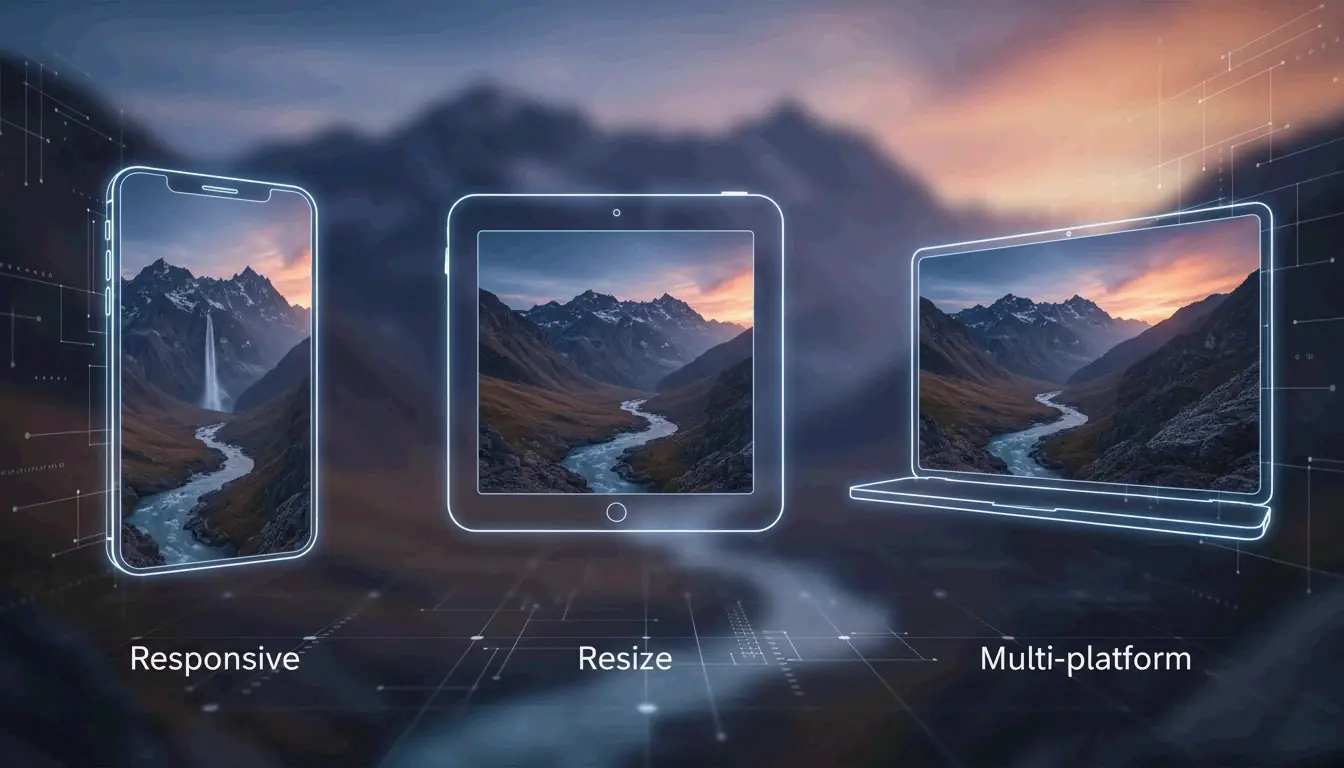
이미지 리사이즈 가이드: 사진 크기를 빠르게 조정하는 완전 튜토리얼
2026년에 이 이미지 리사이즈 가이드를 잘 활용하려면, 파일을 Adobe Express 같은 도구에 업로드하고 목표 픽셀 크기(예: Instagram 세로형 1080×1350)를 설정한 뒤, 왜곡을 막기 위해 가로세로비를 잠그세요. 사진은 JPEG로, 웹용은 WebP로 저장하여 로딩을 빠르게 합니다.
빠른 시작: 화질 손실 없이 이미지를 리사이즈하는 방법
이미지 리사이즈는 픽셀 총수를 변경하여 물리적 크기를 조정하는 것을 의미합니다. 이는 자르기와 다릅니다. 자르기는 사진의 가장자리를 잘라내지만, 리사이즈는 전체 그림을 그대로 유지하면서 파일 크기만 바꾸어 업로드나 전송을 쉽게 합니다.
BharatTodayTech의 사례 연구에 따르면, 적절한 온라인 도구를 사용하면 흔한 업로드 오류 — 예를 들어 “파일 크기는 200×200에서 400×400 픽셀 사이여야 합니다” — 를 약 30초 만에 해결할 수 있습니다.
3단계 범용 리사이즈 프레임워크
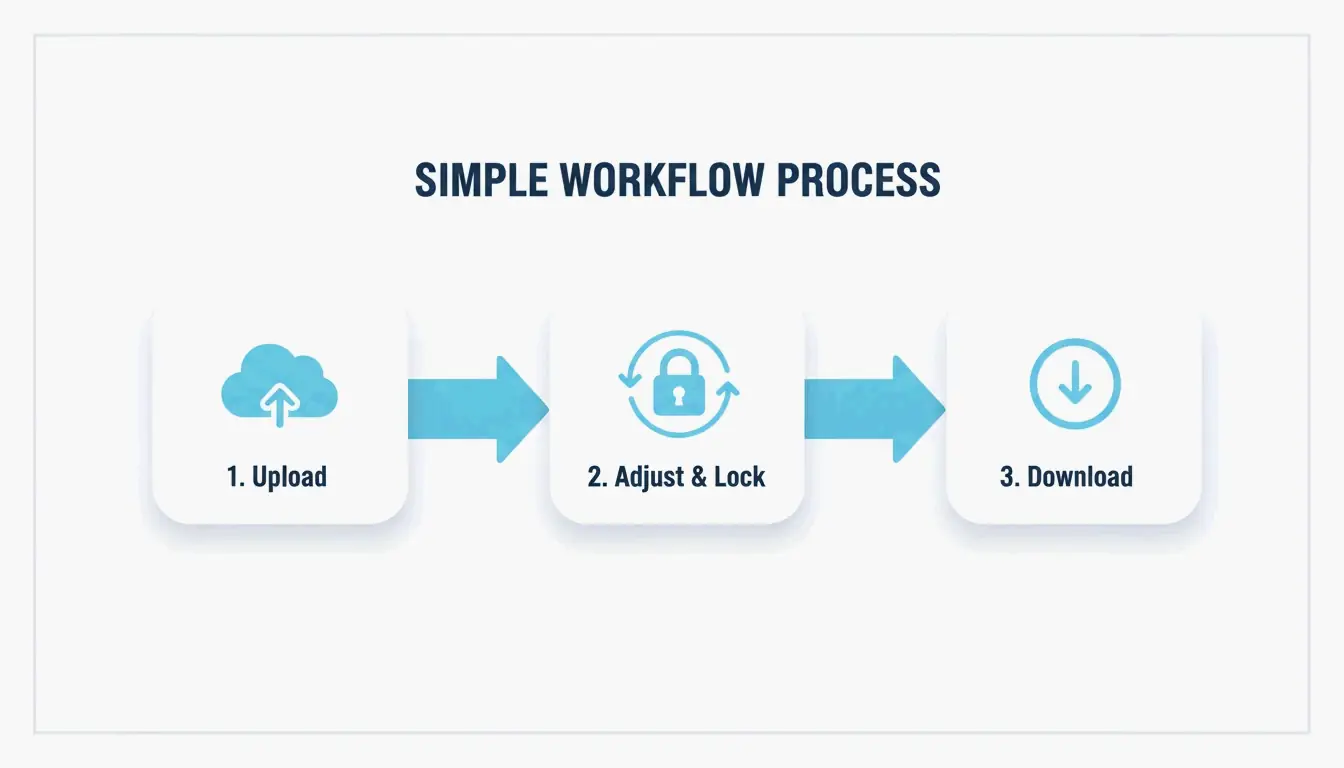
2026년에 전문적인 결과를 얻으려면 이 간단한 워크플로를 따르세요:
- 이미지 업로드: Adobe Express나 PDFCraftor 같은 브라우저 기반 도구를 엽니다. JPG, PNG, WebP 파일을 편집기로 직접 끌어다 놓으세요.
- 크기 설정 및 비율 잠금: 목표 너비나 높이를 입력하세요. 가로세로비를 잠그는 것이 매우 중요합니다. 이렇게 하면 너비를 바꿀 때 높이가 자동으로 조정되어 이미지가 찌그러지거나 “눌려” 보이지 않습니다.
- 처리 및 다운로드: 크기가 적절해 보이면 파일을 다운로드합니다. Photo & Picture Resizer 같은 최신 앱은 이들을 자동으로 새 폴더에 저장하므로 원본 고해상도 사진이 안전하게 보존됩니다.
2026 소셜 미디어 마스터 그리드: Instagram 이미지 크기 그 이상
2026년, 소셜 플랫폼은 고급형 모바일 화면에서 선명하게 보이기 위해 특정 해상도를 요구합니다. Instagram가 피드 이미지를 612px 너비로 표시할 수 있지만, 흐려 보이지 않으려면 최소 1080px로 업로드해야 합니다.
| 포맷 | 크기 | 가로세로비 |
|---|---|---|
| Instagram 세로형 피드 | 1080 × 1350 px | 4:5 |
| Instagram 정사각형 피드 | 1080 × 1080 px | 1:1 |
| Instagram 스토리와 Reels | 1080 × 1920 px | 9:16 |
| 프로필 사진 | 320 × 320 px | 1:1 |
Picssizer의 데이터에 따르면 세로형(4:5) 포맷이 일반적으로 피드 게시물에 가장 좋은 선택입니다. 화면에서 더 많은 수직 공간을 차지해 일반적으로 더 나은 참여를 이끌어냅니다.
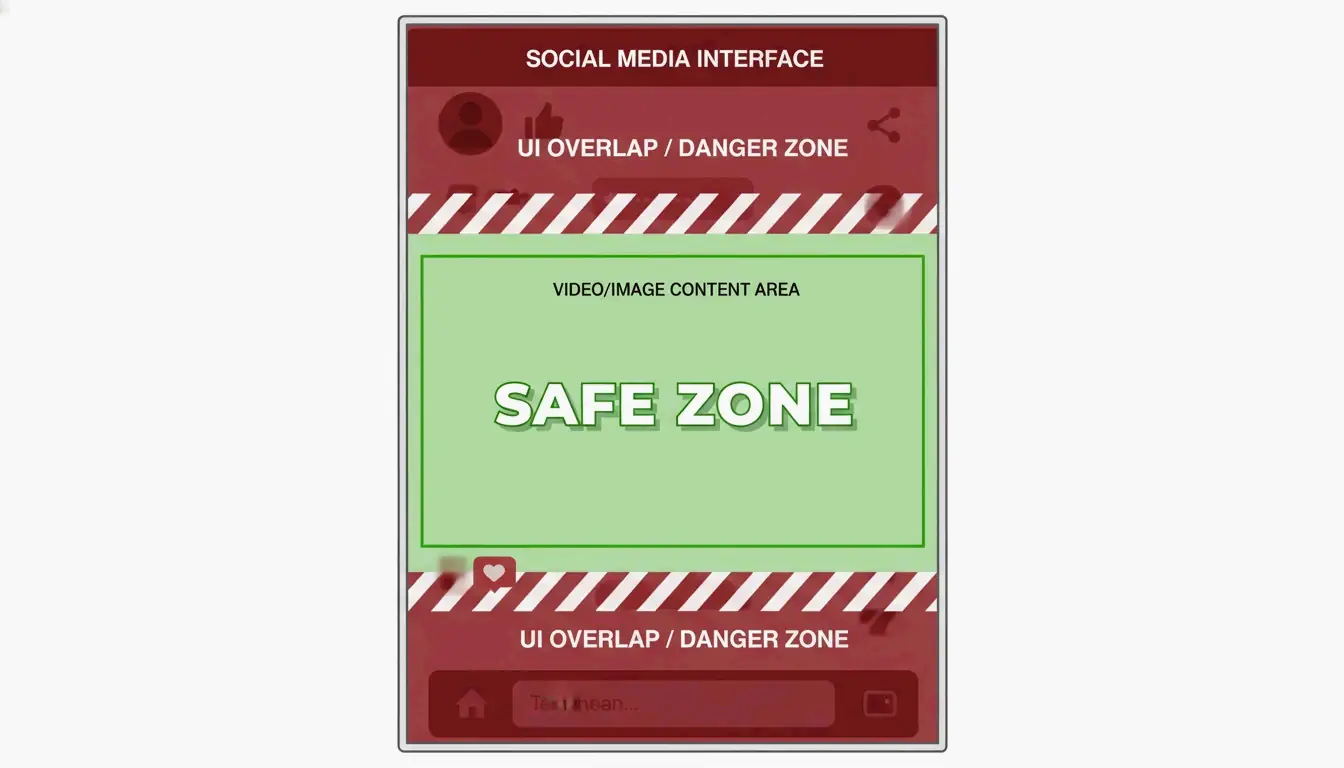
안전 영역: 2026 UI에서 ‘숨겨진 텍스트’ 함정 피하기
2026년의 흔한 실수는 “UI 겹침”을 잊는 것입니다. 앱 버튼, 캡션, 아이콘이 이미지의 일부를 가립니다. 스토리와 Reels(1080×1920)에서는 가장 중요한 콘텐츠를 중앙 안전 영역(약 1080×1420 px)에 두세요.
Picssizer가 지적하듯이, 위아래에 최소 250px의 여백을 남겨야 합니다. 이렇게 하면 텍스트나 스티커가 앱의 인터페이스 요소 아래에 묻히지 않습니다.
올바른 포맷 선택: JPEG, PNG, 아니면 WebP?
리사이즈 후 올바른 포맷을 선택하는 것은 크기 자체만큼이나 중요합니다. 2026년 각 포맷의 용도는 다음과 같습니다:
- JPEG/JPG: 사진의 표준입니다. 디테일과 파일 크기 사이의 좋은 균형을 제공합니다. 소셜 미디어에서는 플랫폼이 다시 압축할 때 “블록” 형태의 아티팩트가 생기지 않도록 80~90% 품질로 저장해 보세요.
- PNG: 투명한 배경이 있는 로고나 그래픽에 가장 좋습니다. 파일은 JPEG보다 크지만 텍스트와 가장자리가 선명하게 유지됩니다.
- WebP: 2026년 웹사이트 SEO의 표준입니다. WebP는 이전 포맷보다 더 나은 압축을 제공하여 사이트 로딩을 돕습니다.
O’Brien Media에 따르면, 이미지를 정확한 표시 크기로 리사이즈하면 파일 크기를 80% 이상 줄일 수 있습니다. 파일이 작을수록 페이지 속도가 빨라지므로 Google 순위에 큰 의미가 있습니다.
여러 사진을 한 번에 일괄 리사이즈할 수 있나요?
갤러리 전체를 처리해야 한다면, 하나씩 하는 것은 시간 낭비입니다. 2026년에는 일괄 리사이즈가 대규모 프로젝트를 처리하는 표준 방법입니다.
Windows 사용자는 Image Resizer 같은 가벼운 도구를 사용하여 이미지 그룹 전체를 한 번에 변경할 수 있습니다. macOS에서는 기본 단축어 앱이나 미리보기로 같은 작업을 할 수 있습니다.
모바일에서는 Photo & Picture Resizer 앱이 4MB 사진을 약 400KB로(800×600 해상도에서) 눈에 띄는 화질 손실 없이 줄일 수 있습니다. 이는 너무 커서 보낼 수 없는 이메일 첨부 파일을 보낼 때 완벽합니다.
결론
리사이즈는 단순히 숫자를 바꾸는 것이 아닙니다. 올바른 크기를 선택하고, 비율을 안정적으로 유지하며, WebP 같은 최신 포맷을 사용하여 모든 화면에서 전문적으로 보이게 하는 것입니다. 2026년 픽셀 크기와 가로세로비 기준을 따르면 찌그러진 이미지를 피하고 콘텐츠를 선명하게 유지할 수 있습니다. 먼저 플랫폼의 안전 영역을 확인한 다음, 일괄 리사이즈 도구를 사용해 전체 사진 라이브러리를 몇 초 만에 정리하세요.
FAQ
리사이즈와 자르기의 차이는?
리사이즈는 이미지 전체의 픽셀 총수와 물리적 크기를 변경하여 모든 원본 콘텐츠를 다른 축척으로 보존합니다. 자르기는 구도를 바꾸거나 특정 가로세로비에 맞추기 위해 사진의 바깥 가장자리를 제거하며, 원본 이미지의 일부가 버려집니다.
화질 손실 없이 이미지를 리사이즈하려면?
축소는 일반적으로 픽셀을 작게 만들거나 중복 데이터를 제거하는 것뿐이므로 선명도 면에서 무손실 과정입니다. 단, 확대(업사이징)의 경우 이미지가 흐려지거나 픽셀이 깨지는 것을 막기 위해 AI 보간이나 업스케일링 도구를 사용해야 합니다.
이미지를 리사이즈하면 파일 크기(MB)가 줄어드나요?
네, 픽셀 크기를 줄이면 데이터가 직접 제거되어 파일의 MB나 KB 수가 크게 낮아집니다. 2026년에는 물리적 리사이즈와 WebP 같은 최신 포맷 변환을 결합할 때 웹과 모바일에 가장 효과적인 압축 결과를 얻을 수 있습니다.
SectoJoy
Let Compress publishes practical guides for compression, conversion, and browser-based file workflows.
Follow SectoJoy



